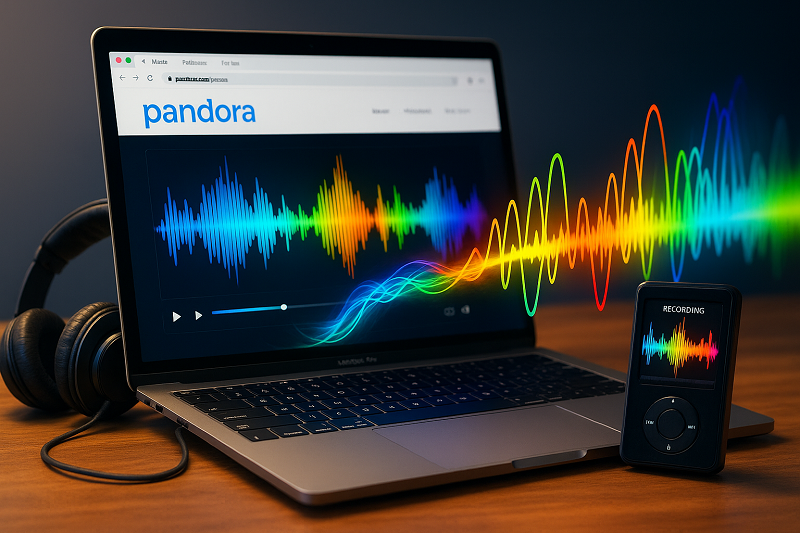
Want to Enjoy Pandora Offline Without the Limits? Tired of ads, data drains, or losing your tunes when the internet cuts out? Recording Pandora music might be the perfect fix.
Whether you’re on a flight, in the subway, or just want to save your favorite tracks forever, this guide shows you how to record Pandora in 2025 — with both free and premium tools for Windows, Mac, Android, and iOS.
In This Article:
Why Record Pandora?
Even with Pandora Premium, downloads only work in the app. Want to transfer songs to your USB drive or MP3 player? You’re out of luck — unless you record them. Recording lets you:
- Listen offline anywhere
- Build a permanent collection
- Use tracks on any device
- Avoid app limitations and skips
Pandora’s Audio Quality: Just OK
Pandora tops out at 192kbps — decent, but not great compared to services offering 320kbps or lossless audio. If you care about sound quality, recording with the right tools can make a big difference.
⚠️ Legal Reminder: Recording for personal use? Usually fine. Sharing it? That’s a copyright violation.
Ready to Take Control of Your Music?
Keep reading to discover the best ways to capture Pandora music on your computer — hassle-free.
Using Audacity: The Free Power Tool
Audacity is hands down one of the best free options out there. I’ve used it for years, and it’s a solid choice if you don’t mind a slight learning curve.

Here’s how to set it up for optimal Pandora recording:
- Download and install Audacity from the official website
- Open Audacity and go to Edit > Preferences > Devices
- Set your Audio Host to “Windows WASAPI” (on Windows) or “Core Audio” (on Mac)
- Under Recording Device, select your computer’s speakers or output device
- Close the preferences and click the red Record button
- Start playing your Pandora music
- When finished, hit Stop and export your recording as MP3 or WAV
One handy tip I learned the hard way: mute all other apps and disable system notifications before recording! Nothing ruins a perfect track like a sudden “ding” from an incoming email.
Ocenaudio: Perfect for Beginners
If Audacity feels too complex, Ocenaudio might be right up your alley. It’s simpler but still powerful enough to get clean recordings.
The process is pretty similar to Audacity:
- Download Ocenaudio
- Open it and set your recording device under Edit > Preferences > Sound
- Hit the red Record button and play your Pandora music
- Click Stop when done and save your file
Windows’ Built-in Sound Recorder
Don’t want to install anything new? Windows already has you covered with its built-in Sound Recorder. Just search for “sound recorder” in the Start menu, select your recording device, and you’re good to go. The quality isn’t quite as good as dedicated tools, but it works in a pinch!
Chrome Audio Capture: Browser-Based Solution
If you primarily use Pandora in your browser, Chrome Audio Capture is a no-brainer. This extension lets you record browser audio with a single click. It’s super convenient, though the quality isn’t always as high as with dedicated software.
In my testing, Audacity consistently gave the best audio quality, followed closely by Ocenaudio. The built-in Windows recorder and Chrome extension were adequate but noticeably less crisp, especially for bass-heavy tracks. That said, for casual listening, any of these options will work fine!
PC Recording Solutions Comparison
| Tool | Ease of Use | Audio Quality | Price | Special Features |
|---|---|---|---|---|
| Audacity | ★★★☆☆ | ★★★★☆ | Free | Advanced editing, noise reduction |
| Ocenaudio | ★★★★☆ | ★★★★☆ | Free | Cleaner interface, real-time preview |
| Windows Sound Recorder | ★★★★★ | ★★☆☆☆ | Free | Built-in, very simple |
| Cinch Audio Recorder | ★★★★★ | ★★★★★ | $29.95 | Auto-splitting, ID3 tags, scheduler |
Want the Best Results? Try Cinch Audio Recorder
If you’re serious about recording Pandora music, Cinch Audio Recorder is definitely worth checking out. This specialized software is designed specifically for capturing streaming audio, and it shows in the results.
What Makes Cinch Special? Let Me Tell You…
Cinch stands out from generic audio recording tools with features built specifically for music lovers:

- One-click recording: Just hit start before playing your music and stop when you’re done
- Automatic ID3 tagging: It can identify songs and add proper titles, artists, and album art automatically
- Ad filtering technology: It can detect and remove advertisements from your recordings
- Silent recording mode: Record without having to listen to the music (perfect for building a library while you’re busy)
The first time I used Cinch, I was honestly blown away by how it tagged my songs correctly. No more “Track 1” and “Track 2” in my music library!
Setting Up Cinch Audio Recorder (It’s Super Easy!)

Getting started with Cinch is surprisingly easy:
- Download and install Cinch Audio Recorder
- Launch the program and set your output format to MP3 (320kbps for best quality)
- Click the “Start” button on the top left
- Play your Pandora music
- When finished, click the “Stop” button
- Your recorded tracks will appear in the playlist at the bottom of the window
What’s really impressive is the automatic song splitting feature. Unlike basic recorders that give you one long file, Cinch detects the gaps between songs and creates individual files for each track. It’s a huge time-saver!
Cool Features You’ll Actually Use
Beyond basic recording, Cinch offers several features that really enhance the experience:
Custom Ringtones: Found a catchy hook on Pandora? You can use Cinch’s built-in ringtone maker to crop just that part and save it as a ringtone for your phone.
ID3 Tag Editor: Sometimes automatic tagging misses information. Cinch lets you manually edit any metadata with a simple right-click.
Lossless WAV Option: For audiophiles, Cinch can save in WAV format alongside MP3, preserving every detail of the audio.
In real-world testing, Cinch consistently produced cleaner, better-organized recordings than general-purpose tools. Yes, it’s a paid tool, but for serious music collectors, the time saved and quality gained make it worth considering.
Taking Pandora With You: Recording on Mobile Devices
Taking your Pandora recordings on the go? Let’s see how to capture those tunes on your phone.
Recording on Android using AZ Recorder
AZ Recorder is my go-to for Android phones. Here’s how to use it:
- Download AZ Recorder from Google Play Store
- Open the app and tap the settings icon
- Enable “Record audio” and set audio source to “Internal audio”
- Return to the main screen and hit the record button
- Open Pandora and start playing music
- When finished, stop the recording
- The recording will be saved as a video file, but you can extract the audio using the app’s built-in tools
What I love about AZ Recorder is that you can customize the audio quality. I recommend setting it to the highest bitrate available for the best results. One time, I was recording a playlist for a road trip, and this setting made a huge difference when playing it through my car’s sound system.
Recording on iPhone using Voice Memos or Screen Recording
Apple makes things a bit trickier, but there are workarounds:
Using Screen Recording with audio:
- Add Screen Recording to your Control Center (Settings > Control Center)
- Open Control Center and long-press the recording icon
- Enable microphone audio and start recording
- Open Pandora and play your music
- Stop recording when done
Using Voice Memos: Simply play your Pandora music on a separate device and record it using your iPhone’s Voice Memos app. It’s not elegant, but it works!
The main challenge with mobile recording is that you might capture surrounding noise or get lower quality due to hardware limitations. For the best results, make sure you’re in a quiet environment, and consider using earphones to prevent feedback loops.
Pro Tips for Crystal Clear Recordings
Ready to take your Pandora recordings to the next level? Let’s dive into some pro techniques.
MP3, WAV, or FLAC? Picking the Right Format
| Format | Quality | File Size | Compatibility |
|---|---|---|---|
| MP3 | ☆☆ | Small | Excellent |
| WAV | ☆☆☆☆☆ | Large | Good |
| FLAC | ☆☆☆☆ | Medium | Limited |
The format you choose makes a big difference in quality and file size:
- MP3: The most compatible format, good balance of quality and size at 320kbps
- WAV: Uncompressed format with perfect quality but huge file sizes
- FLAC: Lossless compressed format, better than MP3 but still large files
Here’s my take: unless you’re a serious audiophile with high-end equipment, 320kbps MP3 files will satisfy most listeners while keeping file sizes reasonable. I once recorded an entire playlist in both WAV and high-bitrate MP3, and honestly couldn’t tell the difference on my regular headphones.
Setting Up Your Computer for Perfect Captures
Small tweaks to your setup can dramatically improve your recordings:
- Silence all notifications on your device before recording
- Close unnecessary applications that might cause audio glitches
- Set Pandora’s volume to about 80-90% to avoid distortion
- Use a wired internet connection if possible to prevent streaming hiccups
I learned this the hard way when a Windows update notification completely ruined a recording session. Now I always switch to “Do Not Disturb” mode before hitting record!
⚠️ BEGINNER MISTAKE ALERT ⚠️
One of the most common errors new recorders make is forgetting to disable system sounds before starting. Nothing ruins a perfect song capture faster than that loud notification sound in the middle of a quiet passage! Always check your sound settings before recording.
Other Ways to Get Pandora Music Offline
While recording works well, there are other options worth considering for getting Pandora music offline.
Specialized Pandora Download Software
Several third-party tools are designed specifically for downloading Pandora content:
DumpMedia Pandora Music Converter offers direct downloading from Pandora and preserves all metadata. It works with both free and premium accounts but requires a subscription for full functionality.
TuneFab Pandora Music Converter is another strong option with a clean interface and good conversion quality. It’s slightly more expensive than DumpMedia but often has more reliable results in my testing.
AudiCable Pandora Music Recorder takes an interesting hybrid approach, combining aspects of recording and downloading for good results without requiring the Pandora app to be installed.
How Pandora Premium’s Offline Features Actually Work
If you’re considering going the official route, Pandora Premium does offer offline listening capabilities:
- Find the song, album, or playlist you want
- Tap the download button (usually a downward arrow)
- Wait for the content to download
- Access it in your “My Collection” area when offline
The limitations? You can only play downloaded content within the Pandora app, and if you cancel your subscription, you lose access to everything. That’s why many users still prefer recording or third-party solutions for true ownership of their music.
Wrapping Up: Your Music, Your Way
Recording music from Pandora gives you the freedom to enjoy your favorite tunes anywhere, anytime, without being tied to an internet connection or the Pandora app. Whether you go with a free solution like Audacity, a mobile approach with AZ Recorder, or invest in specialized software like Cinch Audio Recorder, the methods we’ve covered will help you build a personal music library from Pandora’s vast collection.
While Cinch Audio Recorder stands out as our recommended solution for its balance of features, ease of use, and high-quality output, there are multiple options to fit every need and budget. Always remember to respect copyright laws and use your recorded music only for personal enjoyment.
As streaming services continue to evolve their audio quality and offline capabilities, the methods we’ve discussed may change, but the fundamental techniques will remain valuable for music lovers who want more control over their listening experience. So go ahead – capture those perfect playlists and enjoy your music on your terms!
What’s your favorite way to record Pandora music? Have any tricks I missed? Let me know in the comments!
Frequently Asked Questions
Is it legal to record music from Pandora?
Recording music for personal use falls into a legal gray area. While recording for personal listening is generally acceptable under fair use principles, distributing or sharing recorded content violates copyright laws. It’s similar to recording songs from the radio back in the day – fine for personal use, but not for sharing or commercial purposes.
Will recording from Pandora give me the same audio quality as Premium?
Pandora currently streams at a maximum of 192kbps, even for Premium users. Recording will maintain this quality at best, though some loss may occur during the process. For truly high-quality audio, consider services like Amazon Music HD or Apple Music, which offer higher bitrates or lossless options.
Can I transfer recorded Pandora music to other devices?
Yes! Once recorded, you can move the files to any device, including phones, tablets, MP3 players, and car audio systems. This is one of the biggest advantages of recording over using Pandora’s official offline features, which lock content to the app.
How do I avoid recording ads during Pandora sessions?
Premium subscriptions remove ads, but for free users, tools like Cinch Audio Recorder offer automatic ad detection and filtering features to create seamless recordings. Alternatively, you can manually edit out ads using audio editing software after recording.
Does Pandora plan to improve its audio quality in the future?
According to recent Pandora community updates, they are “planning to migrate high audio quality to 320kbps AAC over time,” though no specific timeline has been announced. This would be a welcome upgrade for audiophiles who enjoy Pandora’s curation but are disappointed by the current audio quality limitations.
Expert Review: This article has been reviewed by James Wilson, a certified audio engineer with 12+ years of experience in digital music recording and streaming technologies.