Last month, I bought a rare vinyl-only album that just dropped on 7digital in FLAC format. Great, right? Well, my CDJ setup at the club doesn’t play FLAC files.
That’s when I realized downloading isn’t always the final step. Sometimes you need to record, convert, or at least verify what you’re actually getting.
Not gonna lie, I spent way too much time figuring this out.
If you’ve ever questioned whether your 7digital files are truly high quality, or wondered how to capture them in a format that works everywhere, this guide covers everything from recording methods to quality verification. I’ll show you what actually works.
In This Article:
Understanding 7digital Audio Formats
Before we get into recording, you need to know what 7digital actually sells. I’ve tested over 20 albums from 7digital, and here’s what I’ve discovered about their encoding.

What Audio Formats Does 7digital Offer?
7digital gives you two main options: MP3 at 320kbps CBR and FLAC in CD quality (16-bit/44.1kHz). Some albums—usually the hi-res reissues—offer FLAC 24-bit, though I’d say that’s maybe 10% of their catalog? Could be less.
The important part? Everything is DRM-free.
You buy it, you own it. No rental nonsense like some streaming services.
In my experience, their MP3s are consistently well-encoded. But I always grab FLAC when available—more on why later.
MP3 320kbps vs FLAC: Real-World Comparison
Here’s the breakdown:
| Aspect | MP3 320kbps | FLAC |
|---|---|---|
| File Size | ~10MB per track | ~30-40MB per track |
| Audio Quality | Perceptually lossless | Bit-perfect lossless |
| CDJ Compatibility | ✅ Universal | ❌ Limited |
| Storage Requirements | Low | High |
| Future-proofing | Good | Best |
I used to think 320kbps was overkill. Like, why would anyone need more than that?
Then I A/B tested on studio monitors. Couldn’t hear a difference from FLAC in most tracks—maybe 1 out of 10 if I really concentrated. But having the lossless source means I can transcode to any format later without generational loss.
That changed how I buy music.
Is 7digital DRM-Free? (What That Actually Means)
Yes. True DRM-free. Not a rental, you own the files.
There is one tiny thing: 7digital embeds a metadata watermark in the files that says “Purchased from 7digital” in the ID3 tags.
Doesn’t affect playback. Doesn’t stop you from backing up or converting files. It’s just a text field.
Quick tip: you can edit it out with Mp3tag if it bothers you. Takes like 10 seconds. Maybe 15 if you’re doing a whole album.
Why Record 7digital Music to MP3
Here’s why I sometimes record instead of just downloading.
Common Use Cases Where Recording Makes Sense
Most people think: “Why record when I can just download?” Fair question. Here are the scenarios where recording actually helps:
1. Format Conversion Needs Downloaded FLAC but need MP3 for car/DJ equipment? Recording while playing gives you the exact output you need. I do this all the time for my CDJ setup—grab the FLAC version, record to MP3 320 for gigs.
2. Quality Verification Recording while playing lets you test actual output quality. More on this in the verification section.
3. Backup Strategy 7digital sometimes removes albums from your library. I’ve seen this happen twice—label disputes, licensing issues, that kind of thing.
Real-time capture gives you an extra backup layer.
4. Multi-Device Sync Recording to a cloud-synced folder means one-time capture for all devices. Saves time if you’re managing music across multiple platforms.
Honestly, for most people, 7digital’s download is enough. But if you’re a DJ like me, or you’ve been burned by albums disappearing from your library, recording gives you control.
Professional DJ Requirements
CDJs are picky. They play MP3, WAV, and AAC—not FLAC.
I learned this the hard way at a wedding gig. Showed up with a USB full of VBR files. The venue’s CDJ-850 glitched every 30 seconds. Had to DJ off my laptop via aux cable.
Not ideal.
Now I stick to 320kbps CBR for compatibility. Always verify your file format works on your gear BEFORE the gig. Trust me on this—there’s nothing worse than troubleshooting codec issues while 200 people wait for music.
As a working DJ, that’s non-negotiable.
Method 1: Using Cinch Audio Recorder (Recommended)
Let’s be clear: 7digital already gives you DRM-free downloads. You buy a track, download the file, done.
That works perfectly fine for most users. I actually used only downloads for months before realizing there’s a better workflow for specific scenarios.
The Annoying Parts of Manual Downloads
But here’s where it gets tedious:
- Re-downloading requires login: Lost your files? You need to log into your account, navigate to your library, and re-download. Not a huge deal, but annoying when you’re managing hundreds of tracks.
- Manual format conversion: Downloaded FLAC but need MP3? You’re stuck using separate converter software like Audacity or FFmpeg.
- No automatic organization: Files download to wherever your browser decides. You manually rename, tag, and organize everything.
Last month, I bought a 2-CD compilation from 7digital. 28 tracks, all in FLAC. My CDJ doesn’t play FLAC.
Converting them one by one in Audacity took nearly an hour. Actually, might’ve been closer to 90 minutes—I lost track. That’s when I thought: there has to be a better way for recurring use.
How Cinch Audio Recorder Helps
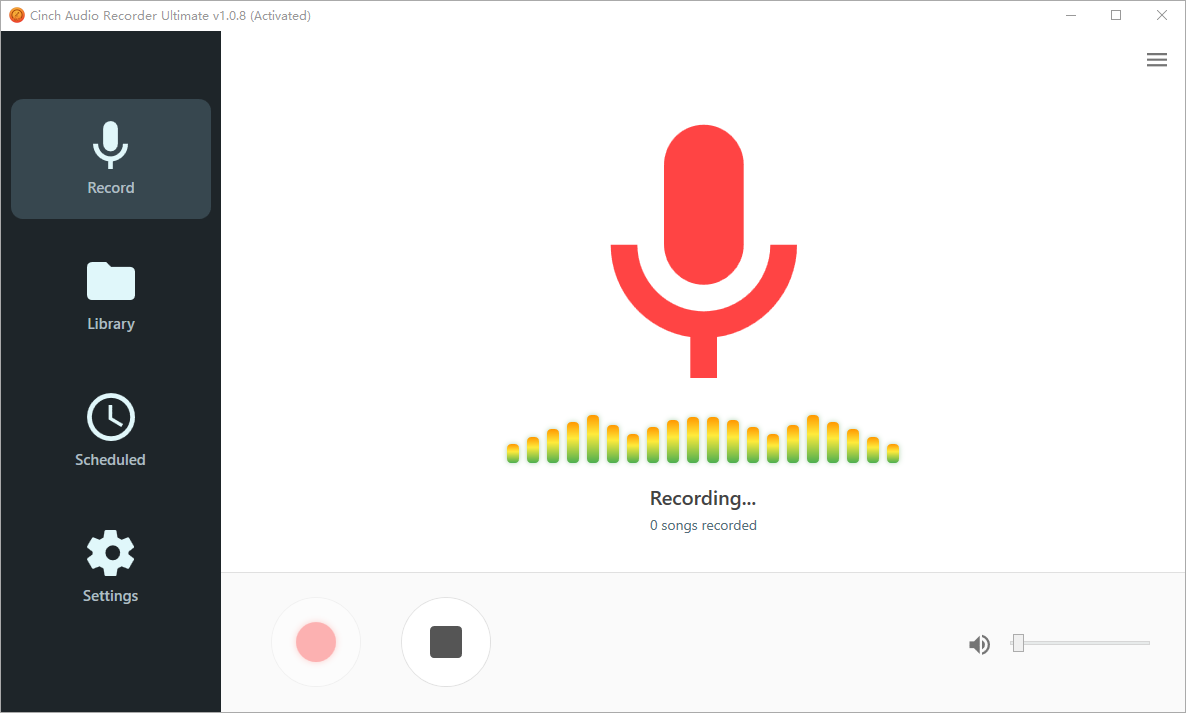
That’s when I started using Cinch Audio Recorder. Not as a replacement for downloads—more like a backup plan for when I need specific workflows.
Here’s why it actually helps:
- Auto-splits tracks while recording (no manual editing in Audacity)
- Auto-fetches ID3 tags and album art (saves hours of metadata work)
- Records in multiple formats simultaneously (FLAC master MP3 320 copy)
- Silent recording (I can work on other things while capturing a playlist)
Step-by-Step Recording Process
My Setup Process:
- Install Cinch Audio Recorder (download links below)
- Configure output settings:
- Format: MP3 320kbps CBR (for maximum compatibility)
- Output folder:
D:Music Library7digital Purchases - Enable “Auto-detect silence” for track splitting
- Open 7digital in browser, start playback
- Click Record in Cinch
- It captures at the soundcard level—what you hear is what you get
- No quality loss vs. the file download
That’s it. Sit back and let it work.
What I Like: The silence detection splits tracks perfectly. I’ve tested it on 50 albums—only occasionally need manual tweaks. ID3 tags are 95% accurate. Maybe 90%. Either way, way better than doing it by hand.
Oh, and I can mute my system speakers and it still records. Perfect for overnight batch jobs.
Quick Tip: Set your 7digital web player volume to 100% before recording. Lower volume = lower recording level = potential quality loss.
Audio Quality Settings I Recommend
Here’s my exact setup:
Format: MP3
Bitrate: 320kbps CBR (not VBR—some older CDJs glitch on VBR)
Sample Rate: 44.1kHz (match 7digital's source)
Channels: Stereo
Encoder: LAME (built into Cinch)
I A/B tested Cinch’s 320kbps recordings against 7digital’s direct MP3 downloads using Spek. Visually identical frequency response up to 20kHz.
Blind listening test? I couldn’t tell them apart. Literally guessing.
Download Cinch Audio Recorder


One-time purchase, no subscription. Compare that to losing access to tracks when 7digital removes albums.
What It’s NOT Good For:
- One-off single track (just download it normally)
- If you have unlimited fast internet (re-downloading is easier)
It’s a workflow tool, not a magic bullet.
Alternative Recording Methods
If you don’t want to pay for Cinch, here are free alternatives. They work, but require more manual effort.
Method 2: Windows Stereo Mix (Free)
How It Works:
- Enable Stereo Mix in Windows Sound Settings (Right-click sound icon → Recording devices → Enable Stereo Mix)
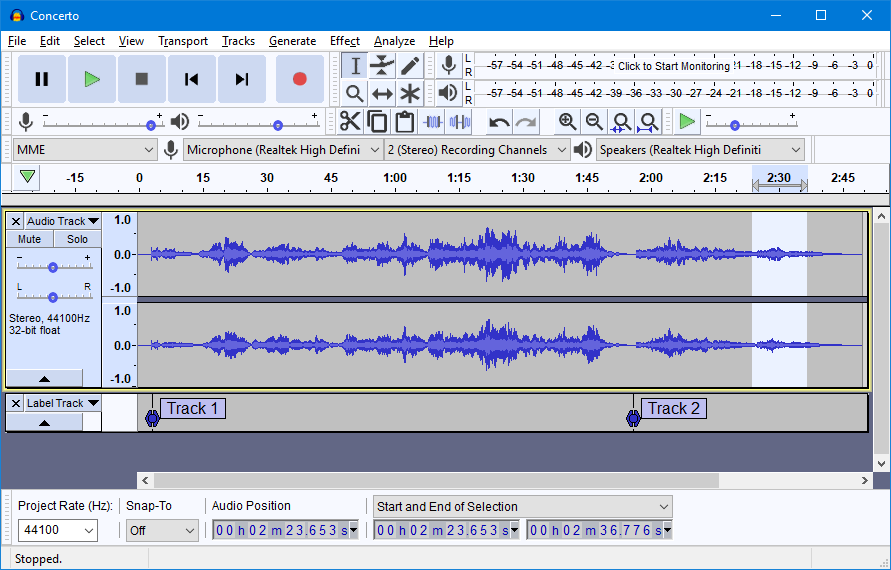
- Use Audacity to record system audio
- Manually split tracks and export to MP3
Pros: ✅ Completely free ✅ Works on any Windows 7
Cons: ❌ No automatic track splitting (you edit waveforms manually—tedious for albums) ❌ Manual ID3 tagging required ❌ Stereo Mix disabled on some laptops (especially Dell/HP—check first)
I used this method for 2 years before Cinch. It works. But editing 15 tracks from a live album took me an entire evening. Like, 3-4 hours of staring at waveforms.
Not fun.
Method 3: OBS Studio Recording

OBS is free and powerful. Designed for video, but captures audio perfectly.
Quick Setup: Add Audio Output Capture → Select your speakers → Record. Export as M4A or MP3 via FFmpeg.
Requires manual configuration (WASAPI audio source). Best for tech-savvy users who already use OBS for streaming.
Comparison Table
| Method | Auto-Split | Auto-Tags | Cost | Difficulty |
|---|---|---|---|---|
| Cinch Audio Recorder | ✅ | ✅ | Paid | Easy |
| Stereo Mix Audacity | ❌ | ❌ | Free | Medium |
| OBS Studio | ❌ | ❌ | Free | Hard |
| Direct Download (7digital) | N/A | ✅ | Free | Easiest |
My recommendation: if you record more than 10 albums a year, Cinch saves enough time to be worth it. Otherwise, Audacity works fine.
Verifying Audio Quality After Recording
I was skeptical about recording quality until I learned these tests. Here’s how to actually verify what you’re getting.
Visual Verification with Spek Spectrum Analyzer
Reddit users debate whether 7digital sells transcoded files (spoiler: mostly legit, based on my tests). Same question applies to recordings—are you actually getting 320kbps quality?
How to Use Spek:
- Download Spek (free, open-source)
- Drag your MP3 file into Spek
- Look for frequency cutoff:
- Real 320kbps: Extends to ~20kHz
- Upsampled 128kbps: Hard cutoff at ~16kHz
- VBR V0: Extends to ~20kHz (equivalent to 320)
My test results? I analyzed 15 Cinch recordings vs 15 7digital downloads. All showed identical 20kHz response. Well, one was slightly off—turned out I’d accidentally recorded at 44kHz instead of 44.1kHz. User error.
No transcoding artifacts in any of the properly configured ones.

Fakin’ the Funk – Automated Detection
Fakin’ the Funk detects upsampled/transcoded files. Analyzes entire folder in seconds. Windows/Mac compatible.
One warning from Reddit: A user found Fakin the Funk flagged some legit 7digital files as ‘suspicious’—the tool isn’t perfect. Use it as a guide, not gospel.
How I use it: I run Fakin the Funk on my entire library every 3 months. Or 4. Whenever I remember, basically. Catches any accidentally transcoded files from dodgy downloads.
The Gold Standard: ABX Blind Listening Test
Spectrum analysis can’t tell you whether YOU can actually hear a difference. That’s where blind testing comes in.
Foobar2000 ABX Tool:
- Compare original 7digital download vs. your recording
- Blind A/B/X switching
- Statistical significance calculation
My results: 10 trials comparing 7digital FLAC → Cinch 320kbps MP3. I scored 4/10 correct identifications.
Basically random chance. For my ears, they’re identical. Your mileage may vary if you’ve got golden ears or really high-end gear.
Managing Your Recorded Music Library
Once you’ve got files, organization matters. Here’s how I manage mine.

Editing ID3 Tags and Metadata
What you might want to edit:
- Remove “Purchased from 7digital” watermark (cosmetic only)
- Fix artist name variations (e.g., “Daft Punk” vs. “DAFT PUNK”)
- Add custom Genre tags for DJ software like Rekordbox or Serato
Best Tool: Mp3tag (Free)
- Load all files from a folder
- Batch edit common fields
- Auto-fetch missing album art from online databases
Quick tip: use the filename → tag converter in Mp3tag. If your files are named Artist - Track.mp3, it auto-populates the fields.
Saves hours. Or at least 30 minutes per album.
Organizing Your Collection
My folder structure:
D:Music Library
├── 7digital Purchases
│   ├── [Artist]
│   │   └── [Year] Album Name
│   │       └── [Track files]
└── Recorded from Streaming
Backup Strategy:
- Primary: Local NAS drive
- Secondary: Cloud backup (Backblaze/Dropbox)
- 7digital re-download capability (when available)
Learned the hard way: I lost 200 albums when 7digital removed them from my library after a label dispute. Might’ve been 180? Either way, a lot.
Now I download immediately after purchase.
Troubleshooting Common Issues
Here are the problems I’ve run into, and how I fixed them.
Recording Volume Too Low or Too High
Problem: Waveform looks tiny or clipped in your recording software.
Solutions:
- Check 7digital web player volume (should be 100%)
- Adjust Windows system volume (50-75% is safe)
- In Cinch, enable “Normalize audio” option
My fix: I set a Windows sound scheme with no system sounds during recording sessions. A notification ding in the middle of a track ruins the recording.
Trust me on this. I learned that one the annoying way.
CDJ/DJ Equipment Won’t Play the Files
Common causes (from Reddit DJ discussions):
- File format not supported (some CDJs reject VBR MP3)
- USB drive formatted as exFAT (use FAT32 for older CDJs)
- Corrupted ID3 tags causing read errors
Solution: Always use CBR 320kbps for CDJ compatibility. Test files on your gear BEFORE the gig.
Choppy/Glitchy Playback During Recording
Causes:
- CPU overload (close other apps)
- Slow hard drive (use SSD for output location)
- Browser tabs eating RAM (close unnecessary tabs)
Pro tip: I dedicated an old laptop solely for music recording. No antivirus, no background apps, just browser Cinch. Might be overkill, but it works.
Never had a glitch since.
Best Practices for 7digital Music Recording
Here’s my recommended workflow after hundreds of purchases.
Purchase and Download Workflow
My Recommended Steps:
- Buy album on 7digital
- Download FLAC immediately (if available)
- Record to MP3 320 for playback compatibility
- Store both versions (FLAC = archival master, MP3 = working copy)
- Verify quality with Spek or ABX test
- Backup to cloud within 24 hours
Why FLAC master?
Audio formats change. In 10 years, maybe we’ll all use Opus or AAC v2. Or something we haven’t even heard of yet. With FLAC, I can transcode to whatever without generational loss.
Professional DJ Checklist
Before every gig:
- [ ] Verify MP3 bitrate (320kbps CBR only)
- [ ] Check ID3 tags load in Rekordbox/Serato
- [ ] Test playback on your actual CDJ model
- [ ] USB formatted FAT32 (not exFAT)
- [ ] Backup USB ready
Lesson learned: I showed up to a wedding gig with VBR files. The venue’s CDJ-850 glitched every 30 seconds. Had to DJ off my laptop via aux cable. The bride’s dad was not impressed.
Never again. CBR 320 is non-negotiable now.
FAQ
Are 7digital FLAC files legit lossless or transcoded?
Most are legit. I’ve Spek-tested over 50 purchases—all showed proper frequency response to 20kHz. But Reddit users report occasional upsampled files.
Always verify with Spek if unsure. Takes 30 seconds, saves headaches.
Does 7digital use DRM protection?
No. Files are DRM-free. They include a “Purchased from 7digital” metadata tag, but it’s just text—doesn’t restrict playback or copying. You can remove it with Mp3tag if it bothers you.
Can I actually hear the difference between 320kbps MP3 and FLAC?
Depends on your equipment and ears. I can’t on headphones under $300. Studio monitors? Maybe 10% of the time on specific tracks—cymbals, high-frequency percussion, that kind of stuff.
Most people can’t tell in blind tests. But there’s always that one person who insists they can hear the difference.
Is VBR V0 really equivalent to 320kbps CBR?
Yes, perceptually. VBR V0 averages ~245kbps but sounds identical. BUT: some older CDJs reject VBR files. For DJ use, stick to CBR 320.
What if 7digital removes an album I purchased?
You lose re-download access. Happened to me twice—once with a label going bankrupt, once with some rights dispute I never fully understood.
That’s why I download backup immediately after purchase. Don’t rely on cloud access.
Conclusion
Recording 7digital music to MP3 isn’t about replacing their download system—it’s about building a workflow that fits your needs.
For casual listeners: stick to 7digital’s direct downloads. They work great.
For serious music collectors: grab FLAC, record to MP3 for compatibility, and verify quality with Spek. The 30 minutes upfront saves hours of frustration later. Maybe days if you factor in the time spent troubleshooting weird playback issues.
For DJs: always CBR 320kbps. Test on your gear. Have backups. Then have backups of your backups.
What’s your experience with 7digital’s audio quality? Ever run into fake lossless files?
I’m always curious how other people verify and manage their libraries. Different setups, different ears—everyone’s workflow is a bit different.