Quick Summary
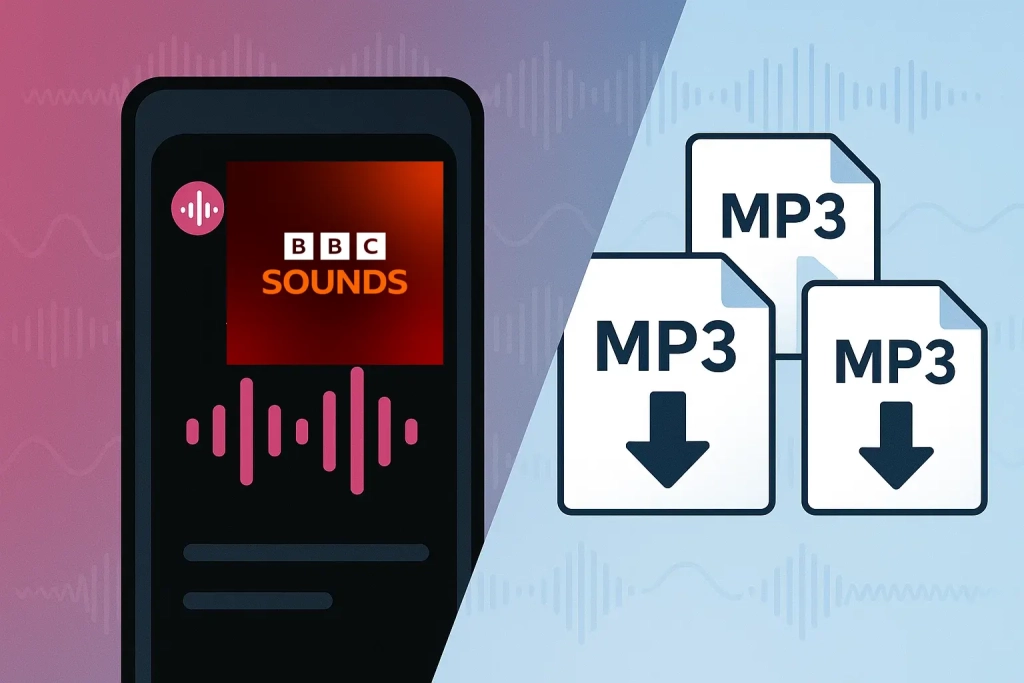
To save BBC Sounds as MP3, use free get_iplayer (UK IP only) or record system audio in real time with tools like Cinch Audio Recorder (works worldwide).
You’ve found a BBC radio series you want to keep. But BBC Sounds downloads disappear after 30 days and stay locked inside the app—you can’t transfer them or burn them to CD.
Two paths to permanent MP3 files:
If you’re comfortable with command-line tools and have a UK IP address, get_iplayer downloads programmes directly for free.
If you want something simpler, audio recording software captures BBC Sounds in real-time—no technical setup, but you’ll need to let each programme play through.
Why BBC Sounds Won’t Give You Permanent MP3 Files
BBC Sounds is built for streaming, not archiving. The app deliberately blocks permanent file extraction.
Official downloads are app-locked. When you download a programme in the BBC Sounds mobile app, the file stays locked inside that app. You can’t find it in your file manager, you can’t copy it to your computer, and you can’t burn it to CD. It’s designed this way—BBC doesn’t want users extracting content.
Most radio programmes expire after 30 days. This isn’t a bug; it’s a licensing decision. According to BBC’s own help pages, most radio content is only available for 30 days after broadcast. Downloads expire at the same time as the on-demand version disappears.
Podcasts are different—they don’t expire. If you’re downloading a BBC podcast (as opposed to a radio programme), the file won’t disappear after 30 days. However, if you delete it from the app, you can’t re-download it once the podcast is removed from BBC Sounds.
If you’re outside the UK, the situation is worse. On July 21, 2025, BBC Sounds closed for international users. If you’re in the US, Ireland, Australia, or anywhere else, the BBC Sounds app is no longer available. You can still access some content via BBC.com, but the selection is limited and there’s no download option.
Some content can’t be downloaded at all. BBC Sounds Exclusive programmes—original content made specifically for the platform—often have no download button. Sports coverage and music events also have shorter availability windows due to rights agreements.
Method 1: Use get_iplayer (Free, But Requires Some Computer Skills)
get_iplayer is an open-source tool that downloads BBC programmes to your computer. It runs from the command line (typing text commands instead of clicking buttons), so it requires some patience to set up. It works on Windows, Mac, and Linux computers—not phones or tablets.
Important: You need a UK IP address for most BBC content. If you’re outside the UK, this method won’t work for most programmes.
Basic Setup (Step by Step)
For Windows users:
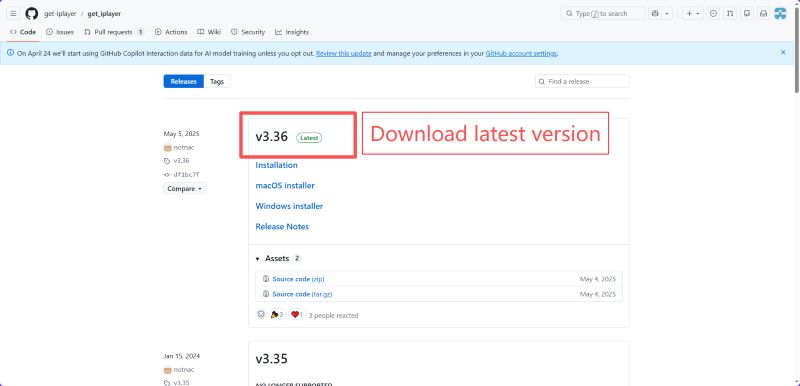
- Go to the get_iplayer releases page and download the latest
.exeinstaller - Run the installer and follow the prompts (keep the default settings)
- Press Windows key + R, type
cmd, and press Enter to open the command prompt - Type
get_iplayer --refreshand press Enter to update the programme list
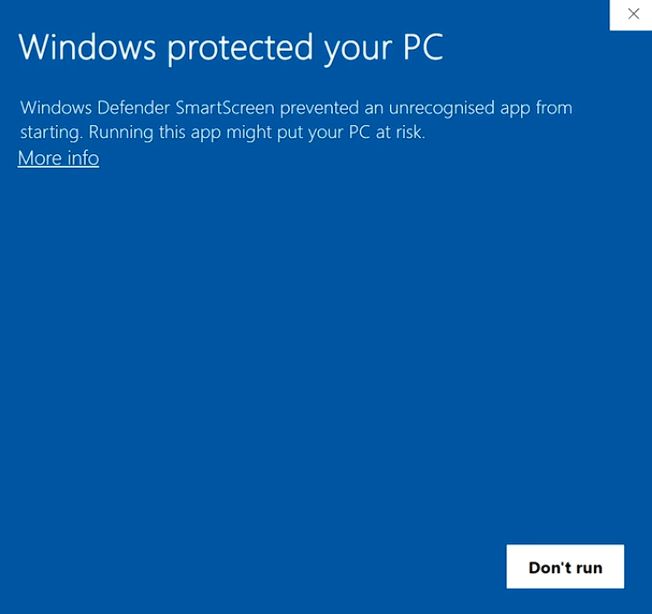
When you click to install get_iPlayer, Windows may show a SmartScreen warning. However, this app is safe and has been verified by thousands of users. Click “More info” to continue installing it.
For Mac users:
- Open Terminal (press Command + Space, type “Terminal”, press Enter)
- Install Homebrew if you don’t have it: visit brew.sh and follow the instructions
- In Terminal, type:
brew install get_iplayerand press Enter - Type
get_iplayer --refreshand press Enter
Troubleshooting: If you see “command not found”, restart your computer after installation and try again.
Downloading a Programme
With get_iplayer installed, here’s how to download:
Step 1: Find your programme
- Go to BBC Sounds website and find the programme you want
- Copy the programme name exactly, or note the URL (like
https://www.bbc.co.uk/sounds/play/XXXXX)
Step 2: Download it
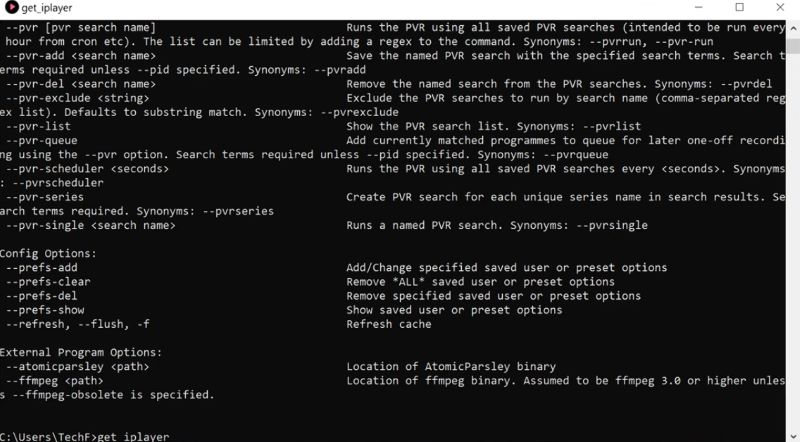
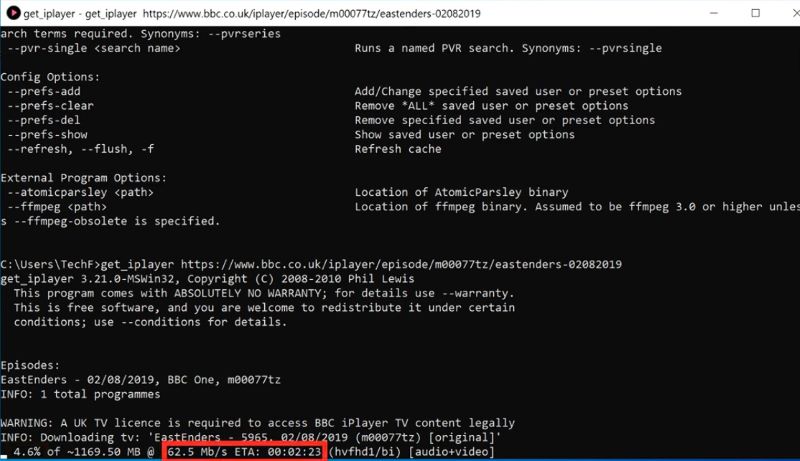
- In the command prompt/terminal, type one of these commands and press Enter:
get_iplayer --get "Programme Name"
Or using the URL:
get_iplayer --url https://www.bbc.co.uk/sounds/play/XXXXX
Step 3: Find your file
- Windows: Files save to your
Documentsfolder by default - Mac: Files save to your Home folder (the one with your username)
- Look for files ending in
.m4a– these are audio files that work like MP3
Step 4: Convert to MP3 (if needed)
- get_iplayer downloads as M4A format, which works on most devices
- If you specifically need MP3: use iTunes (Windows) or Music app (Mac) to convert:
- Import the M4A file into iTunes/Music
- Go to Edit > Preferences > Import Settings
- Set “Import Using” to “MP3 Encoder”
- Right-click the file and choose “Create MP3 Version”
Stopping the Deletion Prompts
By default, get_iplayer asks if you want to delete programmes older than 30 days. This is just a prompt—your files won’t be automatically deleted. Files stay on your computer and play indefinitely.
To stop these prompts permanently, add --nopurge to your download command:
get_iplayer --get "Programme Name" --nopurge
Or set it as a default in your configuration file.
What get_iplayer Can’t Do
- Not all programmes are available. BBC has changed some feeds over the years, and certain shows don’t appear in get_iplayer’s search.
- BBC Sounds Exclusives may not work. These programmes sometimes use different delivery systems.
- It won’t give you “better than original” quality. You get what BBC streams—typically 128kbps AAC for radio content.
If you hit “programme not found” errors, it might be that BBC has changed how that content is delivered, or the programme simply isn’t in the cache yet.
Method 2: Record BBC Sounds as MP3 (Simpler, Works for Everyone)
If command-line tools feel intimidating, or if you just want a straightforward solution that works regardless of your technical skills, audio recording software is the practical alternative. This method works for all users, including those outside the UK.
The trade-off: You have to play the programme in real-time while recording—no shortcuts. A 60-minute programme takes 60 minutes to record.
How Recording Works
You’re capturing audio as it plays. Any sound coming through your speakers gets recorded—this is called “system audio” or “stereo mix” recording.
Cinch Audio Recorder is one tool designed for this purpose. It records system audio, saves it as MP3 (up to 320kbps), and automatically adds ID3 tags (artist, title, album art) when it can identify the content. You can download a free trial that lets you record up to 9 tracks before needing a license.
Steps to Record BBC Sounds
Before you start: Set up system audio recording
On Windows:
- Right-click the speaker icon in your taskbar (bottom-right)
- Click “Sounds” → “Recording” tab
- Right-click in the empty area and check “Show Disabled Devices”
- Right-click “Stereo Mix” and select “Enable”
- Set it as the default recording device
On Mac:
- Download BlackHole (free virtual audio driver)
- Install it and restart your Mac
- Go to System Settings > Sound > Output
- Select “BlackHole 2ch” as your output device
Recording steps:
- Install your recording software (Cinch or similar)
- Open BBC Sounds in your browser and find the programme
- In the recording software, select “Stereo Mix” (Windows) or “BlackHole” (Mac) as the audio source
- Click “Record” in the software
- Press play on the BBC programme
- Let the entire programme play through (you can’t speed this up)
- Click “Stop” in the software when finished
- The MP3 file saves automatically to your computer
Recording Trade-offs
- Real-time required. A 60-minute programme takes 60 minutes to record
- Everything gets captured. Station IDs, news bulletins, DJ talk—it all gets recorded
- Quality matches the stream. You’re recording what BBC streams (typically good quality)
Why Choose Recording Over get_iplayer
- No UK IP requirement for playback. If you can play BBC Sounds in your browser (even with reduced content as an international user), you can record it.
- Works when get_iplayer doesn’t. If BBC changes their feeds or a programme isn’t available through get_iplayer, recording still works as long as you can play it.
- No command line. If you’re uncomfortable with terminal windows, this is the more accessible option.
- Immediate MP3 files. No file conversion needed—you get MP3 files you can transfer to any device.
How to backup BBC Sound MP3 Files to CD
Once you have BBC Sound MP3 files—whether from get_iplayer, recording software, or podcast downloads—you can burn them to CD for older car stereos or offline players.
What You Need
- A computer with a CD/DVD burner
- Blank CDs (CD-R works fine for audio)
- CD burning software (Windows Media Player on Windows, iTunes on Mac)
Burning an Audio CD (Plays in Any CD Player)
- Open Windows Media Player or iTunes
- Insert a blank CD
- Create a new playlist and add your MP3 files
- Select “Burn” and choose “Audio CD” (not “Data CD”)
- Start burning—this converts MP3 to standard CD audio format
Note: Standard audio CDs hold about 74-80 minutes of content. A 60-minute BBC programme fits on one CD.

Burning an MP3 CD (More Content, But Requires MP3-Compatible Player)
If your car stereo or CD player supports MP3 CDs, you can fit many more hours on a single disc:
- In your burning software, select “Data CD” or “MP3 CD” option
- Add your MP3 files
- Burn the disc
MP3 CDs can hold 10+ hours of audio, but they won’t play in standard CD players—only devices that specifically support MP3 format.
Choosing Your Path
Quick decision guide:
- For podcasts: Use the official BBC Sounds app—podcasts don’t expire
- For UK users comfortable with computers: Try get_iplayer first (free, fastest)
- For everyone else: Use audio recording software (simplest, works from anywhere)
Start small: Try recording one short programme first to see if the real-time cost works for you before committing to an entire series.