Quick Summary
Tired of pixelated covers when downloading MP3s? Learn why free tools fail and how to get high-resolution album art automatically embedded in every track.
You spent hours curating the perfect playlist. You downloaded dozens of tracks, transferred them to your car’s USB drive, and fired up the stereo—only to discover your album art looks like it was printed on a potato. Pixelated squares. Cropped-off text. That ugly “Official Video” watermark staring back at you from every track. If you’re serious about your music collection, this isn’t just annoying—it’s unacceptable.
Most “free” MP3 converters are lying to you about album art. They grab YouTube video thumbnails—16:9 widescreen images designed for video previews—then stretch and squash them into 1:1 squares. You end up with distorted, low-quality garbage that looks fine on your phone but terrible on your car’s infotainment system or hi-fi display.
There is a way to get pristine, high-resolution album covers that actually match your songs, automatically embedded with zero manual work. But first, you need to understand why the tools you’ve been using are failing you.
Why Your Downloaded MP3 Covers Look Like Garbage
The online converter industry is lying to you. 90% of free MP3 downloaders claiming to fetch album covers are actually committing fraud against your music library. When you paste a YouTube link into one of those “convert to MP3 with cover art” websites, the ugly truth unfolds behind the scenes:
The tool grabs the YouTube video’s thumbnail—a 16:9 widescreen image, typically 1280×720 pixels designed for video previews. Then it performs digital butchery: stretching, squashing, or cropping that rectangular image into a 1:1 square to fake an album cover. You end up with a distorted, low-quality mess that might display okay on a tiny phone screen but looks atrocious on your car’s infotainment system, your hi-fi setup’s display, or any modern device with a decent screen.
Even worse, these thumbnails often contain text overlays—”Official Video,” “VEVO,” channel watermarks—that have nothing to do with the actual album artwork. Your carefully organized music library ends up looking like a scrapbook of internet garbage. This isn’t album art. This is visual pollution.
The YouTube Thumbnail Scam: How Free Tools Destroy Your Album Art
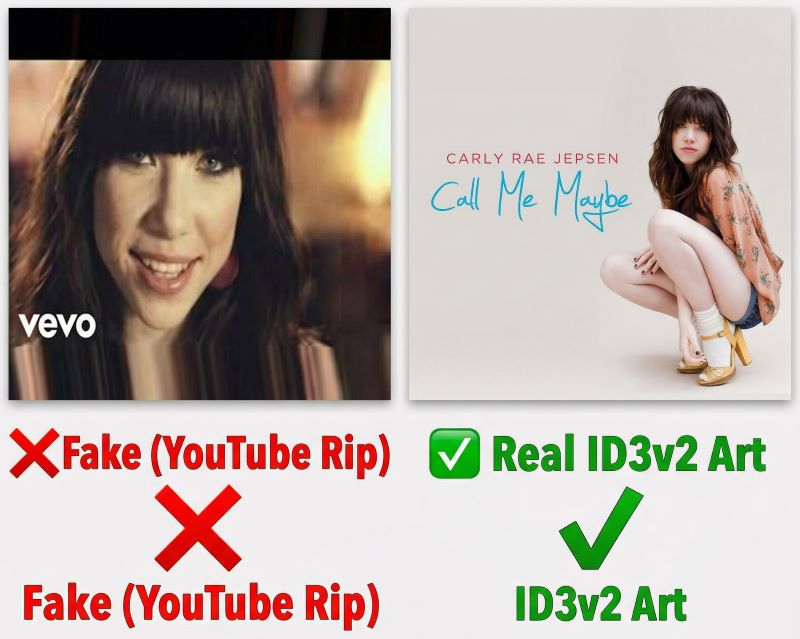
Let’s pull back the curtain on exactly how the scam works. When you use a free online YouTube-to-MP3 converter, the tool has exactly one source for “album art”: the video thumbnail. This approach is fundamentally broken:
Wrong aspect ratio: Album covers are square (1:1). YouTube thumbnails are widescreen (16:9). Converting one to the other requires either:
- Cropping off the sides (losing critical visual elements)
- Letterboxing with black bars (looking amateur)
- Stretching to fit (creating distortion and blur)
Wrong resolution: Standard YouTube thumbnails are 1280×720. When squashed into a square album cover, you’re getting effectively 720×720 at best—nowhere near the 1000×1000 or 3000×3000 pixel artwork that streaming services like Spotify and Apple Music actually use.
Wrong content: Video thumbnails are marketing materials. They contain text overlays, facial expressions, random screenshots. Real album art is carefully designed visual branding—photography, illustrations, typography that represents the artist’s vision.
No metadata: These tools don’t just fail at artwork. They typically output files named “videoplayback.mp3” with no artist name, no album title, no track number, no genre. Your “music library” becomes an unsearchable, unorganized pile of anonymous audio files.
Free converters are not “downloading album covers.” They’re vandalizing your music collection with inappropriate, low-quality images that were never meant to be album art in the first place.
How Album Covers Actually Work
To understand why most tools fail, you need to understand how album art actually lives inside your MP3 files. This isn’t magic—it’s a technical standard called ID3v2, and it’s been the backbone of digital music metadata for over two decades.
An MP3 file isn’t just compressed audio. It’s a container with a specific structure. At the very beginning of the file sits the ID3v2 tag—a data block that stores everything except the actual sound: song title, artist, album, year, genre, lyrics, and yes, the album cover image.
Proper album art embedding works like this:
Native format: The cover art isn’t a separate .jpg file that “accompanies” the MP3. It’s binary data encoded directly into the ID3v2 tag header. When you copy the MP3 to a different device, the artwork travels with it—embedded, attached, inseparable.
High resolution: Professional music databases (like those used by iTunes and Spotify) store album artwork at 500×500, 1000×1000, even 3000×3000 pixels. This is the source material that should be encoded into your files—not a 720p video thumbnail.
Multiple formats: ID3v2 supports JPEG, PNG, and even GIF images. Quality tools fetch the highest-quality source available and embed it without recompression or resizing.
Universal compatibility: Because ID3v2 is an industry standard, properly tagged MP3s display their artwork everywhere: iTunes, Windows Media Player, VLC, your car stereo, your phone, your smart speaker. The cover art works because it follows the rules.
When a tool just grabs a YouTube thumbnail and slaps it into an ID3 tag, it’s technically “adding album art.” But it’s like putting a Polaroid snapshot into a museum frame and calling it curation. Technically possible. Practically insulting.
The Smart Way: Audio Fingerprinting and Automatic Cover Retrieval
So if free tools are garbage, and manually tagging every song is torture, what’s the real solution? Enter audio fingerprinting—the same technology that powers Shazam and SoundHound, now applied to building perfect music libraries.
The technology works like this:
When you play a song, the audio fingerprinting system analyzes the actual sound waves—not the file name, not the metadata, not where it came from. It extracts unique acoustic features from the recording: the frequency distribution, the rhythm patterns, the harmonic content. This creates a “fingerprint”—a mathematical signature that’s unique to that specific recording.
That fingerprint is then matched against a massive database containing millions of tracks. This isn’t a text search. It’s an acoustic identification system that can recognize a song even if:
- The file has no metadata at all
- The source is an obscure internet radio station
- The audio quality has been degraded
- You don’t know the artist or title
Once the song is identified, the system pulls the official metadata from authoritative sources: the correct song title, the artist name, the album, the release year—and the official high-resolution album artwork from services like iTunes, Spotify, or AllMusic. This artwork is typically 1000×1000 pixels or higher, the actual cover art designed for the album release, not a repurposed video thumbnail.
Every track in your library gets accurate, verified metadata from authoritative databases, high-resolution album artwork (500×500 to 3000×3000 pixels), proper ID3v2 tagging that works across all devices, and zero manual work required.
This is the difference between a music “pile” and a music library. Between amateur hour and professional curation.
Introducing Cinch Audio Recorder
Now that you understand the technical reality—the YouTube thumbnail scam, the ID3v2 standard, the power of audio fingerprinting—let me introduce the tool that puts it all together: Cinch Audio Recorder.
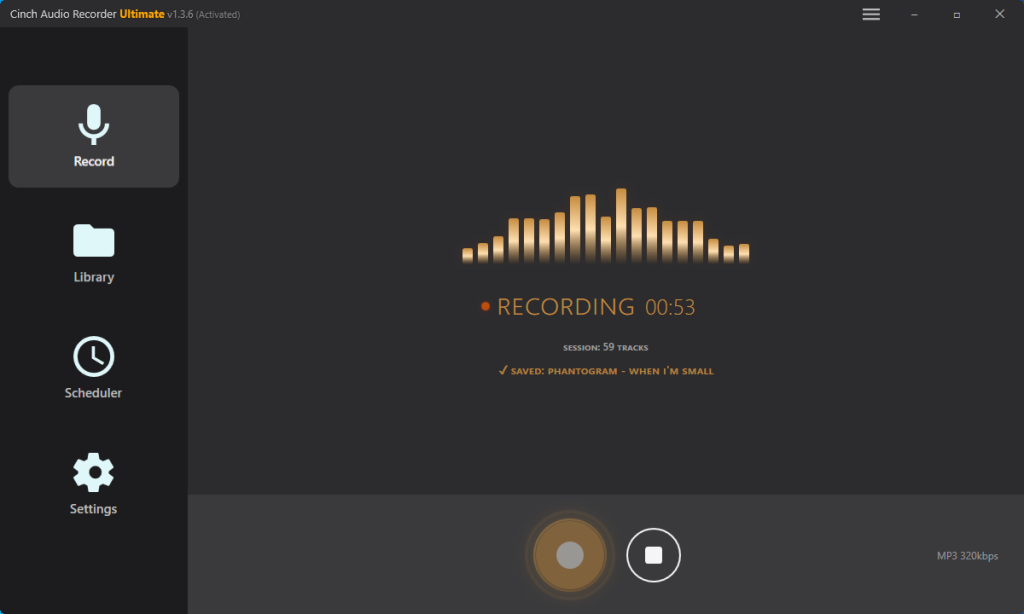
Whether you want to download Spotify to MP3 with album cover, or capture lossless streams from Apple Music and Tidal, Cinch’s system-level recording bypasses DRM restrictions entirely. No login credentials required. No account ban risk. Just pristine audio with official artwork.
Cinch isn’t a YouTube downloader. It doesn’t scrape video thumbnails or butcher your album art. Instead, it acts as a digital safety net for your sound card—capturing system audio at 24-bit/48kHz lossless quality, preserving every detail of the original stream.
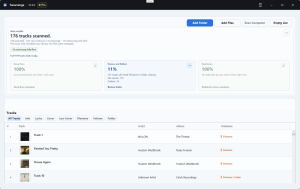
But the real magic happens during recording. Using the same acoustic fingerprinting technology as Shazam, Cinch identifies songs in real-time as they play—even from unnamed internet radio stations or background music streams. Within seconds, it pulls the official song title, artist, album, release year, and high-resolution artwork (1000×1000+) from authoritative music databases. All of this gets automatically embedded into your file using proper ID3v2 tags. Your files arrive “Ready for library” the moment you hit stop.
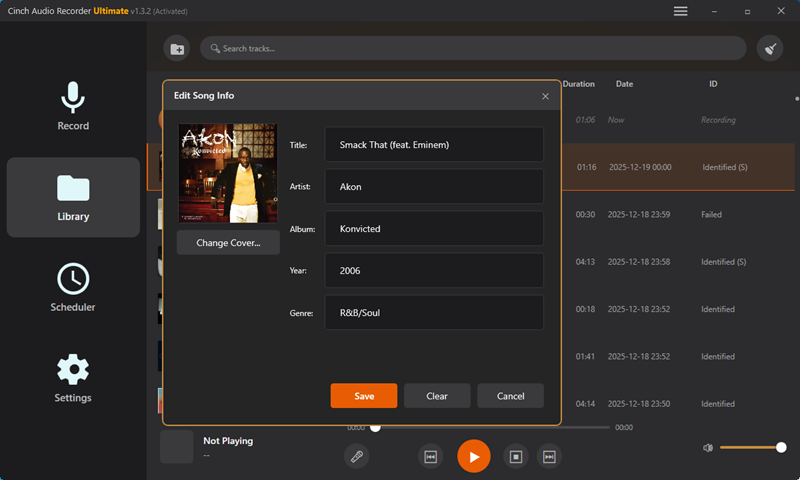
Cinch can even fetch synchronized LRC lyrics or plain text lyrics, embedding them directly alongside the audio. Export options include MP3, AAC, FLAC, or WAV—whatever your library needs. And because it records system audio rather than breaking encryption, it works with any streaming service (Spotify, Apple Music, Tidal, YouTube Music, internet radio) without risking account bans.
The result isn’t just “downloaded music.” It’s a professionally curated digital music library where every track has pristine artwork and complete metadata. Ready to play in your car, on your phone, in your hi-fi setup—anywhere, perfectly.
How to Record Songs with Perfect Metadata
Getting started with Cinch is straightforward. The process to record tracks with automatically embedded high-resolution album art goes like this:

Step 1: Download and install Cinch Audio Recorder Grab the free trial from the official website. The trial lets you record up to 9 songs—enough to see exactly how the fingerprinting and artwork retrieval works.
Step 2: Launch your music source Open Spotify, Apple Music, YouTube Music, or any other streaming service in your browser or desktop app. Pick a playlist, album, or radio station.
Step 3: Start recording in Cinch Click the big red record button in Cinch. The software begins monitoring your system audio.
Step 4: Play your music Hit play on your music source. Cinch will automatically detect when audio starts playing and begin recording. You don’t need to time it perfectly—Cinch captures everything.
Step 5: Let the magic happen As each song plays, Cinch’s audio fingerprinting engine analyzes the sound waves in real-time. Within seconds, it identifies the track and instantly populates all the missing ID3v2 tags—including that pristine 1000×1000+ cover art. You literally watch the blank files transform into library-ready tracks.
Step 6: Stop and review When you’re done, click stop. Cinch saves each track as a separate, fully tagged file. Open the files in any music player—iTunes, Windows Media Player, VLC, your car stereo—and you’ll see perfect album art and complete metadata.
Step 7: Build your library Repeat as needed. Cinch supports batch recording of entire playlists or albums. You can even set up scheduled recordings to capture radio shows or streaming content automatically.
The entire process is hands-off. You’re not manually searching for album art. You’re not typing in track names. You’re not resizing images or editing metadata. You play music; Cinch builds your library.
Why Cinch Beats Manual Tagging
Maybe you’re thinking: “I can just use Audacity to record audio, then use Mp3tag to add metadata and album art manually.” Technically, yes. Practically, you’re signing up for hours of tedious work per album.
Compare the two approaches:
Time investment (Active Labor): Manual means sitting at your computer for the entire process: record audio (40 mins) + research metadata (10 mins) + download/crop artwork (10 mins) + tag files manually (10 mins) = over an hour of active, tedious work per album. Cinch? Click record, hit play, and walk away. Your active labor is about 10 seconds per album. The software does the 40 minutes of listening and tagging while you drink coffee.
Accuracy: Manual tagging is prone to typos, incorrect album art, inconsistent naming conventions. Cinch pulls verified data from authoritative music databases—essentially 100% accurate for studio recordings. (Live performances and rare remixes may need manual review, as they sometimes have different acoustic signatures than the original studio versions.)
Artwork quality: Manually, you might grab a 500×500 image from Google Images, compressed and watermarked. Cinch automatically fetches the highest-resolution official artwork available (1000×1000+).
Consistency: Doing it manually, it’s easy to mix up deluxe vs. standard edition artwork, use different sources for different tracks. Cinch delivers uniform, consistent metadata from the same authoritative database.
Batch processing: Manual means every track requires individual attention. With Cinch, record entire playlists or albums; all tracks get tagged automatically.
Unknown tracks: Manually, if you don’t know what song is playing (internet radio, background music), you’re stuck. Cinch’s fingerprinting identifies songs even with zero prior knowledge.
If you value your time at even $10/hour, Cinch pays for itself after tagging just a few albums. It also eliminates the human error that turns “manually curated” libraries into inconsistent messes.
One more thing: system-level recording operates at 1X speed (real-time). A 4-minute song takes 4 minutes to record. But compared to the hours you’d spend manually downloading, cropping, and embedding 1000×1000 artwork for a single playlist, real-time recording is actually the fastest route to a flawless, visually stunning music library. You hit play, walk away, and come back to a fully tagged collection.
What To Do First
Don’t ruin your carefully curated music library with stretched, blurry YouTube thumbnails. Building a local music collection is about ownership and aesthetics. With Cinch Audio Recorder, you don’t just get 1:1 lossless audio; every track is automatically crowned with its official high-res album art and ID3 tags. It’s the difference between a messy downloads folder and a professional digital music library.
Your MP3s deserve better than repurposed video thumbnails. Your car stereo deserves better than pixelated garbage. You deserve a music library that looks as good as it sounds.
Download the free trial today and see how pristine your MP3s can look. Record 9 songs on us. Experience what it’s like when every track arrives with perfect metadata, verified artwork, and that satisfying “Ready for library” status. Once you see the difference, you’ll never go back to free converters again.
Your music collection is an investment. Treat it like one.
Frequently Asked Questions
Why do my downloaded MP3s have no album art or blurry covers?
Most free downloaders don’t access official music databases. Instead, they rip the audio from YouTube music videos and take the 16:9 video thumbnail, stretching it into a square. This results in missing or heavily pixelated cover art. The real problem: these tools were never designed to fetch album art—they just grab whatever image happens to be attached to the video.
What is the correct image size for MP3 album art?
Standard ID3v2 album art should be perfectly square (1:1 aspect ratio), typically ranging from 500×500 to 3000×3000 pixels. High-quality music libraries use high-resolution JPEG or PNG images embedded directly into the MP3 file’s metadata. Anything below 500×500 will look blurry on modern displays, especially car infotainment systems.
Can I download MP3 from Spotify with album cover?
You cannot directly download DRM-protected Spotify files. However, you can use system-level audio recorders with fingerprinting technology (like Cinch Audio Recorder) to capture the audio in real-time and automatically embed the official Spotify album art into the resulting MP3. This approach is legal in most jurisdictions and doesn’t require breaking any encryption.