Quick Summary
Beatport caps downloads at 20 and blocks LINK MP3 exports. Discover why audio recording is the most cost-effective way to build a permanent DJ library.
Songs bought on Beatport become inaccessible after 20 downloads; LINK subscription offline cache is encrypted and can’t be exported as MP3. These two restrictions leave many DJs and music collectors stuck in the awkward position of “paying for music you can never truly own.” This article explains where these limits come from and offers a viable alternative path—audio recording tools that let you build a music library you actually own, within your budget.
Beatport’s Real Restrictions: Why You Can’t Just Export MP3
Before discussing solutions, let’s be clear about Beatport’s restriction logic. This is where many people get caught.
Purchase ≠ Unlimited Re-downloads
After buying a track on Beatport, you might assume you can re-download it anytime. But according to Beatport’s official support documentation, each track has only 20 free re-download opportunities. After exceeding this number, you need to subscribe to a streaming plan to unlock unlimited downloads.
This means if your hard drive fails, you switch computers, or you forget to back up to cloud storage, you might find that music you paid for is “unrecoverable.”
LINK Subscription Offline Cache ≠ MP3 File
Beatport LINK is Beatport’s streaming subscription service. Many people think subscribing allows them to “offline download” as MP3, but according to official documentation, LINK’s offline locker is encrypted cache. It can only be played in supported applications (like Rekordbox, Serato, Traktor) and cannot be exported as standard audio files.
More critically, these offline tracks become invalid after canceling your subscription. You never truly “own” them.
Subscription Tiers Are Easy to Get Wrong

LINK has four tiers with non-obvious feature differences:
- Essential ($9.99/month): Web/App playback only, does not support DJ software
- Advanced ($15.99/month): 128kbps AAC, supports DJ software, no offline cache
- Professional ($29.99/month): 256kbps AAC, 50-track offline cache
- Pro+ ($39.99/month): 256kbps AAC, 100-track offline cache
Many users on Reddit have complained about buying Essential only to discover it doesn’t work with Rekordbox. If you’re subscribing for DJ performances, you need at least Advanced tier or above.
Official Options Comparison: Purchase vs. LINK Subscription
If you fully accept the official path, here are the real costs and permissions for both options:
Single Track Purchase: For Low-frequency Users
| Item | Details |
|---|---|
| Track Price | About $1.49-$2.99/track (depending on label and format) |
| Format Options | MP3 (up to 320kbps), WAV, FLAC, AIFF |
| Re-download Limit | 20 times per track (without subscription) |
| File Permanence | Permanently owned, but depends on your own backup |
Who it’s for: Users who buy fewer than 10 tracks per month, producers with extreme quality requirements.
Real cost: Building a 200-track DJ library costs approximately $298 at $1.49/track; $598 at $2.99/track.
LINK Subscription: For High-frequency Listening Without Needing Permanent Files
| Item | Professional ($29.99/month) |
|---|---|
| Quality | 256kbps AAC (roughly equivalent to 320kbps MP3) |
| Offline Cache | 50 tracks (encrypted format) |
| DJ Software Support | Yes |
| After Cancellation | Offline cache becomes invalid |
Who it’s for: DJs who perform frequently but have high library turnover, primarily use in connected environments, don’t mind “renting” music rather than owning.
Real cost: Three-year subscription costs over $1000, and the library built during subscription returns to zero after cancellation.
Recording Solution: Why This Is a Viable Alternative Path
If you need permanent MP3 files, and the official path is either too expensive or doesn’t provide enough permissions, audio recording tools are an alternative worth considering.
How Recording Works
Recording tools (like Cinch Audio Recorder) don’t crack DRM or download encrypted files—they record system audio output. This is similar to recording radio with a cassette tape—you play the music, the software “records” the sound and saves it as MP3 or WAV.
Core Differences: Recording vs. Official Options
| Dimension | Official Purchase | LINK Subscription | Recording Solution |
|---|---|---|---|
| File Permanence | Permanent (depends on backup) | During subscription | Permanent |
| Quality Ceiling | WAV/FLAC lossless | 256kbps AAC | Depends on source and settings |
| Cost Model | Pay per track | Monthly recurring | One-time tool purchase |
| Time Cost | Low (direct download) | Low (online streaming) | Medium (real-time recording) |
Cinch Audio Recorder Ultimate: Professional Recording Solution
Among numerous audio recording tools, Cinch Audio Recorder Ultimate is one of the best-optimized solutions for streaming recording. Unlike basic recorders, Cinch is built for DJs. Its core advantages include:
1. Zero Account Risk
Cinch never asks for your Beatport login. It captures the raw audio output directly from your soundcard, making it 100% undetectable and ban-proof. This means:
- Your account credentials are never exposed to third-party software
- No risk of account suspension or banning
- Completely undetectable by Beatport’s anti-scraping systems
2. Built for DJs: Automatic Metadata Recognition
This is the key feature that sets Cinch apart from ordinary recording software. Unlike basic recorders that just capture audio, Cinch automatically:
- Identifies song titles and artists
- Downloads album artwork automatically
- Fills ID3 tags (album, year, genre, etc.)
- Fetches lyrics (for supported tracks)
For DJs and music collectors, this means you don’t need to manually organize tags for hundreds of songs. Drop them straight into Rekordbox and they’re ready to mix.
3. Flexible Quality Options
- Supports up to 24-bit/48kHz WAV (lossless recording)
- Or 320kbps MP3 (universal format)
- Choose based on source quality and storage space
Recording from LINK Professional (256kbps AAC) to 320kbps MP3 has minimal perceptible difference; recording from purchased WAV/FLAC can preserve higher quality.
4. Automatic Ad Filtering
When recording streaming media, if the platform inserts ads, Cinch can automatically identify and skip them, preventing ads from being recorded into songs.
5. Batch Editing and Management
After recording completes, the built-in editor supports:
- Batch tag modification
- Song trimming (remove silence at beginning/end)
- Playlist creation
6. Trial Policy
Cinch offers free recording of 9 songs, letting you verify whether quality and functionality meet your needs first. After satisfactory trial, purchase a permanent lifetime license for just $35.95, with no recurring subscription required.
7. System Compatibility
- Supports Windows and Mac desktop systems
- Does not support mobile (cannot record phone app audio)
How to Use Cinch to Record Beatport Music
Here’s the complete process for recording Beatport music with Cinch:
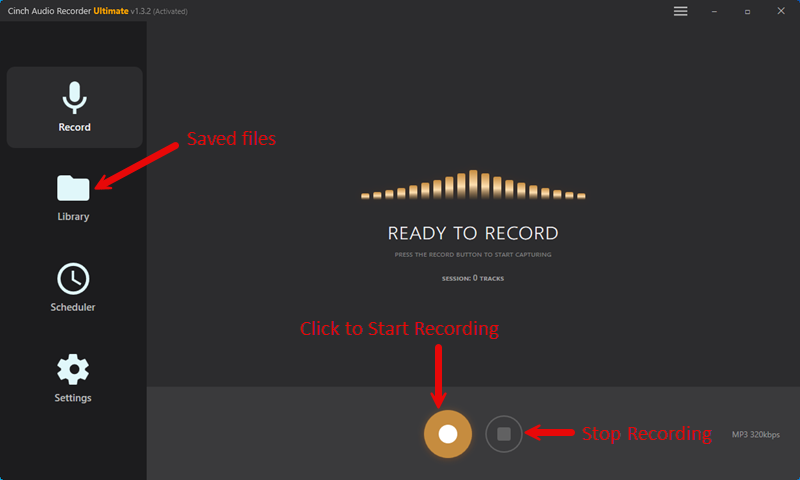
Step 1: Installation and Initial Setup
- Download and install software from Cinch official website
- Open the software, enter settings interface
- Select output format (recommended: MP3 320kbps or WAV)
- Select output folder
Step 2: Configure Audio Input
- Ensure software audio input is set to “System Audio” or “Stereo Mix”.
- Windows users: If you can’t find the “Stereo Mix” option, go to System Sound Settings → Recording Devices → Right-click Show Disabled Devices → Enable “Stereo Mix”.
- Mac users: Cinch Mac version directly captures system audio—no need for cumbersome virtual sound cards like Soundflower or BlackHole. Simply select “System Audio” in settings.
Critical Prerequisite: Turn off system notification sounds before recording (Windows: Settings → System → Notifications → Turn off sounds; Mac: System Preferences → Notifications → Turn off alert sounds), otherwise notifications will be recorded into songs.
Step 3: Play Beatport Music
- Open Beatport website or app
- Find the songs you want to record
- Ensure system volume is moderate (not muted)
Step 4: Start Recording
- Click the “Record” button in Cinch
- Play the song on Beatport
- After song finishes playing, click “Stop”
- Software will automatically identify song information and save
Step 5: Check and Manage Recorded Files
- View all recorded songs in Cinch’s “Recording History”
- Check if tags and artwork are correctly identified
- Manually edit tags if needed
- Export to your DJ software or player
Typical Paths for Importing to DJ Software:
- Rekordbox: File → Import → Select recording folder, or drag MP3 directly into “Collection”
- Serato DJ: Click “Files” panel → Drag folder to “All” or create playlist
- Traktor: Settings → Music Folder → Add directory containing recorded files
Recorded files are typically named in “Artist – Song Name.mp3” format, and DJ software will automatically read ID3 tags and categorize. If artwork or BPM information isn’t recognized, you can right-click the song in DJ software and select “Analyze” to update the missing data.
Common Troubleshooting
- No sound in recording: Check if audio input is set to system audio instead of microphone
- Volume too low: Adjust system volume and player volume
- System notification sounds recorded: Turn off system notifications before recording or enable Cinch’s ad filtering feature
Frequently Asked Questions (FAQs)
Q: Will recording quality be worse than the original file?
Depends on source quality and recording settings:
- Recording from LINK Professional (256kbps AAC) → Saving as 320kbps MP3: Minimal perceptible difference
- Recording from purchased WAV/FLAC → Saving as WAV: Can preserve lossless quality
- Improper recording settings (like low bitrate) → Quality degradation
Recommendation: Set Cinch to highest quality (320kbps MP3 or WAV) and ensure system audio output is set to high quality.
Q: How long does recording take?
Real-time recording: A 5-minute song requires 5 minutes of playback time. No “one-click batch download.” If you need to record large numbers of songs, this is a time cost to consider.
Q: Can Cinch record music from other platforms?
Yes. Cinch supports Spotify, Apple Music, Amazon Music, and other mainstream streaming platforms.
Q: Will recording affect my original account?
Zero account risk—Cinch never logs into your streaming accounts, it only records audio output.
Which Option Fits You
The decision comes down to simple math: how many tracks you actually need per month, and how much you’re willing to pay for “permanent ownership.”
The Occasional Buyer (<10 tracks/month)
Buying singles directly is simplest. Controllable cost, permanent file ownership. Just remember to backup—after exceeding the 20 re-download limit, you can’t get them back.
The Working DJ (High Library Turnover)
Consider the LINK Professional + selective purchase combination: unlimited new song auditioning during subscription, buy separately for long-term use. Save offline backups of core tracks with recording tools.
The Library Builder (200+ tracks)
The recording tool + LINK subscription combination is more cost-effective. Use LINK Advanced ($15.99/month) for auditioning and filtering, Cinch permanent license (around $36) to record confirmed favorites. Total cost is far lower than buying 200 singles individually ($298-$598).
The Trial User (Just Want to Test)
First use Cinch’s free trial to record 9 songs, verify quality and workflow before deciding whether to purchase the license.
Calculate how many songs you use per month and your budget. High-frequency users (50+ tracks monthly) save money with Cinch recording versus buying singles; low-frequency users find buying singles more convenient.
Still on the fence? Grab the Cinch 9-song free trial. Record a few tracks, drop them into Rekordbox, and let the audio quality speak for itself before spending a single dime.