You press Record in Cinch Audio Recorder 4.0.3, and a small window stops you: “Failed to connect server! ErrorCode: 2032”.
That build is ours, and so is the code. 2032 means the server it calls before every song is gone for good.
A reinstall or a firewall change will not help. Here is what the code checks, what happened to the server, and what to do instead.
What Error Code 2032 actually means
In 4.0.3, every recording started with a check. The app asked our server if your licence was valid, waited for the answer, and only then started to record. When no answer came, the app showed that message and our own code for this case: 2032.
So the code tells you about our server, not your PC. Windows, the music site, your sound card, and the installer are not part of that check. That is why only this build shows 2032.
The check came before any sound was captured, so nothing was left behind: no broken file, no half-made track in the Library.

What happened to the server
The server did not crash, and it was not switched off on purpose. In 2025, a ransomware attack hit it. Ransomware is a break-in that locks every file on a machine and asks for money. Every file was locked, we lost the data, and we took the machine offline for good.

That note was left on the desktop. The locked files held the licence data that 4.0.3 asks for before every song. So this is not a break that ends on its own. Wait a week, a month, or a year, and the same alert comes back.
Why the backups could not help
We did have backups. They were stored online, and the attack reached them as well, so every copy was locked too.
The rule for backups is simple: keep one copy off the network, on a disk you can unplug. We had no copy like that. That was our mistake, and it cost us every Lite and Pro licence record we sold.
That setup dates from 2017, when the studio was small and one machine did every job. It worked for years, and nobody rebuilt it as the products grew.
For you, the loss stays on our side. Your purchase is still in our order records, and support can find it from your order email or key. What we lost was the automatic lookup.
Why nothing on your PC can fix it
Most messages we get about 4.0.3 list the same tries. People reinstall the app, type the key again, turn off the antivirus, swap the network or the VPN, update the sound driver, and sometimes reset Windows. All of that works on your machine, and the part that is missing is ours.
We cannot patch it either. The data 4.0.3 needs is gone, so there is nothing for us to bring back and nothing for you to download. We retired that build and put the work into a new one.
Which edition you are running
2032 comes from Lite only. Our recorder line has three editions, and the one you run decides your next step.

- 2017: Cinch Audio Recorder Lite, version 4.0.3. It checks with our server before every song. This is the build that shows 2032.
- After that: Cinch Audio Recorder Pro. Old code and a slow start, and now retired. Its download page sends you to Ultimate.
- Today: Cinch Audio Recorder Ultimate. It runs on our own servers and never calls the old one.
Both retired editions lead to the same place.
What we built instead
We did not repair the old recorder. We wrote a new one. Ultimate is built for Windows in C# and for Mac in Swift. The code is new, and the window is new: Record, Library, Scheduler, and Settings all sit in one place.
One change matters most for you. Nothing stands between you and the Record button. Your licence is checked when you activate the app, and after that the recording runs on your own PC. A bad night on our side cannot stop it, and there is no 2032 left to show.
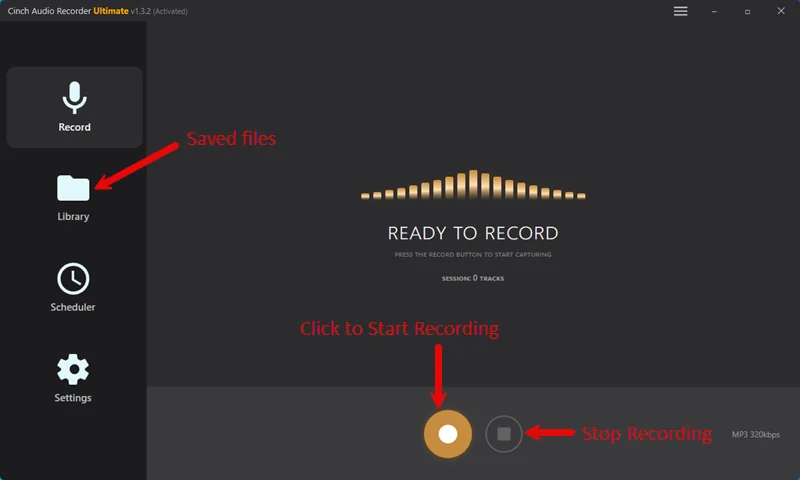
The two problems in this article, the lost server and the old code, are gone from this build. We removed them; we did not patch over them.
Your old licence
The licence records lived on that server. That is why the app cannot find them, and why 4.0.3 details do not work in Ultimate. Send us three things on the support page, and we will look them up for you:
- the email on the first order, and the email you want to use now;
- the old order number or licence key;
- the version in the app (4.0.3) and the words in the alert.
You will hear which choice fits your purchase before you pay anything.
What to do now
- Step 1Install Cinch Audio Recorder Ultimate on the same PC. It opens in trial mode with 9 songs. Try one song before we touch your licence.
- Step 2Record one song, then look at the Library for a title and an artist. If the names are missing, the cause is in the player. These five fixes cover it.
- Step 3Send the three details above on the support page. When Ultimate records well, remove 4.0.3 (Settings, Apps, Installed apps).
The Ultimate manual shows the first run in pictures. The troubleshooter covers the rest.
Frequently asked questions
What is Cinch Audio Recorder Error Code 2032?
It is our own code for the alert “Failed to connect server!” in Cinch Audio Recorder Lite 4.0.3. The server that build calls before every song was lost in 2025. It never answered again.
Is Error Code 2032 a Windows problem or a virus?
No. The alert comes from our app, and only 4.0.3 shows it. Windows, antivirus apps, music sites, and sound drivers never make 2032.
Why could the backups not restore the server?
They were stored online, and the attack locked them together with the server, so no clean copy was left. We kept no copy off the network, and that was our mistake. Your purchase is still in our order records, and support can find it from your order email or key.
Can I fix 4.0.3 by reinstalling it or changing settings?
No. A reinstall, a new key entry, firewall changes, and network changes all work on your side. The missing server and its data are ours, and no patch exists for this build.
Will 4.0.3 work again later?
No. We took the server offline for good in 2025. Every try ends with the same alert.
Which version replaces it, and where do I get it?
Cinch Audio Recorder Ultimate, from our download page. It is a new build on our own servers and never calls the old one. The user manual covers the first run.
Do I need to buy a new licence?
Send your order details on the support page. We will tell you which choice fits your purchase before you pay anything.
Does 2032 show up in Ultimate?
No. Your licence is checked when you activate, so nothing is checked before a song. There is no 2032 to show.