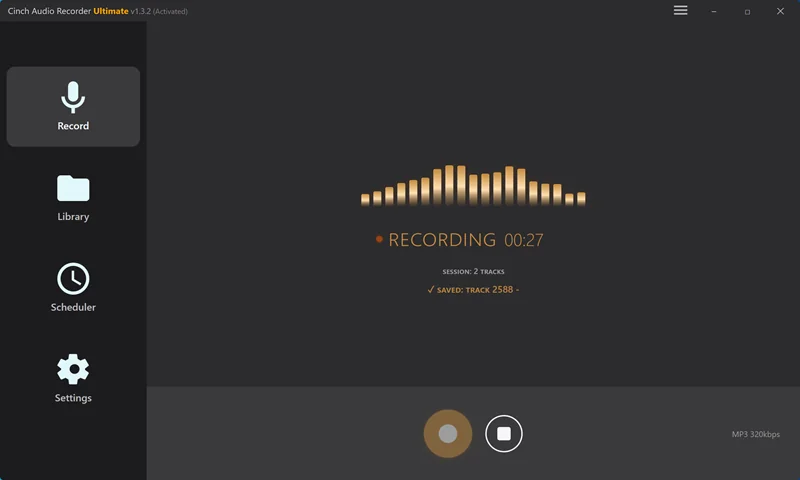
Recordings coming out without song titles or artwork? Tracks splitting in the wrong places? Audio that sounds muffled or flat? In most cases the fix is not inside Cinch Audio Recorder at all – it is in how the music is being played. These are the five settings that solve the most common recording problems, each in about a minute.
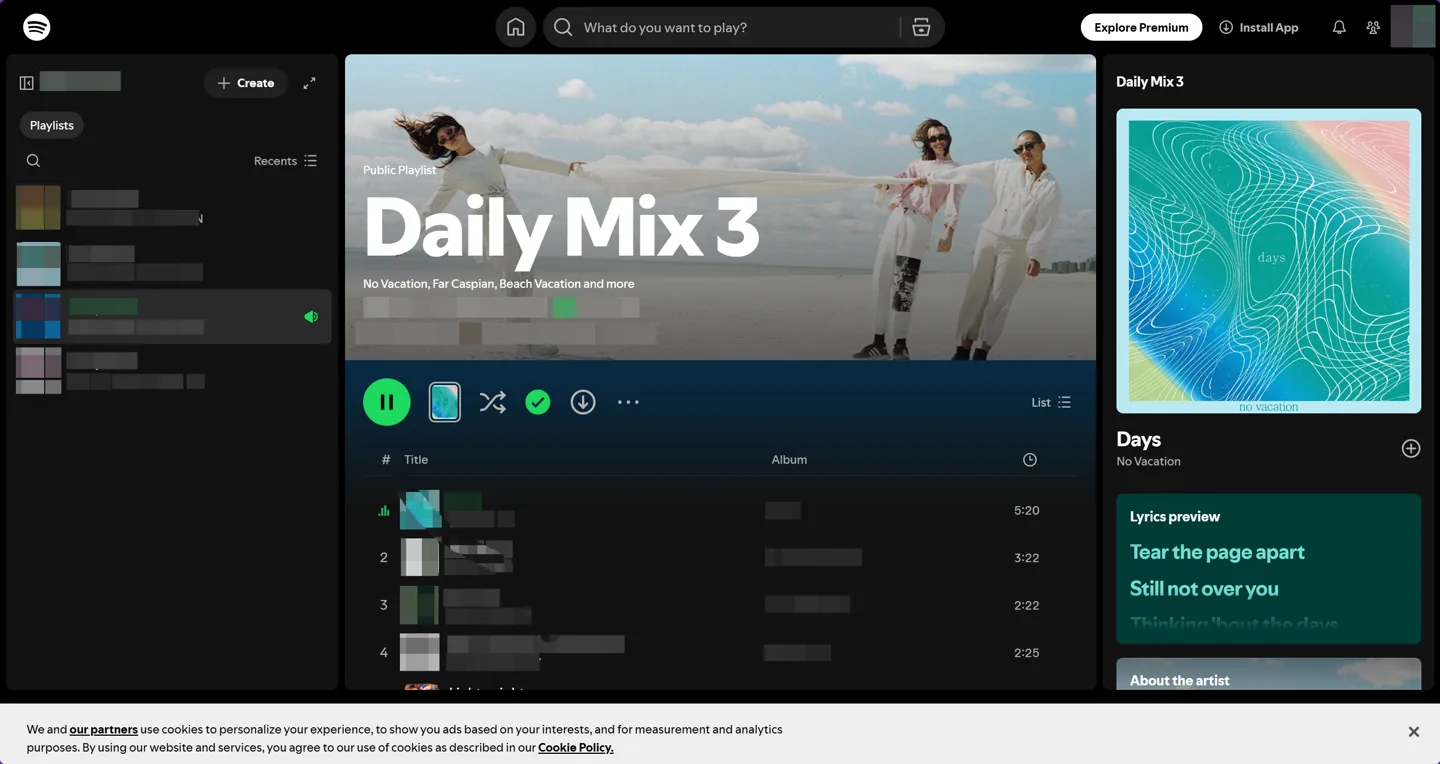
Songs missing titles or artists? Play from Edge or a native music app
Cinch Audio Recorder reads what is currently playing through Windows, so the app that plays your music decides how much info ends up in the recording.
- Most recommended: play music in Microsoft Edge or a native music app when recording with Cinch Audio Recorder.
- Not recommended: Firefox and other niche browsers may not provide complete song title, artist, or cover metadata to Windows.
- If you record from a browser, keep one dedicated Edge window for music playback only – it keeps metadata consistent and stable.
"Unknown Artist" or title-less tracks are almost always fixed by changing the playback source, not by anything inside Cinch Audio Recorder.
Tracks split in the wrong place? Turn off Crossfade / Gapless
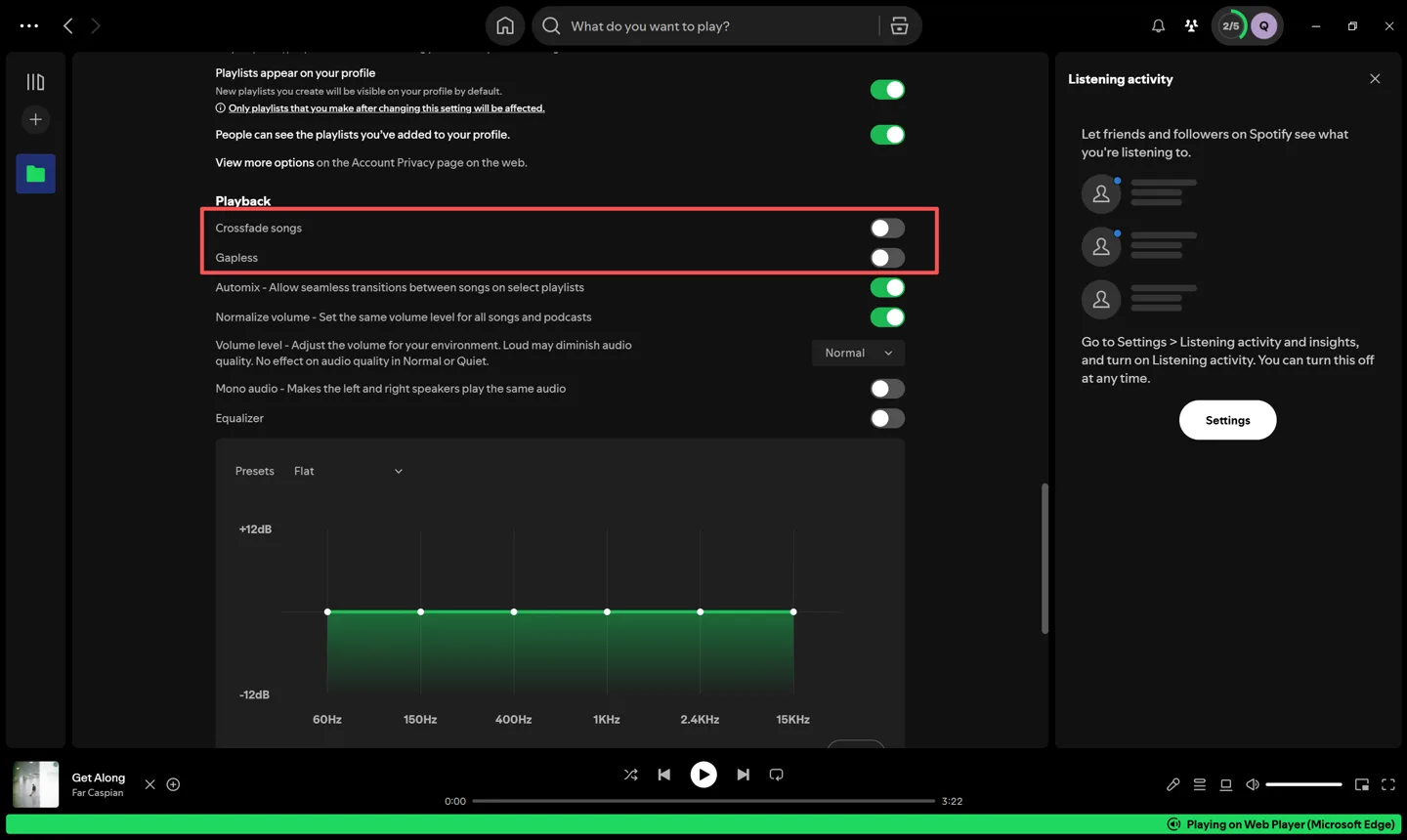
Cinch Audio Recorder splits a recording into separate tracks using the natural pauses between songs. Crossfade and gapless playback remove those pauses, so the splitter has less to work with.
- Spotify: Settings → Playback → turn off "Crossfade songs" and "Automix" (see Spotify’s transitions help for where each setting lives).
- Apple Music / iTunes: Edit → Preferences → Playback → uncheck "Crossfade Songs".
- YouTube: turn off "Autoplay" (sometimes helps), or use a playlist with gaps.
Once seamless transitions are off, the natural gaps between tracks return and segment splitting becomes far more reliable.
Audio sounds muffled or flat? Disable Windows audio enhancements
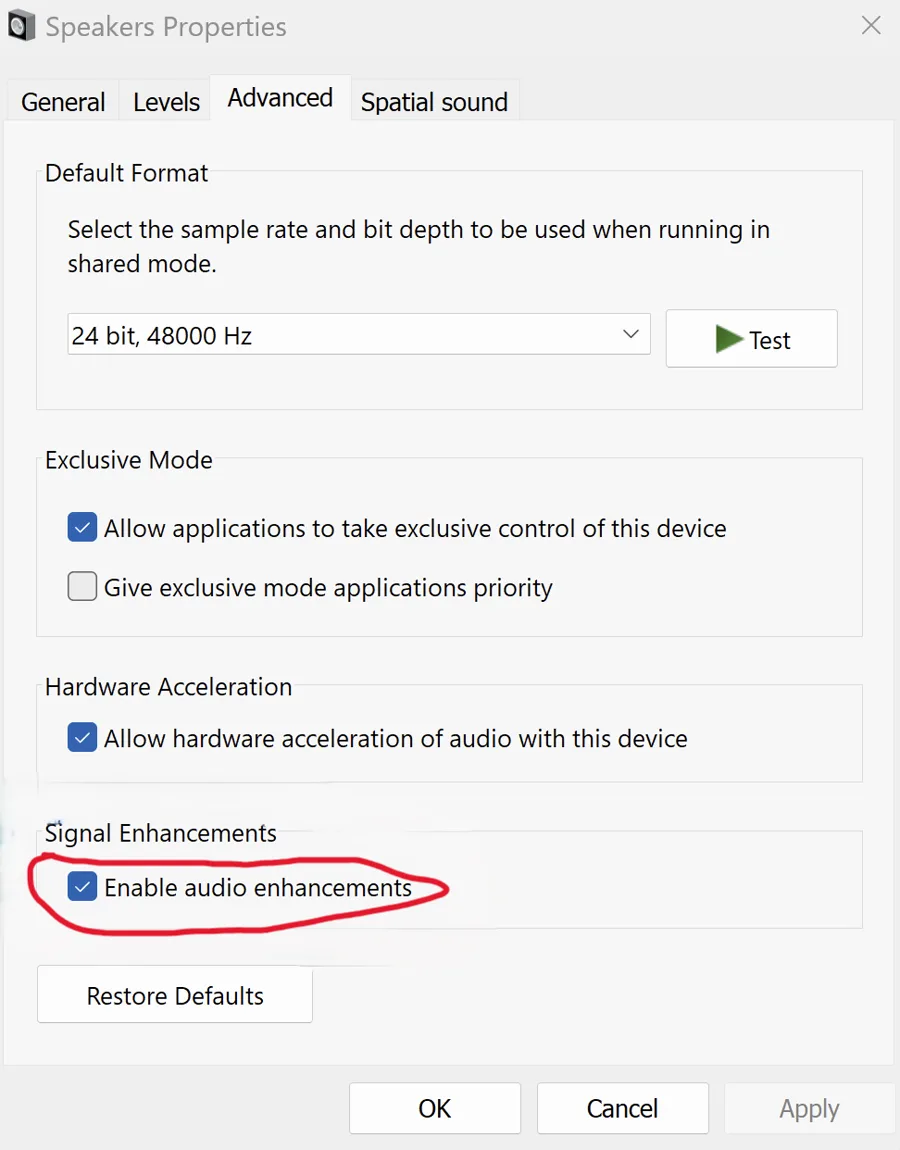
If your recordings sound muted or flat – noticeably worse than the source – the problem is often in Windows, not in the recording path.
- Symptoms: recordings sound muted/flat, noticeably worse than the source. Even if Windows is set to 48kHz, the issue may persist.
- Cause: Windows Audio Enhancements / Device Default Effects add processing that can degrade recording quality.
- Fix: in Windows sound settings, locate your active device and disable Enhancements/Effects.
There is no downside: enhancements are meant for loudspeakers, and your recording only captures what Windows actually plays. Microsoft’s audio troubleshooting guide walks through this exact setting.
Recording unstable or picking up other sounds? Isolate the audio output
The cleaner the path between the player and Cinch Audio Recorder, the more stable the recording.
- Tip: for best isolation, route both your player and Cinch Audio Recorder to a dedicated output device (when possible).
- Why: this helps prevent other apps and system sounds from mixing into the recording path.
- If possible, keep your browser/player dedicated to music playback during recording.
Recording jumps between sources? Use one player at a time
Cinch Audio Recorder can follow whichever app is playing – but it works best when only one player is active.
- During recording, try not to open other media players (they can interfere with splitting and metadata).
- Use one dedicated player or browser for recording, and mute other pages/apps to avoid mixing their audio into the recording.
- When set to "Auto", Cinch Audio Recorder automatically detects the active player and keeps recording stable.
- If your player changes, Cinch can rebind/switch automatically after it confirms a stable signal.
Still stuck? Email us
If a problem persists or you have a feature request, email us through the support page – we respond quickly and will guide you step by step until it is resolved.