Quick Summary
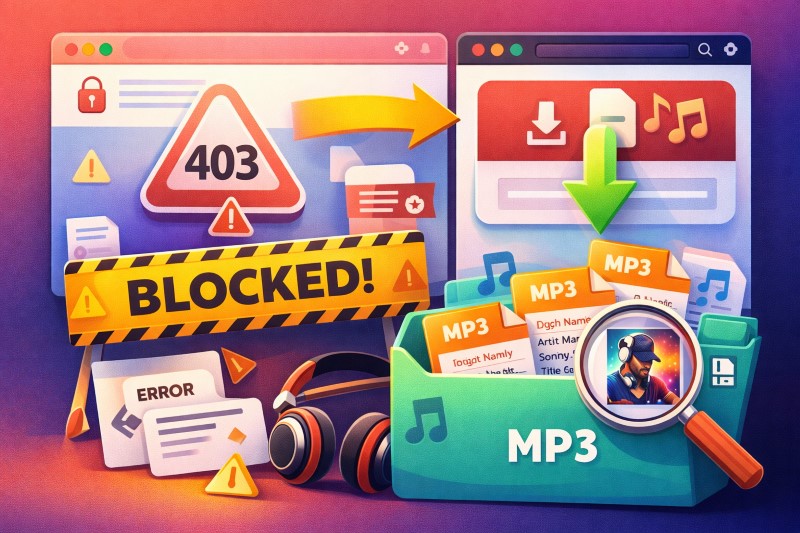
Stop wasting time on URL converters that return 403 errors. Learn the technical truth behind Jamendo's blocked downloads and how to capture real high-quality MP3s with ID3 tags.
When the Jamendo download button is greyed out or missing, the artist has disabled downloads—not a platform bug you can bypass with a better converter. If you came here expecting a URL trick that restores that button, stop: since February 2021, Jamendo gives artists control over audiodownload_allowed, and since April 2022, the API enforces it. The real question shifts from “how do I force this download” to “what actually works now.”
For personal offline listening, you still have options: native download when available, system-audio recording when it isn’t. For YouTube videos, podcasts, client work, or anything monetized, the answer is different—you need a license from Jamendo Licensing before you use the track, not after you download it. This guide covers when each path applies, what quality you’ll realistically get (mp31 vs mp32 matters), and which methods preserve metadata instead of leaving you with anonymous MP3 files.
Quick Answer: Pick the Right Path in 30 Seconds
Here’s the TL;DR so you don’t waste your afternoon: If the download button is there, click it. If you’re coding an app, use the API. But if you’re just trying to grab a track and hitting a 403 wall? Skip the shady online converters and scroll straight to Method 3.
| Your situation | Best move | Why | What to avoid |
|---|---|---|---|
| Download button is visible | Use Jamendo’s native download | Simplest path, usually keeps metadata, least fragile | Converter sites and browser grabbers |
| You are building an app or automation | Request mp32, ogg, or flac through the API and respect audiodownload_allowed |
Control quality, don’t settle for default stream | Treating streamed preview audio as the real download |
| Download button is missing, but you only need personal offline listening | Use system-audio recording | Works when download disabled, if track still plays | Calling it a direct file copy or a commercial-use workaround |
| You care about title, artist, album art, and less manual cleanup | Prefer native download, or use a recorder with auto-tagging support such as Cinch if free recording gets messy | Saves retagging time later | Barebones recording plus manual cleanup for a big library |
| You need the track for YouTube, a podcast, client work, or anything monetized | Get a Jamendo license first | Free personal use is not the same as commercial clearance | Assuming “free download” means “free for video use” |
Why Jamendo Downloads Disappear
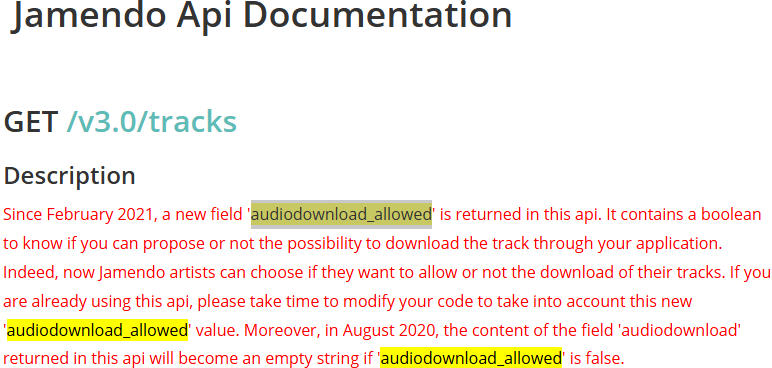
A missing Jamendo download button is usually not a bug. According to the official Jamendo API tracks documentation, Jamendo added the audiodownload_allowed field in February 2021. This field lets artists decide whether a track can be downloaded. Since April 2022, Jamendo’s tracks/file endpoint can return 404 when that flag is false.
If the track still streams, you still have listening access—but direct file access is gone. That matters because many users waste time blaming browser extensions, VPNs, or ad blockers when the real reason is simply that the artist turned downloads off.
This is also why the behavior looks inconsistent across Jamendo. Some tracks still download normally. Some do not. Community reports such as Openverse issue #3499 show the same pattern: Creative Commons licensing alone does not guarantee that Jamendo’s download control stays enabled.
If the download button is missing or greyed out, native download is not the fix anymore. Stop looking for a hidden URL and move to a different path.
Method 1: Use Jamendo’s Native Download When It Still Works
If the download button is there, use it and stop over-optimizing. This is the cleanest path for most readers because it is direct, it usually preserves title and artist data, and it avoids the fragile converter ecosystem completely.
If you opened this article because the download button is greyed out or missing, skip directly to Method 3. This section only helps when native download is still available.
When this is the right choice
- You just want the track for personal offline listening.
- You are building a tagged personal library and want the least cleanup.
- You found a downloadable track and do not need to outsmart Jamendo’s restrictions.
What to do
- Open the track page on Jamendo and confirm that the download control is visible and clickable. If you see a greyed-out button or no download option at all, the artist has disabled downloads—move to Method 3 instead.
- Click the download button. What you should see: your browser prompts you to save a file, or starts downloading automatically to your default Downloads folder. The filename usually includes the track title and artist name.
- After the download completes, locate the file and open its properties (right-click → Properties on Windows, or Get Info on Mac). Check the bitrate field—if it shows around 96 kbps, you accidentally received the preview stream instead of the proper download.
- If you plan to use the music in a public video, podcast, or client project, stop here and handle licensing before editing anything into your project.
If clicking download redirects you to a payment page: that track requires a license—the artist disabled free downloads. For personal offline listening, switch to system-audio recording (Method 3). For commercial or public projects, complete the license purchase on the redirected page.
The official API docs say Jamendo’s default streaming format is mp31 at 96 kbps, while downloads use mp32 (VBR) when permitted. That is why native download usually sounds noticeably better than browser-captured preview audio.
What not to do: if native download works, do not switch to a converter “just in case.” You are trading a stable path for a more fragile one and often losing metadata in the process.
Method 2: For Developers Building Apps or Automation
Skip this section if you are not building software. This path is for developers integrating Jamendo into apps, bots, or automation pipelines—not for someone downloading a single track.
The quality trap most app builders hit: accidentally pulling the preview-grade stream (mp31, 96 kbps) instead of the download format (mp32, VBR). Jamendo’s API offers these format options:
mp31: 96 kbps stream quality (default for browser playback)mp32: VBR MP3 download quality (use this for actual file downloads)ogg,flac: available if you need lossless or alternative formats
Practical rules for app builders
- Treat
audiodownload_allowedas a hard gate. If it isfalse, the/tracks/fileendpoint returns 404—handle that cleanly instead of retrying. - Request
mp32or higher explicitly. Do not rely on defaults; the default stream is 96 kbps. - Since April 2022, API enforcement is consistent. Blocked tracks stay blocked.
If you are not building software, the setup cost outweighs any benefit for casual downloads.
Method 3: When Download Is Disabled, Use System-Audio Recording Instead of a URL Converter
If you arrived here because the download button is missing, this is your path. This method works specifically when the track still plays in your browser but will not download.
System-audio recording captures what your computer is actually outputting, instead of trying to reconstruct a hidden Jamendo file link. That makes it much more resistant to the 403-and-empty-file problems that kill most online converters.
Look, as an audio geek, I’ll level with you: any system recording is a re-capture, not a 1:1 bit-perfect clone of the original studio master. But when the artist locks the download, a clean, driver-level capture is the absolute best fallback you have. A good capture can preserve the full frequency range of what Jamendo is actually playing—but the right promise is “good enough for a personal archive when direct download is blocked,” not “identical to the source.”
Free fallback: Audacity loopback or Stereo Mix
If cost is your top concern, start free.
- On Windows, Stereo Mix or WASAPI loopback recording can capture system output. Note: Stereo Mix is often hidden by default—you may need to enable it in Sound Settings → Recording devices → right-click empty area → Show Disabled Devices.
- In Audacity, select “Windows WASAPI” as the audio host and choose your speakers (loopback) as the recording device. Press Record, play your Jamendo track, then stop when finished. Trim manually if needed.
- This path costs nothing, but you pay in manual work: start and stop timing, track splitting, filename cleanup, and tag repair.
This is the point many guides skip. Free recording is not really free if you are saving 40 tracks and then spending an hour renaming files, adding cover art, and trimming mistakes.
Easier fallback: Cinch when free recording becomes the bottleneck
If you only need one or two songs, free tools are enough. If you want a repeatable workflow for a growing library, a tool like Cinch Audio Recorder is the cleaner fallback.
Cinch records system audio instead of relying on URL parsing, which is why it bypasses the 403 problem. It supports recording quality up to 24-bit/48 kHz and can auto-split songs while attempting automatic ID3 tagging, cover art, and lyrics.
Basic workflow (what you actually do):
- Download and install Cinch from the official site.
- Open the software—you should see a main window with a prominent “Start Recording” button.
- Click the recording button first, then play your Jamendo track in the browser.
- When the track finishes, click “Stop Recording” in Cinch.
- Check the output folder (Cinch saves recordings automatically) to verify the file appears with a recognizable filename.
A limited free trial covers the first 9 songs—test the workflow before paying; check the official site for current pricing (last verified March 2026 at $25 lifetime).
The real benefit is that you avoid watching waveforms, manually cutting every track, and renaming anonymous files one by one. But Cinch still has boundaries: it does not create commercial rights, it does not guarantee perfect recognition for obscure indie artists, and it does not magically make a poor source “lossless.” If metadata cleanup was your bottleneck, this is where Cinch helps. If you needed commercial clearance, this is where it stops.
Recording pitfalls that actually matter
These are the failure points that waste the most time:
- Audio enhancements on your system: If Windows or your driver is adding sound effects, your recording can sound flatter or altered. To disable: Right-click the speaker icon → Sound Settings → Playback device properties → Disable all enhancements before you record.
- Bad output settings: If quality matters, set your playback device to a clean 24-bit/48 kHz mode when available (same path as above, look for “Advanced” or “Format” settings).
- Notifications and background sounds: System alerts can end up inside the recording. Turn off notifications or use “Focus Assist” during recording.
- Browser throttling: Some desktop tools identify tracks more reliably when playback is stable. Keep the Jamendo tab active and avoid switching windows during recording.
If native download is blocked and you only want a personal offline copy, recording is the fallback that is actually worth your time. If you need a pristine direct file with guaranteed metadata and commercial clearance, recording is the wrong path.
Why Online Jamendo-to-MP3 Converters Usually Waste Your Time
If you already hit 403 Forbidden on one Jamendo converter, do not keep trying ten more. These tools are fragile by design because they depend on direct-link tricks, page parsing, referrer assumptions, or old frontend patterns that can break the moment Jamendo changes how a track page is delivered.
That is why so many “paste URL here” sites work for a while and then suddenly fail.
Typical failure modes:
403 Forbiddenbecause the site cannot hotlink the real media request anymore- Empty or broken downloads after a frontend change
- Low-quality output because the tool grabbed the preview stream instead of a permitted download
- Missing title, artist, album art, or all three
Dead-end fix to avoid: endlessly rotating through “top 10 Jamendo to MP3 converter” lists. If the method itself depends on brittle URL extraction, swapping websites does not change the underlying weakness.
How to Keep Title, Artist, and Album Art Instead of Cleaning Up Everything Later
Metadata is where a “free” workaround often becomes expensive. Saving the file is only half the job. If the result lands in your library as an unnamed MP3 with no artwork, you still have cleanup work left.
Metadata handling varies by method:
| Method | Keeps title/artist | Keeps album art | Cleanup risk |
|---|---|---|---|
| Native Jamendo download | Usually yes | Usually yes | Low |
| API-based download in your own app | Yes, if your workflow handles it properly | Depends on your implementation | Medium |
| Audacity / Stereo Mix recording | No automatic tags | No automatic cover art | High |
| Cinch recording workflow | Often, when recognition succeeds | Often, when recognition succeeds | Medium |
| Online converters | Often no | Usually no | High |
For a personal offline library, this is the rule that saves the most time: if metadata matters, avoid converter sites first, not last.
If you do need to repair tags after recording, note the track name and artist before you start. For manual cleanup, tools like MP3tag or MusicBrainz Picard are still useful. That is especially true for rare Jamendo artists, where automatic identification can miss.
Jamendo Licensing Reality Check: Personal Listening Is Not the Same as YouTube Use
If I had a dollar for every video editor who got hit with a YouTube Content ID strike because they thought a “free” Jamendo MP3 meant “free for my vlog,” I’d be retired. Let’s get this straight: downloading the MP3 does not magically buy you the commercial license.
Here’s what actually happens on YouTube: even if you successfully extract a Jamendo track using a converter or recorder, the original artist can still register that track with YouTube’s Content ID system. When you upload your video, YouTube’s automated bot scans the audio fingerprint. If it matches a registered track, you get hit with a copyright claim—even if you thought you “downloaded it for free.” Three strikes and your channel gets terminated.
This isn’t theoretical. I’ve seen creators lose monetization on videos because they used a Jamendo track they extracted without purchasing the proper license. The Content ID system doesn’t care how you got the MP3; it cares whether the artist authorized that specific use.
According to Jamendo’s licensing terms and terms of sale, personal listening and commercial/public use are legally separate categories. The practical breakdown is simple:
- Personal offline listening or a private archive: free download or personal recording may be acceptable.
- YouTube intro, monetized video, podcast, client edit, ad, or branded content: get a Jamendo license before you use the track.
- Anything public-facing where a client expects clean rights: do not rely on the free download alone.
If you are the indie creator who searched this because you found a perfect song for your YouTube intro, this is the part that matters most: the MP3 problem and the license problem are separate. Solving the first one does not solve the second one.
One more practical tip: if you do license a track for a public project, keep the license certificate and any claim-management details Jamendo provides. That can save time later if a platform asks for proof.
How to Check Whether You Are Stuck With the 96 kbps Stream (and Why “Fake FLAC” Is a Scam)
Do not trust the .mp3 extension alone—or even a .flac wrapper. Some tools (like DRmare and similar “lossless capture” software) claim to record Jamendo streams as FLAC or WAV. Here’s the reality check: if the source stream was 96 kbps MP3, wrapping it in FLAC just inflates the file size by 10x without adding any actual audio quality. The frequencies above 15 kHz are already gone. You’re paying for empty bytes.
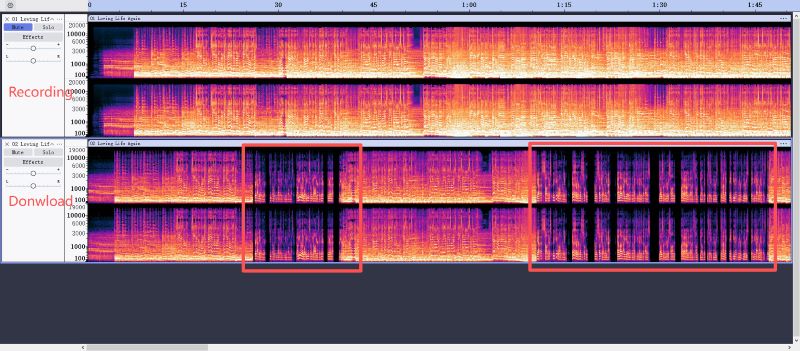
A converter—or even a “lossless recorder”—can give you a file that looks legitimate but is nothing more than Jamendo’s low-quality mp31 stream in a fancy container. Don’t pay for “fake lossless.”
If quality matters, check it in this order:
- Look at the file properties. If the bitrate is around 96 kbps, you almost certainly captured the preview-grade stream.
- If you are doing DJ, edit, or archive work, inspect the spectrum. Community discussions such as those on HydrogenAudio and practical guides to spectral analysis show the usual pattern: 96 kbps MP3 often rolls off hard around 15-16 kHz, while better sources usually reach closer to 20 kHz.
- Judge by use case, not by pride. For casual listening, many people will not care. For DJ mixing, editing, and repeated re-encoding, 96 kbps is a poor starting point.
This is the useful middle ground: you do not need to become obsessed with spectrograms, but you should verify quality once before building a whole playlist or edit around the wrong file.
What To Do First
- Check the download button. If visible, use native download—it’s the cleanest path and usually preserves metadata.
- If the button is missing, decide by your use case: personal offline listening → system-audio recording; app development → API with
mp32format; YouTube, podcast, or client work → purchase license first, no exceptions. - Verify quality once before batch-saving. Check bitrate isn’t stuck at 96 kbps, confirm tags are present, and skip the next twenty “Jamendo converter” search results—they’ll hit the same 403 wall.
Three paths, one rule: native download when available, recording when it isn’t, licensing for anything public. If you’re building a personal archive, test Cinch’s free trial on a few tracks before committing. If you’re prepping a video or podcast, get your license documentation now—it takes longer to fix a Content ID claim than to buy the rights upfront.
FAQ: Common Questions About Jamendo to MP3
Is it legal to convert Jamendo tracks to MP3?
For personal offline listening, recording what your computer plays is generally considered acceptable in most jurisdictions—it falls under the same logic as recording a radio broadcast for your own use. But that line stops at distribution. You cannot upload that MP3 to YouTube, share it publicly, or use it in client work without purchasing the proper license from Jamendo Licensing. The “personal use” exemption does not extend to commercial or public-facing projects.
Why did my Jamendo MP3 get a copyright claim on YouTube?
Even if you extracted the track successfully, the original artist likely registered it with YouTube’s Content ID system. YouTube’s automated fingerprinting doesn’t care how you obtained the file—it matches the audio to registered works. If the artist enrolled that track in Content ID (which many Jamendo artists do to monetize unauthorized uses), your video gets flagged automatically. The solution: either purchase the proper license before uploading, or stick to Jamendo tracks explicitly marked as safe for commercial video use.
Can I get 320kbps MP3s from Jamendo for free?
No. Jamendo’s free download tier defaults to mp31 at 96 kbps. Higher-quality formats like mp32 (VBR, roughly equivalent to 160-190 kbps depending on content), ogg, or flac require either a paid license or an API request that explicitly requests the higher format—and the API only delivers those when audiodownload_allowed is true. If the download button is disabled, you cannot access mp32 through official channels. System-audio recording can capture what the browser plays (which is often higher than 96 kbps for streamed content), but it’s still a re-recording, not the original high-quality download file.