Quick Summary
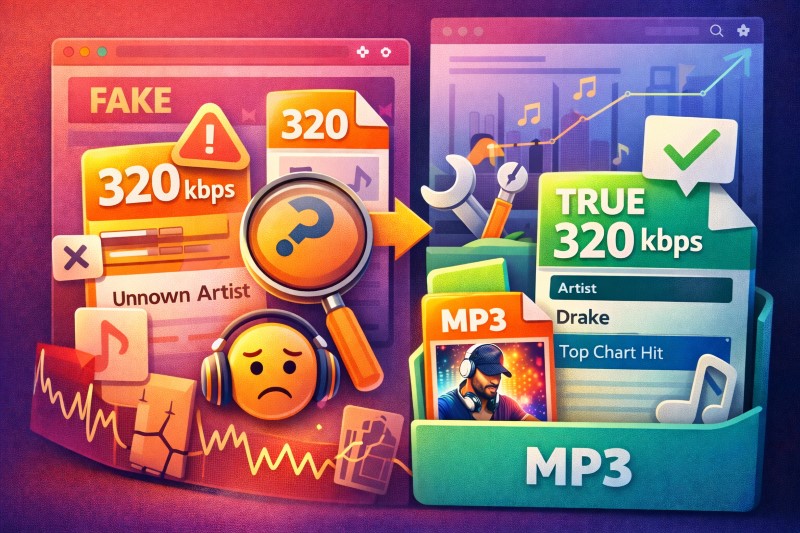
Tired of "Unknown Artist" and fake 320kbps files? See the spectrum analysis exposing free Billboard downloaders, and learn the driver-level recording method to build a flawless local library.
Your Billboard downloader claims 320kbps, but the file sounds flat and imports as “Unknown Artist.” Most free tools fake the bitrate and skip the metadata work. This guide shows you how to verify what you actually have, repair broken files, and switch to a recording workflow that survives weekly chart updates.
Where to Start
Let’s be honest: if you’re pulling the Billboard Hot 100 every week, you’re already exhausted by the cleanup. Let’s fix the mess you currently have in your folder first, and then build a workflow that won’t break next Tuesday.
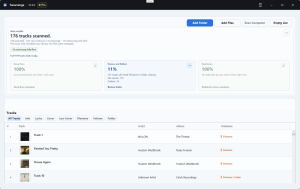
If you have files with suspicious “320kbps” labels or broken tags: Start with spectrum analysis on one file. If the frequency cutoff contradicts the bitrate label, you know the downloader is untrustworthy. Then import your existing files into a fingerprint-based tagger to recover metadata before you consider redownloading.
If you need to capture new chart entries and want a stable weekly workflow: Skip login-based downloaders. System recording takes more effort than one-click promises, but it works when playback works, keeps your account out of third-party hands, and produces files you can actually verify.
Most free Billboard downloaders are lying about 320kbps. The file says it, the Properties window says it, but the audio does not back it up. What you usually get is a YouTube audio stream (128-256kbps maximum) repackaged into a larger container.
For new songs, stop chasing login-based downloaders. Handing your streaming credentials to a random website is a security risk and often violates the service’s terms. System audio recording is slower than one-click promises, but it works when playback works, and it keeps your account out of third-party hands.
Free tools handle small jobs fine. The real labor is not pressing Record. It is splitting tracks, fixing tags, and doing the same cleanup every week. Cinch combines recording and identification in one workflow. A 9-song trial lets you test accuracy before paying.
Why Most Free Billboard Downloaders Deliver Fake Quality
To test this, I downloaded the current Billboard Hot 100 #1 track using five of the most popular free “Spotify to MP3 320kbps” tools—the ones promising lossless downloads and one-click conversion. Then I ran spectrum analysis on every file. The result: four out of five showed the classic 16kHz cutoff pattern, despite all claiming 320kbps in the file properties. The Spotify to MP3 320kbps truth is that most of these tools are not pulling from Spotify at all—they are transcoding YouTube-class streams and packaging them in larger containers.
Free downloaders promising real 320kbps files warrant skepticism. The typical failure pattern: the tool grabs a lower-bitrate stream, converts it again, and outputs a larger MP3. The file gets fatter. The music does not get better.
The source is the limiting factor. Many free “Spotify downloaders” do not pull Spotify audio at all. They use the track name to find a matching YouTube upload, then transcode that result. YouTube audio tops out at roughly 256kbps AAC for YouTube Music Premium and 128kbps AAC or 160kbps Opus for standard video. There is no hidden 320kbps stream waiting to be pulled. Re-encoding into 320kbps MP3 changes the container and reported bitrate, but cannot restore high-frequency information already discarded.
This explains why many “320kbps” Billboard MP3s feel like watered-down files in nicer packaging. They may look bigger in Explorer or Finder. They may even say 320kbps in Properties. But if the source was already lossy and bandwidth-limited, you are paying in storage, not fidelity.
A second problem is stability. Community reports about free music downloaders follow the same pattern: the site works briefly, then a platform changes something upstream, and suddenly users get dead links, 0-byte files, broken parsing, or ad-heavy redirects. That workflow cannot support a long-term archive.
A third problem is account risk. Some “Spotify downloaders” require your account credentials. Spotify’s Terms of Use prohibit using third-party tools to download content. Not every user gets instantly banned, but you are taking a policy and security risk for a tool that may not deliver a clean source anyway.
One more boundary: even if a service adds a higher-quality tier, third-party downloaders remain untrustworthy. Spotify’s newer lossless tier may offer 24-bit/44.1kHz FLAC streaming, but offline files remain DRM-wrapped. Claims of “one-click lossless export” are where tools become vague about the actual audio source.
The Metadata Disaster Is What Breaks Most Local Libraries
For chart collectors, metadata failure is usually a bigger time sink than the download itself. A downloader that “worked” but left you with Track01.mp3, no cover art, and Unknown Artist has only finished the easiest part of the job.
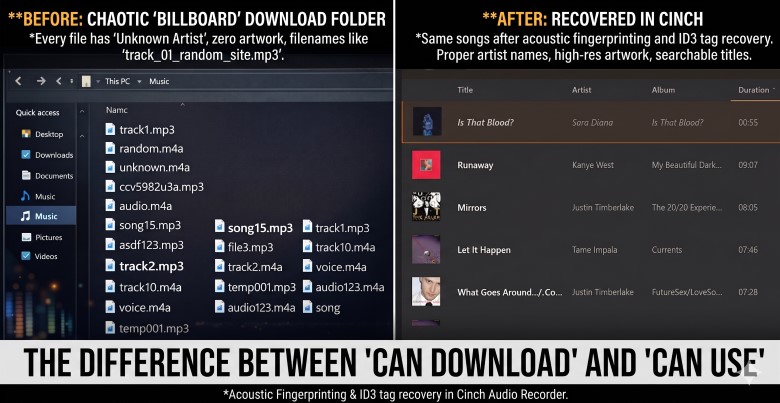
The real mess usually looks like this:
- filenames that come from a messy YouTube title instead of the actual song title
- artist and album fields left blank or guessed wrong
- cover art missing entirely
- multiple versions of the same song with slightly different names
- imported files that collapse into
Unknown Artistinside Plex, MusicBee, Foobar, Apple Music, or another library app
“Can download” is not the same as “can use.” If your goal is a bulletproof Billboard archive, you need files that sort correctly, search correctly, and survive import into a player without turning into chaos.
If you already have a folder full of these broken files, do not start by redownloading everything. Start by seeing how much you can recover automatically. Fingerprint-based identification attacks the problem at the audio level instead of trusting bad filenames.
For a small backlog, a free tagger plus some manual editing is fine. For a few hundred tracks, the hidden cost becomes obvious fast:
- one tool to record or capture audio
- another tool to identify tracks
- another round of cover art cleanup
- manual fixes for failures
- repeating the whole chain next week
Cinch combines recording and identification in one workflow, which removes the handoff between separate tools.
It supports Windows 10/11 and macOS 13.5+, offers a 9-song trial (enough to test identification accuracy and recording quality on your setup), and handles both importing existing files for fingerprint-based tagging and recording system audio for new captures. The time Cinch actually saves is not in the recording itself. It is in skipping the handoff between separate tools—recording with one app, identifying with another, fixing cover art somewhere else, and manually patching failures. That handoff is what eats hours when you repeat it weekly.
The Workflow That Actually Holds Up Week After Week
Let’s be realistic: system-level capture isn’t magic. Before you even download Cinch, check your setup. If your browser can play the track cleanly, we can intercept it at the driver-level audio capture layer. Just make sure you haven’t enabled any garbage “Bass Boost” or “Loudness Equalization” in your Windows audio enhancements—or you’ll be recording distorted junk. A raw, bit-perfect stream is what you want, not an artificial EQ baked into your captures.
Stop chasing the myth of the “one-click lossless downloader.” Building a bulletproof local library is engineering, not magic. You need a reliable acoustic fingerprinting tool to salvage your existing files, and a driver-level capture system to intercept anything new. Whether you pull the week’s chart from Billboard’s page, a playlist mirror, or your own queue, the workflow stays the same. It is more boring than a downloader promise, but it is also the first approach that still works when you repeat it every week.
Login-based downloaders appeal to people who want one-click convenience, but that convenience hides real tradeoffs. The source is often opaque—you cannot verify whether the file came from YouTube, Spotify, or somewhere else. Some tools ask for your streaming credentials, which creates account risk and often violates platform terms. Stability is the other weak point. When a streaming site or API changes upstream, these downloaders break in ways that are hard to predict: dead links, zero-byte files, or ad-heavy redirects.
System recording with auto-tagging is less exciting but more durable. You know exactly what you recorded—whatever your computer actually played. No third-party login is required. If playback still works, recording still works, which means the workflow survives platform changes that break API-dependent tools. Metadata quality depends on your tagger, but when recording and tagging happen in the same tool, cleanup becomes simpler.
Free web rippers are fine if you just want a disposable track for a ringtone. But if you are maintaining a Plex server or a high-res Walkman library, handing your Spotify credentials to an ad-riddled site just to get a watered-down 128kbps rip is insane. System-level capture is the only way to retain control.
1) Fix the files you already have before you chase new downloads
If your current pain is “my library is full of broken MP3s,” solving that first gives you the biggest immediate win.
- Import the files into a fingerprint-based tagger. With Cinch, that means importing your existing MP3, WAV, FLAC, or M4A files and letting it identify the tracks from the audio itself.
- Sort the easy wins from the outliers. The goal is not perfection in one click. The goal is to recover the obvious titles, artists, album art, and lyrics in bulk.
- Re-identify once, then stop retrying obvious mismatches. Rare tracks, live versions, remixes, mashups, and indie releases are the most common failure cases.
- Batch-edit the leftovers. Once the tool handles the bulk of the work, manual editing becomes the exception instead of the whole workflow.
- Standardize filenames before your library grows again. A consistent pattern matters more than people think when you add new chart entries every week.
Here’s the brutal truth: free taggers are fine for fixing a dozen songs on a Sunday afternoon. But if you’re scraping the Billboard Top 100 every single week, juggling three different freeware apps to record, split, and tag will make you hate your own music library. Cinch is built to kill that exact workflow loop—import old files, record new ones, and get clean metadata without the handoff. Whether you’re running a Plex server metadata agent or just trying to keep your Walkman library from turning into garbage, the time saved on the weekly grind is worth more than the sticker price.
2) Record new Billboard songs instead of trusting rippers
If you can still play the song normally in your browser or app, you still have enough access to build a personal archive. What you have lost is not playback. What you have lost is trust in one-click downloaders. System recording is the fallback that restores usable files, not the original service file.
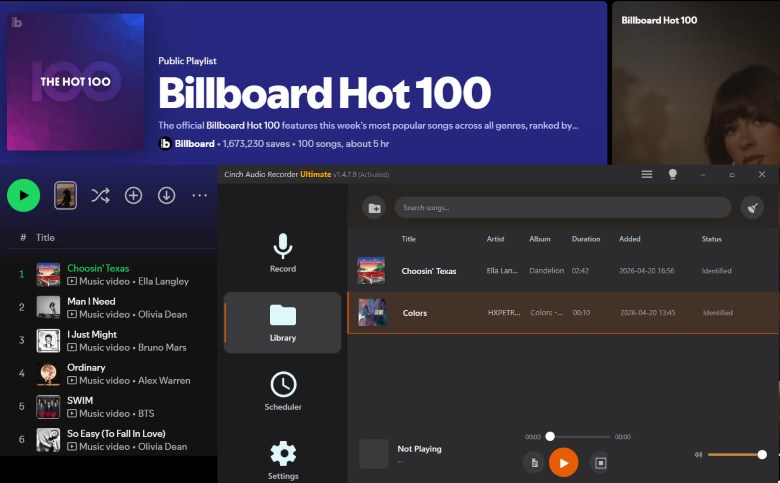
- Install and open your recording tool first. For Cinch, download the installer from the official site, complete setup, and launch the application before you start playback. The interface shows recording controls, output settings, and identification options upfront.
- Set your playback chain cleanly. On Windows, a 24-bit/48kHz default format is the common “safe high-quality” setting. Disable OS or driver audio enhancements if recordings sound dull or smeared.
- Set the recorder before you play music. Choose the correct recording device, turn on automatic identification, and define a sane output folder and filename pattern.
- Start recording, then play the chart. The reliable mental model is simple: if your computer can play it, the recorder can capture it.
- Let the tool split and identify tracks, then review only the exceptions. Do not waste energy checking every file manually if the bulk of them already landed with correct tags.
- Keep an archive mindset. If you care about long-term organization, save into a predictable folder structure now instead of promising yourself you will fix it later.
Cinch fits here because it handles both parts of the workflow in one tool. According to Cinch’s user guide and current product info, it can import existing files for fingerprint-based identification and record system audio for new captures. It supports Windows 10/11 and macOS 13.5+, and offers a 9-song trial before you decide whether the paid version fits your needs.
If you want a free version of the same idea, use a basic system recorder plus a separate tagger. That works. It just moves more labor back onto you. The time cost is not in the recording itself; it is in matching files, fixing tags, replacing art, and keeping the workflow stable every week.
Note: If you search for “Billboard Hot 100 zip download” hoping for a pre-packaged archive, those bulk ZIP files typically suffer the worst metadata problems—random filenames, no cover art, inconsistent tagging. A manual capture workflow produces better results than any mass-downloaded bundle.
3) Use scheduling only if your setup can actually support it
Unattended chart capture sounds great, but the real-world version has limits. Scheduled recording is only useful if your computer stays awake, the playback source stays stable, and the browser or app does not get throttled in the background.
The practical rule is this: scheduled recording is for predictable sessions, not magic automation. If your machine sleeps, the task will not save you. If your browser aggressively throttles inactive tabs, identification can get less reliable. If you cannot keep the system awake during the recording window, skip scheduling and do a controlled manual run instead.
How to Verify Whether a File Is Real 320kbps
If a file claims 320kbps and you do not trust it, use a spectrum viewer before you organize your whole library around it. Spek (free, works on Windows/macOS/Linux) is a common choice—download it, open your MP3, and look at the upper-frequency range. That will not tell you everything about sound quality, but it is the fastest way to catch the most common fake files.
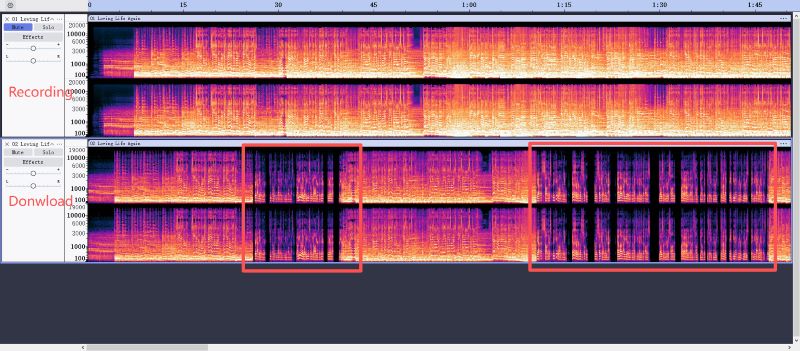
Use any spectrum viewer you already trust and check for these patterns:
- Open the file and look at the upper-frequency range.
- Watch for a hard-looking cutoff. Lower-bitrate lossy files often show a clear drop or ceiling around the upper highs.
- Use the usual rule of thumb, not a courtroom standard. A file that behaves like a 128kbps source often shows obvious thinning or cutoff around 16kHz. A healthier high-bitrate encode usually extends closer to 20kHz or above.
- Compare with what the file claims to be. If the file says 320kbps but looks like a lower-bitrate source with the top end already chopped off, treat it as an upscaled transcode.
Spectrum analysis is a screening tool, not a courtroom proof. Some songs are dark by design. Some masters lack energy in the extreme highs. The right judgment is not “this chart proves fraud.” The right judgment is “this file does not behave like a trustworthy high-bitrate source, so I should not archive it as if it were one.”
Spectrum checking gives you independence most downloader roundups never mention. You stop trusting whatever bitrate label the site prints on the download button. You can verify the file yourself, with a tool you already have or can install in five minutes.
When Free Tools Are Fine—And When to Stop Using Them
Free tools work if your needs are genuinely small. A handful of songs, no strong requirement for cover art or lyrics, willingness to verify quality manually, tolerance for using one tool to capture and another to tag, and acceptance of occasional failures and cleanup—that stack holds up for light use.
The moment you update Billboard charts every week, care whether files work inside a real library, keep catching fake 320kbps claims, face login prompts, endure filenames and metadata that come out wrong, or deal with sites full of ads and dead links—the free path stops being worth the time you spend on cleanup.
Cinch makes sense here not because it is cheaper, but because it removes the repeat labor. It saves the handoff between recorder and tagger, lets you repair old files and capture new ones in one app, and gives you a trial first so you can test your own edge cases instead of buying blind. If you want a temporary fix, start free. If you want a stable workflow that still works three months later, stop pretending the free web-ripper route is “basically the same.” The cleanup cost is the real cost.
Troubleshooting the Failures That Matter
The fastest way to troubleshoot this workflow is to target the real failure mechanism, not fall back on generic reinstall-everything advice.
Track identification fails
The real cause is usually not a broken app. It is audio that does not match the fingerprint database cleanly. Rare tracks, indie releases, live versions, remixes, and mashups fail more often than standard studio releases.
What to do:
- run re-identification once
- check whether you recorded a nonstandard version
- manually edit the tag if the track is obviously outside the common catalog
If you have already retried once and it is still wrong, stop brute-forcing it. This is where manual cleanup beats wishful clicking.
The recording sounds flat, muffled, or weaker than expected
If your recording sounds like it was played through a tin can, don’t blame the software yet. 90% of the time, the culprit is Windows’ built-in audio enhancements. Go into your Sound Control Panel, find your output device, Properties → Advanced, and uncheck “Enable audio enhancements.” You want a raw, bit-perfect stream—not an artificial EQ baked into your captures. This is the most common cause of that muddy, lifeless sound you hear on supposedly “high quality” recordings.
Scheduled recording missed the chart window
When scheduled recording misses the chart window, check the environment first. The computer slept, the player stopped, or a background browser tab got throttled. None of these are mysterious failures—they are predictable limitations of unattended capture.
What to do:
- keep the computer awake for the whole session
- avoid relying on a heavily throttled background browser tab
- test one scheduled run before you trust it with a full weekly capture
If you cannot keep the machine awake, scheduled recording is the wrong tool for your setup. Use a manual session instead.
You are capturing ads, intros, or tiny junk files
When you capture ads, intros, or tiny junk files, the minimum-duration filter is usually the culprit. Set it too low and you catch noise. Set it too high and you can accidentally discard short intros or short songs.
What to do:
- raise the minimum duration if you are catching lots of ads
- lower it if you are losing legitimate short tracks or interludes
- check the threshold on a small sample before you archive a whole chart run
You are worried about legality
On legality, the line worth understanding is this: system recording is not the same thing as breaking DRM. It records decoded audio that your computer is already playing. In many jurisdictions, that is treated more like personal recording than circumvention. That still does not make redistribution safe, and it is not legal advice. But for personal archiving, this path is generally less aggressive than tools that try to extract protected files directly.
When to stop and switch routes
When you have already tried one or two downloader sites and still ended up with fake 320kbps files, missing tags, or login prompts, stop shopping for a better ripper. You are not one more website away from a reliable archive. Switch to record-and-tag and spend your time building the library instead of chasing the myth of a perfect free extractor.
What To Do First
The fastest path to a clean Billboard archive is not finding a better ripper. It is fixing the files you already have, then switching to system recording for new additions.
Start with one spectrum check. If your “320kbps” file shows a 16kHz cutoff, you now know your downloader is lying. Stop using it for anything you care about.
Next, import your existing folder into a fingerprint-based tagger before you redownload anything. Recover the metadata wins first—you might be surprised by how much is salvageable.
For new songs, test recording on 5 to 10 tracks with Cinch’s trial. If identification works on your exact setup, you can scale it into a weekly routine with standardized filenames and scheduled sessions. If results look wrong, you learned that before committing to a larger backlog.
That is how you build a Billboard archive you can actually use—instead of a folder full of mislabeled files that looked convenient on day one but became a mess you never finished fixing.
Frequently Asked Questions
Why do my downloaded Billboard MP3s sound muffled?
Most free downloaders are transcoding from YouTube-class sources, which cap out at 128-256kbps. When that already-compressed audio gets re-encoded into a “320kbps” MP3 container, you are not getting more quality—you are just getting a bigger file with the same frequency limitations. The muffled sound comes from the high frequencies (above 16kHz) that were discarded during the original YouTube compression. The audio frequency cutoff at 16kHz is the telltale signature. Use spectrum analysis in Spek to confirm: a genuine high-bitrate file shows energy past 20kHz, while a transcoded fake cuts off sharply around 16kHz.
How to automatically fix “Unknown Artist” on hundreds of MP3s?
Use acoustic fingerprinting. Tools like Cinch connect to an acoustic fingerprinting API that analyzes the audio content itself—not the filename—and matches it against a global database to pull correct artist names, album titles, cover art, and lyrics. This works even when your folder is full of “Track01.mp3” garbage—because the identification happens at the audio level, parsing the actual sound waves. For a library with hundreds of broken files, batch fingerprinting takes minutes instead of the hours you would spend manually fixing each entry.
Is system audio recording legal for Billboard songs?
In most jurisdictions, recording audio that your computer is already playing (decoded output) is treated differently from breaking DRM protection. System recording captures what you can already hear—it does not circumvent encryption or strip DRM from protected files. This is generally considered personal-use recording, similar to recording radio broadcasts. However, this does not make redistribution legal, and this is not legal advice. If you are building a personal archive and not sharing the files, system-level capture sits on a more conservative legal boundary than tools that extract protected streams directly.