Quick Summary
Download Telugu songs from JioSaavn/Spotify/YouTube to real MP3 files. Learn to avoid fake 320kbps claims, fix Telugu ID3 tags for car stereos.
There’s nothing more infuriating than plugging a carefully curated USB drive into your new car, only to find your favorite Telugu playlist shows up as unplayable files or gibberish text. If you want an offline library that actually works—and survives your Spotify trial ending—it’s time to ditch those shady YouTube converters.
The fastest workable path is system audio recording: record from a source you can still play, then save as real MP3 files with car-friendly tags. This gives you permanent personal playback files. It does not recreate original store downloads, and it is not for sharing or piracy.
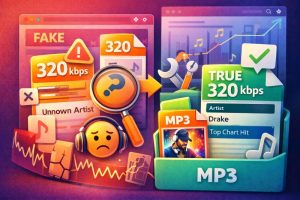
Stop downloading Telugu songs from YouTube-to-MP3 converters if your goal is sound quality. You are not getting real 320kbps audio. For most videos, YouTube audio tops out at roughly 128kbps AAC. A converter that exports “320kbps MP3” is usually just wrapping a lower-quality source in a bigger file. And even if you pay for JioSaavn or Wynk Premium, you still do not own those “downloads” as normal files. You are renting app-locked files that stop working when the subscription ends.
I wrote this guide because building a permanent, 200-song offline library shouldn’t feel like a part-time IT job. Here’s exactly how I get clean MP3s, real cover art, and files that actually belong to me. This covers three core scenarios: your car USB library project, your JioSaavn subscription about to expire, or overnight batch recording without ad contamination.
Quick Answer
- No, YouTube “320kbps MP3” downloads are not real source-quality 320kbps files. The source is usually around 128kbps AAC, so converters cannot add detail that was never there.
- No, JioSaavn and Wynk “downloads” are not permanent MP3 files. As JioSaavn’s own help page states, downloaded songs stop being available when the subscription ends.
- If you want permanent MP3 files, system audio recording is the cleanest practical path. It records the audio after your computer has already decoded it for playback instead of trying to decrypt app cache files.
- If your car stereo shows garbled Telugu text, save tags as ID3v2.3 with UTF-16. That is the safest compatibility combo for older car USB players.
- If you need to record full albums or 100+ songs, manual tools stop feeling free. Use Audacity if you want maximum savings; move to Cinch when splitting, tagging, cover art, and ad cleanup start eating your time.
- Yes, you can record full albums overnight without hand-splitting every waveform. Automation tools can detect track boundaries and save separate files while the playlist keeps running.
- Do not give your streaming password to downloader tools. Login-based downloaders create more account risk than simple system recorders.
Why Your Premium JioSaavn Downloads Fail in the Car
Here’s what streaming platforms don’t advertise: when you pay ₹149/month for JioSaavn Pro or Wynk Premium and tap that “Download” button, you’re not buying files. You’re renting encrypted cache files that only work inside their app ecosystem. The moment your credit card fails or you cancel the subscription, your entire “offline library” vanishes overnight.
This isn’t a bug—it’s the DRM (Digital Rights Management) trap. JioSaavn and Wynk encrypt downloads as .exo files or proprietary cache formats that:
- Cannot be copied to a USB drive—the files are locked to the app’s internal storage
- Cannot be played on other devices—even your computer can’t read them
- Expire automatically when your subscription ends—no grace period, no backup export
This is why your carefully curated Telugu playlist works fine in the JioSaavn app but shows as “unsupported format” when you try to copy those files to your car’s USB port. The files were never meant to leave the app.
Major streaming platforms (Gaana, Spotify India, Apple Music) operate the same way. Their “offline mode” is designed for temporary playback within the app, not for building permanent personal libraries. The only way to get standard MP3 files that work everywhere is to capture the audio during playback—not by cracking the encryption, but by recording what your computer’s sound card is already playing.
This is the legal gray zone that works: Recording audio that’s already been decrypted for playback is legally distinct from breaking DRM encryption. It’s similar to recording a song from FM radio onto cassette tape—the audio was already broadcast; you’re just capturing it for personal use. This distinction matters for both legal safety and account safety (you never hand over your Spotify credentials to a third-party tool).
Why Most Telugu MP3 Workflows Fail
Most people mix up three different goals: getting a file, getting a good file, and getting a file that still behaves properly on a car stereo. YouTube converters only solve the first one. Streaming app downloads only solve temporary offline listening inside the app. A proper car USB library needs all three: permanent files, decent source quality, and correct metadata.
The “320kbps YouTube” claim is mostly packaging, not quality
If the original stream is around 128kbps AAC, converting it to a 320kbps MP3 does not magically create missing detail. It is like exporting a blurry photo as a giant PNG: the file gets bigger, but the blur stays. That is why YouTube converters are a bad default for Telugu car audio builds. They can be convenient for a one-off song, but they are the wrong source for a 200-track library you actually care about.
The second trap is that converter sites often distract you with bitrate numbers because their real product is not audio quality. It is page views and ad revenue. Community reports about fake download buttons, redirects, and adware are common enough that this path should be treated as disposable, not as your serious music workflow.
JioSaavn and Wynk downloads are rented access, not owned files
This is the other half of the confusion. Users pay for Premium, tap Download, and assume they now have a portable MP3. They do not. They have encrypted app files tied to the subscription and app environment. JioSaavn says this directly in its help documentation: when the subscription ends, the downloaded songs are no longer available.
So if your real goal is “I want these Telugu songs to keep working on my car USB stick next year,” the app download button does not solve your problem at all. What you still have is playback access inside the app today. What you do not have is an export button for normal MP3 files. System recording works precisely because it turns current playback access into a standard file you control.
The 3 Real Ways to Get Telugu Music to MP3
If you only need a few casual songs, start free. If you already pay for JioSaavn or Spotify and want a real offline library, skip anything that pretends encrypted app downloads are permanent. If you need batch recording, cover art, and clean tags, the upgrade path is obvious.
| Method | Best for | What you gain | Where it breaks | My judgment |
|---|---|---|---|---|
| YouTube-to-MP3 converter | One-off songs, low stakes, last-resort downloads | Fast and free | Fake 320kbps, risky sites, weak tags, missing cover art | Only use when the song is only on YouTube or quality does not matter much |
| Audacity system recording | Free users who can tolerate setup and cleanup | Permanent MP3 from any app you can play | Manual splitting, manual tags, ads, Mac routing friction | Best free path if you are patient |
| Cinch Audio Recorder | Car USB libraries, batch albums, overnight recording | Auto split, auto identify, album art, less cleanup, no account login | Trial cap, rare Telugu tracks may still need manual edits | Best upgrade once free methods start costing hours |
How to choose in 30 seconds
- Use YouTube converters only if you need a quick throwaway file and you accept lower real quality.
- Use Audacity if free matters more than your time and you are okay doing the messy parts yourself.
- Use Cinch when your real job is not “get a file,” but “build a usable library” with titles, cover art, and track splitting that do not fall apart on the final device.
Method 1: YouTube-to-MP3 Converters Are Free, but They Are the Lowest Ceiling
Prerequisite: Install an ad blocker before visiting any converter site. Fake download buttons and pop-up ads are common, and one wrong click can install adware or malware.
This method is worth using only when the Telugu track exists on YouTube and nowhere better, or when you need a quick MP3 and do not care much about final quality. If you want a car-ready library, this is usually the wrong starting point.
- Find the cleanest official upload you can, not a random lyric video or re-upload.
- Use a reputable converter like EzConv or CnvMP3. Avoid any site with excessive pop-ups or buttons that do not match the page style.
- Paste the YouTube URL and wait for the conversion to complete before clicking download.
- Open the MP3 in Mp3tag (free tag editor). Fix the title, artist, album, and cover art manually. Use ID3v2.3 with UTF-16 encoding for Telugu text.
What you save here is money. What you spend is quality, safety, and cleanup time.
- The source is still YouTube, so the “320kbps” label does not make it a higher-fidelity Telugu file.
- Converter sites are one of the easiest places to get fake buttons and junk downloads.
- Telugu metadata is usually weak or inconsistent, so car players often show Unknown Artist, broken text, or no artwork.
If you already tried this and your car still shows broken metadata, stop re-downloading the same song from five different converter sites. The problem is usually the tags, not the download count.
Method 2: Audacity Is the Best Free Path, but It Charges You in Manual Work
Prerequisite: Before you start, install Audacity and configure your system audio routing. Windows users can usually use “Windows WASAPI” loopback recording directly. Mac users need to install BlackHole (free virtual audio driver) and create a Multi-Output Device in Audio MIDI Setup—this step alone can take 30-60 minutes for first-time users. See Audacity’s official tutorial for detailed BlackHole setup instructions.
If you want real MP3 files without handing your streaming login to a third party, Audacity is the free method that actually makes sense. It records the audio your computer is already playing, so you skip the whole “extract encrypted cache files” dead end. But you’re paying in manual work: splitting tracks, naming files, adding cover art one by one.
- In your streaming app, switch to the highest playback quality you can access (320kbps on JioSaavn Pro, or your platform’s maximum).
- In Audacity’s recording device dropdown, select your system audio capture option. On Windows, this is usually “Windows WASAPI (loopback).” On Mac, you should see “BlackHole 2ch” or similar after completing the audio routing setup.
- Click the Record button in Audacity, then start playing the Telugu track, album, or playlist in your streaming app. Let it record in real time.
- After recording, use the selection tool to highlight each song’s waveform, then Export Selection as MP3 for each track. You’ll need to manually cut and export every song.
- Open each MP3 in Mp3tag and add title, artist, album art, and proper encoding. You must do this file by file.
This is the right answer if you’re cost-sensitive and only doing a small batch. It’s the wrong answer for a 200-song USB library. The “free” stops being free when you’re manually splitting, naming, and adding cover art for hours.
Two common failure points matter here:
- Mac audio routing friction: if BlackHole and Audio MIDI Setup already sound annoying, that feeling is accurate. This is the part that makes the “free” method hard for normal users.
- Ad capture on free tiers: Audacity records whatever actually plays. If Spotify inserts a 30-second ad, Audacity records the ad too. It doesn’t know which audio is music and which is noise.
If you only want five songs and already know Audacity, stay here. If you need batch album recording with clean tags, skip ahead instead of trying to automate Audacity into being something it is not.
Method 3: Cinch Audio Recorder Is the Upgrade When Free Stops Being Worth It
Prerequisite: Download Cinch from the official website and install it. You don’t need to create an account or log in to your streaming service—Cinch only records system audio and never asks for passwords.
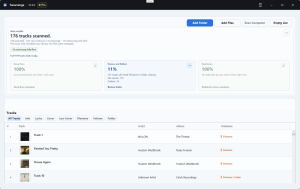
Cinch is the better choice once your problem becomes library building, not just file capture. If you only need five songs, stay with Audacity. If you need 50+ tracks with clean tags and cover art, Cinch pays for itself in saved cleanup time. Its real advantage is not “it records audio.” Audacity can already do that. The advantage is that it records system playback after the app has already decoded the music for listening and removes a lot of the after-work: track splitting, song identification, album art, and batch cleanup.
For this Telugu workflow, that matters because the pain usually comes after recording. You do not just want an MP3. You want a file your car can read, with song names that do not break and cover art that actually appears.
Here is the exact “set-and-forget” workflow I use to automate the heavy lifting:

- First, crank your JioSaavn or Spotify stream to the absolute highest quality you can access. If you’re on JioSaavn Pro, that’s 320kbps. For Spotify Premium, enable “Very High” quality in settings.
- Open Cinch. In the Settings panel, verify that Auto-Identify is enabled (this allows automatic tagging after recording).
- If recording from a free tier with ads, go to Settings → Recording → set Min Song Duration to 45-60 seconds. This filters out short ads and noise clips automatically.
- Click the Record button in Cinch, then start playing the album or playlist in your streaming app.
- Cinch will detect silence between songs and automatically split them into separate MP3 files. You should see each track appear in Cinch’s list as it’s recorded.
- After the session ends, review the recorded files. Any Telugu songs that couldn’t be auto-identified (common for rare or indie tracks) will show as “Unknown Artist” in Cinch’s list. Right-click those files → Edit Tags → manually add title, artist, and album.
- If you already have older messy MP3 files, drag them into Cinch and click Identify to re-tag them instead of starting your whole library from scratch.
That last point is easy to miss: Cinch is not just for new recordings. It can also help clean up an existing MP3 pile, which makes it more useful for the “old YouTube downloads plus new JioSaavn recordings” reality a lot of people actually have.
The safety angle is also better. Cinch records system audio and does not require your streaming account password—a healthier boundary than “downloaders” that ask you to log in with Spotify or another service. Community reports of account trouble are much more tied to credential-based tools than to plain playback recording.
The limits are real:
- It’s still capped by the quality of the source stream.
- Rare Telugu tracks, live versions, or indie releases may not auto-match.
- Your computer needs to stay awake for long sessions.
As of April 10, 2026, the official Cinch materials indicate a 9-song free trial, so the smart move is simple: test it on your exact Telugu playlist before you rely on it for a full library. For current features and limits, check Cinch’s official guide and official site.
How to Fix Telugu ID3 Tags and Album Art So Car USB Players Read Them Properly
Prerequisite: Download Mp3tag from the official website (mp3tag.de). It’s free for Windows; Mac users can use the open-source version or similar tools like Kid3. You’ll also need your album cover image as a JPG file, ideally 500x500px and under 200KB.
If Telugu song names show up as garbage text on your car stereo, the file is often fine and the tag format is wrong. The safest fix for older car stereos is ID3v2.3 + UTF-16, not ID3v2.4, not ID3v1, and not “whatever the ripper saved by default.”
- Open Mp3tag and load your MP3 files (drag them into the main window or use File → Open).
- Right-click any track → Extended Tags → check the “Encoding” field. If it shows ISO-8859-1 or UTF-8, that’s the problem.
- Go to Tools → Options → Tags → ID3v2 → set Write ID3v2.3 tags and UTF-16 encoding. Apply this to all files.
- For album art, double-click the “Cover Art” field → Import from file → select your JPG image. Make sure it’s around 500x500px and under 200KB. Larger files often fail on older car stereos.
- Save the tags (Ctrl+S or File → Save). Verify the Telugu text now displays correctly on your computer before testing on the car stereo.
- Test one file on your actual car USB player. If the song name, artist, and cover art all show correctly, batch-apply the same settings to the rest of your library.
Why this matters:
- ID3v1 is too old and does not support embedded cover art.
- ID3v2.4 and UTF-8 can work on modern apps, but older head units often choke on them.
- Very large PNG or high-resolution cover files are a common reason artwork disappears even when the tag looks correct on a computer.
This matches both the ID3 specification and repeated car-player compatibility complaints in the Mp3tag community. If your USB player still refuses to show artwork, reduce the image size first. That fixes the problem more often than re-copying the whole USB stick.
Failure Paths That Waste the Most Time
If you are already frustrated, skip these traps.
1. Trying to “extract” JioSaavn app downloads as if they were normal MP3s
They are not normal MP3s. They are app-managed files tied to DRM and subscription state. If your goal is permanent playback, move on quickly. Recording playback is the workable path; cache spelunking usually is not.
2. Giving your Spotify or streaming password to a downloader tool
If a tool needs your account credentials, it is solving the wrong problem in the riskiest possible way. For personal offline listening, a recorder that works from system playback is the lower-risk route.
3. Spending hours chasing fake 320kbps instead of upgrading the source
If the same Telugu song exists on a higher-quality streaming source you already pay for, record that source. Do not keep converting the YouTube version and expect miracles.
4. Blaming the USB drive when the real problem is the tags
Broken Telugu text, missing art, and “Unknown Artist” are usually tag-format problems. See the ID3 section for the fix.
5. For Mac users: treating audio routing pain as a personal failure
It’s not. System audio capture on Mac is simply harder with free tools. If you’ve spent an hour in Audio MIDI Setup and still aren’t recording cleanly, stop there and switch tools.
6. Assuming auto-identification will work for every Telugu track
Audio fingerprint databases don’t have every regional or indie Telugu song. If Cinch or similar tools show “Unknown Artist” for a specific track, it’s usually a database gap, not a tool failure. You’ll need to manually tag those songs using Mp3tag. This is normal for rare albums, live versions, or recent releases that haven’t been indexed yet.
Legal and Safety Boundaries You Should Keep Straight
The useful distinction here is simple: recording playback is not the same thing as breaking DRM. In many jurisdictions, recording audio that is already playing on your own computer for personal use is generally treated more like private copying than anti-circumvention. Tools that decrypt protected files or ask for service credentials cross a different line and can raise bigger legal and account-risk issues.
That does not mean “everything is legal now.” Keep these boundaries in mind:
- Use this for personal offline listening only.
- Do not redistribute the files.
- Do not treat this as legal advice; laws like DMCA Section 1201 can matter depending on what the tool is actually doing.
- Be extra careful with tools that ask for streaming logins or promise direct downloads from encrypted app files.
One more practical boundary: pricing, features, trial limits, and streaming policies change. Trial details and platform behavior referenced here were checked on 2026-04-10, so verify current terms before committing to any paid workflow.
What To Do First
- Pick the source before the tool. If the song exists on JioSaavn Pro or another better source, do not start from YouTube unless you have to.
- Run a 3-song test, not a 100-song marathon. Use one mainstream track, one Telugu track with non-Latin text, and one song with cover art. Make sure all three work on your actual car stereo.
- If free is your priority, start with Audacity. But if splitting tracks, fixing tags, and deleting ads already sounds exhausting, skip straight to a Cinch trial instead of pretending your time is free.
- Save tags the right way from day one. Use ID3v2.3, UTF-16, and JPG cover art before you copy anything to the USB drive.
- If you need a big permanent library, think about cleanup time before you think about download cost. The wrong workflow gives you 200 files. The right workflow gives you 200 files you can actually browse in the car.
If you only remember one thing: skip the YouTube-to-MP3 converter rabbit hole. Build your library from a source you already pay for, tag it correctly on the first pass, and test on your actual car stereo before copying all 200 songs.
Frequently Asked Questions
Why do downloaded Telugu songs show as ‘Unknown Artist’ in my car?
This happens because your MP3 files have incorrect or missing ID3 tags. Car stereos, especially older models, require specific tag formats to display song information correctly. Here’s how to fix it:
- Use ID3v2.3 format instead of ID3v1 or ID3v2.4
- Set encoding to UTF-16 for Telugu text (not UTF-8 or ISO-8859-1)
- Embed album art as JPG at 500x500px under 200KB
Download a free tag editor like Mp3tag, load your files, and save tags with these settings. Test one file on your car stereo before batch-processing your entire library.
Is YouTube to MP3 really 320kbps?
No. YouTube audio streams at approximately 128kbps AAC for most videos. When a converter site claims to give you “320kbps MP3,” it’s simply upscaling—a larger file size with no additional audio quality. You cannot create detail that wasn’t in the original source.
Think of it like zooming in on a low-resolution photo: the file gets bigger, but the image doesn’t get sharper. If you want true 320kbps quality, you need to record from a high-bitrate source like JioSaavn Pro (which streams at 320kbps) or Spotify Premium (Very High quality), not from YouTube.