Quick Summary
Spotify CarPlay dropping or showing "Nothing Here"? Stop restarting your phone. Use our 60-second diagnostic chart to fix the real iOS, cable, or app limits.
When Spotify fails on Apple CarPlay, start with one quick check: open Apple Music or another audio app on CarPlay and see if it plays. If those work, CarPlay itself is alive—stay focused on the Spotify/iPhone side. If nothing plays at all, the problem sits at the connection or system layer.
Once you know that, sort your symptom into one of four buckets: connection, app state, playlist loading, or iOS 26 system bugs. Each one has a different shortest fix.
This guide is built to restore playback fast when you have a working iPhone, a working car screen, and maybe even other apps that play fine—what you have lost is reliable Spotify playback. The job is to recover that behavior if it is still realistic, or stop early and switch to a practical fallback when it is not.
Most competing guides make the same mistake: they treat every CarPlay failure like the same bug. A packed charging port, a playlist over CarPlay’s limit, an iOS 26 indexing bug, and navigation audio ducking do not share the same fix.
Quick Diagnosis: What’s Broken in 60 Seconds
If this is your first failure, do not start by restarting everything three times. Start with the symptom table below instead.
┌─────────────────────────────────────────────────────────────────────┐
│                    SPOTIFY CARPLAY DIAGNOSTIC FLOWCHART             │
└─────────────────────────────────────────────────────────────────────┘
                                │
                                ▼
                    ┌───────────────────────┐
                    │ What symptom do you   │
                    │ see right now?        │
                    └───────────────────────┘
                                │
        ┌───────────────────────┼───────────────────────┐
        ▼                       ▼                       ▼
┌───────────────┐     ┌───────────────┐     ┌───────────────┐
│ WIRED drops   │     │ WIRELESS      │     │ PLAYLIST says │
│ when phone    │     │ stutters but  │     │ "Nothing Here"│
│ moves         │     │ wired works   │     │               │
└───────────────┘     └───────────────┘     └───────────────┘
        │                       │                       │
        ▼                       ▼                       ▼
┌───────────────┐     ┌───────────────┐     ┌───────────────┐
│ FIX: Clean    │     │ FIX: Turn off │     │ Only large?   │
│ iPhone port   │     │ car hotspot,  │     │ → 200 song    │
│ first         │     │ disable VPN   │     │   limit       │
└───────────────┘     └───────────────┘     └───────────────┘
        │                       │                       │
        ▼                       ▼                       ▼
┌───────────────┐     ┌───────────────┐     ┌───────────────┐
│ DON'T:        │     │ DON'T:        │     │ All playlists │
│ Reinstall     │     │ Split         │     │ after iOS 26? │
│ Spotify       │     │ playlists     │     │ → iOS bug     │
└───────────────┘     └───────────────┘     └───────────────┘
                                                      │
                                                      ▼
                                        ┌───────────────┐
                                        │ FIX: Update   │
                                        │ Spotify,      │
                                        │ toggle Local  │
                                        │ Files         │
                                        └───────────────┘

┌─────────────────────────────────────────────────────────────────────┐
│  VOLUME LOW AFTER NAVIGATION? → Audio ducking (not a bug)          │
│  BOTH WIRED & WIRELESS FAIL? → App state / iOS permissions         │
│  APPLE MUSIC WORKS BUT SPOTIFY DOESN'T? → Spotify/iPhone side      │
└─────────────────────────────────────────────────────────────────────┘
| What you see | Most likely layer | Do this first | Do not waste time on |
|---|---|---|---|
| Wired CarPlay drops when the phone moves or you hit bumps | Connection layer | Clean the iPhone port, then test a known-good cable | Reinstalling Spotify |
| Wireless CarPlay stutters, pauses, or cuts out, but wired works | Wireless transport / interference | Turn off the in-car hotspot, disable VPN, test again | Splitting playlists |
| A playlist says Nothing Here, mostly on large playlists | Playlist layer | Test with a playlist under 200 songs / under about 9 hours | Lowering audio quality |
| All playlists say Nothing Here after iOS 26.2 or 26.3 | iOS 26 + Spotify bug / Local Files conflict | Update Spotify, then toggle Local Files off and back on | Cleaning cables |
| Spotify volume stays low after navigation speaks | Audio policy, not a normal Spotify bug | Adjust navigation voice mix or guidance volume | Resetting CarPlay |
| Wired and wireless both fail, but Apple Music works | Spotify app state / iOS permissions | Clear Spotify cache, check Siri, Screen Time, and updates | Buying more cables |
You should see this result after the first fix attempt: the specific symptom you started with should change or disappear. If it does not, move to the next logical layer instead of repeating the same failed move.
Three failure signals matter more than everything else:
- If Apple Music works and Spotify does not, CarPlay itself is probably alive. Stay on the Spotify/iPhone path.
- If wired and wireless both fail, the problem is probably not your cable. Think phone, app state, permissions, or iOS update fallout.
- If every playlist fails, this is usually not one broken playlist. Think iOS 26 bug, Local Files conflict, or a wider Spotify state problem.
Connection Layer Fixes (Wired vs. Wireless)
If the breakage changes when you switch from wired to wireless, do not treat it like a pure Spotify bug. Fix the transport layer first.
Wired: Clean the port before replacing half your setup
This is the most under-rated fix in the whole category. In the community reports behind this article, more than 30% of recurring wired CarPlay complaints pointed back to packed lint in the iPhone charging port. That issue had nothing to do with Spotify itself. That lines up with the common failure pattern in recurring disconnect threads on r/CarPlay and with the basic cable-first guidance in Ford’s CarPlay troubleshooting page.
The reason is boring but important: CarPlay over cable is not just charging. It is a live data handshake. If lint keeps the plug from seating fully, charging may still work while the data connection drops every few minutes.
Safe port-cleaning steps:
- Power off the iPhone and unplug every cable.
- Use a dry soft brush first to loosen easy dust.
- If lint is packed down, use a plastic or wooden pick very gently.
- Do not use liquid.
- Do not use a metal pin or paper clip unless you want to risk damage.
- Reconnect with a known-good cable and test again.
You should see this result: the connection should stay stable when you move the phone or go over bumps. If it still drops, move to testing another cable or USB port.
If cleaning does not help, test these in order:
- another certified cable
- another USB port in the car, if the car has one
- another iPhone, if available
That order is faster than reinstalling apps because it proves whether the problem is physical before you touch software.
Wireless: Treat stutter like 5GHz interference first
Wireless CarPlay uses 5GHz Wi-Fi. On some vehicles, the car’s built-in hotspot lives in the same neighborhood and becomes the interference source. If Spotify stutters wirelessly but becomes stable on cable, the shortest move is to kill the hotspot first, not to reset your library.
Do this in order:
- Turn off the car’s Wi-Fi hotspot.
- Turn off any VPN on the iPhone, especially if it uses a kill switch.
- Forget the car on the iPhone, then pair again after those changes.
- Test the same route once on wireless, then once on wired.
The Reality Check: If turning off the car’s hotspot magically stops the audio stuttering, you’ve just found your culprit—5GHz Wi-Fi interference. At this point, you have a choice: deal with the wireless dropouts, or just plug in a high-quality cable and enjoy a perfectly stable drive. Sometimes, wired is just better.
Many users describe this as a “signal” problem, but that is often the wrong mental model. If the car and phone can see each other yet audio keeps cutting out, it is often interference or a local handshake issue, not bad mobile data.
One extra blind spot: if wireless CarPlay breaks right as you leave home, some users report the initial handshake failing while the phone is bouncing between home Wi-Fi, mobile data, and the car’s own wireless setup. If that sounds familiar, wait until the phone is fully off your home Wi-Fi, then reconnect once. Do not keep retrying five times in the driveway.
Does lowering Spotify audio quality help?
Sometimes, yes—but only for the right symptom. If music starts and then stutters, older infotainment firmware can be more fragile with Spotify set to Very High. Test High first, then Normal only if stutter continues.
You should see this result: stutter should decrease or stop. If there is no change, restore the original setting and move on—do not leave the quality lowered permanently.
That tradeoff is real:
- What it may save you from: buffering stress, compatibility weirdness, and random pauses on weaker head units
- What it costs: some audio detail
- What it will not fix: pairing failures, playlist size limits, or iOS 26 playlist bugs
If you care about sound quality, High is the sensible first compromise. In a noisy car cabin, that is usually the best stability-to-quality trade. Normal is the emergency setting, not the default recommendation.
Cache & App State Reset
Use this section when Spotify is the only broken app, or when both wired and wireless fail in the same way. If a port clean or hotspot change already fixed things, stop here and drive.
The light reset is Spotify’s own cache clear. The heavy reset is offloading or reinstalling the app. Those are not the same job.
Start with the light reset:
- Force-close Spotify.
- Open Spotify on the phone first, before opening it through CarPlay.
- Go to Settings and privacy > Storage > Clear cache.
- Reconnect CarPlay and test with one small playlist.
Did it work? If your playlists finally load, great—you’re good to drive. But if you’re still staring at a frozen screen, the cache clear wasn’t enough. It’s time to bring out the heavy artillery: a clean reinstall. Just remember, doing this will wipe your downloaded offline tracks, so only pull this trigger if you’re on Wi-Fi.
To do a clean reinstall:
- Offload or reinstall Spotify.
- Sign back in.
- Re-test CarPlay before you restore extra downloads or settings.
Here is the part many articles hide: the real cost is not the taps, it is the rebuild. If you rely on Spotify downloads, a reinstall can mean pulling your offline songs again. That is why reinstall does not belong near the top unless the symptom clearly points to app state.
If you already rebooted phone, app, and car multiple times with zero change, this is probably not a temporary cache blip anymore. Move on to the symptom-specific sections below.
Playlist “Nothing Here” Error
If CarPlay shows Nothing Here, the fastest diagnosis is this: if only large playlists fail, think long-term CarPlay limit; if all playlists fail after iOS 26.2 or 26.3, think bug path first.
Cause 1: The iOS 26 / Spotify bug path
Spotify’s own CarPlay playlists issue thread tracked a wave of failures around iOS 26.2 and 26.3. Spotify later marked the issue fixed in its March 2026 issue review. As of the last review for this article on 2026-04-10, the safest move is still to update Spotify before you do anything dramatic.
If your playlists used to load and then suddenly stopped after an iOS 26 update, start here:
- Update Spotify from the App Store.
- Reboot the iPhone once.
- Re-test with a small playlist.
You should see this result: the playlist should load. If it still shows “Nothing Here” after update, toggle Local Files next.
Do not confuse this with the long-term playlist size limit below. One is an update-era bug; the other is a long-standing CarPlay boundary.
Cause 2: The long-term CarPlay playlist limit
CarPlay has a long-running limitation where playlists above roughly 200 songs or about 9 hours of runtime can fail to load. This is not new, and it is not a pure Spotify problem. It is a protocol boundary.
The fastest proof is simple: create a temporary test playlist under 200 songs. If that one loads, stop chasing ghost bugs. Your fix is to split the big playlist, not to keep resetting software.
You should see this result: the test playlist should load normally. If it does, your original playlist is over the limit—split it rather than debugging further.
If you want a quick workaround instead of reorganizing your whole library, start playback from the phone first and then use CarPlay for skip/play controls. That often gets you through the drive, even when the playlist view itself refuses to populate.
Cause 3: Local Files conflict on iOS 26.2 / 26.3
Another known failure path on iOS 26.2 and 26.3 was Local Files indexing. Spotify was trying to index local tracks for CarPlay, and that could break playlist loading or connection behavior.
How to find and toggle Local Files in Spotify (takes 10 seconds):
Spotify App → Home → Settings (gear icon) → Privacy & Social
                                          ↓
                              Find "Local Files" toggle
                                          ↓
                              Turn OFF → Wait 3 seconds → Turn back ON
Step-by-step:
- Open Spotify on your iPhone
- Tap Home at the bottom, then tap the gear icon (Settings) in the top-right corner
- Scroll down to Privacy & Social
- Find Local Files and toggle it OFF
- Fully close Spotify (swipe up from the app switcher)
- Reopen Spotify and reconnect CarPlay
- Test your playlist—once it loads, you can toggle Local Files back ON
Did it work? Playlists should load after toggling Local Files. If the playlist that fails contains local files, remove them from that driving playlist first.
iOS 26 Specific Bugs and System Checks
If the whole problem started right after an iOS update, do not keep buying cables. This is where system checks matter more than hardware guesses.
1. Update Spotify first, then check iOS
The strongest iOS 26-specific breakages in this topic were around playlist loading and Local Files. Updating Spotify is the shortest high-value move because Spotify explicitly tracked and closed that issue. If you are behind on app updates, fix that before anything deeper.
Be conservative with brand-new updates before a road trip. Community feedback repeatedly says the same thing: the newest Spotify build is sometimes where the new headache begins. That does not mean never update. It means do not update the night before a long drive and assume nothing can break.
2. Make sure Siri is actually enabled
CarPlay support for third-party audio apps depends on Siri-related functionality. If Allow Siri When Locked is off, Spotify on CarPlay can fail to launch or behave strangely.
This is a good check whenever Spotify refuses to open at all on CarPlay while the rest of CarPlay looks normal.
You should see this result: Spotify should launch normally on CarPlay after confirming Siri is enabled.
3. Check Screen Time restrictions
Screen Time can quietly disable CarPlay. If someone changed restrictions on the phone, or you forgot that a limit was turned on, the fix is hidden in iPhone settings rather than in Spotify.
Go to Settings > Screen Time > Content & Privacy Restrictions > Allowed Apps & Features and confirm that CarPlay is allowed.
You should see this result: CarPlay should appear in Allowed Apps. If it was disabled, re-enable it and test again.
4. If you use a VPN, test without it
Some VPNs, especially ones with aggressive kill switches, can break the local network discovery that wireless CarPlay needs. If wireless handshake fails only while the VPN is active, turn it off and then reconnect from scratch.
Important edge case: many users need to do more than toggle the VPN off. They often have to Forget This Car and pair again before the change really sticks.
You should see this result: wireless CarPlay should connect after disabling VPN and re-pairing.
5. Reset CarPlay only after those checks
Resetting CarPlay is the right move when the pairing itself is corrupted. It is the wrong move when the root cause is lint, a playlist limit, or ducking behavior.
If you forget the car on the iPhone or delete the phone from the car, here is what you usually lose:
- the saved CarPlay pairing
- your custom CarPlay app layout
- any per-car approval prompts you already cleared
Here is what you usually do not lose:
- your Spotify account
- your Spotify library
- your iPhone photos, messages, or other phone data
Apple’s CarPlay setup guide covers the normal reconnect flow, and car makers like Ford publish their own reset instructions because infotainment menus vary a lot by brand. If your car menu is different, trust the vehicle manual over a generic screenshot from the internet.
Audio Quality and Navigation Ducking
If Spotify gets quiet after navigation speaks, that is usually not a Spotify defect. It is how the audio channels are designed to behave.
Navigation voice lowered the music and it never really came back
Apple’s CarPlay audio-handling model allows navigation prompts to duck music, and Apple’s own CarPlay developer guide explicitly describes voice prompts lowering other audio while the prompt is active. So if your problem is “Spotify volume drops after directions,” treat it as an audio-policy issue first.
Your best options here:
- lower the navigation app’s voice volume or guidance mix
- adjust the guidance volume while the prompt is actively speaking
- check whether your car has a separate navigation/media balance control
You should see this result: Spotify volume should return to normal level after navigation finishes speaking. If it stays low, adjust the navigation voice mix further.
If navigation is the trigger, do not factory-reset CarPlay for this. That is solving the wrong problem.
When a bitrate change is worth testing
If playback starts but becomes choppy, lowering Spotify from Very High to High can be worth a test on older head units or shaky wireless setups. The point is not that “lower is better.” The point is that some car firmware is less tolerant of a heavier stream or less forgiving when the transport path is already fragile.
This is a stability test for choppy playback, not a fix for Nothing Here, Siri issues, Screen Time restrictions, or VPN interference.
If High solves the dropouts, stay there. If it does nothing, put the setting back and move on. Do not turn a failed test into a permanent quality downgrade for no reason.
When Free Fixes Fail: Offline Fallback
Let’s be honest: streaming high-res audio over a moving 5G connection through a wireless car interface is inherently fragile. That’s actually why tools like Cinch exist. If you’re exhausted from troubleshooting dropouts every morning, the ultimate “fix” isn’t another setting tweak—it’s taking the internet out of the equation entirely. By recording a pristine, offline copy of your commute playlist, you bypass the CarPlay API entirely.
If you are in a time crunch and have less than 5 minutes: stop here. Focus on the connection and symptom-specific fixes above—offline fallback is a computer workflow that requires planning ahead, not a quick departure fix.
Consider a fallback only when:
- you already ruled out the connection layer
- you updated Spotify and checked the iOS 26 bug path
- you still get recurring failures on your normal commute
- or you drive through tunnels / dead zones and need music that does not depend on a live app behaving well
Cinch Audio Recorder: What It Actually Does
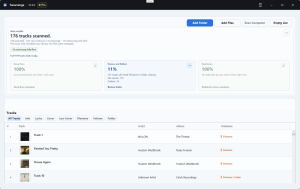
If that is your situation, Cinch Audio Recorder makes sense as a backup route. Here’s the interface you’ll see:

Key features that matter for a commute backup:
- One-click recording: Hit Record once, play your playlist on computer, and Cinch handles the rest—no manual track-splitting needed
- Automatic metadata: Song titles, artists, album art, and lyrics get added automatically after recording
- No Spotify login required: It records what’s playing on your computer, so you never hand over your account credentials
- Import existing files: Already have some MP3s? Cinch can identify and tag those too
The limits are real too:
- it is a computer workflow, not a one-tap iPhone fix (you need to plan this ahead, not during a 5-minute departure crunch)
- recording takes real playback time
- output quality depends on your playback chain and settings
- the ceiling is up to 24-bit/48kHz, not a promise of lossless perfection
On safety and legality, keep the language honest: because Cinch records local playback and does not need your Spotify login, it avoids one major downloader risk. And recording audio you are already playing is usually treated as personal-use recording, but that is not the same as a universal legal guarantee in every country.
If you are privacy-conscious, Cinch is one of the safer local-recording routes: it never sees your Spotify login. But that does not make it a universal fix. It is a backup option for one specific situation—when you need guaranteed playback on a rough commute and free fixes have already burned enough mornings. Use it for that. Do not reach for it first.
If you are curious, the practical way to judge it is simple: use the trial first, record up to 9 commute staples, and see whether it removes enough friction to justify becoming your backup library.
Prevention: Avoid Future Breakage
If this is a daily-driver problem, prevention matters more than heroic troubleshooting.
Keep your CarPlay playlist smaller than your full library
The cleanest workaround for the long-term CarPlay limit is to maintain a dedicated driving playlist under 200 songs and under about 9 hours. Your full Spotify library can stay messy. Your car playlist should not.
Do not mix Local Files into the one playlist you depend on in the car
If you use Local Files, keep them out of your main driving playlist. That avoids one of the most annoying iOS 26-era failure paths.
Do not update right before a trip
This is community wisdom, not an official rule, but it is good wisdom: do not update Spotify or iOS the night before a long drive. Update when you have time to test one song while parked.
If you use wired CarPlay, clean the port on a schedule
If you rely on cable every day, port cleaning is maintenance, not a weird emergency trick. Two minutes of cleaning is cheaper than another week of random disconnects.
If you use wireless CarPlay, leave the hotspot and VPN off unless you need them
A stable setup is worth more than theoretical convenience. If your car’s hotspot or VPN is the trigger, stop turning the same trigger back on and hoping the next drive will be different.
What To Do First
If you only have five minutes, do this in order:
- Quick check: Try Apple Music or another audio app on CarPlay. If those work, focus on Spotify/iPhone fixes. If nothing works, start with connection layer fixes.
- Wired disconnects when the phone moves? Clean the iPhone port, then test a known-good cable.
- Wireless stutters but wired works? Turn off the car hotspot, disable VPN, and test again.
- Playlist says Nothing Here? Update Spotify, test a playlist under 200 songs, then toggle Local Files off and back on.
- Music stays low after navigation? Adjust navigation voice mix instead of resetting the car.
- Free fixes keep failing and you need reliable commuting music? Build a small offline backup rather than burning more mornings on random resets—but plan this ahead, not during departure crunch.
Pick the symptom you are seeing right now, run the shortest fix, and stop when the evidence says a path is dead. If the same issue keeps coming back, build a prevention habit. If you have already tried more than three fixes with no change, move to the offline fallback instead of burning another morning.
Frequently Asked Questions
Why does Spotify say “Nothing Here” on Apple CarPlay?
Three main causes:
(1) Your playlist exceeds CarPlay’s 200-song/~9-hour limit—split it into smaller chunks.
(2) iOS 26.2/26.3 bug—update Spotify to the latest version.
(3) Local Files indexing conflict—toggle Local Files off and back on in Spotify Settings > Privacy & Social.
How to fix Spotify volume low after navigation on CarPlay?
This is not a bug—it’s iOS audio “ducking” design. Navigation prompts automatically lower music volume. To fix: go into your navigation app’s settings and reduce the voice guidance volume percentage, or adjust the navigation/media balance if your car has a separate control for it. Do not reset CarPlay for this.
Wireless CarPlay Spotify skipping but wired is fine?
You’re likely hitting 5GHz Wi-Fi interference. Turn off your car’s built-in Wi-Fi hotspot first—that’s the most common culprit. Also disable any VPN on your iPhone, especially ones with kill switches. If the stuttering stops after these changes, you’ve found your interference source. Consider using wired CarPlay for critical drives.