Quick Summary
Learn how Cinch Tunarrange helps automatically organize, arrange, and structure your recorded audio tracks with smart metadata and library management features.
1. What Tunarrange Does
Tunarrange is a Windows desktop app for checking, fixing, and organizing local music files. It is not a music player. Its job is to help you turn a messy local music library into files that are easier to read, browse, and keep.
Tunarrange can help with common problems such as:
- Missing song information, such as title, artist, or album.
- Missing lyrics.
- Missing album artwork.
- Album artwork that is too small or too blurry.
- Filenames that are hard to read or do not match the current naming rule.
- Folder locations that do not match your organization rules.
- Missing volume information, which can make songs play at noticeably different loudness.
- Possible duplicate songs.
- CUE album images that can later be split into individual tracks.
Tunarrange is conservative by default. It scans first, shows what it found, lets you preview changes, and only writes changes after confirmation. It avoids overwriting valid existing information unless the workflow clearly says it will.
2. Main Window
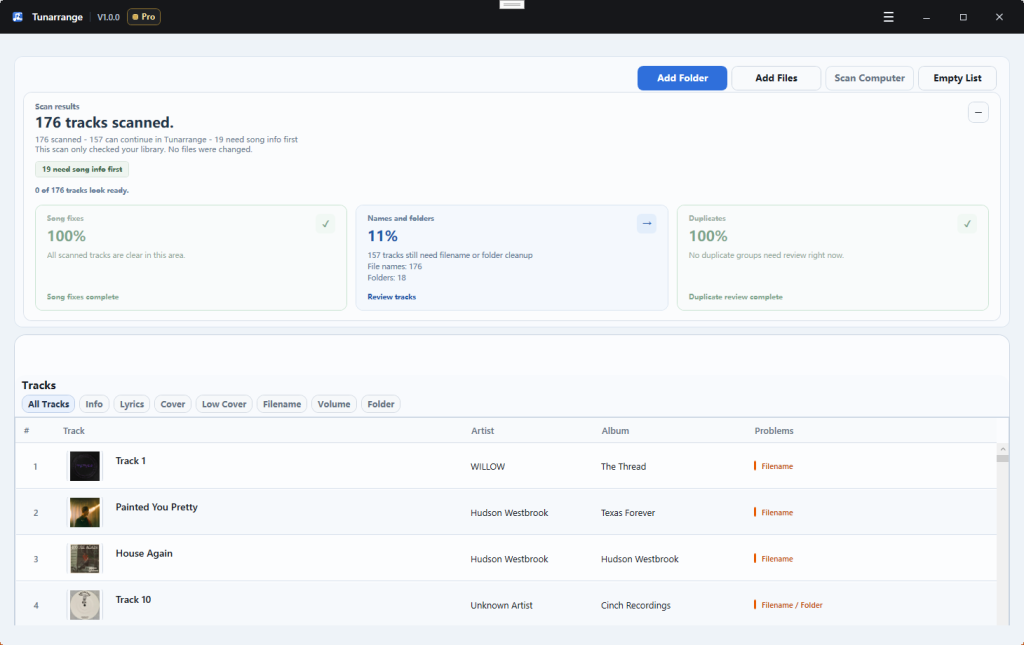
The main window is organized around a few working areas:
- Top actions: add files, add a folder, scan the computer for music, empty the list, open history, and open the main menu.
- Scan results: shows how many tracks were scanned, what still needs manual review, and separate completion states for song fixes, file organization, and duplicate review.
- Track list: shows each track, artist, album, and problem labels. You can filter by all tracks, song info, lyrics, cover, low cover, filename, volume, and folder. Right-click one track and choose Open File Location to open its folder in File Explorer.
- Selected track panel: shows the selected track’s artwork, song details, changes made or suggested changes, and actions such as opening the file location or editing tags.
- Results and history: shows the latest run, detailed reports, CSV export, logs, and undo for the most recent run. You can also open the logs folder from the top-right menu when you want to share them for troubleshooting.
3. Import Music
You can import music in three ways:
- Click Add Folder and choose a music folder.
- Click Add Files and choose one or more audio files.
- Click Scan Computer to let Tunarrange look for music on this PC.
You can also drag files or folders into the large track area when the library is empty. After import, Tunarrange scans the files and builds a problem list.
The top import buttons stay available after the first import. Use them again when you want to add music from another folder or add more files to the current list.
If the import area says only folders or audio files are supported, the dropped item is not a recognized music source.
4. Review Scan Results
After scanning, Tunarrange shows a summary:
- A clear summary that shows what Tunarrange already handled automatically and what still needs manual review.
- The scan summary uses a calmer desktop-style layout, so the main result is easier to read without oversized status callouts.
- Song fixes: song information, lyrics, artwork, and volume items that may need attention.
- File organization: file name and folder changes that may be useful.
- Duplicates: possible duplicate groups that should be reviewed separately.
- CUE album images: whole-album audio with a CUE track list. Tunarrange still detects these separately because splitting them creates new files instead of editing the original album file.
The Song fixes, File organization, and Duplicates cards each show their own state. This makes it easier to see which part of the library is already finished and which part still needs review. The song-fix and file-organization cards also list the most important problem types inside each group, such as song info, lyrics, cover art, file names, or folders, so you do not have to guess what each card includes. The scan summary also says that the scan did not change any files, so you know the library stayed in place. When there are no duplicate groups, the Duplicates card stays visible and shows a complete state instead of disappearing.
Completed scan-result areas now stay on a neutral desktop-style surface. Green is used only for small confirmation marks and completion text, while areas that still need attention use quieter amber or blue accents. The top scan summary now puts the main result first, shows short status chips for what is ready or still blocked, and moves the read-only scan note into a quieter supporting line so the section is easier to scan quickly.
When all three cards are complete, the scan summary shows that the scanned library no longer has remaining repair, organization, or duplicate-review work in this view.
Click Review tracks or Review duplicate groups to open a more focused view. A good workflow is to start with the summary, then handle the clearest and largest group of problems first.
Problem labels in the track list mean:
- Info: title, artist, album, or related song information is missing or unclear.
- Lyrics: lyrics are not saved in the file.
- Cover: artwork is missing.
- Low Cover: artwork is too small or too low quality for a clean library.
- Filename: the filename is messy or does not match the current naming rule. When Tunarrange can build the expected name, it shows the current filename and the expected filename.
- Folder: the file is not stored in the expected folder structure.
- Volume: volume information is missing.
Tunarrange keeps a local library record on this PC. It stores each scanned file’s path, size, modified time, content hash, last scan result, skipped manual-review items, confirmed online matches, recent repair history, and MusicBrainz IDs when available. When a file has not changed, Tunarrange can reuse the previous result instead of reading all song details again. This makes repeated scans faster and helps avoid showing the same rejected suggestion again and again.
When Tunarrange finds a .cue file for a whole-album audio file, it shows a scan message with a review action instead of changing anything automatically. In the split preview window, you can review the track list, start times, output filenames, warnings, and output folder before Tunarrange creates any new single-track files. The original album audio and the CUE file are kept in place.
If the planned output folder is not valid yet, Tunarrange blocks the split and tells you to choose another folder first. If a split track name is already used in the output folder, Tunarrange keeps the existing file and creates the new track with a numbered filename instead of overwriting anything.
5. Fix Song Information, Lyrics, Artwork, and Volume
Tunarrange supports these repair actions:
- Song info repair: fills in missing title, artist, album, and related fields when a reliable result is available.
- Refresh from online: replaces local song information and artwork with a reliable online match.
- Lyrics repair: finds matching lyrics and writes plain lyrics into the file, without sync time markers at the start of each line.
- Cover art repair: adds missing artwork or replaces low-quality artwork.
- Volume normalization: writes volume information so supported players can play songs at a more even level. It does not rewrite the audio content by default.
Recommended workflow:
- Select the tracks you want to fix.
- Choose Fix This Problem, Fix Selected Tracks, or the matching repair action.
- Review the preview so you know what Tunarrange plans to change.
- Confirm to start processing.
- Review the result summary after the run finishes.
During repair, the progress card shows how many files have been processed, the estimated time remaining, and the file currently being handled. The card now starts showing each file as soon as Tunarrange begins working on it, so you do not have to wait for that file to finish before progress becomes visible. You can click Cancel to stop after the current file finishes. Files that already finished keep their changes, and files that have not started are not changed.
If Fix All Problems or another multi-step repair hits a file that cannot be changed, Tunarrange records that file as failed and continues with the other files when it is safe to do so. The result view shows which file failed and confirms that the failed file was left in place.
When one track has several issues, the right-side action area may show fewer fixes than the total problem labels. This means some fixes depend on earlier ones. For example, lyrics, cover art, filename cleanup, and folder organization can wait until song information is complete enough to use safely.
If you select several tracks at once and they all need song information first, Tunarrange can still start a batch repair from that shared first step. After song information is filled in, later fixes such as cover art, filename cleanup, and folder organization can become available.
If a selected batch only has one clear first step available and there is nothing else to review or choose, Tunarrange can start the full batch repair flow directly without opening an extra selection window. If later fixes depend on song information, they can continue in the same run after that information becomes complete enough.
If Tunarrange cannot find reliable song information automatically, dependent fixes such as lyrics, cover art, filename cleanup, and folder organization do not stay shown as if they are simply waiting. The selected track panel explains that these later fixes could not continue because the needed song information was not available, and it points you to Edit Tags as the next step.
If a track still shows filename or folder problems after an automatic song info attempt fails, Tunarrange now hides the dead repair button for that track and explains the real reason first. The panel tells you that the file was not changed, that a usable title, artist, and album are still needed, and that Edit Tags is the next safe step.
If Tunarrange checks online sources but cannot find reliable song information or lyrics, the file is not changed. The track is marked for manual review instead of staying in the automatic repair queue, so you are not asked to run the same fix again and again. Use Edit Tags to fill in the information yourself, or scan again later.
When lyrics repair is skipped because Tunarrange could not find a matching result online, the result window now says that directly instead of using a generic update failure message. This makes it clearer that the file was not changed because no suitable online lyrics were found.
After a batch repair checks lyrics online and finds no match, the track list and the selected-track panel switch from a normal Lyrics repair state to a manual-review state. Tunarrange stops showing the same lyrics repair as if you should click it one more time. Instead, it tells you that the online check already finished, nothing was changed, and Edit Tags or a later rescan is the next step.
Other result and warning messages now follow the same rule more closely. For example, skipped cover art and volume steps now show the direct reason from the repair check, and tag-saving failures now say that the file was not changed and what to check next.
When many tracks need song information, Tunarrange now starts with the tracks it can complete safely from the filename and folder path, then keeps the remaining online lookups in a gentler queue. Recent results for the same song or album are reused when possible. These recent lookup results are saved on this PC, so restarting the app does not immediately repeat the same online checks. This helps avoid temporary online service limits without making every batch wait on the online queue first.
Tunarrange also uses small, controlled parallel work during larger repair runs. For example, local-safe song info fixes can move ahead while other tracks are still waiting on online sources, and different online services such as metadata lookup and cover lookup do not have to block each other completely. Tunarrange still keeps online requests spaced out per service and keeps rename or move work conservative so your PC is less likely to feel overloaded.
During a large repair, progress may move quickly at first and then pause briefly between some completed files. This usually means Tunarrange has finished the fast local fixes and is waiting its turn with online sources or reusing recent saved results from this PC. This is normal.
The bottom-right progress card updates continuously during a repair run. It now starts showing the next file as soon as that file begins, and it shows the current stage more clearly, such as filling song information, looking up lyrics, looking up cover art, cleaning filenames, or organizing folders, so it is easier to tell that Tunarrange is still moving forward.
Song info repair is conservative. It fills missing fields but does not overwrite fields that are already filled in. Use Refresh from online when you intentionally want to replace existing song information with an online match.
When Tunarrange saves lyrics from online sources, it saves the readable lyric text. Timing markers and other LRC information are removed before the lyrics are written into the music file.
The free trial may limit automatic writes. Manual tag editing does not use the automatic repair allowance.
6. Filename Cleanup
Filename cleanup renames files using the current naming rule. Naming rules can use fields such as artist, album, title, track number, disc number, year, the current filename, or the current parent folder.
Recommended workflow:
- Make sure song information is mostly correct before renaming files.
- If the rule uses track numbers, fill or verify track numbers first.
- Always preview filename changes before applying them.
You can change the naming rule from Naming Rule in the menu or from Settings. After saving the rule, future scans, rename previews, single-file rename actions, and Fix All rename actions use the same rule check, so a track should not keep showing the same filename issue after Tunarrange decides the current filename already matches the rule.
Folder organization uses the same idea: scans, previews, single-folder moves, and Fix All folder organization all use the same saved folder rule and target root folder.
Open Advanced rules in Settings when you need more control. You can use custom fallback text such as {artist|Unknown Artist}, optional parts such as [{track2} - ], and title-case fields such as {artist_titlecase}. Tunarrange also replaces characters Windows cannot use in filenames and removes common download-site text before building the new name.
Before applying a rename, use the filename preview to compare the current name, current location, and suggested name across many tracks.
If the selected tracks already match the current naming rule, the track list right-click menu keeps Preview Filename Changes unavailable. This helps you avoid opening an empty preview when there is nothing left to review.
If the suggested filename would make the full Windows path too long, Tunarrange shortens the filename automatically before it writes the change. The preview shows the shortened result that will actually be used.
If another file already uses the exact target filename, Tunarrange adds a number such as (2) or (3) to avoid overwriting the existing file. The scan, preview, and repair result use the same numbered target, so the file should not keep showing the same filename problem after it is renamed.
When Tunarrange reads a filename such as 01 - Artist - Title (2), it treats the leading number and duplicate suffix as file organization text, not as the song title. This helps song information, lyrics, and cover lookup use the artist and title instead of asking you to type them in first.
7. Folder Organization
Folder organization moves tracks into a cleaner folder structure, such as artist and album folders.
In Settings, you can choose:
- A common folder rule.
- A custom folder rule.
- The root folder where organized music should be placed.
Common rules include album artist folders, Various Artists compilation folders, and Disc subfolders for multi-disc albums. If a target folder already contains a file with the same name, Tunarrange keeps both files by adding a number to the new filename instead of overwriting the existing file.
If the target Windows path would become too long, Tunarrange first tries to keep the folder rule and shorten the filename. If the folder path is still too long after that, the move is skipped and the result explains that the target path still needs to be shorter.
If no root folder is set, Tunarrange organizes from the track’s current folder. After a move, the result view shows both the previous location and the current location so you can see exactly where the file went.
If the selected tracks already match the current folder rule and target root, the track list right-click menu keeps Preview Folder Changes unavailable until there is a real move to review.
8. Compatible Export
Select one or more tracks, then right-click the track list and choose Export Compatible Copies. You can also use the same action from the selected track panel.
Compatible Export creates new audio files in the output folder. It does not replace, delete, or change your original music files.
You can choose a device preset, such as car / USB player, Audio CD / CD-ready WAV + CUE, phone storage saver, or Apple library copy. You can also choose a plain output format, such as MP3, AAC/M4A, Opus, Ogg Vorbis, FLAC, ALAC/M4A, WAV, AIFF, or WMA.
The Audio CD / CD-ready WAV + CUE preset prepares a folder for making an Audio CD later. The preview shows the selected tracks as WAV files plus album.cue and README.txt, and it shows the total duration against the usual 80-minute Audio CD capacity when track lengths are available. Tunarrange does not burn a disc, does not write CD-Text, and your original music files stay unchanged.
Before the export starts, Tunarrange shows the selected track count, the export choice, the expected output, and the output folder. If the export tool is not available on the PC, Tunarrange tells you before it starts so your original files stay untouched.
After an export finishes, the bottom-right message includes Open Export Folder so you can inspect the new files immediately.
9. Duplicate Review
When Tunarrange finds possible duplicate songs, it shows duplicate groups in the scan results. Duplicate songs are not deleted by the normal repair flow.
Tunarrange uses local checks only. It can mark files as an exact match when the file content hash is the same. It can also find likely duplicates by comparing title, artist, album, duration, bitrate, file size, and saved MusicBrainz recording IDs when available. When the title and artist are the same but some local details are missing, Tunarrange may still put the tracks into a review group so you can decide whether they are duplicate copies. It does not use online audio fingerprint recognition for duplicate detection.
To review duplicates:
- Click Review duplicate groups or Find Duplicate Songs.
- Expand each group and compare the cover image, title, artist, album, duration, bitrate, file size, match confidence, and the recommended keep item.
- Select only the copies you are sure you want to remove.
- Click Move to Recycle Bin.
The recommended keep item favors lossless files, higher bitrate, embedded cover art, saved lyrics, complete song information, and a cleaner folder path.
The duplicate review window keeps the main warning at the top of the page. Each duplicate group then shows a lighter header with the match confidence, a few short match tags, and the file count so the track comparison stays easier to scan.
Selected duplicate files are moved to the Recycle Bin, not permanently deleted. Before removing anything, pay special attention to live versions, remixes, single versions, album versions, and other tracks that may look similar but are not actually the same file.
If a selected duplicate file has already been moved or deleted before cleanup starts, Tunarrange reports that item as failed instead of saying it was moved to the Recycle Bin.
10. Edit Tags Manually
Select one track and open Edit Tags to review or change the song information saved inside the file.
The tag editor can handle:
- Title, artist, album, year, and genre.
- Album artist, composer, conductor, publisher, and other extended fields.
- Track number, disc number, track count, and disc count.
- Sorting fields and ISRC.
- Cover art.
- Lyrics and comments.
Click Save Tags when you are done. If saving fails, Tunarrange should explain whether the file may be in use, the app does not have permission, or the file could not be written.
11. Batch Edit Song Information
Select multiple tracks to batch edit shared fields. This is useful for applying the same album name, album artist, year, genre, comment, or artwork to many tracks at once.
Important details:
- Only checked fields are written.
- Unchecked fields keep each file’s existing values.
- Batch artwork requires choosing an image first.
- Track numbers can be filled in the current list order.
- The track number preview now shows the first selected song names next to the new numbers, so it is easier to confirm the order before you apply it.
- When filling track numbers for a larger selection, Tunarrange now shows how many tracks are done, how many are left, the estimated time remaining, and the track names currently being updated.
- Track number filling now uses two small background workers for faster progress while still keeping the written number order based on the current library list order.
12. Find and Replace
Use Find and Replace on selected tracks to update text across song information fields.
This is useful for:
- Removing download-site text from titles or comments.
- Replacing an incorrect artist name.
- Cleaning repeated text in titles, albums, lyrics, or comments.
Tunarrange shows a preview before writing changes. The preview lists the affected field, the current value, and the new value.
13. Copy and Paste Song Information
You can copy song information from one track and paste it into other selected tracks. This is useful when one track has the correct shared metadata and you want to use it as a starting point for related songs.
Check the current selection before pasting so the information is not written to the wrong tracks.
14. Settings
Settings can control:
- App language: system language, English, or Simplified Chinese.
- Filename cleanup rule.
- Folder organization rule and target root folder.
- Embedded cover art write mode:
- Compatibility first: longest edge around 600px, best for car players and older devices.
- Standard: longest edge around 1000px, good for everyday use.
- High quality: longest edge around 1600px, keeps more detail but may be less stable on older devices.
- Import checks:
- Song information.
- Lyrics.
- Cover art.
- Filename: checks imported files against the current naming rule when enough song information is available.
- Folder structure.
- Volume normalization.
- Duplicate songs.
- Online lookup cache: clear saved online song info, lyrics, and cover search results when you want Tunarrange to check online sources again.
Tunarrange uses this online cache during larger repairs so it can reuse recent matches and avoid hitting online services too aggressively.
Settings only take effect after you click Save Settings.
The online lookup cache clear button works immediately. It does not change your music files, license, repair history, or saved cleanup rules.
15. Top Menu and About
Use the top-right menu when you need product links or app information:
- Home opens the main Cinch Solutions website.
- Product Page opens the Tunarrange product page in your browser.
- Support opens the Cinch support center.
- Enter Registration Code opens the activation window.
- Settings opens app settings.
- Open Logs Folder opens the local log folder so you can share it when reporting a problem.
- About shows the product name, app version, license status, and the main website links in one place.
16. History, Reports, and Undo
After each repair or organization run, the results area shows the latest run.
You can review:
- Which tracks were processed.
- Which actions succeeded, were skipped, or failed.
- Previous and current file locations.
- A detailed report.
- CSV export.
- Undo for the latest run.
Undo attempts to restore files touched by the latest run. It is available only when Tunarrange created a backup for that run. When a repair moved or renamed a file, Tunarrange restores the original file from backup first, then tries to remove the changed copy from its new location. If that changed copy cannot be removed because another app is using it or Windows blocks the delete, the original file is still restored and the result explains where the remaining copy is.
If a file cannot be restored, the result now says that the current file was left in place, shows the file location, and gives the likely reason, such as the file being open in another app or the folder not being writable.
After undo finishes, the library is scanned again so the track list shows the restored files and locations.
Tunarrange also keeps a small local history for each known music file. This helps it remember recently skipped automatic repairs, confirmed online matches, and the latest repair outcome for the same file after you scan again.
17. License and Trial
The trial version can scan, preview, and run a limited number of free automatic repairs. Manual editing remains available and does not use the automatic repair allowance.
If the automatic repair allowance is used up:
- Files are not changed just because the allowance ran out.
- Manual editing can still be used.
- The upgrade window shows the current Pro discount and opens the purchase page if you want to continue automatic repairs.
- If you already purchased, choose the registration code option in that window to activate Pro.
Activation requires the email and registration code from the purchase. Activation needs an internet connection, but local scanning and preview features remain available. After activation succeeds, Tunarrange saves the email and registration code on this PC so you can review them later from the license window. If you need to use the license on another device, open the same window and choose Deactivate License first.
Tunarrange registration codes only work with Tunarrange. If activation says the code belongs to another product, check that you are using the Tunarrange app build and the matching purchase details.
After activation, the top bar shows Pro. Tunarrange keeps the saved registration details on this PC when the app is rebuilt or updated, unless you deactivate the license.
18. Safety Tips
- For a large library, test with a small folder first.
- Preview filename and folder changes before applying them.
- For duplicates, do not judge by title alone. Check album, duration, bitrate, and file size too.
- If your music is used in a car player, older player, or USB drive, choose the compatibility-first cover mode.
- If a file is open in another player or editor, close that app before repairing the file.
- If the target folder cannot be written to, choose a folder where your Windows account has permission.
19. FAQ
Why did the scan find no problems?
The library may already be clean, or some checks may be turned off in Settings. Open Settings and review the import check options.
Why were some tracks skipped?
Tracks are usually skipped when Tunarrange cannot find a reliable online result, the file already matches the target rule, or changing it would be too risky. Skipped means the file was not forced to change.
Why did the file location change after folder organization?
Folder organization moves files according to the current rule. The result view shows the previous location and current location, and you can open the file location from there.
Why did volume normalization not change the audio waveform?
Tunarrange uses a non-destructive strategy by default. It writes volume information for supported players instead of rewriting the audio content.
Why do duplicates need separate review?
Different versions can share the same title and artist. Tunarrange can recommend what to keep, but duplicate removal requires separate confirmation.
20. Release Packaging
Tunarrange now keeps its release version in the root version.txt file. When preparing a release build:
- Update
version.txt. - Run
scripts\sync-version.ps1. - Publish the desktop build output.
- Run
scripts\build-installer.ps1to create the Windows installer.
This packaging flow is for release preparation. It does not change your music files, library records, repair history, or local settings.
21. Documentation Maintenance
This manual must be updated whenever user-visible functionality is added, removed, renamed, or changed. Update this manual in the same change when any of these areas change:
- New buttons, menus, windows, or entry points.
- New scan problem types.
- New or changed repair actions.
- File movement, deletion, undo, export, licensing, or trial behavior.
- Settings, default rules, or risk warnings.
Every version update must also update WHATS_NEW.md in plain English, using words ordinary users can understand.