Quick Summary
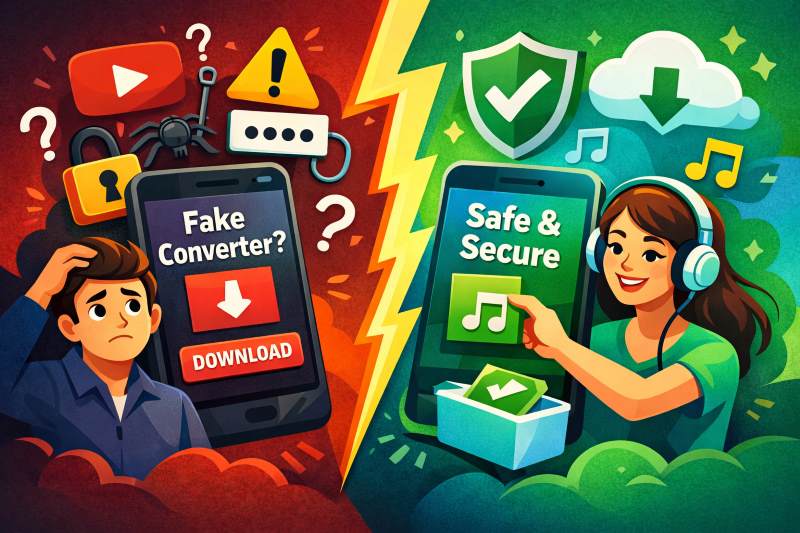
Those "speed-claim" Spotify converters? They're scraping YouTube, not converting your files. Understand the risks—and find methods that actually work and safe.
You want your Spotify music as local files. Permanently. So you search for a converter—and half the results promise unrealistic download speeds.
Here’s what those tools don’t tell you: they’re not converting Spotify files at all. They match song titles to YouTube, download from there, and hope you don’t notice the wrong version or lower quality. Some users who handed over their Spotify login watched their accounts get suspended within days.
This article shows you what these converters actually do, which ones carry real ban risk, and what methods can actually deliver local files without costing your account.
Why “10x Speed” Spotify Converters Are Lying to You
They’re not converting Spotify files at all—they’re downloading from YouTube. The “10x speed” claim is marketing misdirection, not a technical breakthrough.
Here’s why: Spotify files are encrypted.

When you download songs for offline playback in Spotify, you’re not getting MP3 files. You’re getting encrypted OGG Vorbis audio wrapped in DRM. No legitimate tool can decrypt these files. If a converter claims to decrypt at impossible speeds, it’s not decrypting anything—it’s doing something else entirely.
What that “something else” is: matching your song titles to YouTube or YouTube Music, and downloading from there.
The spotdl documentation is unusually honest about this. They explicitly state they use YouTube as the download source “to avoid Spotify DRM issues.” That’s not a bug—it’s the only legal way these tools can exist.
So when you see that speed claim, read it as: “We download from YouTube, not Spotify.”
This matters because:
- YouTube Music maxes out at 256kbps AAC; Spotify Premium goes up to 320kbps OGG Vorbis
- YouTube matching is a blind box—you might get the wrong version
- Any speed advantage comes from skipping DRM entirely, not from superior technology
What Actually Happens When You Use a Spotify Converter
These tools match your song titles to YouTube videos and download from there—never from Spotify. The marketing copy won’t tell you this, so let’s walk through the actual workflow:
The YouTube Matching Problem
When you paste a Spotify playlist into a converter, here’s the workflow:
- The tool reads your playlist metadata (song titles, artists)
- It searches YouTube or YouTube Music for matches
- It downloads the audio from the best match
- It tags the file with the Spotify metadata
Notice what’s missing? The actual Spotify audio file. You never get the Spotify version of the song. You get whatever YouTube upload the algorithm thinks matches your query.
This is the “wrong version blind box” problem.
Community reports are full of these nightmares:
- Live versions instead of studio recordings
- Acoustic versions when you wanted the original
- Fan uploads with 15 seconds of intro chatter
- Remixes you didn’t ask for
- Covers by random artists with similar titles
The converter doesn’t know it grabbed the wrong song. It just sees a YouTube result with matching keywords and proceeds.
The Quality Mismatch
Even when the converter grabs the right song, you’re not getting Spotify quality.
| Source | Max Quality | Format |
|---|---|---|
| Spotify Premium | 320kbps | OGG Vorbis |
| YouTube Music | 256kbps | AAC |
| YouTube (free) | 128-160kbps | AAC/OPUS |
If you specifically want Spotify’s audio quality, YouTube-based converters can’t deliver that. The files they give you never touched Spotify’s servers.
The Real Risk: Why Spotify Bans Accounts
Spotify can and does ban accounts that use API-based converters. Multiple users report suspensions after authorizing third-party tools with their login credentials. This is where things get serious.
Spotify’s Terms of Service explicitly prohibit “copying, reproducing, extracting, or re-utilizing” the service’s content. They also crack down on unauthorized third-party applications accessing their API.
How Spotify Detects Converter Usage
Not all converter usage is equally risky. Here’s the detection hierarchy:
Highest Risk: Tools that require Spotify login
- These apps access your account via API
- Spotify can see unusual access patterns
- Multiple Reddit users report account suspensions after using such tools
- One thread documents a user whose account was disabled after authorizing a third-party downloader
Medium Risk: Tools that scrape your playlist data
- Even without login, some tools read your public playlists
- This creates API access patterns that could trigger flags
- Less documented, but still a risk vector
Lowest Risk: Tools that never touch Spotify’s systems
- Recording software that captures system audio
- No API access, no login credentials shared
- Spotify has no way to know you’re using them
What a Ban Looks Like
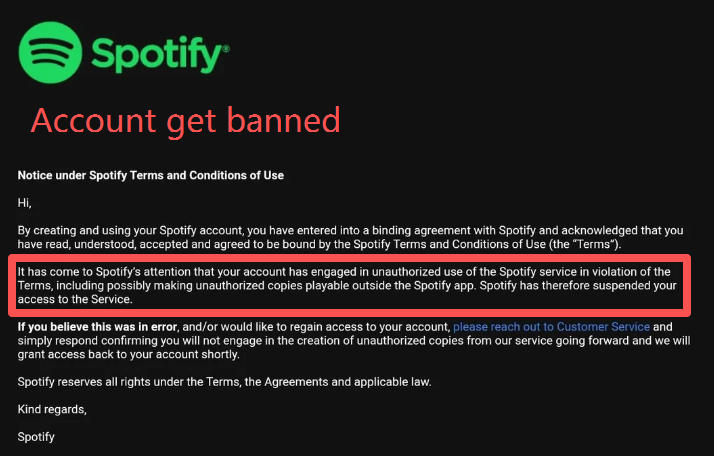
Based on community reports, Spotify’s enforcement varies:
- Some users get warnings
- Some lose access temporarily
- Some have their accounts permanently disabled
- Premium subscribers may lose paid subscription time with no refund
If your account gets banned, you lose:
- Your playlists and saved music
- Your listening history and recommendations
- Any premium subscription time you paid for
- The ability to create a new account with the same email
Free Open-Source Options: What They Actually Do
Free tools work, but they have real limitations you need to know before committing. Here’s the honest breakdown.
spotdl: The Command-Line Option

spotdl is a Python-based tool that downloads from YouTube Music. It’s free, open-source, and actively maintained. It handles fast downloads, good metadata (when it works), playlist support, and runs on Windows, Mac, and Linux.
The catch: it’s command-line only, so not for everyone. Since it pulls from YouTube, you’re capped at 256kbps and subject to the version mismatch problem. GitHub issues show ongoing headaches with metadata accuracy and API rate limits. You’ll need Python installed and some comfort with terminal commands.
If you’re comfortable with CLI tools and willing to verify each download, spotdl is a legitimate option. If you want something that “just works,” this isn’t it.
Spytify: The Windows-Only Recorder

Spytify takes a different approach. Instead of downloading from YouTube, it records audio as it plays through your system.
Before you start: You’ll need Windows 10 or 11, and about 10 minutes for initial setup.
Quick start: Download the latest release from GitHub (look for the .exe file in the Releases section), install it, then select your audio output device in Spytify’s settings. Hit record, play your Spotify playlist, and let it run.
The upside: you get the actual Spotify stream, so no version mismatch. It doesn’t touch Spotify’s API, which keeps the ban risk low. Free, open-source, and handles automatic track splitting with basic tagging.
The trade-offs of Spytify are straightforward: Windows only, and a 3-minute song takes 3 minutes to record. Track detection fails on some tracks, and metadata accuracy varies. Common gotcha: Turn off system notifications before recording, or you’ll capture notification sounds in your music files.
The key difference from converters: Spytify records the actual Spotify audio stream, so you get the version you intended. The trade-off is speed—real-time recording is inherently slower than downloading.
Why “Just Use Audacity” Is Easier Said Than Done
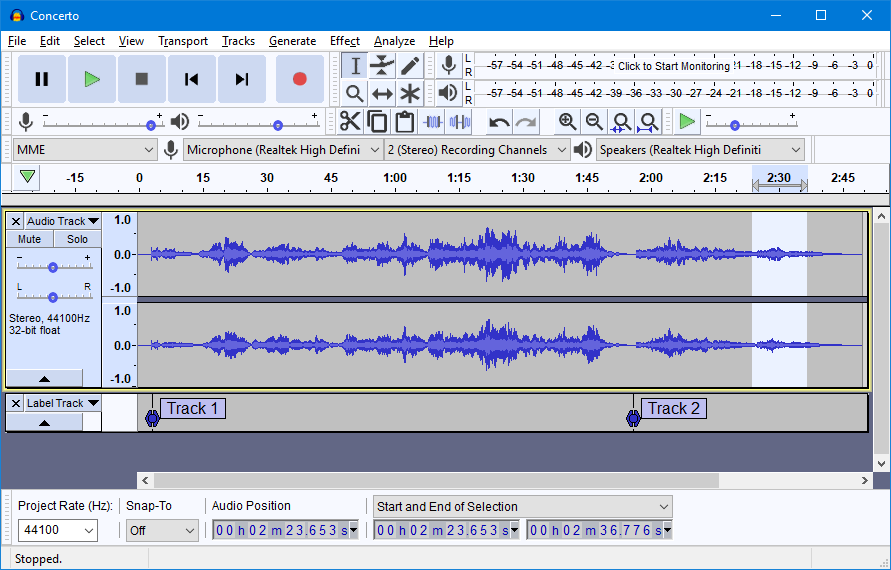
Audacity is free, powerful, and suggested in every forum thread about recording audio. It’s also a time sink if you’ve never set up system audio capture before.
The Stereo Mix Problem
To record system audio in Audacity on Windows, you need either:
- Stereo Mix enabled in your sound settings, or
- A virtual audio cable installed and configured
If Stereo Mix is missing: Download VB-Cable (free virtual audio driver), install it, then set your playback device to “CABLE Input” and Audacity’s recording device to “CABLE Output.” Restart both Spotify and Audacity after making these changes.
Here’s the problem: Stereo Mix is hidden or unavailable on many Windows 10/11 systems. Manufacturer audio drivers often disable it. Finding the right settings involves digging through sound control panels, updating drivers, or installing third-party software.
Audacity’s own documentation devotes an entire page to this setup. Forum threads are full of users who spent hours trying to get it working—budget 30-60 minutes for troubleshooting if you’ve never done this before.
The Manual Workflow
Even after you get audio capture working, Audacity doesn’t auto-split tracks or fetch metadata. For a full playlist, you’re looking at:
- Start recording
- Play your playlist
- Wait for the entire playlist to finish (no skipping)
- Manually identify and split each track
- Export each file individually
- Manually tag each file with artist, album, title, year
- Find and embed album art for each track
For a 50-song playlist? That’s potentially hours of post-processing work.
Audacity is a capable audio editor. But calling it a “Spotify recording solution” oversells what it actually does. It records. Everything after that is on you.
When Recording Beats Downloading
Downloading from YouTube is fast but inaccurate. Recording is slow but reliable. The question isn’t which is “better”—it’s which trade-off fits your situation.
Recording makes sense when:
You want the exact Spotify version. YouTube matching is a gamble. If you specifically need the studio recording on your playlist—not the live version, not the acoustic version, not the fan upload with 20 seconds of intro—recording is the only way to guarantee that.
You’re worried about account bans. Recording tools that capture system audio don’t touch Spotify’s API. They don’t need your login. From Spotify’s perspective, you’re just playing music. The risk profile is fundamentally different from API-based downloaders.
You have time but not money. Free recording options exist. Spytify costs nothing. Audacity costs nothing. The trade-off is your time—both for setup and real-time recording.
Downloading makes sense when:
Speed matters more than precision. Getting 50 songs in 10 minutes matters more than whether track 37 is the exact version you wanted.
You’re comfortable with command-line tools. spotdl works well if you’re comfortable with Python and terminal commands. It’s free, actively maintained, and reasonably fast.
A Middle Ground: Cinch Audio Recorder
If you want the reliability of recording without the manual labor of Audacity, Cinch Audio Recorder sits in a useful middle ground.
Before you start: Close all other apps that might play sounds (email, messaging apps, browsers with auto-play videos). Set Spotify’s volume to about 80% to avoid distortion.
It records system audio like Spytify, auto-splits tracks by silence detection, identifies songs via audio fingerprinting, and pulls metadata, album art, and lyrics automatically. Unlike Spytify, it works on both Windows and Mac.
The workflow: start recording, play your Spotify playlist, walk away. Come back to properly tagged MP3/M4A/FLAC files with album art—no manual splitting or tagging required. Files typically save to your Music folder; check the settings if you want them elsewhere.

It’s paid software with a lifetime license. You’re paying to skip the hours of setup and post-processing that free tools require. For a large library or if your time is worth more than the software cost, the math works out. For occasional use, the free options might be enough.
It’s safer than API-based converters since no Spotify login is required, more automated than Audacity, and cross-platform unlike Spytify. Still real-time recording, so no unrealistic speed claims.
Which Option Fits You
Here’s how to choose based on what matters most to you.
Avoiding bans: Use a recording tool that doesn’t require Spotify login. Period. Any tool asking for credentials is a risk vector. Your options:
- Spytify (Windows, free) — Good if you’re on Windows and don’t mind real-time recording
- Audacity (All platforms, free) — Only if you’re willing to set up audio capture and do manual tagging
- Cinch (Windows/Mac, paid) — If you want automated tagging and cross-platform support
Speed over precision: Use spotdl, but understand what you’re getting:
- YouTube-sourced audio (not Spotify quality)
- Potential version mismatches
- CLI interface required
- Free
Getting exact versions: Recording is the only way to guarantee you get the exact track from your Spotify playlist. YouTube matching is fundamentally unreliable for this.
More time than money: Try Spytify first. If you’re on Windows and it works for your use case, you’re done. If you run into issues or need Mac support, Audacity is the backup—but budget several hours for setup and processing.
More money than time: Cinch is the path of least resistance. One-time cost, no recurring subscription, automated workflow. You’re paying for the time you’d otherwise spend on manual splitting, tagging, and metadata correction.
What This Means for You
YouTube-based converters work if you prioritize speed and don’t mind verifying each file. Recording tools take longer but guarantee you get the right version.
The ban risk is real for anything touching Spotify’s API. If your main account matters, use recording tools that don’t ask for login credentials.
Start here: On Windows with time to spare? Try Spytify—it’s free with minimal setup. Want automated tagging across Windows or Mac? Cinch offers a one-time purchase with no recurring fees. Comfortable with command-line tools and manual verification? spotdl remains a solid free option.
Quick checklist before you record:
- Turn off system notifications (Windows: Focus Assist; Mac: Do Not Disturb)
- Close browsers and chat apps to prevent notification sounds
- Set Spotify volume to 80% to avoid clipping
- Do a 30-second test recording first
- Verify the output file sounds right before committing your entire playlist
If something goes wrong: No audio in the recording usually means the wrong audio device is selected—check your sound settings. Choppy or distorted audio often means another app is interfering or your system volume is too high.
That speed promise was never about technology. It was about skipping the hardest part—and passing the consequences to you.