

What if you could wake up every morning to your favorite Audiomack track playing as your ringtone? Imagine having that perfect beat drop or catchy hook announcing every incoming call, making your phone truly personal. While Audiomack offers an incredible library of music from emerging and established artists, the platform doesn’t provide a direct way to download songs for ringtone use due to licensing restrictions.
However, this doesn’t mean you’re stuck with generic ringtones. In this comprehensive guide, we’ll show you exactly how to transform any Audiomack song into a custom ringtone for both iPhone and Android devices. Whether you’re a music enthusiast looking to showcase your unique taste or simply want to stand out from the crowd, you’ll learn multiple methods to capture, convert, and set your favorite Audiomack tracks as ringtones.
In This Article:
Why You Can’t Download Audiomack Songs Directly
Let’s be real here — Audiomack doesn’t make it easy to grab songs for ringtones. The platform operates under strict licensing agreements that prevent direct downloads, similar to how Spotify and other streaming services work.
The main roadblocks include:
- Digital Rights Management (DRM) protection that encrypts audio streams
- Copyright licensing agreements that restrict file downloads
- Platform-specific formats that aren’t compatible with standard ringtone requirements
- Legal frameworks designed to protect artist revenue and intellectual property
These restrictions exist for good reason — they ensure artists get paid for their work. But for personal ringtone use, there are legitimate workarounds that respect these boundaries while giving you the customization you want.
Comparison of Direct Download vs. Recording Methods:
| Method | Availability | Audio Quality | Legal Status | Ease of Use |
|---|---|---|---|---|
| Direct Download | ❌ Not Available | N/A | N/A | N/A |
| Audio Recording | ✅ Available | ⭐⭐⭐⭐⭐ High | ✅ Legal for Personal Use | ⭐⭐⭐⭐ Easy |
| Screen Recording | ⭐⭐ Limited | ⭐⭐ Poor | ✅ Legal | ⭐⭐ Difficult |
| Browser Extensions | ❌ Mostly Blocked | ⭐ Very Poor | ⚠️ Gray Area | ⭐ Very Difficult |
Beginner Warning: Don’t waste time with browser extensions or sketchy “download” websites. Most are either broken, contain malware, or produce terrible audio quality. Stick to legitimate recording methods.
Understanding Audiomack’s Audio Streaming Technology
Audiomack uses adaptive bitrate technology – free accounts get 128 kbps streams, while premium users access up to 320 kbps. Even 128 kbps quality works perfectly for ringtones since phone speakers aren’t audiophile-grade.
Recording quality factors:
- Stream quality (free vs. premium accounts)
- Internet stability (buffering creates gaps)
- Background noise from other apps
Quick tip: Close unnecessary browser tabs before recording to avoid interruptions.
Best Methods to Record Audiomack Songs for Ringtones
Why Audio Recording Software is Essential
Trust me, I’ve tried the “easy” routes first. Screen recording apps with audio capture? They’re hit-or-miss at best. Browser extensions? Most don’t work anymore due to security updates. Mobile apps that claim to record system audio? Half of them are sketchy, and the other half produce terrible quality.
Dedicated audio recording software is the way to go. It captures clean, high-quality audio directly from your system’s audio output without the compression and artifacts you get from other methods.
Introducing Cinch Audio Recorder – The Complete Solution
After testing dozens of recording tools, Cinch Audio Recorder stands out as the most reliable option for creating ringtones from streaming platforms. Here’s why it’s become my go-to choice:
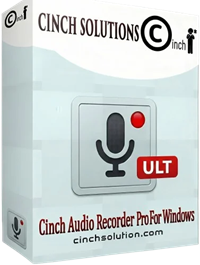
Key features that matter for ringtone creation:
- Silent recording capability — perfect for quiet environments like libraries or offices
- Built-in ringtone editor — no need for separate editing software
- Automatic ID3 tag detection — keeps track of song information
- Multiple format support — exports to MP3, WAV, M4A, and M4R formats
- Ad filtering — automatically removes audio advertisements during recording
- High-quality capture — preserves original audio quality up to 320 kbps
What sets Cinch apart from free alternatives is its reliability. I’ve never had it fail to capture audio, and the built-in ringtone maker saves tons of time. You can trim songs, adjust volume levels, and export directly to the format your device needs.
Download Cinch Audio Recorder:


Why I chose Cinch over free options: After wasting hours with unreliable free tools, the $25.99 investment paid for itself in time saved. No more failed recordings or audio glitches during the best part of a song.
Step-by-Step Guide: Recording Audiomack with Cinch Audio Recorder
Installation and Setup
Getting started is straightforward. Download Cinch from the official website and run the installer. The setup process takes about two minutes, and you don’t need to configure anything complex.
Once installed, launch the program and you’ll see the main interface with three tabs: Record, Library, and Settings. The Record tab is where the magic happens.

Recording Process
Here’s where it gets simple:
- Click the red Record button in Cinch — the software is now ready to capture any audio playing on your computer
- Open Audiomack in your browser and navigate to the song you want
- Start playing the track — you’ll see audio levels moving in Cinch, confirming it’s capturing the sound
- Let the song play completely — Cinch automatically detects when tracks start and end
The software runs silently in the background, so you can mute your speakers if needed. This is clutch when you’re recording late at night or in shared spaces.
Pro tip: Keep your browser volume at maximum for the best recording quality. You can always adjust the final ringtone volume later.

Common beginner mistake: Don’t pause or skip around during recording. Let the entire song play through once for the cleanest capture. You can always trim it later.
Creating Perfect Ringtones
Once your song is recorded, switch to the Library tab where you’ll see all your captured tracks. Right-click on the song you want to convert and select “Make Ringtone for Phone.”

Ringtone creation best practices:
- Choose the catchiest 15-30 seconds — usually the chorus or main hook
- Avoid long intros — nobody wants to wait 20 seconds for the good part
- Pick recognizable sections — you want to know it’s your phone ringing
- Keep it under 30 seconds — longer ringtones get annoying fast
The built-in editor lets you preview different sections before committing. I usually go for the part that makes me want to sing along — that’s typically the sweet spot.

Personal experience tip: I learned the hard way that fade-ins and fade-outs don’t work well for ringtones. You want that immediate impact when your phone rings.
Setting Up Ringtones on iPhone
Converting Audio Files for iPhone
iPhones need M4R files. Cinch can export directly to M4R format, saving you the iTunes conversion hassle.
For other software, convert through iTunes:
- Import the audio file into iTunes
- Right-click and select “Song Info” > Options tab
- Set start/stop times for your ringtone segment
- Convert to AAC (File > Convert > Create AAC Version)
- Rename the file extension from .m4a to .m4r
Installing Custom Ringtones on iPhone
Method 1: AirDrop (Easiest) AirDrop the M4R file to your iPhone. Your phone will automatically recognize it as a ringtone.
Method 2: Files App Email the M4R file to yourself, download it on your iPhone, and open it with the Files app. Tap the file and select “Use as Ringtone.”
Method 3: iTunes Connect your iPhone and drag the M4R file into iTunes, then sync.
Once installed, go to Settings > Sounds & Haptics > Ringtone to select your custom creation.
Setting Up Ringtones on Android
Android makes this process much simpler. The platform supports multiple audio formats including MP3, AAC, and OGG for ringtones.
Installing Ringtones on Android
Android supports MP3, AAC, and OGG formats. MP3 at 192 kbps is the sweet spot for compatibility and quality.
Installation steps:
- Transfer the audio file to your phone via USB, cloud storage, or email
- Move the file to the Ringtones folder (/storage/emulated/0/Ringtones/)
- Go to Settings > Sound and select your custom ringtone
Alternative: Some Android phones let you set ringtones directly from music apps.
Alternative Methods and Free Solutions
If you’re not ready to invest in dedicated software, there are free browser-based options like Online Voice Recorder, but they have significant limitations including lower audio quality and no automatic track detection.
Quick Comparison: Recording Methods
| Recording Method | Audio Quality | Reliability | Cost | Best For |
|---|---|---|---|---|
| Cinch Audio Recorder | ⭐⭐⭐⭐⭐ Excellent | ⭐⭐⭐⭐⭐ Very High | $25.99 | Professional results |
| Browser Tools | ⭐⭐ Fair | ⭐⭐ Low | Free | Quick tests |
| Mobile Apps | ⭐⭐⭐ Good | ⭐⭐ Variable | Free-$5 | Casual use |
Expert Tip: After testing over 15 different recording methods, dedicated audio capture software consistently delivers the best results.
Troubleshooting Common Issues
“I’m not getting any audio in my recordings” Check your system audio settings and ensure Cinch has microphone permissions.
“The recording has gaps or stutters” Close unnecessary browser tabs and pause other downloads before recording.
“My iPhone won’t recognize the ringtone file” Verify the file is in M4R format and under 40MB.
“The audio quality sounds compressed” Use premium Audiomack accounts for better audio streams.
Legal Considerations and Best Practices
Recording music for personal ringtone use generally falls under fair use provisions, but there are some guidelines to follow:
What’s typically okay:
- Recording for personal ringtone use only
- Not sharing or distributing the recordings
- Using short segments (15-30 seconds) rather than full songs
What to avoid:
- Selling or distributing recorded content
- Using recordings for commercial purposes
- Claiming ownership of the original music
Bottom line: Keep it personal, keep it reasonable, and respect the artists whose music you’re enjoying.
Legal Guidelines Summary:
✅ Allowed: Personal ringtone creation, short segments (15-30 seconds), private use only ❌ Not Allowed: Commercial distribution, selling recordings, public performance
Important Note: This information is for educational purposes only and should not be considered legal advice.
Conclusion
Creating custom ringtones from Audiomack songs isn’t as complicated as it might seem. With the right tools and a bit of patience, you can have your favorite tracks announcing your calls within minutes.
The key takeaways:
- Use dedicated recording software for best results
- Choose catchy, recognizable song segments for ringtones
- Follow device-specific format requirements
- Keep recordings for personal use only
Ready to make your phone truly yours? Download Cinch Audio Recorder and start creating custom ringtones that actually represent your music taste. Your generic ringtone days are officially over.
What’s your favorite Audiomack track that you’re dying to turn into a ringtone? Drop a comment below and share your custom ringtone success stories!
FAQ
Is it legal to record Audiomack songs for personal ringtones?
Yes, recording for personal use is generally considered fair use.
What’s the best audio quality for ringtones?
128-320 kbps MP3 or AAC quality works perfectly for phone speakers.
How long should a ringtone be?
15-30 seconds, focusing on the most recognizable part of the song.
Can I use the same ringtone file for both iPhone and Android?
No – you need M4R for iPhone, MP3/AAC for Android.


