Ever tried transferring your downloaded Qobuz tracks to an MP3 player, only to find they won’t play?
You’re not alone. Last month, I spent two hours trying to figure out why my “downloaded” Qobuz music wouldn’t leave the app. It turns out thousands of Qobuz users run into the same problem every day.
Qobuz is known for its excellent streaming quality, offering Hi-Res audio that comes close to studio masters. But there’s a catch that most people don’t realize until they hit it themselves.
Those “downloaded” files are tightly locked to the Qobuz app.
In this guide, I’ll show you four proven ways to convert Qobuz music to MP3. From free methods to professional tools, I’ll walk you through what actually works in 2025—well, three and a half methods, to be honest. You’ll see why.
In This Article:
Understanding Qobuz Download Limitations (What Most People Miss)

Before we dive into solutions, let’s clear up the confusion that trips up nearly everyone.
I spent three months using Qobuz before I understood what was actually happening with my downloads. Three months! Maybe I’m just slow, but I doubt I’m the only one.
The Confusion: Download vs Import vs Cache
Qobuz uses three terms that mean very different things:
Import: Encrypted copies saved to your device’s protected folder. Like checking out a library book—temporary, not owned.
Cache: Automatically stored as you stream to save bandwidth. Clear your cache, and poof—they vanish.
Download (from Store): Actual ownership. DRM-free files you can use anywhere.
Most users think “Import” means real downloads. I certainly did. It doesn’t.
What Happens When Your Subscription Ends
After my Qobuz trial ended, every imported song became unplayable. Files were still on my phone taking up 4GB, but completely useless.
Think the files stick around? Nope.
What actually happens:
- Imported files are encrypted with your active subscription key
- When subscription lapses, the key expires
- Files won’t play, transfer, or convert
Frustrating doesn’t begin to cover it. Actually, “infuriating” is probably more accurate.
Why You Can’t Simply Copy Qobuz Files
Imported files use DRM protection. Even when located on your hard drive, they’re encrypted .qobuz files that won’t open in any music player. By design.

Method 1 – Using Qobuz’s Official Download (With Subscription)
Let’s start with what Qobuz offers officially.
If you have an active Studio or Sublime subscription, you can import tracks for offline listening within the app. But—and this is important—only within the app.
How Qobuz’s “Import” Feature Works
The process:
- Open Qobuz app
- Find album or playlist
- Click download icon
- Choose quality: MP3 320kbps, CD Quality FLAC, or Hi-Res FLAC
The app saves encrypted versions to protected storage. Enable Offline Mode in settings to listen.
The Real Limitations You Need to Know
Here’s where things get annoying:
Device Lock: Files only play within Qobuz app. Can’t use in video editing, MP3 players, or car USB systems. I learned this the hard way.
Subscription Dependency: Stop paying, lose access immediately. No grace period, no warning.
No Format Flexibility: Encrypted containers only Qobuz can decrypt.
Oh, and files aren’t transferable between devices, even with the same account. Found that out when I got a new laptop.
When This Method Makes Sense
Works for casual listening exclusively within the Qobuz app. If you plan to maintain your subscription long-term and never need files elsewhere, official import is fine. Just know you’re renting, not owning.
Method 2 – Buying Qobuz Tracks Permanently
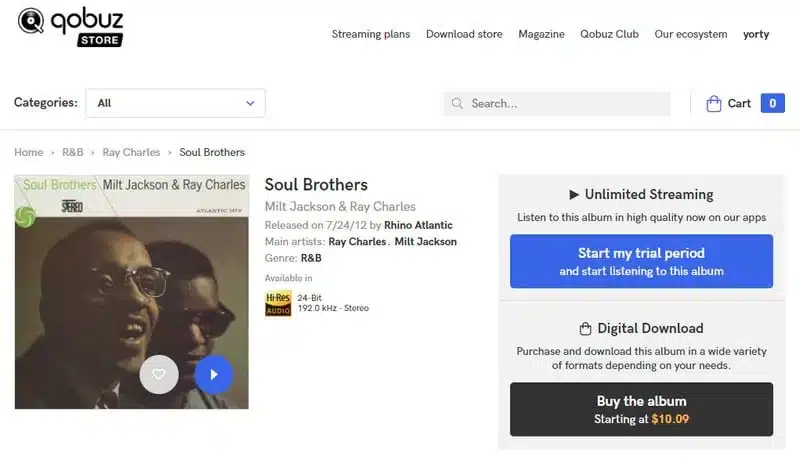
For true ownership, Qobuz runs a separate download store where you can purchase individual tracks and albums.
This is the “proper” way, if you have the budget for it.
How the Qobuz Download Store Works
Purchase process:
- Browse Qobuz Store
- Find album or track
- Select quality: MP3 320kbps, CD Quality FLAC, or Hi-Res FLAC
- Complete payment
- Download DRM-free files
Files are genuinely yours—no expiration, no DRM, full metadata included.
Pros and Cons of Buying Individual Tracks
Pros: True ownership, DRM-free, multiple formats. You actually own the files.
Cons: Expensive ($15-25/album average). 50 albums = $750-1,250 total. Ouch.
Who Should Use This Method
Best for absolute favorite albums and audiophiles needing true lossless for high-end equipment. For everything else, the cost adds up too quickly.
Method 3 – Recording Qobuz to MP3 with Cinch Audio Recorder (Recommended)

Most people start with Qobuz’s official download feature. That works fine if you’re happy staying within the Qobuz app forever.
I actually used their import function for months before hitting a wall.
Last month, I wanted to load my Qobuz playlists onto my car’s USB player for a road trip. That’s when I discovered the files were completely locked down. I could see them taking up space on my phone, but couldn’t transfer a single track.
Frustrating doesn’t begin to cover it. Honestly, I might have yelled at my laptop a little.
Here’s Where Official Downloads Fall Short
The breaking point for me was wanting to use my Qobuz music in video editing. Completely impossible with encrypted files.
The real limitations:
- Device Lock: Can’t play on MP3 players, car systems, or older devices
- App Dependency: Must keep Qobuz app installed and account active
- Subscription Trap: Lose everything if you cancel
- Creative Limits: Can’t use in video projects or creative work
I know the official method is convenient, but convenience isn’t much help when you can’t actually use your music.
Introducing Cinch Audio Recorder
That’s when I started using Cinch Audio Recorder.
Not as a replacement for Qobuz—more like a backup plan for when you need actual MP3 files you can use anywhere. Actually, maybe “escape plan” is more accurate.
Here’s why it actually solves the limitation problem:
- Records from Qobuz web player to standard MP3 files
- Preserves original audio quality (up to 320kbps MP3)
- Files are yours to keep, transfer, and use anywhere
- Works without needing to purchase tracks individually
- Automatic track splitting and ID3 tagging
- One-time purchase, not another subscription
Think of it as a high-quality recorder that sits between Qobuz and your hard drive. You play music, Cinch captures it, you get clean MP3 files saved to your chosen folder.
My Setup Process

Getting started took me about 5 minutes total. Maybe 10 if you’re being careful.
Step 1: Downloaded Cinch from the official website
- Quick 2-minute install on Windows
- Mac version works identically
- No complicated configuration required (thank goodness)
Step 2: Configured Recording Settings
Before recording anything, I set my preferences:
- Output format: MP3 at 320kbps (highest quality)
- Destination: My Music folder, organized by Artist/Album
- Auto-split enabled (automatically separates tracks)
- Keep ID3 tags active (grabs album art and metadata)
Step 3: Started Recording
The actual process is dead simple:
- Opened Qobuz web player in my browser
- Found the playlist I wanted
- Clicked “Start” in Cinch
- Hit play on the Qobuz playlist
Pro tip: You can mute your computer speakers. Cinch still records perfectly. I learned that after sitting through 20 songs with headphones on. Felt silly when I realized.
Step 4: Let it run
Recording happens in real-time. A 40-minute album takes 40 minutes.
I usually start it before bed or while working on something else. Works great as a set-it-and-forget-it task.
When finished, click “Stop” in Cinch. Your MP3 files are ready in the output folder you chose. First time it finishes, you’ll probably check three times to make sure they’re really there and actually work. I did.
Download Cinch Audio Recorder
Ready to break free from Qobuz’s limitations? Download Cinch and start building your MP3 library.


What I Like About Cinch
Honest pros from actual use:
Simplicity: If you can press play on music, you can use this. No technical knowledge required.
Auto-split magic: Cinch detects gaps between tracks and separates them automatically. I recorded a 3-hour classical playlist and got 47 perfect tracks. Would have taken hours to split manually.
ID3 tags work: Album artwork, track numbers, artist names—all captured automatically. My music library looks professional without any manual editing. I appreciate this more than I should.
One payment, done: $25.99 one-time. No monthly fees. Pays for itself fast after recording a few albums.
Works beyond Qobuz: Since I have Cinch, I’ve also recorded Spotify playlists, web radio shows, and SoundCloud tracks. Handy for consolidating music. Bonus feature I didn’t expect.
Quick Reality Check
It’s a recording tool, so you need to play through songs in real-time. Not instant like a download.
But quality is identical to what you’re streaming. I compared files side-by-side using a spectrogram analyzer—the 320kbps MP3s from Cinch match Qobuz’s stream quality exactly. Or at least, as far as I can tell. The specs matched perfectly.
For overnight recording sessions, that’s a non-issue. I queue up playlists before bed, wake up to a full library. Works like a charm.
Beyond Qobuz: Other Uses I’ve Found
One tool, multiple uses:
- Spotify playlists when I couldn’t find songs to purchase
- BBC Radio shows that aren’t available as podcasts
- YouTube concerts I wanted as audio-only files
- SoundCloud exclusive tracks from smaller artists
Basically anything you can play through your browser, Cinch can record.
Method 4 – Free Online Tools & Command-Line Options
Before I found Cinch, I tried “free” solutions.
Most were disappointing. Okay, all of them were disappointing.
Online Qobuz Downloaders (What to Expect)
Reality: Most require premium Qobuz accounts anyway, unstable, no batch processing, sketchy sites with misleading ads.
One tool worked for maybe a week before Qobuz broke it. Nobody fixes these quickly.
My take: Fine for testing 1-2 songs if you’re curious. Terrible for building libraries. I gave up after the third sketchy ad popup.
Command-Line Tools (For Tech-Savvy Users)
qobuz-dl exists on GitHub. Free, powerful, downloads lossless FLAC.
Sounds great, right?
The bad: Requires Python, frequent setup headaches, breaks when Qobuz updates (happened 3 times in 2024), no support.
I spent 90 minutes on setup, used it twice, then it broke. Never touched it again.
For most people, the hassle outweighs the “free” benefit. Unless you enjoy debugging Python dependencies as a hobby.
Comparing All Methods: Which One’s Right for You?
Let’s cut through the noise with a straight comparison.
Actually, let me just show you a table. It’s clearer than me rambling.
| Method | Cost | Quality | Ease of Use | Ownership | Best For |
|---|---|---|---|---|---|
| Official Import | Subscription required | Up to Hi-Res | ⭐⭐⭐⭐⭐ | ❌ Temporary | In-app listening only |
| Buy from Store | $15-25/album | Up to Hi-Res | ⭐⭐⭐⭐ | ✅ Permanent | Favorite albums |
| Cinch Recorder | $25 one-time | 320kbps MP3 | ⭐⭐⭐⭐ | ✅ Permanent | Building MP3 library |
| Online Tools | Free (risky) | Variable | ⭐⭐ | ⚠️ Maybe | Testing only |
| Command-Line | Free | Up to FLAC | ⭐⭐ | ✅ Permanent | Tech experts |
My Recommendation Based on Your Needs
Building MP3 library: Use Cinch. Best balance between cost and convenience.
Audiophiles with budget: Buy Hi-Res FLAC for your absolute favorites, use Cinch for the rest.
Casual listening: Official import works fine. Just don’t cancel your subscription.
Experimenting: Try free tools if you want, but expect frustration. I warned you.
I use a hybrid approach: Bought 5 cherished albums in Hi-Res, Cinch for everything else. Keeps costs reasonable while maintaining quality where it matters most.
Tips for Getting the Best Quality MP3s from Qobuz
Whether you’re using Cinch or another method, these settings matter.
Oh, and I learned most of these through trial and error, so you don’t have to.
Optimal Recording Settings
Always use 320kbps MP3. Lower bitrates sound noticeably worse, especially with headphones. Trust me on this.
Source quality matters: Record from Hi-Res for better results. The difference is subtle but real.
Wired internet: Prevents streaming interruptions and glitches. WiFi works, but wired is better for long recordings.
Close heavy programs: Prevents audio dropouts. I learned this after a video render caused stuttering throughout an entire album recording.
Common Mistakes to Avoid
Don’t: Record at low bitrates, play other audio during recording, forget to mute system sounds
Do: Check ID3 tags after, test with 2-3 tracks before batch recording, verify volume levels first
I recorded an entire album with email notifications going off every few minutes. Had to redo the whole thing. Don’t be like me.
How to Organize Your Downloaded Files
Use structure: Artist/Album/01-Track.mp3
Naming convention matters for car stereos and MP3 players. Seriously, some older devices are picky about this.
Back up to external drive: Rebuilding libraries is painful. I learned this the hard way after a hard drive failure. External backup = peace of mind.
Troubleshooting Common Qobuz to MP3 Issues
Ran into problems? These are the ones I’ve encountered and solved.
Well, mostly solved. Some took a few attempts.
“My Downloads Keep Disappearing”
Why: Temporary files tied to active subscription. When subscription lapses, access revoked.
Solution: Use Cinch for permanent files you control.
My trial expired Day 31—every import became unplayable instantly.
“Audio Quality Sounds Worse”
Causes: Low bitrate recording, Standard Quality source, playback device limitation
Fix: Re-record at 320kbps from Hi-Res source.
I thought Cinch was degrading quality until realizing I’d been streaming Standard Quality the whole time. Switched to Hi-Res tier, re-recorded a test track, and boom—problem solved. Felt a bit silly, but at least I figured it out.
“Files Won’t Play on My Device”
Cause: Trying to play DRM-protected files outside Qobuz app.
Solution: Convert to MP3 using Cinch. Plays on everything.
FLAC won’t play? Check device support. Convert using Audacity if needed.
Frequently Asked Questions
Can I keep Qobuz music forever without subscription?
Not with official import (encrypted, subscription-tied). To keep music permanently: buy from Qobuz Store or record with Cinch.
What’s the best MP3 quality from Qobuz?
320kbps maximum when recording. For most listeners, indistinguishable from lossless. For true lossless, purchase FLAC from Store.
Is it legal to convert Qobuz to MP3?
Personal use generally legal (similar to recording radio). Distributing or selling files is illegal everywhere. Check local laws.
Can Cinch batch download playlists?
Yes. Automatically detects track boundaries and splits into individual MP3 files with correct ID3 tags.
Do I need Qobuz subscription?
For Methods 1-3, yes. Difference: Method 1 requires ongoing subscription, Method 3 lets you cancel after recording since you own MP3 files.
Conclusion
Now you have four solid paths to get Qobuz music into MP3 format.
Each has tradeoffs.
Quick recap:
- Official import = Easy but temporary, locked to the app
- Qobuz Store = Perfect quality if money’s no object
- Cinch Recorder = Best balance for most people
- Free tools = Hit or miss, time-consuming, frequently broken
My take? If you’re serious about building a permanent MP3 library from your Qobuz streams, Cinch Audio Recorder is the most practical choice. One-time payment, unlimited conversions, and it just works. Well, mostly just works. Haven’t had issues yet, knock on wood.
The official method is fine if you never leave the app and plan to subscribe forever. Buying from the store makes sense for your absolute favorites in lossless quality—I do this for albums I know I’ll treasure for decades.
Whatever you choose, you’re no longer trapped by subscription limits or encrypted files.
Your music, your rules.
Which method are you leaning toward? If you run into issues I didn’t cover, check the support page—I’ve probably already tested a solution. Or at least made the same mistake first.