Quick Summary
Considering NoteBurner for offline conversion? This review examines stability issues, audio quality concerns & account risks helping you decide before buying.
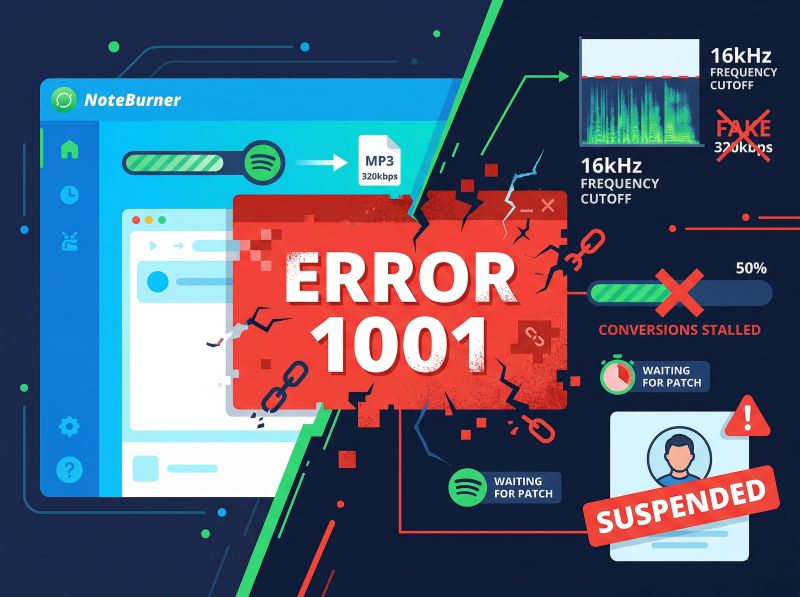
NoteBurner works well—until Spotify updates its encryption. Then Error 1001 appears (just like Sidify Cannot Parse Link Issues), your conversions stall, and you’re stuck waiting for a patch. Users have also discovered that some “320kbps” output files show a 16kHz frequency cutoff when analyzed with spectrogram tools, indicating the source may have been lower quality than claimed.
This review helps you weigh the convenience against the stability issues, audio quality concerns, and account suspension risks that appear after purchase—not just the feature list that works on day one.
The Quick Verdict
| Pros | Cons |
|---|---|
| Clean, intuitive interface | Prone to Error 1001 during Spotify DRM updates |
| Retains ID3 tags automatically | High risk of account bans at 5X/10X speeds |
| Fast batch conversion (when working) | Output quality often upsampled (fake 320kbps) |
| Multi-platform support | Refund process reported as difficult |
Bottom line: Great for casual users who don’t mind periodic downtimes and can use a burner Spotify account. But if you’re a DJ, audiophile, or value your main Spotify account—a local recording approach like Cinch Audio Recorder is significantly safer and more reliable.
What Is NoteBurner Spotify Music Converter?
NoteBurner Spotify Music Converter is a desktop application that converts streaming music from Spotify, Apple Music, Amazon Music, Tidal, and several other platforms into local audio files. According to its official FAQ, it supports output formats including MP3, AAC, WAV, FLAC, AIFF, and ALAC.
The tool works by intercepting and decrypting the DRM-protected streams from these services, then saving the decoded audio to your local storage. This is fundamentally different from recording software—NoteBurner directly interacts with streaming APIs rather than capturing what’s playing through your speakers.
For music collectors or DJs who need offline files for gigs, or anyone wanting to keep curated playlists after a subscription ends, this is exactly the type of tool you’d consider. The pitch is simple: convert your streaming library into files you actually own.

Pricing & Refund Policy
NoteBurner offers monthly subscriptions and a lifetime license option. However, multiple Trustpilot reviews mention that getting a refund can be difficult—especially if you encounter Error 1001 or other issues after the trial period ends. When you’re paying for a tool that might break during the next Spotify update, the subscription model becomes a risky investment. Some users report being charged for auto-renewals they didn’t expect, with refund requests taking weeks or going unanswered entirely.
Key Features & What It Does Well
The interface is clean and intuitive. Drag songs from Spotify, click convert, and watch progress bars fill up. No confusing menus or buried settings. For users who aren’t technical, this matters more than you might think.
One license covers Spotify, Apple Music, Amazon Music, Tidal, YouTube Music, Deezer, Pandora, and Line Music. That breadth is unusual—most converters specialize in one platform.
Drop an entire playlist and let it run. For someone with hundreds of songs to convert, this saves significant time compared to one-by-one solutions.
Title, artist, album, genre, year—all pulled automatically and embedded into the output files. Your converted songs show up properly organized in any music player, not as generic “Track01.mp3” files.
MP3 for compatibility, FLAC for audiophile storage, AAC for iTunes ecosystem—the options cover most real-world needs.
NoteBurner offers 1X, 5X, and 10X speed settings. The faster modes are tempting when you’re staring at a 500-song playlist.
These aren’t marketing fluff. They’re why people keep buying NoteBurner even after hitting Error 1001 the first time. The question is whether that convenience is worth what comes next.
Audio Quality: Does It Really Deliver Lossless?
NoteBurner claims to deliver lossless or high-bitrate output. The interface shows “320kbps” for MP3 conversions. But several users who analyzed their converted files with spectrogram tools found something different.
Community-driven spectrogram analysis reveals a concerning pattern. A proper 320kbps MP3 should show frequency content extending to roughly 20kHz and beyond. What users observed in some NoteBurner files: a sharp cutoff around 16kHz.
That 16kHz cutoff pattern matches what you’d expect from a 128kbps source that was later upsampled or transcoded to appear as “320kbps” in the metadata. The frequency data that should exist above 16kHz simply isn’t there—it’s not being preserved through the conversion process.
According to spectrogram analysis guides, this pattern is a reliable indicator of source quality. When the frequencies are truncated, the file wasn’t derived from a true high-bitrate source.
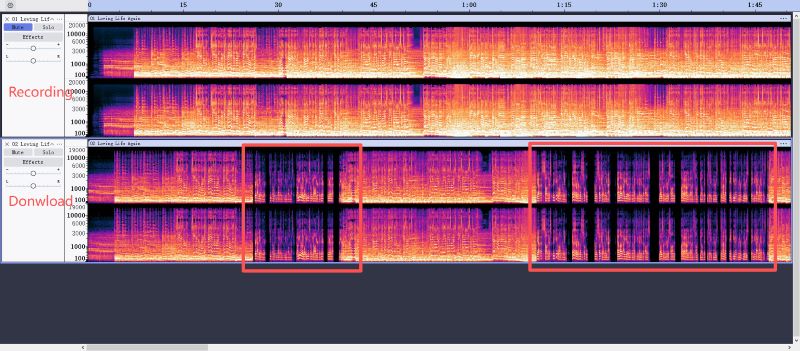
Stop trusting the interface. If audio fidelity matters—whether you’re a DJ playing through venue systems or an audiophile archiving a collection—verify your output files with a free tool like Spek. Drag a converted file into the spectrogram viewer and check whether the frequency range extends past 16kHz. If it cuts off sharply, the “320kbps” label is cosmetic, not substantive.
Quick DJ Verification: Before Your Gig
If you’re preparing files for a live performance, run this 2-minute check:
- Open one converted track in your DJ software (Serato, Rekordbox, Traktor)
- Skip to several points in the track (25%, 50%, 75%) and listen for 5 seconds each
- Check the file’s bitrate in your file explorer—if it claims 320kbps but the file size seems suspiciously small, be skeptical
- Load the track onto a deck and let it play through in headphones while you prepare other gear
This catches corrupted files and quality issues before they embarrass you in front of a crowd.
Not every NoteBurner file shows this problem. Some conversions do retain full frequency range. But the inconsistency is precisely what makes it problematic—you can’t assume quality without checking.

Error Codes & Stability Issues
If you browse Reddit threads or Trustpilot reviews, one theme dominates: NoteBurner works perfectly until it suddenly doesn’t. The error codes aren’t random glitches—they’re symptoms of a structural problem.
Error 1001 appears when Spotify can’t play the track during conversion. According to NoteBurner’s official FAQ, causes include multiple devices logged into the same Spotify account, Spotify cache corruption, or network timeouts. The recommended fixes—clear cache, restart both apps, ensure single-device login—sometimes work. Sometimes they don’t.
Error 1002 indicates an audio output device issue or HTTP request failure. This often means your system audio configuration is interfering with the conversion process, or a network request timed out during DRM decryption.
Error 1004 appears when specific tracks fail to convert. The suggested fix—disable hardware acceleration—doesn’t reliably solve it.
Error 1008 covers timeout-related conversion failures.
A Critical Issue for Performance Use: Corrupted Output Files
Beyond error codes, there’s a less visible but more dangerous problem: some users report that NoteBurner marks conversions as “successful” even when output files are corrupted. One user converting a playlist for their MP3 player found that some files played with skipping and audio glitches despite showing as fully converted. Re-converting sometimes fixes it, sometimes doesn’t.
For DJs preparing for gigs, this inconsistency is a nightmare scenario. You can’t discover corrupted files mid-set. If you’re converting tracks for an upcoming performance, assume some percentage may be compromised and build in time to verify each file actually plays clean from start to finish.
These errors aren’t occasional bugs. They’re the predictable result of what’s happening underneath: NoteBurner and streaming platforms are in an ongoing arms race.
Streaming services like Spotify and Apple Music update their DRM encryption algorithms regularly—sometimes weekly. When they change the encryption, NoteBurner’s decryption method breaks. The software then needs an update to catch up. Users report a pattern where “it worked yesterday, fails today, works again after update, fails again after the next Spotify change.”
This isn’t a bug the developers can permanently fix. It’s a cat-and-mouse game where you—the user—are stuck waiting for patches every time the streaming service updates its defenses. If you need reliable conversion for a trip next week or a gig this weekend, you’re gambling on whether the current version will still work.
Reddit threads show users cycling through reinstalling, clearing caches, trying different speed modes, and eventually giving up on conversions that simply won’t complete. When the fix depends on a software update that hasn’t been released yet, there’s nothing you can do except wait.
The DJ’s Timing Problem
For working DJs, this is a ticking time bomb: if NoteBurner breaks the day before your event, you’re stuck. Unlike casual users who can wait a week for a patch, you have a fixed deadline. The “it works again after update” pattern only helps if the update arrives before your gig—not after.
Is It Safe? Account Ban Risk Explained
This is the question most people hesitate to ask: will using NoteBurner get my Spotify account suspended?
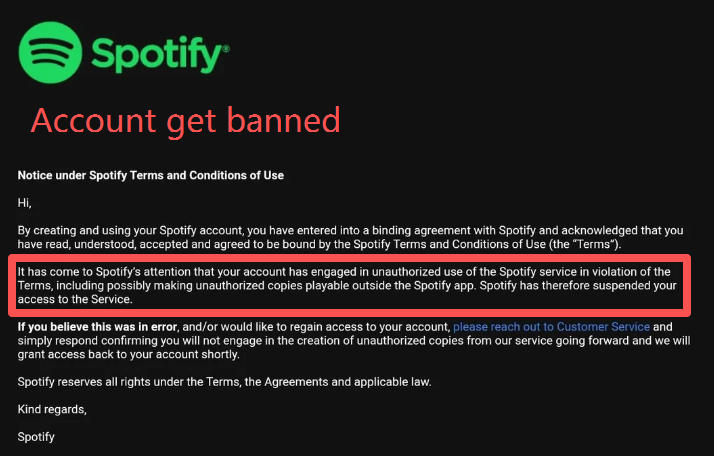
Multiple Reddit users have documented exactly this happening. In r/Piracy discussions, users report receiving account suspensions after using converters like NoteBurner and Sidify. Spotify’s warning cited “unauthorized content downloads.”
NoteBurner’s official documentation acknowledges this risk. The high-speed recording modes (5X and 10X) can trigger Spotify’s anti-download detection systems. The platform detects abnormal API request patterns—requests that look like automated batch extraction rather than normal playback behavior.
The mechanism: when you run conversions at 5X or 10X speed, NoteBurner is pulling data from Spotify’s servers at rates that exceed normal user behavior. Spotify’s systems can flag this as suspicious activity. The result isn’t necessarily a permanent ban—it’s typically a temporary suspension that requires contacting support and promising not to continue the behavior.
Your main Spotify account is your library. Playlists, saved albums, listening history, years of curation. If it gets suspended—even temporarily—you lose all of that for days. For DJs or music collectors who depend on Spotify for discovery and organization, this risk carries real consequences.
The 1X speed mode is safer—it mimics normal playback rates. But 1X means converting a 3-minute song takes 3 minutes. A 50-song playlist takes 2.5 hours. Users tempted by the faster modes are precisely the ones exposing themselves to detection.
Some users create secondary Spotify accounts specifically for conversion, accepting that those accounts might get flagged. If you browse communities like r/Piracy, this is known as using a “burner account”—a secondary Spotify account created just for downloading, keeping your main library protected.
But ask yourself: do you really want to manage multiple emails, remember separate logins, and jump through hoops just to convert a playlist?
Cinch Audio Recorder eliminates this anxiety completely. It operates locally, recording your system audio without any interaction with Spotify’s servers—no burner accounts needed, no account suspension risk, no workarounds required.
Think of it as the modern equivalent of putting a blank cassette tape in a boombox to record the radio in the 90s. It’s safe, legal for personal use in most countries, and completely invisible to Spotify’s anti-piracy systems. You’re not hacking anything—you’re just recording what’s already playing on your computer.
NoteBurner vs Alternative Approaches
Understanding why NoteBurner fails requires understanding what it’s actually doing.
NoteBurner directly interacts with streaming service APIs, intercepts encrypted streams, and decrypts them before saving. This means: when Spotify updates encryption, NoteBurner breaks; when Spotify detects abnormal API patterns, your account risks suspension; when something goes wrong mid-conversion, you get error codes and corrupted files.
A fundamentally different method exists: instead of decrypting streams, capture the audio that’s already been decoded and playing through your system. This is sometimes called the “analog hole”—you record what your speakers would output anyway.
The recording approach has different characteristics. It doesn’t interact with streaming APIs, so there’s no DRM update dependency. It doesn’t create abnormal server request patterns, so detection risk is eliminated. But it’s limited by playback speed—one song takes as long as playing it once. Success depends on whether your system audio is properly configured, not on whether the streaming service changed encryption.
Both approaches have trade-offs. The DRM method promises faster conversion but introduces platform dependency and account risk. The recording method is slower but operates independently of streaming service changes.
Best Alternative: A Fundamentally Different Approach
For users whose priority is stability and account safety, a recording-based solution changes the risk calculus entirely.
Cinch Audio Recorder operates on the recording principle. When music plays on your computer—whether from Spotify’s web player, desktop app, YouTube, or any other source—Cinch captures the system audio output directly. No API interaction, no DRM decryption, no streaming service login required.
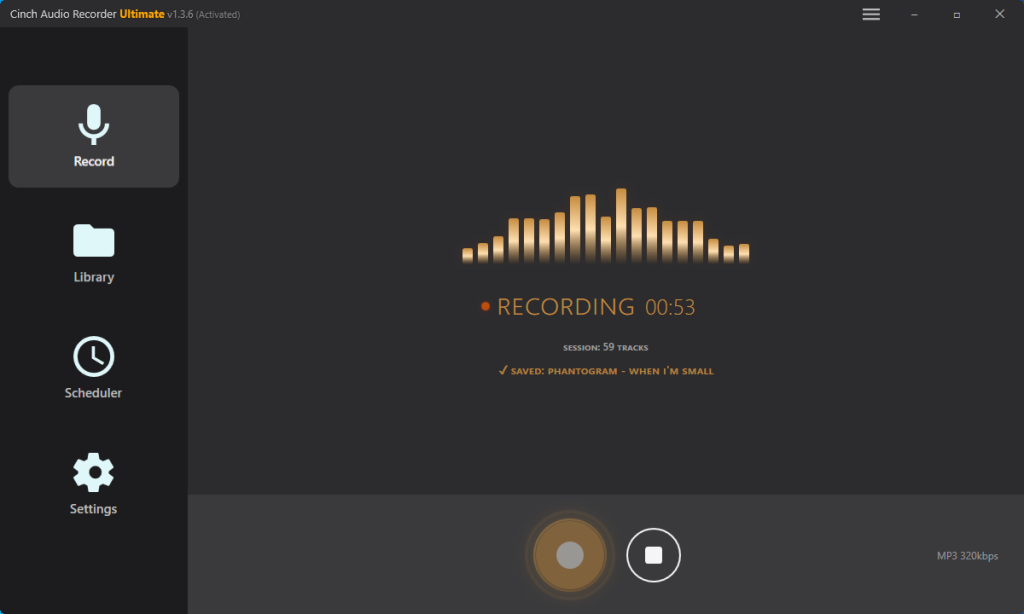
No Error 1001/1002/1004 cycles. Cinch isn’t dependent on Spotify’s encryption staying the same. If you can play the song, you can record it. Streaming platforms update their DRM constantly—that doesn’t affect a tool that’s capturing already-decoded audio.
No account suspension risk. Cinch doesn’t send unusual request patterns to Spotify’s servers. It’s recording local audio output, which is indistinguishable from normal playback behavior from the streaming service’s perspective. Users don’t need to create sacrificial secondary accounts or limit themselves to 1X speed for safety.
Automatic song detection and tagging. Cinch uses audio fingerprinting to identify what’s playing, then pulls title, artist, album, cover art, and lyrics automatically. The output files arrive properly tagged—similar convenience to NoteBurner, but through a different mechanism.
Ad stripping. Cinch can automatically discard segments shorter than a configured threshold—useful for filtering out the short ad interruptions that slip into free-tier playback.
One-time purchase. Unlike subscription-based converters, Cinch uses a lifetime license model. The math matters if you’re planning to use conversion tools for years rather than months.
The trade-off: recording speed equals playback speed. Converting a 300-song playlist takes however long it takes to play 300 songs. You’re trading batch-speed efficiency for reliability and safety. For users who prioritize “set it running and trust it’ll finish” over “convert everything in one hour,” this trade-off is worth it.
For DJs specifically: Yes, Cinch is slower—but consider when you’re doing this conversion work. If you’re building your library between gigs (not the night before), playback-speed recording happens while you’re doing other things. Start it before bed, wake up to finished files. The reliability advantage becomes more valuable than raw speed when your reputation depends on those files working flawlessly.
Cinch isn’t flawless. Recognition depends on the song existing in the fingerprint database—obscure independent releases, live versions, and remixes may fail to identify. Network issues can block metadata retrieval. But these failure modes are different from NoteBurner’s: they don’t repeat every time Spotify updates encryption, and they don’t threaten your streaming account.
Which Option Fits You
NoteBurner fits users who need batch conversion quickly, accept periodic error cycles, and protect their primary account by using a secondary one for conversion work.
A recording-based alternative like Cinch fits users who prioritize “set it running and trust it will finish” over maximum speed, want zero account risk, and prefer a one-time purchase over recurring subscriptions.
Specifically for DJs: If you’re preparing for a gig, NoteBurner’s error-cycle unpredictability and potential for corrupted output files present serious risks. You need files that work—not files that “probably work.” Consider whether you can afford to discover a corrupted track at soundcheck.
Before committing to any converter: verify output quality with a spectrogram tool like Spek. If frequencies cut off at 16kHz, the bitrate label doesn’t match the actual source.
Match your tool choice to your deadline and risk tolerance. If you need files ready for a gig next week, NoteBurner’s error-cycle unpredictability is a liability. If you’re building a library over months with no deadline pressure, the speed trade-off becomes less critical.
Frequently Asked Questions
Q: Is NoteBurner legal?
A: NoteBurner works by decrypting DRM-protected streams, which may violate streaming services’ terms of use in most jurisdictions. A fundamentally different approach—recording audio that plays through your system (the “analog hole”)—is generally considered personal fair use in many countries, similar to recording radio broadcasts in the cassette tape era. Tools like Cinch Audio Recorder operate on this recording principle rather than DRM decryption.
Q: Why does NoteBurner show Error 1001?
A: Error 1001 typically appears when Spotify updates its DRM encryption algorithm. NoteBurner’s decryption method breaks until the developers release a patch. This isn’t a bug you can fix yourself—it’s a structural result of the cat-and-mouse game between DRM circumvention tools and streaming platforms. You wait for an update, or you use a recording-based alternative that doesn’t depend on DRM decryption.
Q: Does NoteBurner really provide 320kbps quality?
A: Not always. Spectrogram analysis of some NoteBurner output files shows a frequency cutoff at 16kHz—the signature of a 128kbps source that was upsampled to appear as “320kbps” in the metadata. A true 320kbps MP3 should show frequencies extending to 20kHz and beyond. Always verify converted files with a spectrogram tool like Spek before trusting the bitrate label.