

Last month, a frustrated Reddit user shared their experience with MP3Paw: “I used to like MP3Paw maybe a year or so ago. Then it had a few ads popup, but I could still download the songs I wanted. But today every 2–3 secs an ad pops up… In the stretch of One minute, I counted 25 pop-ups.”
Sound familiar?
You’re not alone. While MP3Paw promises free music downloads, the reality has become a minefield of excessive ads, security risks, and questionable audio quality. What once seemed like a convenient solution now feels more like digital torture.
This guide will show you how to navigate MP3Paw safely, understand its real limitations, and discover professional alternatives like Cinch Audio Recorder that actually deliver reliable, high-quality music recording without the headaches.
In This Article:
What’s Really Going On with MP3Paw?
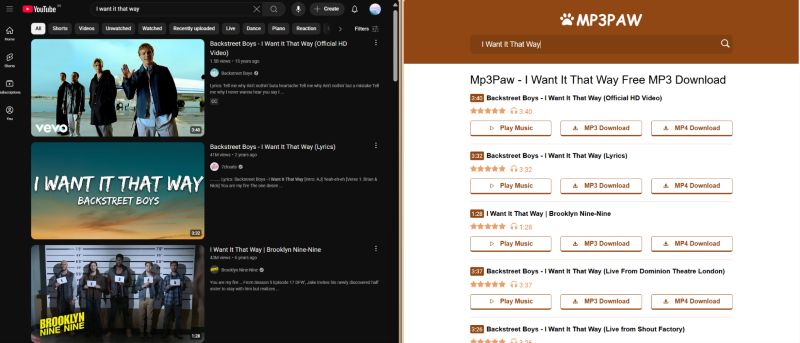
Let’s be honest about what MP3Paw actually is. It’s basically a lightweight search engine that grabs YouTube content and converts it to downloadable MP3 files. You can search by song name or paste YouTube links directly, with quality options ranging from 64kbps to 320kbps.
But here’s the kicker — those quality claims? Not always what they seem.
The Current Reality Check
The original MP3Paw website doesn’t exist anymore. What you’ll find now are several copycat sites like v4.mp3paw.link, mp3paw.blog, and mp3paw.nu. Among these, v4.mp3paw.link seems most stable, though none can be traced back to any verified developers.
What MP3Paw Actually Offers:
- Free MP3 downloads (supposedly up to 320kbps)
- YouTube link conversion
- Multiple quality options
- No account registration needed
The Not-So-Great Parts:
- Ad overload (seriously, 25 pop-ups per minute?)
- Only single-track downloads
- Upscaled audio quality (that 320kbps might be fake)
- Security risks from sketchy ads
- Sites that disappear and reappear with new domains
Real Talk: Many of those “320kbps” files are actually upscaled from lower quality sources. If you’re an audiophile, you’ll notice the difference in dynamic range and frequency response.
How to Use MP3Paw Without Losing Your Mind
Despite its issues, MP3Paw can work if you know what you’re doing. Here’s how to minimize the pain:
The PC Survival Guide
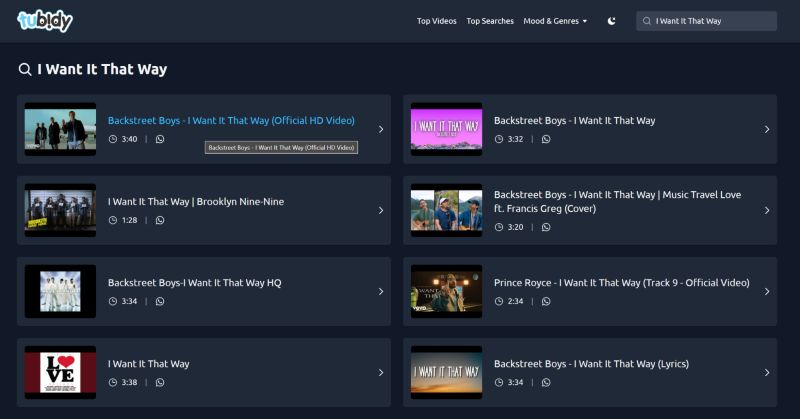
- Get to the Site: Head to v4.mp3paw.link (currently the most stable)
- Search Smart: Use specific song titles or artist names for better results
- Battle the Ads: Close pop-ups immediately — don’t click anything suspicious
- Pick Your Quality: Choose your preferred bitrate (but remember, higher numbers don’t guarantee better sound)
- Download and Pray: Wait for conversion, then grab your file
Mobile Users: You’re in for a Ride
Android users can find the MP3Paw APK on sites like APKPure, but you’ll need SAI: Split APKs Installer because it comes as an XAPK file. Yeah, it’s complicated.
Survival Tips:
- Use ad blockers if possible
- Never click those fake download buttons
- Scan everything for malware
- Don’t give out personal info (obviously)
How to Tell if Your Download is Actually Good Quality
Want to check if that 320kbps file is legit?
- Fire up Audacity and look at the frequency spectrum
- Real 320kbps shows content above 20kHz
- Check file sizes — genuine 320kbps should be 8-10MB for a 4-minute song
When MP3Paw Decides to Break (Which is Often)
Based on what users are saying online, here are the most common headaches and how to deal with them:
That Annoying “Something Went Wrong” Error
Why it happens: Server overload or just general glitchiness What to do:
- Wait 10-15 minutes and try again
- Clear your browser cache
- Try a different browser
- Go incognito mode
The Ad Apocalypse
The problem: Ads every 2-3 seconds (no joke) Your weapons:
- Install uBlock Origin or similar ad blockers
- Use browsers with built-in ad blocking
- Try accessing during off-peak hours (early morning works better)
Quality Issues That Make You Want to Cry
Red flags: Muffled sound, weird volume levels, audio artifacts What to do: Check file properties and audio spectrum analysis Better option: Switch to professional recording software
When the Site Just Won’t Load
MP3Paw domains come and go like the wind:
- Check forums for new domain announcements
- Use web archive services temporarily
- Honestly? Consider switching to something more reliable
Warning: Never download .exe or .dmg files from MP3Paw. Music files should only be audio formats like .mp3, .wav, or .flac.
Why I Switched to Cinch Audio Recorder (And You Should Too)
Look, MP3Paw might be free, but “free” gets expensive when you factor in the time wasted, security risks, and inconsistent quality. For anyone serious about their music collection, these limitations become deal-breakers pretty quickly.

Here’s What Actually Works
Cinch Audio Recorder tackles every single problem MP3Paw has. Instead of replacing free tools entirely, think of it as the professional upgrade for when you need things to actually work.
Why It’s Better Than MP3Paw:
✅ Zero Ads: Record music without interruptions or security nightmares ✅ Real Quality: Capture audio at genuine 320kbps or lossless WAV ✅ Batch Magic: Record entire playlists while you sleep ✅ Smart Tags: Automatic ID3 tag recognition with album artwork ✅ Built-in Tools: Edit, trim, and create ringtones from your recordings
Real Scenarios Where This Actually Matters
Content Creators: Need reliable, high-quality audio without copyright headaches Music Lovers: Want to build libraries with consistent quality Busy People: Need batch processing for large collections Mobile Users: Want ringtone creation that doesn’t suck
The Features That Actually Make a Difference
Advanced Recording Tech
- Direct sound card integration using CAC technology
- Silent recording (mute your computer while recording)
- Works with all major streaming platforms
Smart Metadata Handling
- Automatic ID3 tag detection
- Manual editing when needed
- Album artwork included
Audio Tools That Don’t Suck
- Built-in audio editor
- Ringtone maker for custom alerts
- Ad filtering for free streaming accounts

Getting Started is Actually Simple
Step 1: Download the Right Version


Step 2: Basic Setup
- Launch from your desktop
- Hit the “Record” tab
- Click the red Record button
Step 3: Start Recording
- Open Spotify, Apple Music, or whatever you use (learn more about recording from Spotify)
- Play your songs or playlists
- Cinch handles the rest automatically
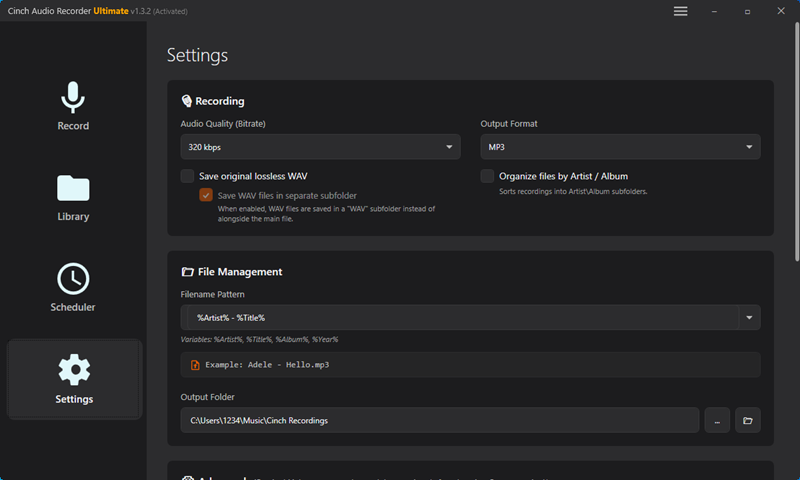
Pro Tips That Actually Help:
- Max out your streaming service volume for best quality
- Use silent recording mode so you don’t annoy anyone
- Turn on automatic ad filtering for free accounts
The software does everything automatically — you get properly tagged MP3 files ready for any device.
The Real Comparison: MP3Paw vs Professional Tools
| Feature | MP3Paw | Cinch Audio Recorder | Other Tools |
|---|---|---|---|
| Cost | Free | $25.99 one-time | Varies |
| Audio Quality | Upscaled 320kbps | True 320kbps/Lossless | Mixed |
| Batch Downloads | ❌ Single only | ✅ Full playlists | Limited |
| Ad Hell | ❌ 25 per minute | ✅ Zero | Varies |
| Security Risk | ⚠️ High | ✅ Safe | Mixed |
| Metadata | ❌ Basic | ✅ Full ID3 + Artwork | Limited |
| Platform Support | Web only | Windows/Mac | Varies |
| Support | ❌ Good luck | ✅ Actual humans | Limited |
| Legal Safety | ⚠️ Questionable | ✅ Personal use OK | Varies |
The Hidden Costs of “Free”
MP3Paw might seem free, but consider:
- Time wasted fighting ads and failures
- Security risks requiring antivirus protection
- Poor quality forcing re-downloads
- Limited functionality for serious use
Cinch’s one-time $25.99 cost gets you:
- Unlimited high-quality recordings
- Professional features and actual support
- Time savings through automation
- Peace of mind with security and reliability
Legal Stuff You Should Actually Know
Let’s talk about the elephant in the room — is this legal?
Personal Use Guidelines
Generally OK:
- Recording for your own listening
- Creating personal backups
- Making ringtones for your phone
Not OK:
- Sharing or selling recordings
- Commercial use without licensing
- Violating platform terms of service
Best Practices:
- Keep recordings for personal use only
- Support artists through official purchases when possible
- Know your local copyright laws
- Consider subscription services for heavy listening
How to Download Safely
- Verify Sources: Stick to reputable websites
- Scan Everything: Use antivirus on all downloads
- Check File Types: Avoid executables disguised as music
- Backup Your Collection: Protect what you’ve built
- Go Legal When Possible: Official sources are always safer
Pro Tips That Actually Work
After years of dealing with digital music, here’s what actually matters:
Quality Check Methods
- Use Spectral Analysis: Audacity shows you the real frequency content (check our audio cleaning guide)
- Check Dynamic Range: Look for compression artifacts in quiet parts
- File Size Reality Check: Real 320kbps files have predictable sizes
- Source Matters: Higher quality streaming = better recordings (explore our Spotify to MP3 guide)
Organization That Makes Sense
- Consistent Naming: Stick to one file naming system
- Smart Folders: Organize by artist, album, or however you think
- Backup Strategy: Multiple copies of important stuff
- Keep Tags Updated: Good metadata saves time later (see our Apple Music recording guide)
Avoiding the Obvious Traps
- Don’t Trust Bitrate Claims: Verify with actual analysis
- Watch for Malware: Be suspicious of unknown sites
- Know the Law: Understand copyright in your area
- Plan for Changes: Platforms disappear — have backups
Pro Tip: Audio engineers always record at the highest available quality, then convert down if needed. You can’t improve quality after the initial capture.
Bottom Line
MP3Paw represents everything frustrating about “free” music download services in 2025. Excessive ads, security concerns, and fake quality claims make it more trouble than it’s worth for anyone who values their time and sanity.
Cinch Audio Recorder solves every major problem MP3Paw has. With its one-time cost, professional features, and reliable operation, it’s what you get when someone actually cares about user experience.
The choice is yours: free but frustrating, or professional and dependable. What’s your time worth?
FAQ
Q: Is MP3Paw safe to use in 2025? A: While it technically works, the excessive ads create security risks and the quality is often fake. Not recommended for regular use.
Q: Why are there so many ads on MP3Paw now? A: Free sites need revenue, but MP3Paw has gone overboard with 25+ pop-ups per minute, making it nearly unusable.
Q: What’s the best MP3Paw alternative? A: Cinch Audio Recorder offers professional recording with zero ads, real quality, and batch processing for serious music lovers.
Q: Can I download playlists from MP3Paw? A: No, MP3Paw only does single tracks, making it painfully slow for large collections compared to professional tools.
Q: Are MP3Paw’s 320kbps downloads real? A: Often no — many are upscaled from lower quality sources. Professional tools capture verifiable quality from the source.


