

I used to love the old internet. You’d search for a song, download an MP3, and it just worked. Now? If you search “free music downloader” on the Play Store, you’re bombarded with apps that are 90% ads and 10% malware.
But you just want to listen to music offline on your Galaxy without paying a monthly subscription. Is that too much to ask?
Honestly, finding a safe method in 2025 is harder than it should be. I’ve tested about a dozen methods on my Samsung S24 (running One UI 6.0), and most of them were trash. However, I found three that actually work—and won’t kill your phone with viruses.
In This Article:
Key Takeaways
- Avoid the Play Store: Most “Free Music Downloaders” there are data nightmares.
- Go Open Source: Tools like Spowlo (GitHub) are safer and cleaner.
- Metadata Matters: Samsung Music looks terrible without album art; use PC tools like Cinch if you care about aesthetics.
Quick Answer: The 3 Best Methods
To download free music to Samsung devices safely, avoid ad-heavy apps. Instead, use legal repositories like Jamendo, open-source downloaders like Spowlo (via GitHub), or record high-quality tracks directly from streaming services using Cinch Audio Recorder for perfect metadata tagging.
Comparison Table: Which Method is for You?
| Method | Best For… | Safety | Audio Quality |
|---|---|---|---|
| Open Source App (Spowlo) | Downloading specific tracks from YouTube/Spotify links | High | Medium (128-160kbps) |
| Legal Archives (Jamendo) | Discovering new indie artists | Very High | High |
| Cinch Audio Recorder | Getting top-tier hits (Taylor Swift, etc.) with perfect tags | Very High | Highest (320kbps/WAV) |
| Random Play Store Apps | Getting frustrated by ads | Low | Low |
Method 1: The “Open Source” App Way (No Ads)
If you want to download songs directly on your phone without touching a computer, this is your best bet. But here’s the catch: don’t look on the Google Play Store.
The best tools nowadays are open-source. They are built by developers who care about code, not by companies trying to serve you ads.
Recommendation: Spowlo (or Spotiflyer)
I found this gem through a Reddit discussion, and it’s a game-changer. It’s basically a clean interface that takes a Spotify or YouTube link and downloads the audio file.
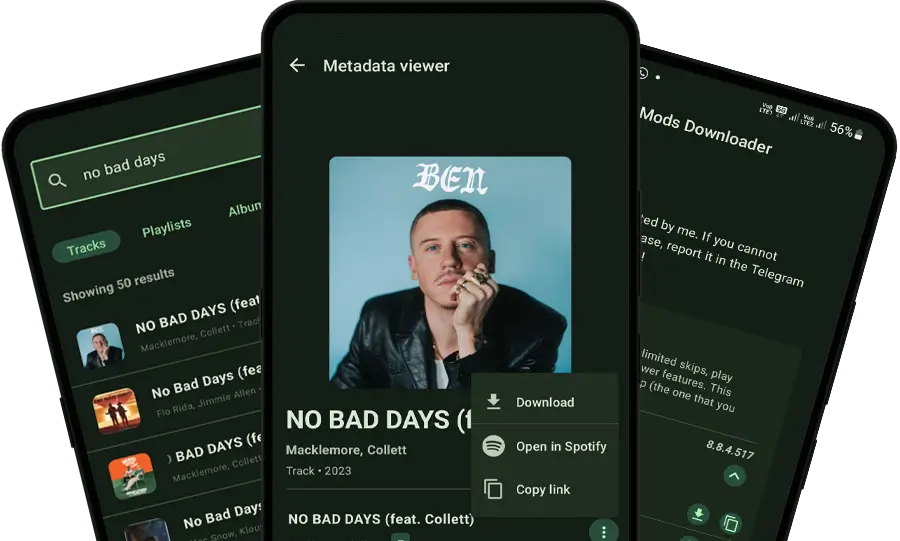
[Screenshot: Spowlo Interface showing a download button on Spotify]
How to get it:
- Don’t go to the Play Store. Go to F-Droid or search for “Spowlo GitHub”.
- Download the APK file.
- Your Samsung will warn you about installing from “Unknown Sources.” You’ll need to allow it (Settings -> Apps -> Special access -> Install unknown apps).
My experience: It’s fast. I pasted a link to a playlist, and it started grabbing tracks immediately. No pop-ups, no “watch this video to unlock premium.”
The Downside: Honestly, the audio quality isn’t amazing. It usually caps out around 128kbps or 160kbps. It’s fine for the gym or a noisy bus, but if you have good headphones (like Galaxy Buds2 Pro), you might notice the cymbals sound a bit “swishy.” Also, sometimes the album art doesn’t download correctly, leaving you with a blank grey square in your Samsung Music player.
Method 2: The “Legal Website” Way (Browser Download)
Sometimes the old ways are the best. Using your Samsung Internet browser to download files directly gives you total control, and you don’t need to install any sketchy apps.
Where to go:
- Jamendo: This is great if you want to discover independent artists. It’s completely legal.
- Internet Archive: Perfect for live concert recordings (Grateful Dead, anyone?) or classical music.
Step-by-Step:
- Open Samsung Internet (or Chrome).
- Navigate to the site and find a track.
- Look for the “Download” button.
- Once it’s done, open the “My Files” app on your Samsung.
- Go to Downloads -> Audio.
Pro Tip: Don’t leave the files in the “Downloads” folder. Select them and Move them to your “Music” folder. If you leave them in Downloads, sometimes they get mixed up with random PDF documents and APKs, making your file system a mess.
Method 3: The “Unlimited Quality” Way (Cinch Audio Recorder)
Here is the gap with the first two methods:
- Spowlo is convenient but the audio quality is mediocre, and metadata is hit-or-miss.
- Jamendo is high quality, but you won’t find the latest Billboard Hot 100 hits there.
If you want high-quality (320kbps) offline files of popular songs (from Spotify, Apple Music, or YouTube Music) that look perfect in your Samsung Music app, you need a PC-based tool.
Why I use Cinch Audio Recorder?
I started using Cinch because I was tired of fixing ID3 tags manually. I’d download a song, transfer it to my phone, and it would show up as “Track_01.mp3” with no cover art. It looked ugly.
Cinch fixes this by acting as a smart recorder. It records the audio directly from your sound card (so it’s 100% safe—no account login required), but the magic is that it automatically identifies the song and fills in the Title, Artist, Album, and Cover Art.
The Workflow (PC to Samsung):
- Run Cinch on your computer.
- Play music on Spotify (web player or app) or YouTube Music.
- Cinch automatically starts recording and tagging.
- Once you have a folder of MP3s, connect your Samsung to your PC via USB.
- Drag and drop the files into your phone’s “Music” folder.

> Above: Cinch how to use it to record your first music for free.
Does it work? I tested this with a playlist of 10 songs. It took exactly the length of the playlist to record (since it’s real-time), which is the only downside—it’s not instant. But the result? 320kbps MP3s that sound indistinguishable from the stream, and every single one had the correct album art on my phone.
If you are an audiophile or just care about your library looking clean, this is the way to go.
Try Cinch Audio Recorder for Free
Get high-quality MP3s with perfect tags for your Samsung.


Pro Tip: Managing Music on Samsung
Once you have the files on your phone, you want them to look and sound good.
1. Samsung Music is King Don’t use Google Play Music or 3rd party players. The default Samsung Music app is actually incredibly powerful. It supports “Folder View,” which is a lifesaver if your metadata is messy.
2. Turn on SoundAlive Many people miss this.
- Go to Samsung Music -> tap the 3 dots -> Settings.
- Look for Equalizer or Sound quality and effects.
- Enable Dolby Atmos (if available) or customize the EQ. It makes flat MP3s sound much punchier.
3. Use your SD Card If your Samsung model (like the A54 or older S series) still has an SD card slot, move your music there.
- Go to My Files.
- Select your audio files -> Move.
- Navigate to SD Card -> Create a folder named “Music”.
- Why? It keeps your internal storage free for apps and photos, and if you switch phones, you just pop the card out.
Troubleshooting (FAQ)
Q: Why do my downloaded songs show weird characters in Samsung Music? A: This is usually a text encoding issue with the ID3 tags (often happens with files from random websites). You can use an app like “AutomaTag” on your phone to fix it, or just use Cinch on PC which handles Unicode correctly.
Q: Is it illegal to download music from YouTube? A: It’s a gray area. Technically, downloading copyrighted content is against YouTube’s TOS. However, recording for personal use only (time-shifting) is generally considered fair use in many jurisdictions. Just don’t share or sell the files.
Q: Can I just copy the Spotify “offline” files to another phone? A: No. Those valid “offline” files inside the Spotify app are encrypted cache files (Ogg Vorbis with DRM). You cannot play them on Samsung Music or transfer them. You must record them to convert them to standard MP3.
Conclusion
Getting free music onto your Samsung device in 2025 comes down to a choice between convenience and quality.
- If you just want a song right now and don’t care about audio fidelity, grab an open-source app like Spowlo.
- If you are building a permanent library and want it to look and sound professional, spend the time to record with Cinch Audio Recorder.
Stop fighting with ad-filled apps that drain your battery. Build a library you actually own.
Tested in December 2025 on Samsung Galaxy S24 Ultra running One UI 6.0.


