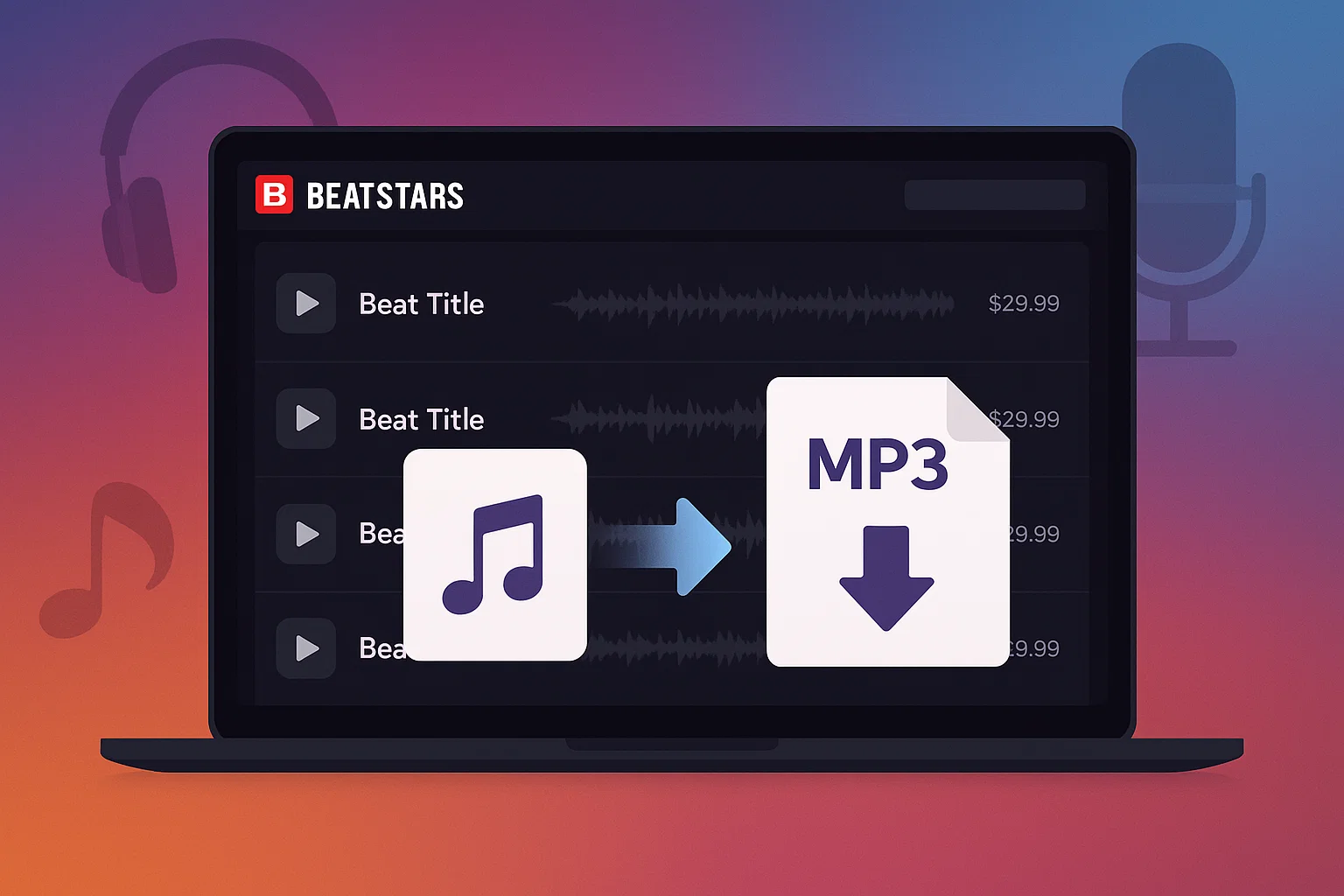
Last month, I saw this Reddit thread that stuck with me. A producer wanted to share his beats for free on BeatStars—no strings attached, just WAV files for anyone to download. Sounds simple, right?
Not on BeatStars. The platform wouldn’t let him set a $0 price. He had to choose between charging at least a penny (which meant young producers without payment methods couldn’t access it) or settling for low-quality tagged MP3s only.
I know the feeling. You find amazing beats, you want to save them, share them, or just have a backup. But then you hit walls—paywalls, format restrictions, license complications.
Here’s the deal—I figured out the official ways to download from BeatStars, plus some recording workarounds that actually make sense for specific situations. No sketchy methods, just practical solutions that respect producers’ work while giving you flexibility.
In This Article:
Understanding BeatStars Download System

Before we dive into methods, let’s talk about what you’re actually allowed to download. BeatStars isn’t like Spotify where everything’s locked behind DRM. But your download options depend entirely on your account type and whether you’ve purchased the beat.
BeatStars Account Types and Download Rights
Free accounts get you pretty much nothing for downloads. You can stream beats all day, but downloading? Only if the producer specifically marked a beat as “Free Download”—and those are usually 128kbps MP3s with loud tags every few seconds.
Pro accounts ($9.99/month, last I checked) give you some perks like unlimited uploads if you’re selling beats, but they don’t magically unlock downloads for beats you haven’t bought. Same download restrictions as free users.
The real download power comes from purchasing. Buy a Lease or Exclusive, and suddenly you get access to the formats included in that specific license. Here’s where it gets tricky—not all licenses include all formats.
| Account Type | Can Download | Formats Available |
|---|---|---|
| Free | Only “Free Download” beats | Tagged MP3 (128-320kbps) |
| Pro ($9.99/mo) | Same as Free for others’ beats | Tagged MP3 |
| Purchased Lease | Yes, based on Lease tier | MP3, WAV, or Trackouts |
| Purchased Exclusive | Yes, everything | All formats + stems |
I made the mistake once of buying a basic MP3 Lease thinking I’d get the WAV version too. Nope. Had to upgrade the license. That cost me another $20. Read the fine print before clicking purchase.
Available Audio Formats on BeatStars
BeatStars offers different formats depending on what you purchased:
MP3 (Tagged): Free downloads. Compressed with producer tags, 3-5MB. Good for practice only. Those tags get annoying fast.
MP3 (Untagged): Paid Leases. 320kbps, clean audio, 7-10MB. What most people use for Spotify/Apple Music releases.
WAV (Uncompressed): Premium Leases/Exclusives. 16-bit/44.1kHz, 30-50MB. Needed for serious mixing.
Trackouts/Stems: Individual instrument tracks. 200-500MB total. For full customization.
For most releases, 320kbps MP3 works fine. I only grab WAV when heavily mixing.
Official Methods to Download Beats from BeatStars
Alright, let’s start with the legitimate routes. These work great most of the time.
Download Purchased Beats
After you buy a beat, downloading is straightforward:
- Log into your BeatStars account
- Click your profile icon → “Purchases & Downloads” (or “Library” depending on when they last updated the interface)
- Find the beat you purchased
- Click the download icon
- Select the format you’re entitled to based on your License
The download gives you a .zip file containing the audio file(s) plus a license agreement PDF. That PDF matters—keep it. It’s proof you own the rights if anyone questions you later.
Pro tip I wish I’d known earlier: Rename the file immediately after downloading. Use something like BeatName_Producer_BPM_Key.mp3. The default filename is usually a random string that tells you nothing when you’re browsing your beat folder six months later.
Also, back it up. Cloud storage, external drive, whatever. I lost a purchased beat once because my laptop died and I couldn’t find the original download link in my email. BeatStars support helped me recover it, but it took three days of back-and-forth.
Download Free Beats
For free downloads:
- Browse “Free Beats” or use “Free Download” filter
- Click beat, find “Free Download” button
- Accept license terms (usually non-commercial only)
- Download tagged MP3
Quality varies wildly. Always listen first.
What You Can’t Download Officially
Here’s what BeatStars won’t let you download without paying:
- Premium beats you haven’t purchased (you get a 30-second preview or full stream, no download)
- Formats not included in your License (MP3 Lease doesn’t give you WAV access)
- Beats that the producer removed or made exclusive to someone else
- Other people’s purchased beats (licenses aren’t transferable)
This is where recording tools come into play. Not to steal beats—let’s be clear—but for specific legitimate scenarios we’ll cover next.
Record BeatStars Beats with Cinch Audio Recorder

Most people should just use the official download methods. They’re easier, legal, and give you exactly what the producer intended.
But here’s where it gets annoying: sometimes you want to save a preview clip for inspiration, or you’re building a playlist of beats to review later offline, or you need to record a full playback session for your own reference. Maybe you’re like that Reddit user—wanting to distribute content in a way BeatStars’s infrastructure doesn’t support.
That’s when I started using Cinch Audio Recorder.
When Recording Makes Sense
Let me say this up front—recording doesn’t replace buying licenses. If you’re making money off a beat, buy the proper license. Period.
Recording makes sense for:
Personal reference libraries: You found 20 beats you might want to lease eventually, but you’re not ready to commit. Record previews to compare offline later.
Inspiration sampling: Heard a melody pattern you want to study? Record a clip for your personal production notebook. (Non-commercial use only.)
Archival purposes: You bought a beat, but you also want to record your entire creative session including the beat playback for documentation.
Platform limitations: Like that Reddit scenario—you want to share something freely but BeatStars doesn’t offer that distribution model.
Last month, I ran into this exact situation. I’d bought a Lease but the producer’s BeatStars page went down (he moved to a different platform). My download link stopped working. Luckily I’d recorded the beat during my initial session, so I still had access while I waited for support to sort it out.
Why Cinch Audio Recorder Works Well
I tried a few recording tools before settling on Cinch. Here’s what it does well:
High-quality capture: Records up to 320kbps MP3 or lossless WAV. Uses CAC technology to tap directly into your sound card.
Auto-track splitting: Detects silence between tracks and splits them automatically. No manual editing needed.
Metadata tagging: Identifies song info from your browser and adds ID3 tags automatically.
Silent recording: You can mute your speakers while recording without affecting quality.
Compared to Audacity, Cinch is more streamlined. Audacity requires manual loopback setup, track splitting, and tagging. For regular use, Cinch saves time.
Step-by-Step: Recording BeatStars with Cinch
Here’s how I do it:
1. Install the software
Download Cinch from the official site (links below). Installation is standard—double-click the installer, follow the prompts. Takes maybe 2 minutes.
2. Set up your recording
Open Cinch and click the “Record” tab. You’ll see a red Record button. Don’t click it yet.
First, check your settings (gear icon). I usually set:
- Format: MP3
- Quality: 320kbps (or WAV if I want lossless)
- Output folder: Wherever you keep your beats
3. Start recording
Click the red Record button in Cinch. Now open your browser and go to BeatStars. Find the beat(s) you want to record and start playback.
Important—make sure your BeatStars player volume is up. The recording quality depends on the playback volume. I keep it at 80-100%.
You can mute your system speakers or turn down system volume if you need quiet. Doesn’t affect the recording.
4. Stop and review
When done, stop playback on BeatStars, then click Stop in Cinch.
Go to the “Library” tab in Cinch. You’ll see your recorded tracks listed. Right-click any track and choose “Open File Location” to find your MP3 files.
Play them back to verify quality and completeness.
My testing experience: I recorded a 3-minute trap beat from BeatStars at 320kbps. Compared it to the official MP3 download I’d purchased. Identical quality. The auto-tagging even picked up the beat title from my browser tab, though it labeled the artist as “Chrome” which made me laugh.
One thing I noticed—if the BeatStars preview has that automated voice tag (“This beat is available on BeatStars dot com”), that gets recorded too. Obviously. You’re capturing exactly what plays. So for clean recordings, you need either the full untagged playback (which requires purchase) or you’re stuck with the tags.
Download Cinch Audio Recorder
Ready to try it? Cinch works on both Windows and Mac.
Download for Windows:

Download for Mac:

It’s $25.99 for the Pro version. Not free, but not subscription-based either—one-time purchase. If you’re only going to record once, maybe not worth it. If you’re regularly working with streaming audio from BeatStars or other platforms, it pays for itself in time saved.
Not saying it’s the only option. Just what works for my workflow.
Other Audio Recording Tools for BeatStars
Maybe Cinch isn’t your thing. Fair enough. Here are alternatives.
Desktop Recording Software
Audacity (Free): The open-source standard. Can record system audio if you set up loopback or use a virtual cable like VB-CABLE. Quality can match anything Cinch does. But setup is technical—you’re routing audio through virtual devices, selecting the right input source, possibly dealing with driver issues.
I used Audacity for years. It’s solid. Just tedious for regular recording.
OBS Studio (Free): Primarily for screen/game recording, but can record audio-only. Overkill for this purpose unless you’re already using it for streaming.
Quick Comparison
| Tool | Price | Quality | Auto-Split | Setup Difficulty | Best For |
|---|---|---|---|---|---|
| Cinch Audio Recorder | $25.99 | Up to WAV | ✅ Yes | Easy | Regular users |
| Audacity | Free | High | ❌ No | Moderate | Tech-savvy users |
| OBS Studio | Free | High | ❌ No | Complex | Streamers |
My take: If you’re comfortable with audio engineering concepts, Audacity is powerful and free. If you want something that just works without configuration, Cinch or similar tools make sense.
Converting BeatStars Audio Files
Need WAV for your DAW but only have MP3? Or need smaller MP3 for sharing? Here’s how.
Best Free Converters
Audacity: Import, then Export As your target format. Supports batch processing.
fre:ac: Dedicated converter with clean interface. Drag, select format, convert.
CloudConvert: Online tool—no software install needed.
Quality Settings
MP3: Use 320kbps minimum. 256kbps acceptable if file size matters.
WAV: 16-bit/44.1kHz (CD quality) is standard.
Critical: Converting MP3 to WAV doesn’t improve quality—just creates a bigger file. Conversion maintains or reduces quality, never enhances.
Managing Your Downloaded Beats Library
File Organization Best Practices
I name my files: BeatName_Producer_130BPM_Aminor.mp3
Folder structure:
Beats/
├── Purchased/
├── Free_Downloads/
└── Recorded_Previews/
Keeps licensed beats separate from free downloads and previews. Important for knowing your commercial rights.
Keep originals. Back up to cloud storage.
Adding Metadata Tags
Why bother tagging? Because in six months you’ll have 200 beats and searching for “that one beat with the piano” won’t cut it.
Cinch adds tags automatically when recording. For downloads, I use Mp3tag—free tool for Windows and Mac.
Info I always add:
- Title (beat name)
- Artist (producer name)
- BPM
- Key
- Genre
- Comment (where I note the License type: “Lease – MP3” or “Exclusive”)
Takes 30 seconds per beat. Saves hours later when you’re hunting for a specific sound.
Workflow tip: Tag immediately after downloading before you move on to the next beat. If you save it for later, you won’t do it.
Troubleshooting Common Issues
Download button missing: Check if you purchased it and what License tier you have. Contact support if it should be available.
Poor quality: Verify you downloaded untagged version from your Library, not a preview. Check file properties—should match advertised bitrate.
Won’t play in DAW: Re-export through Audacity to fix corrupted headers.
Legal and Ethical Considerations
Understanding Beat Licenses
Free Download: Non-commercial only. Practice, demos, but no releases.
Lease: Commercial rights with limits (5K-100K streams depending on tier). Other artists can lease the same beat. License type determines download formats—MP3 Lease may not include WAV.
Exclusive: Full rights. Producer removes beat from sale. Unlimited commercial use.
Read the license PDF that downloads with your beat.
What’s Legal vs What’s Not
✅ Legal: Downloading purchased beats, converting for personal use, recording previews for reference only.
❌ Not Legal: Using unpurchased beats commercially, sharing beat files, exceeding Lease limits.
If you’re making money off it, buy the license. If just practicing, free beats work fine.
For more on music rights, see this copyright guide. If working with streaming platforms, check our recording Spotify guide and audio recording tips.
Conclusion
So that’s the breakdown. Official downloads from BeatStars work great when you’ve purchased beats or found free downloads. Cinch Audio Recorder fills the gaps for recording previews or handling situations where standard downloads don’t fit your workflow. Tools like Audacity give you format flexibility after the fact.
My setup: I buy Leases for beats I’m actually releasing. I use Cinch to record preview playlists when I’m shopping for beats, so I can listen offline and compare. I keep everything organized with proper naming and tagging, because past-me was terrible at that and it caused headaches.
Your workflow might look different depending on whether you’re producing daily or just dabbling. Maybe you’re fine with Audacity’s complexity because you’re already comfortable with audio engineering. Maybe you never need to record because you only work with purchased beats. That’s cool.
One thing I learned too late—the License type matters way more than I thought. I bought several MP3 Leases early on before realizing I’d eventually want WAV files for mixing flexibility. Ended up re-buying upgraded Leases. Read what you’re actually getting before you click purchase.
If you’re going deeper into beat production, the next thing worth exploring is working with stems and trackouts. Learning to remix individual beat elements opens up way more creative options than just rapping over a fixed instrumental. But that’s a whole other topic.
Anyway. That’s what works for me.
FAQs
Can I download beats from BeatStars for free?
Yes, but only beats that producers marked as “Free Download.” These are usually tagged MP3s with voice announcements. For untagged, high-quality downloads, you need to purchase a Lease or Exclusive.
What’s the difference between MP3 and WAV downloads on BeatStars?
MP3 is compressed (smaller file, slight quality loss, 7-10MB). WAV is uncompressed (larger file, full quality, 30-50MB). For most releases, 320kbps MP3 works fine. WAV gives you more flexibility for mixing and editing.
Is it legal to record BeatStars beats for personal use?
Recording previews for personal reference or inspiration is generally acceptable. But you cannot distribute, monetize, or publicly perform recorded beats without purchasing the proper license from the producer.
Why can’t I download certain beats even after purchasing?
Check your License type—some Leases only include MP3, not WAV or Trackouts. Also verify you’re downloading from your account’s Library/Purchases section, not the public player. If you definitely should have access, contact BeatStars support.
How do I transfer downloaded beats to my phone or tablet?
Use cloud storage like Google Drive or Dropbox to sync files. Or connect your device via USB and copy beats to your music folder. For iPhone, use Finder (Mac) or iTunes (Windows) to sync music files.