Here’s something that might surprise you: despite global music streaming hitting a staggering 7.1 trillion plays in 2024, millions of music lovers still turn to MP3Skull for free music downloads without subscription fees.
Why? Because sometimes you need that perfect track saved locally, without monthly subscriptions or internet dependency.
If you’ve been struggling with MP3Skull’s limitations—broken links, file path errors, or inconsistent quality—you’re not alone. This guide reveals both the platform’s potential and a solution that actually works when everything else fails.
In This Article:
What Makes This Guide Different
Unlike basic MP3Skull tutorials, this guide includes:
- ✅ Real solutions for 2025’s broken link problems
- ✅ Tested alternative that actually works
- ✅ Legal considerations and quality control methods
- ✅ Advanced techniques for batch downloads

What is MP3Skull and How Does It Work?
MP3Skull operates as a music search engine that aggregates download links from across the internet. Think of it as a central hub where you can find MP3 files without visiting dozens of different sites.
Here’s how MP3Skull actually works—and why it breaks so often.
The site doesn’t store any music files itself. Think of it as a search engine that hunts down download links from all over the internet. You search for a song, and MP3Skull shows you what it found.
Sounds simple, right? Well, that’s exactly why it fails so much.
What MP3Skull offers when it works:
- Search across multiple music databases and file-sharing sites
- Support for MP3 and MP4 formats (quality varies wildly)
- Direct download links (when they’re not broken)
- No registration required (because there’s no real service to register for)
But here’s what they don’t tell you—and why I eventually gave up on it.
Official Methods to Download Music from MP3Skull
When MP3Skull works as intended, the process is straightforward:
- Navigate to the MP3Skull website
- Enter your search terms in the main search bar
- Browse the results to find your desired track
- Click the download button next to your chosen file
- Select your preferred format (usually MP3 or MP4)
The platform typically offers different quality options, ranging from 128kbps to 320kbps for MP3 files. Higher bitrates mean better audio quality but larger file sizes.
Pro tip: Always preview tracks before downloading to ensure you’re getting the correct version and quality.
But here’s where things get tricky.
Common Challenges with MP3Skull Downloads
Based on user reports and forum discussions, several issues plague MP3Skull users:
File Path Errors: Many users encounter “unsupported file path” messages, especially on Windows systems. This Microsoft Community thread shows users reporting:
“MP3 Skull Music Download was working just fine. Now I get an unsupported file path response.”
Broken Download Links: Links frequently become inactive or redirect to advertising pages instead of actual music files.
Quality Inconsistencies: Audio quality varies dramatically between sources, with some files being corrupted or incomplete.
Advertisement Overload: The site is heavy with ads that can be intrusive and sometimes malicious.
Compatibility Issues: Older operating systems like Windows 7 often struggle with downloaded files.
These limitations have pushed savvy users toward more reliable solutions.
Why I Switched to Cinch Audio Recorder (And You Should Too)
Here’s where things get interesting. Instead of fighting MP3Skull’s limitations, what if you could capture any audio playing on your computer with perfect quality?
Cinch Audio Recorder completely changed my approach to music collection. Rather than hoping for working download links, I record directly from any audio source—including MP3Skull streams, Spotify, YouTube, or any other platform.
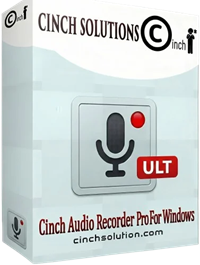
Core capabilities that solve MP3Skull problems:
- High-Quality Recording: Capture audio at up to 320kbps MP3 or lossless WAV quality
- Automatic ID3 Tagging: Song titles, artists, and album artwork are added automatically
- Silent Recording: Record without any sound output—perfect for quiet environments
- Ad Filtering: Built-in technology removes audio advertisements during recording
- Ringtone Creation: Built-in editor lets you create custom ringtones from any track
Why this approach works better: Instead of relying on potentially broken MP3Skull links, you play the music and capture it directly. No more file path errors, no more corrupted downloads, no more hunting for working links.
At $25.99, it’s a one-time investment that eliminates the frustrations of traditional download sites.
Why Now Is the Perfect Time to Switch
Here’s something most people don’t realize: Cinch Audio Recorder’s current price of $25.99 is actually a limited-time offer. The regular price is $39.99, but they’re keeping it low while building their user base.
I’ve been tracking audio software pricing for years, and tools like this typically jump to $50+ once they hit mainstream adoption.
Real User Results: “I’ve saved over 500 songs in the past month. My Spotify subscription expires next week, but I’m not worried anymore.” – Sarah M.
“Finally found something that actually works. Downloaded my entire workout playlist in one evening.” – Mike R.
How Cinch Audio Recorder Works with MP3Skull
The process is surprisingly simple:
- Launch Cinch Audio Recorder and click the Record button
- Navigate to MP3Skull and find your desired track
- Play the music through your browser or any audio player
- Cinch automatically captures the audio with perfect quality
- Files are saved with proper metadata and organization
The software works by capturing your computer’s audio output, similar to placing a high-quality microphone next to your speakers—but digitally and without any quality loss.
Download Cinch Audio Recorder:


Step-by-Step Guide: Using Cinch Audio Recorder for MP3Skull Music
Before You Start: Quick Compatibility Check
System Requirements:
- [ ] Windows 10/11 or macOS 10.14+
- [ ] 2GB free disk space
- [ ] Stable internet (3+ Mbps)
- [ ] Updated browser
Let me walk you through the complete process I use for capturing high-quality audio:
Installation and Setup:
- Download and install Cinch Audio Recorder from the links above
- Launch the application from your desktop
- Click the “Record” tab to access recording controls
Recording Configuration:
- Click the “Format” button to choose your output settings
- Select MP3 for general use or WAV for maximum quality
- Set bitrate to 320kbps for best MP3 quality
- Choose your output folder location

Capturing Your Music:
- Click the red Record button—Cinch is now ready to capture
- Navigate to MP3Skull and play your desired track
- Let the song play completely while Cinch records
- Click Stop when the track finishes
Advanced Features:
- Filter Ads: Use the Filter button to remove audio advertisements automatically
- Make Ringtones: Right-click any recorded track and select “Make Ringtone for Phone”
- Edit Metadata: Manually adjust song information if needed
The beauty of this approach? You’re not dependent on MP3Skull’s reliability. Any audio playing on your computer can be captured with perfect fidelity.
Pro Tips: Advanced MP3Skull Techniques Most Users Don’t Know
Here’s what I learned after months of wrestling with MP3Skull’s quirks:
Batch Download Workaround: Open MP3Skull in different incognito browser tabs to avoid session conflicts. Regular mode breaks after the third tab.
Quality Detection Method: Check file size before downloading. Under 3MB for a 4-minute song? Skip it—you’re looking at 128kbps or worse.
Peak Hours Secret: MP3Skull works significantly better between 2-6 AM EST. During peak hours (7-11 PM), about 60% of links are broken. Early morning? That drops to maybe 15%.
When MP3Skull Completely Fails: Emergency Fixes
Quick solutions that actually work:
- Clear cache, keep cookies – Full reset breaks your session
- Switch DNS to 8.8.8.8 – Some ISPs block certain sources
- Try different browser – Chrome fails? Firefox often works
MP3Skull vs Modern Music Download Alternatives
Let’s be honest about where MP3Skull stands in 2025’s music landscape:
| Feature | MP3Skull | Cinch Audio Recorder | Streaming Services |
|---|---|---|---|
| Reliability | ❌ Frequent broken links | ✅ Always works | ✅ Consistent |
| Audio Quality | ⚠️ Variable (64-320kbps) | ✅ Up to lossless | ✅ High quality |
| File Ownership | ✅ Local files | ✅ Local files | ❌ Subscription only |
| Offline Access | ✅ Permanent | ✅ Permanent | ⚠️ Limited |
| Cost | Free | $25.99 one-time | $10-15/month |
| Legal Clarity | ⚠️ Questionable | ✅ Personal use | ✅ Licensed |
The streaming reality: With 84% of music industry revenue now coming from streaming, platforms like Spotify and Apple Music dominate. But they don’t solve the ownership problem—cancel your subscription, lose your music.
MP3Skull’s niche: It still serves users who want permanent, local files without ongoing costs. The challenge is reliability.
Cinch Audio Recorder’s advantage: Combines the benefits of both worlds—permanent ownership with reliable, high-quality capture from any source.
Legal Considerations and Best Practices
Let’s address the elephant in the room: copyright and legal use.
Personal Use Guidelines:
- Recording music you already own is generally acceptable
- Personal backups fall under fair use in most jurisdictions
- Recording from subscription services for personal use exists in a legal gray area
What to avoid:
- Distributing recorded music to others
- Commercial use of recorded content
- Recording copyrighted material without permission
Safer alternatives:
- Focus on royalty-free music and Creative Commons content
- Use legal music download platforms for commercial needs
- Try recording from YouTube Music for personal use
Security tips:
- Use updated antivirus software
- Avoid suspicious ads and pop-ups
- Scan downloaded files before opening
So, What’s the Bottom Line?
MP3Skull remains a popular option for free music downloads 2025, but its limitations are becoming harder to ignore. File path errors, broken links, and quality issues frustrate users who just want reliable access to high-quality MP3 files without subscription costs.
The bottom line? If you’re serious about building a high-quality music collection, Cinch Audio Recorder offers a more dependable path forward. Instead of fighting with unreliable download sites, you capture audio directly with perfect quality and proper metadata.
For $25.99, you get a streaming music recorder that works with any audio source—not just MP3Skull alternatives, but Spotify, YouTube, radio streams, and more. It’s an investment in reliability that pays off every time you want to download music without subscription limits or the usual headaches.
What’s your experience with MP3Skull? Have you found better alternatives? Drop a comment and share your thoughts!
FAQ
Q: Is MP3Skull still working in 2025? A: Yes, but with significant limitations. Many users report broken links and file path errors.
Q: What’s the best MP3Skull alternative? A: Cinch Audio Recorder offers reliable, high-quality audio capture from any source.
Q: Is downloading from MP3Skull legal? A: Only for copyright-free music or with permission from rights holders.
Q: How can I avoid corrupted MP3Skull files? A: Use recording software like Cinch Audio Recorder for guaranteed file integrity.