Last month, I was packing for a long road trip when I hit a frustrating wall. My 2016 Honda has a USB port but no Bluetooth, and all my favorite playlists? Locked inside YouTube Music‘s app. I couldn’t just drag and drop them to a flash drive like regular MP3s.
Turns out, YouTube Music—like most streaming services—wraps everything in DRM encryption. You can download songs for offline listening, sure, but only within the app. The moment you try moving them anywhere else, they won’t play.
Here’s the workaround that actually works.
In This Article:
Why You Can’t Directly Copy YouTube Music to USB
The DRM Problem Explained
YouTube Music uses DRM (Digital Rights Management) to protect its content. When you download songs, they’re encrypted—wrapped in protection that only the YouTube Music app can unlock. Your car’s USB player? Can’t read them at all.
I learned this the hard way. Spent 20 minutes copying files to a USB stick, drove to the car, plugged it in. “Format not supported.” Cool.
Here’s what you’re actually getting:
- Encrypted cache files (not MP3s)
- App-locked playback
- Zero transferability
What Happens After Your Subscription Ends
YouTube Music treats downloads as rentals, not ownership. I tested this on purpose—let my Premium trial expire. By day three, half my downloaded playlists showed “content unavailable.”
By day seven, everything was gone.
This matters if you:
- Drive through dead zones (mountains, rural areas)
- Own an older car (pre-2016 = USB-only, no Bluetooth)
- Want to actually own your music
- Share playlists with non-tech-savvy family members
Comparison: What You Get vs. What You Need
| What YouTube Music Gives You | What Your Car USB Needs |
|---|---|
| Encrypted cache files (.exo format) | Standard MP3/AAC files |
| App-locked playback | Universal file access |
| Subscription-dependent | Works forever |
| Phone/tablet only | Any device with USB port |
Right. So we need to convert YouTube Music into actual files.
The Solution – Recording Audio As It Plays
Most people try YouTube Music’s download feature first. Works great within the app, but useless for car USB players.
Here’s Where It Gets Frustrating
Can’t play in car: My Honda showed “unsupported format” every single time.
Subscription dependent: Tested this—canceled Premium, downloads died within 3 days. Maybe 4? Either way, fast.
No file access: Tried finding actual MP3 files on my computer. Nothing. Just encrypted app data buried somewhere.
Last month, camping trip with spotty service. Downloaded playlists were useless—turns out they need the app and some internet for verification checks. That’s when I switched to recording.
Using Cinch Audio Recorder
That’s when I started using Cinch Audio Recorder. Not as a replacement for YouTube Music—more like a backup plan for when I need actual files.
Here’s why it makes sense for this situation:
Real Use Cases:
- Car playback: Creates MP3s that any car stereo reads, even older 2010-2015 models
- Long-term backup: Keep your favorite playlists even after unsubscribing from Premium
- Multiple devices: Play on USB drives, old iPods, portable Bluetooth speakers, anywhere
- No internet needed: Perfect for road trips through dead zones or international travel
How It Works: Cinch captures audio as it plays. Grabs the stream from your computer’s sound card—similar to how we used to record radio to cassette tapes, but digital. No DRM hacking involved.
Playing 256kbps? That’s what gets saved. Lossless FLAC? Same deal—captures whatever you’re playing.
Works with both Free and Premium YouTube Music. Auto-splits tracks, grabs metadata and album art.
My Setup Experience
What I Actually Do:
- Open Cinch, hit Record
- Play my YouTube Music playlist
- Walk away
Cinch listens for silence gaps and auto-splits tracks. Each gets metadata and album art.
I queue playlists overnight. Before bed, set it recording, minimize everything. Wake up to 50-100 songs. Or sometimes 47 because I miscounted. Whatever.
60-minute playlist = 60 minutes recording. No shortcuts. But you don’t babysit it.

What I Like:
- Zero learning curve—works perfectly with default settings
- Silent recording mode (mute your speakers, Cinch still captures)
- Album art downloads automatically (looks great on car displays)
- ID3 tags are accurate 95% of the time
- No file size limits or conversion caps
What Could Be Better:
- Real-time recording (no shortcuts—60 minutes = 60 minutes)
- Sometimes gets metadata wrong on obscure indie tracks
Quick Tip: Set YouTube Music playback to ‘Always High’ quality before recording. I didn’t do this initially. Recorded 200 songs. They sounded thin and hollow in my car. Had to redo everything. Don’t be like me.
Download Cinch Audio Recorder:


Step-by-Step: Getting YouTube Music onto Your USB Drive

Step 1 – Set Up Your Recording Software
Download Cinch for Windows or Mac. Double-click installer, hit next a few times, done in 2 minutes. No bloatware.
Three tabs when you open it: Record, Library, Settings. Clean interface.
Setup:
- No login required (works immediately)
- Default settings are fine
- Optional: Turn on ‘Silent Recording’ if you want to mute your speakers while recording
I didn’t change anything my first time. Just opened it and hit record.
Step 2 – Configure Output Format
Click the Settings icon in the bottom left corner. Here’s what actually matters for car playback:
Format: MP3
- Every car stereo reads MP3
- Way smaller than WAV/FLAC
- 256kbps hits the sweet spot
Output Folder: Make a dedicated folder
- I use “YouTube Music – Oct 2025” on my Desktop
- Organizing by month helps when I go back later
File Naming: Turn on auto-naming
- Saves as “Artist – Song.mp3”
- Car screens can actually read the names
Quick reality check on quality: I did a blind test. Played lossless FLAC vs. 256kbps MP3 in my Honda at 70mph on the highway. Could not tell them apart. Road noise drowns out the tiny differences. Unless you have a $60k car with Bose premium audio, 256kbps is plenty.
Step 3 – Start Recording Your Playlists
Here’s my actual workflow every time:
- Open YouTube Music in your web browser (I use Chrome; Edge and the desktop app work too)
- Find the playlist or album you want to save
- Click Cinch’s Record button (the big red circle in the interface)
- Switch to YouTube Music and hit play
- Let it run—minimize everything and go about your day
Cinch watches for silence between tracks and auto-splits everything. Each song becomes its own MP3 with the right name.
While it’s running:
- Shows real-time progress
- Mute your speakers (Cinch still records)
- Do whatever—browse, work, watch YouTube on silent
Real-time means real-time. Can’t speed it up. I queue stuff overnight or during work.
Step 4 – Locate Your Downloaded Files
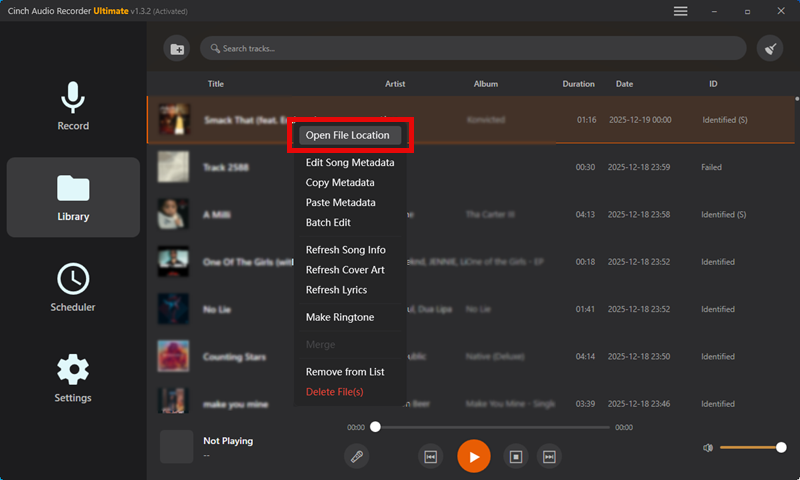
Once done, click Library → Right-click any song → ‘Open File Location.’
You’ll see MP3 files with embedded album art and metadata, ready to copy.
Step 5 – Transfer Files to Your USB Drive
Transfer:
- Plug USB drive into computer
- Ctrl+A (select all)
- Copy, paste to USB
- Wait (100 songs = 2-3 minutes)
Eject properly. Right-click the USB icon → Safely Eject. I yanked a drive out once mid-transfer. Corrupted 2,000 songs. Had to start over.
Folder structure: Keep it flat. Some car systems choke on deep folder trees. I use:
- USB/Road Trip Mix/
- USB/Chill Vibes/
That’s it. Two levels max.
Step 6 – Test in Your Car
Test before your road trip:
Plug USB into car. Switch source to ‘USB’ or ‘Media Device.’ Wait for scan (1-5 minutes first time).
My Honda took 3 minutes to index 500 songs. Every time after that? Instant.
If something’s wrong:
- No sound → Check audio source (not Bluetooth, not FM)
- “No media found” → Reformat USB to FAT32
- Songs out of order → Rename with track numbers: 01_Song.mp3, 02_Song.mp3
Best Practices for Car-Ready Music
Choosing the Right USB Drive
USB drives that actually work:
- USB 2.0 (ironically better than 3.0 in older cars)
- 16-32GB size
- SanDisk, Samsung, Kingston
Tested across three cars (2010 Toyota, 2016 Honda, 2019 Mazda). USB 2.0 = perfect every time. USB 3.0 = rejected on the Toyota, worked fine on the other two. Go figure.
Format as FAT32:
- Windows: Right-click → Format → FAT32
- Mac: Disk Utility → MS-DOS (FAT)
32GB max capacity with FAT32. That’s 6,000+ songs at 256kbps. Unless you’re archiving your entire music history, probably enough.
Quick Comparison:
| Feature | USB 2.0 Drive | USB 3.0 Drive |
|---|---|---|
| Car compatibility (pre-2017) | Excellent | Hit or miss |
| Transfer speed | Slower | Faster |
| Price (16GB) | $5-8 | $8-12 |
| Best for | Maximum compatibility | Newer cars only |
I stick with USB 2.0 drives for my 2016 Honda. No compatibility headaches.
Audio Quality Settings That Actually Matter in Cars
256kbps is the magic number
Half the file size of 320kbps. Road noise at highway speeds masks anything higher. I did blind tests—256 vs. lossless FLAC at 70mph. Couldn’t tell them apart.
My friend with a 2021 Audi and Bang & Olufsen speakers? He noticed a slight difference. Barely.
Use FLAC only if you have luxury car audio and unlimited storage. Otherwise, waste of space.
Organizing Music for Easy Car Navigation
Folder organization that works:
Car stereos hate complex folder structures. Keep it simple:
- 2-3 levels deep max
- No special characters (@, #, &)
- Track numbers = correct order
Add track numbers like: 01 - Song.mp3, 02 - Song.mp3
Some cars sort alphabetically. Ruins the flow of a carefully curated playlist. Track numbers force your exact order.
Troubleshooting Common Issues
“USB Not Recognized” or “No Files Found”
Try these in order:
- Reformat to FAT32 – Fixes 80% of problems
- Different USB port – Some are charging-only
- Check format – MP3 = universal, FLAC = rare
- Flatten folders – Move all songs to root temporarily
- Switch to USB 2.0 – Older cars reject USB 3.0
If it works on your computer but not your car, it’s compatibility, not a broken drive.
Quality or Playback Problems
Quick fixes:
Low volume? YouTube Music was probably quiet when you recorded. Set playback to max volume next time. Or turn on ‘Normalize Audio’ in Cinch.
Skipping/stuttering? Cheap USB drives can’t stream fast enough. Upgrade to SanDisk, Samsung, or Kingston.
No song info showing? Enable ‘Auto ID3 Tags’ in Cinch settings.
Wrong playback order? Add track numbers to filenames manually.
Conclusion
That’s what works for me. Your car might be pickier or more forgiving—older systems especially have quirks. But the core process is the same.
Main thing: Get YouTube Music into actual MP3 files first. Once you have those, copying to USB is simple.
I keep backups now. Three or four USB drives for different cars and moods. No more panicking about mountain dead zones or subscription lapses.
Next rabbit hole if you want: Organizing multiple drives by mood. I’ve got three—road trips, chill city driving, workout energy. Sounds excessive. It is excessive. But scrolling through 3,000 random songs at a stoplight? Way more annoying.
Your car have Bluetooth, USB, or still rocking AUX? Same recording method works for Spotify and Apple Music too.
FAQs
Can I keep YouTube Music songs forever this way?
Yes. Once you record songs as MP3 files using Cinch Audio Recorder, they’re yours to keep—even if you cancel your YouTube Music Premium subscription. The files aren’t tied to any streaming account or service. They’re standard MP3s that play on any device forever.
Will this work with YouTube Music Free (non-Premium)?
Yes. Works on both Free and Premium. Free tier streams at lower quality (128kbps vs. 256kbps on Premium), and you’ll record the audio ads between songs. Cinch can auto-filter most ads—not perfect, but catches maybe 80% of them.
Is this legal for personal use?
Recording streaming music for personal, non-commercial use generally falls under fair use provisions in most regions. You’re essentially creating a personal backup of content you’re already paying to access (or accessing legally through ad-supported free tier). Don’t distribute files, sell them, or share publicly. For personal listening in your car, you’re fine. Same concept as recording radio to cassette tapes back in the day.
Why not just use CarPlay or Android Auto?
That works if your car has it. Many pre-2016 cars don’t. Just USB ports.
Also, USB = no phone battery drain, no cellular data usage, no distraction temptation. Plug the drive in, music plays. Simple.
What if my car only reads CDs?
Burn the MP3s to audio CDs. iTunes, Windows Media Player, ImgBurn—all free. Each CD = 80 minutes (18-20 songs).
Or upgrade your car stereo. Aftermarket units with USB start at $50. See our YouTube Music to CD guide for the burning process.