Last month, I was setting up my new Samsung Galaxy S24, and like most people, Spotify was the first app I installed. Everything worked fine—until I tried using Samsung Music alongside it.
That’s when the problem showed up.
The two apps simply don’t work well together. You can’t play your Spotify playlists in Samsung Music, and even Spotify’s offline downloads won’t appear in other music players.
If you’re here, you’re probably running into the same issue. The good news is that I’ve found three reliable ways to get your Spotify music working smoothly on your Samsung phone—and I’ll walk you through each one step by step.
In This Article:
Playing Spotify on Samsung Devices
How Spotify Works on Samsung Phones
Here’s the thing about Spotify on Samsung. When you install the Spotify app from the Google Play Store, you’re essentially getting a self-contained streaming ecosystem. Spotify uses its own audio engine, its own interface, and most importantly, its own file encryption. This is by design—Spotify wants to protect music rights and maintain control over how you access their catalog.
Samsung Music, on the other hand, is designed to play local audio files stored on your phone. Think MP3s, FLACs, M4As—files that actually exist in your device storage.
Two completely different approaches. That’s the root issue.
Samsung Music vs Spotify App
I spent a week testing both apps side by side on my Galaxy S23 Ultra, and honestly, each has its strengths. Here’s what I found:
| Feature | Samsung Music | Spotify App |
|---|---|---|
| Local File Playback | ✅ Excellent | ❌ Limited |
| Streaming | ❌ None | ✅ Full catalog |
| Widget Customization | ✅ Transparent, themes | ⚠️ Fixed design |
| Offline Mode | ✅ Works without subscription | ⚠️ Premium only |
| Car Mode Integration | ✅ Seamless USB playback | ⚠️ Requires data/Bluetooth |
| OneUI Integration | ✅ Native | ⚠️ Third-party |
Users on Reddit’s r/GalaxyS23 community consistently mention the widget issue. One user put it perfectly: “I wish Samsung Music would natively support Spotify. The UI is pretty good… But Spotify never works. Especially because Spotify widget doesn’t go transparent.”
Right. That’s the core problem—no matter how much you want them to work together, they’re designed to stay separate.
Limitations of Spotify on Samsung
The limitations basically boil down to DRM encryption and Spotify’s business model:
- DRM Protection: Spotify encrypts every song in OGG Vorbis format. Even if you download songs with Premium, they’re locked to the Spotify app. Samsung Music literally can’t read these files.
- Subscription Lock-in: Cancel your Premium? Those “downloaded” songs disappear. They were never really yours.
- No Cross-App Compatibility: Want to use those tracks in video editing? Set them as ringtones? Play them on a basic USB car stereo? Nope.
- Internet Dependency: Even with downloads, Spotify checks your subscription status periodically. No connection? No music after a while.
A workaround exists, though. And I’ll show you exactly how it works. First, let’s cover the official method, then move to the solution that actually gives you full control.
Method 1 – Using the Spotify App Directly (Premium Users)
Installing Spotify from Google Play Store
If you haven’t already, getting Spotify on your Samsung phone is straightforward:
- Open the Google Play Store app on your Samsung device
- Search for “Spotify” in the search bar
- Tap the green Install button
- Wait for the download and automatic installation to complete
The app works on Samsung Galaxy devices running Android 8.0 or higher. Both Free and Premium accounts work, but download features require Premium—$10.99/month last I checked, probably still the same in October 2025.
Downloading Music for Offline Listening
If you have Spotify Premium, here’s how to download playlists for offline listening:
Step 1: Open the Spotify app and navigate to the playlist or album you want to save.
Step 2: Look for the Download toggle switch at the top of the playlist. It looks like a downward arrow. Tap it until it turns green.
Step 3: Wait for the download to complete. The progress appears as a green circle filling up beneath the song titles. Takes anywhere from 30 seconds to several minutes, depending on your playlist size. Maybe longer on slower connections.
Step 4: Go to your Library tab at the bottom of the screen. All downloaded content shows up under Playlists, Albums, or Songs with a small green arrow indicator.
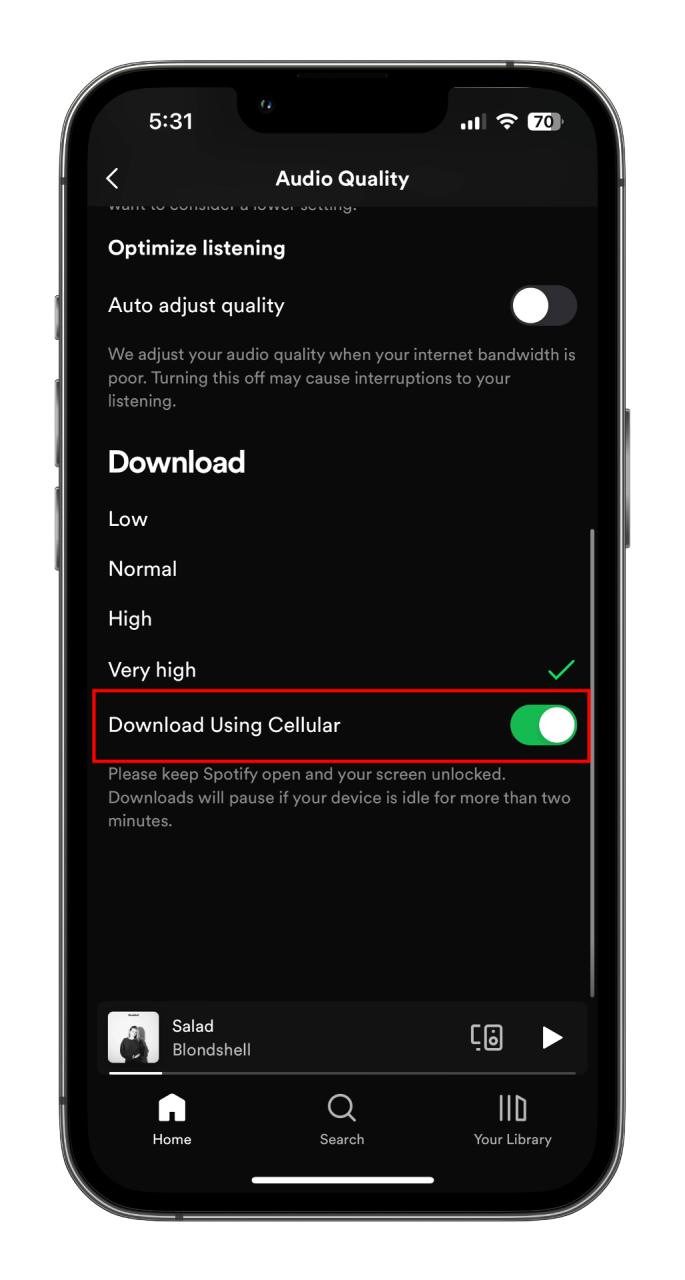
Quality Tip: I usually download over WiFi before road trips. Make sure you’ve set your download quality in Settings > Music Quality > Download. Premium allows up to “Very High” which is 320 kbps OGG Vorbis—pretty much the best Spotify offers.

Limitations of This Method
This works fine if you’re okay staying inside the Spotify ecosystem. But there are real drawbacks:
- Spotify Premium Required: $10.99/month ongoing cost. Free users can’t download anything.
- App-Locked Playback: Songs only work in the Spotify app. Samsung Music won’t see them. Car USB players won’t play them.
- Subscription Dependent: Miss a payment? All downloads vanish.
- Limited Device Support: Some older car stereos and MP3 players don’t support Spotify Connect.
As one Reddit user said: “MP3 320kbps is all I care for… my 200GB music collection loves Samsung Music, can’t live without it.” That’s the appeal of actually owning your music files. Which brings us to the method that delivers exactly that.
Method 2 – Converting Spotify to Samsung-Compatible Files (Recommended)
Why You Need a Converter Tool
Let’s be real about what’s happening here. Spotify’s DRM encryption isn’t just a minor inconvenience—it’s a deliberate wall between you and the music you pay for. Even if you’re streaming the same exact song every day, you don’t actually have access to the file itself.
A converter tool changes that by recording Spotify’s audio output in real-time and saving it as a standard audio file. Think of it like recording a radio broadcast, but automated and split into individual tracks with all the metadata intact.
Why does this matter for Samsung users specifically?
You can use any music player. Samsung Music, PowerAmp, BlackPlayer—your choice. True offline playback with no subscription checks. No internet requirement either.
Transfer files anywhere. Car USB drives, SD cards, other devices—all work.
Cancel Spotify? Your converted files stick around. They’re yours.
Plus, full Samsung Music integration. Widgets, equalizer, OneUI features—everything works properly.
That’s where a recording tool like Cinch Audio Recorder comes in.
Using Cinch Audio Recorder (Recommended Solution)
I’ve been using Cinch for a few months now, and honestly, it’s the most straightforward solution I’ve found for getting Spotify music onto my Samsung Galaxy in a format that actually works everywhere. Not a replacement for Spotify—more like a bridge between streaming and local file ownership.
What Makes Cinch Useful
Cinch Audio Recorder records Spotify at up to 320kbps—the same quality as Spotify Premium’s highest tier. It saves tracks as MP3, M4A, WAV, FLAC, and several other formats. Critically, it automatically handles ID3 tags, meaning every song gets its proper artist name, album title, and cover art without you having to manually edit anything.
A few features that matter for Samsung users:
- Silent Recording: You can mute your computer speakers while Cinch records in the background. Uses CAC (Computer Audio Capture) technology to pull audio directly from the sound card.
- Automatic Track Splitting: Drop in a 50-song playlist, and Cinch separates each track into its own file automatically.
- Ad Filtering: Using Spotify Free? Cinch can detect and remove those audio ads between songs. Just hit the Filter button after recording.
- Works with Free and Premium: You don’t need a Spotify Premium subscription for Cinch to work—though Premium obviously gives you better source quality.
Here’s how the process actually works:
Step 1: Install Cinch Audio Recorder
Download Cinch from the official website. Installation takes about 30 seconds. Standard next-next-finish process—nothing complicated.
Once installed, you’ll see a clean, straightforward interface with tabs for Record, Library, and Settings.

The interface isn’t fancy, but it gets the job done. Everything you need is visible without digging through nested menus.
Step 2: Configure Output Settings
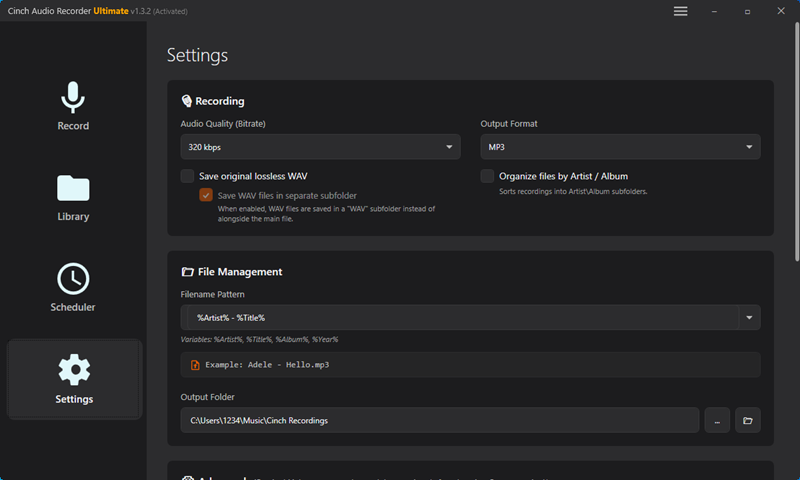
Click the Settings button (gear icon) in the top-right corner. This is where you’ll choose your output format and quality.
For Samsung devices specifically, here’s what I use:
Format: M4A (AAC) for best Samsung Music app compatibility. Or MP3 if you want universal compatibility with older devices.
Quality: 320 kbps—matches Spotify Premium’s max quality.
Output Folder: I set mine to a dedicated “Spotify Downloads” folder on my desktop. Keeps things organized. You can also point directly to your Samsung phone if it’s connected via USB, but I prefer organizing on the computer first.
Quick tip: If you plan to store music on your Samsung’s SD card, create a “Music” folder on the SD card first, then set Cinch to output directly there when your phone is connected.
Step 3: Start Recording
Here’s where it becomes ridiculously simple:
- Go back to the Record tab in Cinch.
- Click the big red Record button. Cinch is now listening.
- Open Spotify (desktop app works best) and start playing the playlist or album you want to record.
- Let it play through.
Cinch automatically detects track changes and splits each song into a separate file. No manual work needed.

You don’t need to babysit the process. I usually queue up a playlist, hit record, and go make coffee. When I come back, all tracks are done and properly labeled.
One thing to note: recording happens in real-time. A 50-minute playlist takes 50 minutes to record. No shortcuts around that—it’s how recording tools maintain quality without risking account issues.
Step 4: Find Your Downloaded Files
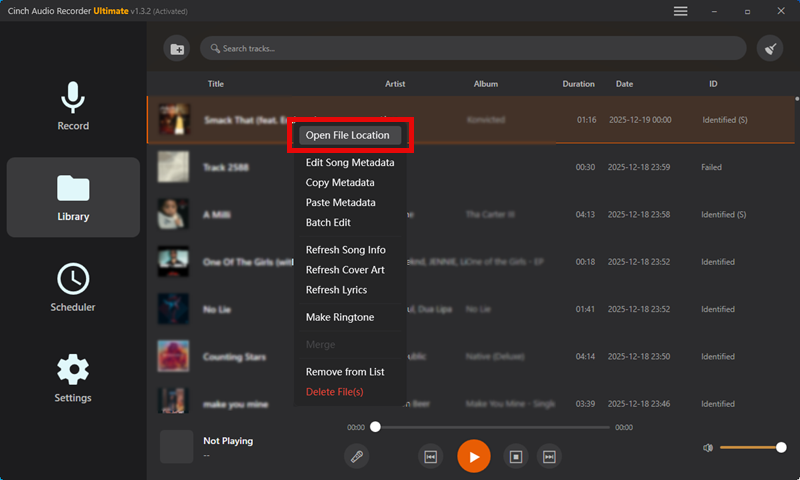
Once recording finishes, click the Library tab on the left sidebar. You’ll see all your recorded tracks listed with artwork and metadata.
To locate the actual files on your computer:
- Right-click any song in the library
- Select “Open File Location”
- This opens the output folder with all your MP3 or M4A files ready to transfer
From here, you can copy these files to your Samsung phone using any of the transfer methods we’ll cover in the next section.
Download Cinch Audio Recorder
Ready to try it? Cinch offers a free trial so you can test it out with your Samsung device:
 Windows Version 5.1.6
 Mac Version 5.1.6
The free trial lets you record the first minute of each track to test quality and compatibility with your Samsung Music app. Full version removes that limit.
Alternative Converter Tools (Quick Comparison)
Cinch isn’t the only option, though it’s my preference for Samsung devices. Here are two others worth mentioning:
| Tool | Key Feature | Approximate Cost |
|---|---|---|
| Cinch Audio Recorder | Samsung-optimized, CAC tech, silent recording | $25.99 one-time |
| NoteBurner Spotify Converter | 10x speed conversion (not real-time) | $39.95/year |
| AudiCable Audio Recorder | Multi-platform support, built-in editor | $44.95/lifetime |
NoteBurner is faster because it uses Spotify’s web player API to accelerate downloads. But faster doesn’t always mean safer—Spotify’s been known to flag accounts using API-based tools.
Cinch’s real-time recording method? Slower, yes. But virtually undetectable since it’s just capturing audio output like any other recording software. That peace of mind matters.
Based on my testing with a Galaxy S23 Ultra and S24, Cinch works best for Samsung-specific features. The Samsung Music integration feels seamless, and OneUI widgets work exactly as they should.
Method 3 – Transferring Music to Samsung Phone
Once you’ve got those converted Spotify files on your computer, you need to get them onto your Samsung device. Three main ways to do this:
Transfer via USB Cable (Recommended)
This is the method I use most often. It’s fast, reliable, and works without needing internet.
What You’ll Need: USB-C cable (the one that came with your Samsung phone works fine) and a Windows PC or Mac computer.
Transfer Process:
- Connect your Samsung phone to your computer using the USB-C cable.
- Select File Transfer mode on your phone. When you plug in, you’ll see a notification on your Samsung that says “Charging this device via USB.” Tap it, then select “Transfer files” or “File Transfer (MTP)”.
- Open File Explorer (Windows) or Android File Transfer (Mac). Your Samsung phone appears as a drive.
- Navigate to your music folder on the phone. I create a dedicated folder:
Internal Storage > Music > Spotifyfor organization. You can also use the SD card if your Samsung has one:SD Card > Music > Spotify. - Copy your converted files from your computer’s Cinch output folder. Just drag and drop them into your chosen Samsung folder.
- Wait for the transfer to complete. Depends on file size—usually a few seconds per song.
- Safely disconnect your phone by ejecting it from your computer.
- Open Samsung Music app on your phone. Go to Settings > Storage > Refresh, and your new songs will appear in your library.
Storage Tip: I keep frequently played playlists on internal storage—faster access that way. Archive albums go on the SD card. Keeps things organized without slowing down the phone.
Transfer via Mobile Manager Apps
For larger music libraries, dedicated mobile manager software can be easier than manual drag-and-drop.
Syncios Mobile Manager is a free option that works well with Samsung devices. After installing it on your computer:
- Run Syncios and connect your Samsung via USB
- Go to the Music section
- Click Add and select your converted Spotify files
- Syncios automatically organizes them with proper ID3 tags
Samsung Smart Switch also works, though it’s primarily designed for device migration. If you’re switching from an old phone to a new Samsung, Smart Switch can transfer your music library along with everything else.
These tools are nice if you’re managing thousands of songs. But honestly? For most people, the USB cable method is simpler.
Transfer via Cloud Storage
No cable handy? Cloud storage works, though it’s slower and uses mobile data if you’re not on WiFi.
Process:
Upload files from your computer to Google Drive, Dropbox, or OneDrive. Open the cloud app on your Samsung phone. Download the files. Move them to your Music folder using the Samsung Files app.
Best for small playlists. Maybe 10-20 songs. For full albums or big libraries, the USB method is way faster.
Also, be mindful of data usage—a 50MB album over mobile data adds up.
I use cloud transfer occasionally when I’m away from my computer and want to add a couple of new tracks quickly, but it’s not my main method.
Troubleshooting Common Issues
Spotify App Won’t Install or Update
If you’re having trouble installing or updating the Spotify app from the Play Store:
Try this: Open Settings > Apps > Google Play Store. Tap Storage > Clear Cache. Go back and try downloading Spotify again.
If that doesn’t work, check that your Samsung is running at least Android 8.0. Older versions aren’t supported by the latest Spotify app. Go to Settings > About Phone > Software Information to verify.
For manual installation (not recommended unless necessary), you can download the Spotify APK directly from Spotify’s website. Enable “Unknown Sources” in Settings > Security first. But honestly, the Play Store version is safer and easier.
Transferred Files Won’t Play on Samsung Music
This usually comes down to file format or storage location issues.
Troubleshooting Steps:
Check the file format. Samsung Music supports MP3, M4A, WAV, FLAC, OGG, and a few others. If you accidentally converted to an obscure format, it might not work. Reconvert to MP3 or M4A.
Verify file integrity. Play the file on your computer first. If it doesn’t work there either, the file might be corrupted. Reconvert that track.
Refresh Samsung Music’s library. Sometimes Samsung Music doesn’t detect new files immediately. Go to Samsung Music > Settings > Storage > Refresh to force a rescan.
Check the file location. Files need to be in a folder that Samsung Music scans. Typical locations: Internal Storage > Music or SD Card > Music. Random folders might not get scanned.
SD Card Issues: If using an SD card, make sure it’s formatted correctly (FAT32 or exFAT) and mounted properly. Go to Settings > Storage and verify the card is recognized.
Conclusion
That’s what’s been working for me and my Samsung Galaxy. Your setup might be a bit different depending on your model—S24, S23, maybe an older S21.
The USB transfer route is the most straightforward. But honestly? All three methods get the job done.
If you decide to go the converter route, Cinch Audio Recorder handles the Samsung Music app compatibility pretty well. Been using it since switching from pure streaming. Haven’t looked back.
Got questions about your specific Samsung model? Maybe you found a trick I missed? Either way, you’re not stuck with just the Spotify app anymore.
FAQs
Can I transfer Spotify songs to Samsung Music without Premium?
Yes. Using a converter tool like Cinch Audio Recorder works with both Free and Spotify Premium accounts. You’ll need the converter to download tracks as local files first, then transfer them to your Samsung device.
The Spotify app’s built-in download feature requires Premium, but converter tools don’t.
Will converted Spotify files work on Samsung Galaxy Watch?
Yes. Once transferred to your Samsung phone’s Music folder, you can sync them to Galaxy Watch 4, Watch 5, or Watch 6 through the Galaxy Wearable app for offline playback.
I’ve tested this with my Watch 4—works great for runs when I don’t want to carry my phone.
What’s the best audio quality for Samsung car mode?
MP3 at 320kbps offers the best balance. Most car audio systems can’t distinguish between 320kbps MP3 and lossless formats, so it saves storage without sacrificing quality.
If you have a high-end car stereo and good speakers, FLAC might be worth it. But for 95% of users? 320kbps MP3 is perfect.
Can I use Samsung DeX with these converted files?
Absolutely. Converted Spotify files work perfectly in DeX mode through Samsung Music.
It’s actually smoother than running the Spotify app in DeX, in my experience. You get a proper desktop-like music player interface with full library management.
Will I lose my music if I cancel Spotify Premium?
If you use the Spotify app’s download feature, yes—those files disappear when your subscription ends.
But converted files stored locally on your phone? Yours to keep, even after canceling your subscription. That’s the main advantage of using a converter tool.
You paid for the subscription, you recorded the music legally for personal use, you keep the files.