Last month, I was testing Tidal in my Model 3 during a ski trip. The first hour was perfect—crystal-clear HiFi streaming. Then I hit a dead zone. My music cut out.
Not a huge deal, right? I’d downloaded playlists the night before. But here’s the frustrating part: even my “downloaded” playlists refused to play without a connection.
Turns out, Tidal on Tesla has quirks that aren’t obvious until you’re on the road. Here’s everything I learned about using Tidal in Tesla, including workarounds that actually work.
In This Article:
What Is Tidal on Tesla and Why It Matters
Tesla rolled out Tidal integration back in November 2021 (software version 2021.40, if you’re tracking). Works on all the current lineup—Model S, 3, X, and Y. Just tap into the Media menu and you’re good to go.

Here’s why people care: audio quality. Tidal streams 110 million tracks in lossless audio—up to 9,216 kbps if you spring for HiFi Plus. Compare that to Spotify’s 320 kbps cap and… yeah, big difference.
You get offline downloads (though there’s a catch—I’ll get to that), voice control, and your phone playlists sync automatically. Everything shows up in your car. Pretty seamless, mostly.
What You’ll Need:
- Active Tidal subscription – Either HiFi ($10.99/month) or HiFi Plus ($19.99/month). The free tier disappeared in 2024.
- Tesla software 2021.40 or newer – Check under Controls > Software
- Internet connection – Wi-Fi or Premium Connectivity ($9.99/month)
In my Model 3, Tidal HiFi clearly beats Spotify on acoustic stuff—piano, jazz, classical. You actually hear instrument separation, the “space” in recordings. Rock or EDM? Honestly, it’s more subtle, but Tidal still edges ahead on crispness.
Oh, and here’s something that caught me off guard: downloaded music still needs internet to authenticate before it’ll play. Even though the files sit there locally on your car. I’ll explain that weirdness later.
Tidal vs Spotify on Tesla: Which Sounds Better?
Spent two weeks switching between both in my Model 3. Here’s what actually matters (and what’s just marketing hype).
Audio Quality
Numbers first: Tidal HiFi streams at 1,411 kbps (lossless FLAC). HiFi Plus bumps up to 9,216 kbps. Spotify Premium tops out at 320 kbps—still waiting on that HiFi tier they promised.
Can you hear the difference? Depends. On jazz, classical, or acoustic tracks when you’re parked with zero background noise? Absolutely. Guitar strings have more texture, piano notes decay naturally instead of cutting off.
But at highway speeds with road noise? I’ll be honest—it’s way more subtle. Tidal still sounds crisper, but you’re not missing out on life if you stick with Spotify for commutes.
If you’ve got Tesla’s premium audio—especially that ridiculous 22-speaker setup in Model S/X—Tidal actually uses it better. More dynamic range or something. Not an audio engineer, but I can hear it.
Interface
Tidal keeps it simple: four sections (Home, My Collection, Explore, Downloaded). Two taps gets you anywhere. Spotify packs in more features, which sounds great until you’re trying to navigate while driving.
Less screen time equals safer. That’s my take anyway.
Features
Spotify crushes it on discovery playlists and podcast integration. Tidal counters with music videos and artist exclusives—which matters if you’re into that.
Bottom Line
Go with Tidal if: Audio quality matters to you, you like clean interfaces, you’ve got the premium sound system Go with Spotify if: You rely on discovery playlists, listen to lots of podcasts, need it across all your devices
Both run $10.99/month. I keep Tidal in the Tesla, Spotify everywhere else. Works for me.
How to Set Up Tidal in Your Tesla
Takes maybe two minutes if you know what you’re doing. Here’s the rundown.
Initial Setup
- Get your Tesla on Wi-Fi first (tap that Wi-Fi icon, pick your network, punch in the password)
- Hit Media > Tidal on the touchscreen
- QR code pops up—just scan it with your phone camera
- Log into your Tidal account
- Tesla screen refreshes, shows your library
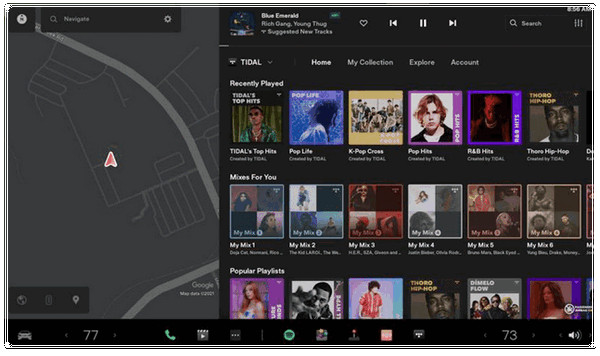
The QR code thing takes like 30 seconds. Way better than trying to type on that car screen with your finger.
Interface Basics
Four tabs, pretty straightforward:
- Home – New releases, curated stuff
- My Collection – Your playlists, albums, artists
- Explore – Browse by genre or whatever mood you’re in
- Downloaded – Offline stuff (we’ll talk about this)
Tap something. It plays. Not complicated.
Voice Control
Press the right scroll wheel, say: “Play [artist name] on TIDAL”
That “on TIDAL” part? Actually matters. Leave it off and Tesla searches your Bluetooth phone or whatever else is connected.
What works: Artist names, basic playlist names like “workout playlist” What doesn’t: Song titles with weird characters or long names
Pro tip—just say the artist name. Voice recognition seems way better at handling those than specific track titles. Saves you from yelling at your car.
Downloading Tidal Music for Offline Playback
How to Download Music
- Connect to Wi-Fi (downloads require Wi-Fi, not cellular)
- Navigate to your playlist or album in My Collection
- Tap the Download button (downward arrow icon)
- Wait for completion
- Access via “Downloaded” tab
Tesla allocates roughly 10-15GB for media—enough for 100-150 HiFi songs. Manage space by long-pressing downloads and deleting old content.
The Connectivity Paradox
Okay, here’s the annoying part that nobody tells you upfront: Downloaded songs still need internet to play.
I know, right? Makes zero sense. Files are sitting there locally on your car, but Tidal verifies your subscription every single session. No connection = no music, even from downloads. You’ll need Premium Connectivity ($9.99/month) or your phone’s hotspot.
The workaround: Start your downloaded music while you’ve got signal. Once it’s playing, it keeps going even after you lose connection. The app doesn’t check again until you stop playback or switch playlists.
My routine when I know I’m hitting dead zones:
- Download playlists at home (obvious, but yeah)
- Hit play before leaving cell coverage
- Just let it run—don’t pause, don’t switch tracks if you can help it
Oh, and Tidal’s Daily Mixes refresh every 24 hours. Learned that the hard way. For road trips, download static playlists that won’t change on the server side. Otherwise you might lose access mid-drive.
Alternative Ways to Play Tidal in Your Tesla
Method 1: Via Bluetooth
Bluetooth’s a solid backup. Doesn’t even need a Tesla Tidal subscription.
Setup takes 30 seconds:
- Turn on Bluetooth on your phone
- Tap Bluetooth icon on Tesla screen > Add New Device
- Pick your phone, confirm pairing
- Play Tidal from your phone
Pros: No Tesla Tidal subscription, control from your phone Cons: Kills phone battery, lower quality (AAC ~250 kbps), phone calls interrupt music
Works great when passengers want to play DJ with their own playlists.
Method 2: USB Drive for True Offline Playback
Look, the built-in app works fine for daily driving around town. But three things eventually pushed me to try USB:
- Dead zones – Remember that ski trip I mentioned? 30 minutes of total silence through mountain passes because downloads wouldn’t authenticate.
- Cost – Premium Connectivity runs $120/year, Tidal’s another $132. That’s $252 annually for car music. Started feeling excessive.
- Storage limits – Tesla only gives you 10-15GB for media. Fills up fast. You’re constantly deleting old playlists to make room.
Tesla plays USB music files just fine—MP3, WAV, FLAC, AAC, whatever. Problem is Tidal’s DRM protection blocks you from exporting anything directly.
Enter Cinch Audio Recorder
Cinch Audio Recorder isn’t about replacing Tidal completely. Think of it more like insurance for your favorite tracks when connectivity’s sketchy.
Records audio playing on your computer (Tidal, Spotify, YouTube) and saves as MP3, WAV, or FLAC. Auto-splits tracks, detects boundaries, adds metadata.
Why it works for Tesla:
✅ Zero connectivity needed ✅ Unlimited storage (cheap $15 USB holds 1,000 songs) ✅ Better quality than weak cellular ✅ Keep music forever ✅ Works in any car with USB
My setup:
Built-in app for daily commutes, discovering music. USB drive for road trips—100 favorite songs permanently plugged in.
No internet checks. No authentication. Just works.

Process:
- Install Cinch on Windows or Mac (free trial available)
- Open Tidal on computer, navigate to playlist
- Launch Cinch, hit Record
- Play playlist—Cinch captures each song automatically
- Copy finished files to USB drive
- Plug USB into Tesla’s front console
- Navigate to Media > USB
- Play anywhere, even airplane mode
Recording is real-time (3-min song = 3 min), but queue playlists overnight and wake to 50 tracks ready.


When to use:
- Built-in app: Daily driving, music discovery
- USB: Road trips, rural areas, international travel, after subscription ends
Advanced Tips Worth Knowing
Shuffle Mode
Tesla finally added shuffle in recent updates. Just tap the crossed arrows icon when something’s playing. Can’t find it? Your software’s probably old—update under Controls > Software (takes 25-45 minutes, grab coffee).
Storage Management
Here’s something I wish I’d known earlier: download full albums instead of random individual songs. Albums compress way better, somehow. And Tidal won’t auto-delete anything when you run out of space—you gotta do it manually. Long-press stuff in your Downloaded tab and clear it out every few weeks.
Voice Commands
What actually works: ✅ “Play [artist name] on TIDAL” – Pretty reliable ✅ “Next song” or “Previous song” – Always works
What doesn’t: ❌ Complex song titles – Especially with numbers or special characters. Just use the touchscreen for those.
Voice recognition handles artist names way better. Not sure why, but it is what it is.
Daily Mix Gotcha
Daily Mixes refresh every 24 hours on Tidal’s servers. If you download them for a road trip, grab them the morning you leave. Or better yet, make your own static playlists that won’t change.
Quality Check
During playback, look for “HiFi” or “Master” badges. See “High” or “Normal”? You’re not getting lossless. Wi-Fi always delivers full quality. Cellular with weak signal? Tidal automatically drops the bitrate to avoid buffering.
Troubleshooting Common Issues
I’ve run into most of these problems at some point. Here’s what actually fixed them.
App Won’t Load or Shows “Connection Error”
First thing—check your internet connection. Tap the LTE/Wi-Fi icon up top. I know it sounds stupid obvious, but the car sometimes thinks it’s connected when it really isn’t.
Got internet but Tidal still won’t load? Try this:
- Soft reset first—hold both scroll wheels on the steering wheel for 10 seconds. Screen goes black, Tesla logo pops up, everything reboots. Takes maybe 30 seconds.
- That didn’t work? Do a full power-off. Controls > Safety > Power Off. Wait 5 minutes. Don’t touch anything. Open a door to wake it back up.
Fixes it about 80% of the time in my experience. The app cache seems to get stuck sometimes, and the reboot clears it out. No idea why it happens, but it does.
Downloaded Songs Won’t Play Despite Having Internet
Yeah, this is that authentication mess I talked about earlier. Here’s what usually works:
- Double-check you’re actually connected—Wi-Fi or active Premium Connectivity. Check the status icon.
- Back out of Downloads tab, go to Tidal Home
- Give it like 10-15 seconds to talk to Tidal’s servers
- Go back to Downloads, try again
- No luck? Delete the playlist and re-download it. Sometimes the local cache corrupts itself somehow.
- Last resort—log into Tidal.com on your phone. Check your subscription status. If a payment bounced or your sub expired, downloads won’t play even though they’re sitting right there on your car.
Audio Quality Sounds Worse Than Expected
First, check what tier you’re actually paying for. Log into Tidal’s website—are you on HiFi ($10.99/month) or HiFi Plus ($19.99/month)? The free tier doesn’t do lossless. Only goes up to like 160 kbps standard quality.
Next, check the Tidal app settings in your car. Make sure streaming quality’s set to “HiFi” or “Master” depending on what you’re paying for.
Streaming over cellular? If you’ve got weak signal—whether it’s Premium Connectivity or your phone’s hotspot—Tidal automatically drops to lower bitrates to keep it from stuttering. Wi-Fi should give you full quality assuming your sub supports it. I’ve definitely noticed in rural areas with one bar of LTE, sound quality takes a hit compared to my home Wi-Fi.
QR Code Login Issues
Can’t get the scan to work?
- Crank up your Tesla screen brightness—QR code might be too dim
- Make sure your phone’s camera has internet permissions (some security apps block it)
- Try a different phone if you’ve got one, or grab a dedicated QR scanner app
QR code scans but login fails?
- Reset your Tidal password on another device first, then retry
- Use your email to log in, not your username—that catches people sometimes
- Check Tidal’s support page to see if their servers are having issues. Doesn’t happen often, but when it does, you’re just stuck waiting.
Shuffle Button Missing
Your software’s probably old. They added shuffle sometime in late 2023/early 2024, I think.
Go to Controls > Software > Check for Updates. Takes 25-45 minutes, car needs to be in Park with good internet. Do it at home or while charging somewhere with Wi-Fi.
After it updates, shuffle icon shows up in playback. Works like you’d expect.
Final Thoughts
For most people, the built-in Tidal app probably works fine. If you’re driving around areas with decent cell coverage, don’t mind paying for Premium Connectivity, and can deal with managing storage, the sound quality’s excellent. Integration’s pretty seamless too. I still use it daily for commutes and running errands.
But here’s the thing—if you’re taking road trips through rural areas, or traveling internationally where roaming gets expensive, or you just don’t want to shell out for Premium Connectivity on top of Tidal… a USB drive with your favorite tracks honestly changes everything. No internet requirements. No authentication nonsense. Your music stays yours even if you cancel subscriptions.
My setup evolved. Started with just the built-in app. Added a USB drive after that ski trip disaster—loaded it with 150-200 songs I never get tired of. Classic rock, road trip playlists, that kind of stuff. Keep Bluetooth as backup for when passengers want to play DJ with their phones.
Your setup depends on how you actually use your car. City driving with solid LTE everywhere? Built-in app’s probably enough. Weekend trips to the mountains or desert? USB drive will save your sanity. Budget-tight and okay with using your phone? Bluetooth works better than you’d think.
Good news is you’re not stuck choosing just one method. I mix all three depending on the situation. Tidal’s audio quality really is worth the effort once you figure out what works for you.
And hey—if anyone figures out a better workaround for that “downloaded songs still need internet” thing, let me know. Still seems like there should be some hidden setting buried in a menu somewhere.
FAQs
Do I need a Tidal subscription to use the Tesla Tidal app?
Yes. You’ll need either Tidal HiFi ($10.99/month) or HiFi Plus ($19.99/month). The free tier ended in 2024.
Can I play downloaded Tidal music without internet?
Sort of. You need initial connectivity for subscription verification. Once authenticated, playback continues through dead zones. Start playing while you have signal, and it’ll keep going.
Does Tesla’s Premium Connectivity include Tidal?
No. Premium Connectivity ($9.99/month) provides cellular internet but doesn’t include Tidal ($10.99/month). You need both for streaming without Wi-Fi. Total: $20.98/month.
How much storage does Tesla have for Tidal downloads?
About 10-15GB shared with other car systems. That’s 100-150 songs in HiFi quality. You’ll need to manually delete old content when space fills up.
Why can’t I shuffle playlists on Tidal?
Shuffle was added in late 2023/early 2024 updates. Update your software under Controls > Software > Check for Updates if it’s missing.