Ever found yourself questioning whether your favorite Spotify tracks could sound even better?
You’re not alone. I’ve been down this rabbit hole more times than I care to admit.
Here’s the thing — millions of music lovers keep debating streaming quality. “Good enough” vs “actually great.” While Spotify finally introduced lossless audio in 2025, there are still reasons you might want your music in FLAC format. Real reasons.
And yeah, we’ll explore every angle.
Whether you’re an audiophile with high-end headphones or someone who just wants to future-proof their collection, this guide covers it. From Spotify’s new lossless features to recording solutions that give you actual control over your library.
In This Article:
FLAC vs Spotify: Why This Even Matters
Here’s What Makes FLAC Actually Special
FLAC (Free Lossless Audio Codec) is like having a perfect digital copy of the original studio recording. Unlike MP3 or even Spotify’s current streaming formats, FLAC doesn’t throw away any audio data during compression.
Think of it as the difference between a photograph and a photocopy.
The format compresses audio files to about 50-60% of their original size while keeping identical quality to the source. For music enthusiasts, this means CD-quality sound (and potentially better) without the storage penalty of uncompressed WAV files. Which is huge.
Spotify’s Current Audio Formats and Lossless Launch
Here’s where it gets interesting. Spotify traditionally streams music in OGG Vorbis format at 320 kbps for Premium users — which honestly sounds pretty good to most people. Actually, really good for the average listener. But in September 2025, Spotify finally rolled out Lossless Listening for Premium subscribers.
💡 Quick Tip: The new feature offers 24-bit/44.1 kHz FLAC streaming, but there’s a catch: it’s only available for online streaming through Spotify Connect. You can’t download these lossless tracks for offline use or transfer them to other devices.
Wait, what? Yeah, that limitation is exactly why this guide exists.
Why Convert Spotify to FLAC – Beyond Official Features
Even with Spotify’s lossless streaming, you might still want to convert your music to FLAC files.
Why? Two words: True ownership.
When you record Spotify to FLAC, you’re creating a personal music archive that doesn’t depend on your subscription status. No more losing access to your carefully curated playlists if you cancel Premium. Plus, you can play these files on any device, in any player, whenever you want.
I learned this the hard way when my favorite album vanished from Spotify overnight. Licensing issues, apparently. Never again.
Spotify’s 2025 Lossless Update: Game Changer or Limited Solution?
The New Premium Lossless Feature Explained
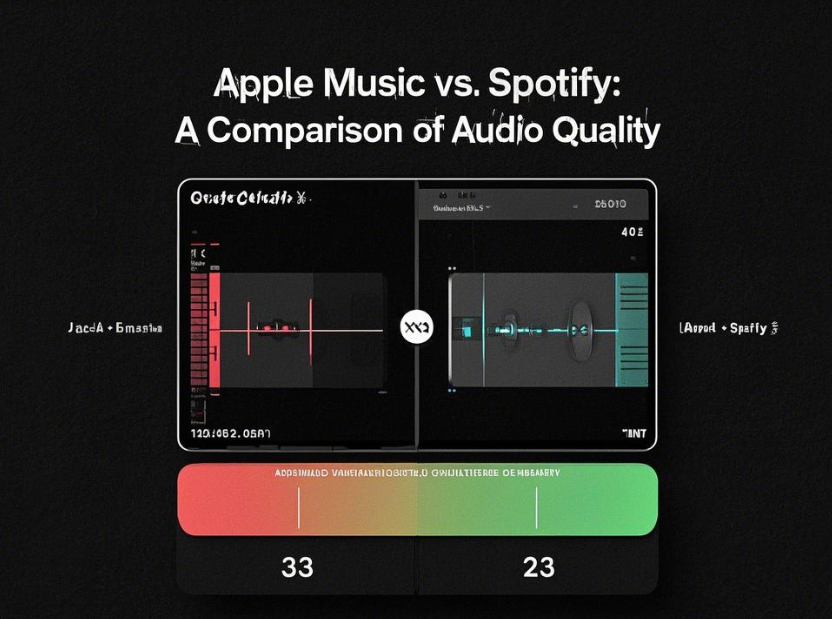
Spotify’s lossless feature is genuinely impressive from a technical standpoint. In my testing, the 24-bit/44.1 kHz FLAC streaming delivers noticeably cleaner highs and more detailed soundstage — especially with orchestral music or jazz recordings where subtle instrument separation matters.
To enable it, you need a Premium subscription and compatible playback device. The feature shows up automatically in your app settings once it’s available in your region. Last I checked, it was rolling out to 50+ countries, though that number keeps growing.
Critical Limitations You Need to Know
But here’s the reality check: Spotify’s lossless has some serious restrictions.
Streaming only. You can’t download lossless tracks for offline playback. Which defeats the purpose for anyone wanting to listen during commutes or travel, right? The feature only works when you’re connected to the internet.
Device compatibility issues. Not all Spotify Connect devices support the lossless format yet. I’ve seen reports from users whose existing speakers or receivers don’t play the enhanced quality — they just default back to standard streaming.
⚠️ Important Warning: No mobile downloads. This is huge — you can’t save lossless tracks to your phone for offline listening, which is probably how most people consume music.
Honestly? That defeats the whole purpose for me.
When Third-Party Solutions Still Win
This is where recording solutions like Cinch Audio Recorder become invaluable.
Instead of being limited by Spotify’s restrictions, you get complete control.
After testing both approaches, I find the recording method more reliable for building a permanent music collection. You’re not dependent on internet connectivity, device compatibility, or Spotify’s ever-changing feature availability.
Professional Solution: Cinch Audio Recorder Ultimate

Why Recording Beats Downloading for True Quality
Here’s something most people don’t realize: recording audio directly from your computer’s sound card can actually produce better results than many “download” tools. Cinch Audio Recorder Ultimate uses CAC (Computer Audio Capture) technology to grab the exact audio data that your sound card receives.
This means you’re getting the same quality as what Spotify sends to your speakers — whether that’s 320 kbps OGG Vorbis or the new lossless FLAC streams.
No re-encoding. No quality loss from conversion algorithms.
The best part? You can record at whatever quality Spotify is currently streaming, and the software automatically saves it as high-quality MP3 (320 kbps) or lossless WAV. Think of it as having a studio-quality recorder sitting between Spotify and your speakers.
Complete Setup Guide for Lossless Recording
Getting started with Cinch Audio Recorder is surprisingly straightforward. After downloading from the official site, the setup takes about 5 minutes. Maybe 7 if you’re careful.
Step 1: Installation and First Launch
Run the installer and launch the program. You’ll see a clean interface with “Record,” “Library,” and other tabs.
No complicated settings to configure right away.


Step 2: Optimize for Quality Recording
Click the gear icon to access settings. For FLAC-equivalent results, here’s what works best in my setup:
- Output format: FAC/WAV (lossless) or MP3 at 320 kbps
- Enable “Silent Recording” if you want to mute your speakers while recording
Step 3: Start Recording Your Playlists
Hit the red Record button, then start playing your Spotify playlist. Cinch automatically separates individual tracks and adds ID3 tags (song title, artist, album) as it records.
The software is smart enough to filter out Spotify ads if you’re using a free account. That feature alone saves hours of manual editing.

Step 4: Building Your Library
Switch to the “Library” tab to see all your recorded tracks. Right-click any song and select “Open File Location” to find your saved files. By default, everything saves to an organized folder structure: Artist > Album > Track.
Advanced Features for Music Collectors
What sets Cinch apart from basic recording tools? The thoughtful extras designed for serious music collectors.
Automatic Ad Filtering
If you’re recording from a free Spotify account, the built-in ad filter saves massive amounts of time. One click removes all the short advertising clips from your recordings.
Ringtone Creation Tool
Want to turn your favorite Spotify track into a custom ringtone? The built-in editor lets you select the perfect 20-30 second clip and export it in the right format — M4A for iPhone or MP3 for Android.

Smart Metadata Handling
Unlike many recording solutions, Cinch automatically captures and preserves track information. Each recorded file includes proper song titles, artist names, and even album artwork when available.
No more mystery files labeled “Track_001.wav.”
The software also includes an ID3 editor if you need to manually correct or enhance the metadata. Particularly useful for obscure tracks or live recordings where auto-detection might miss details.
Alternative Methods: Desktop and Mobile Solutions
Best Desktop Converters Compared
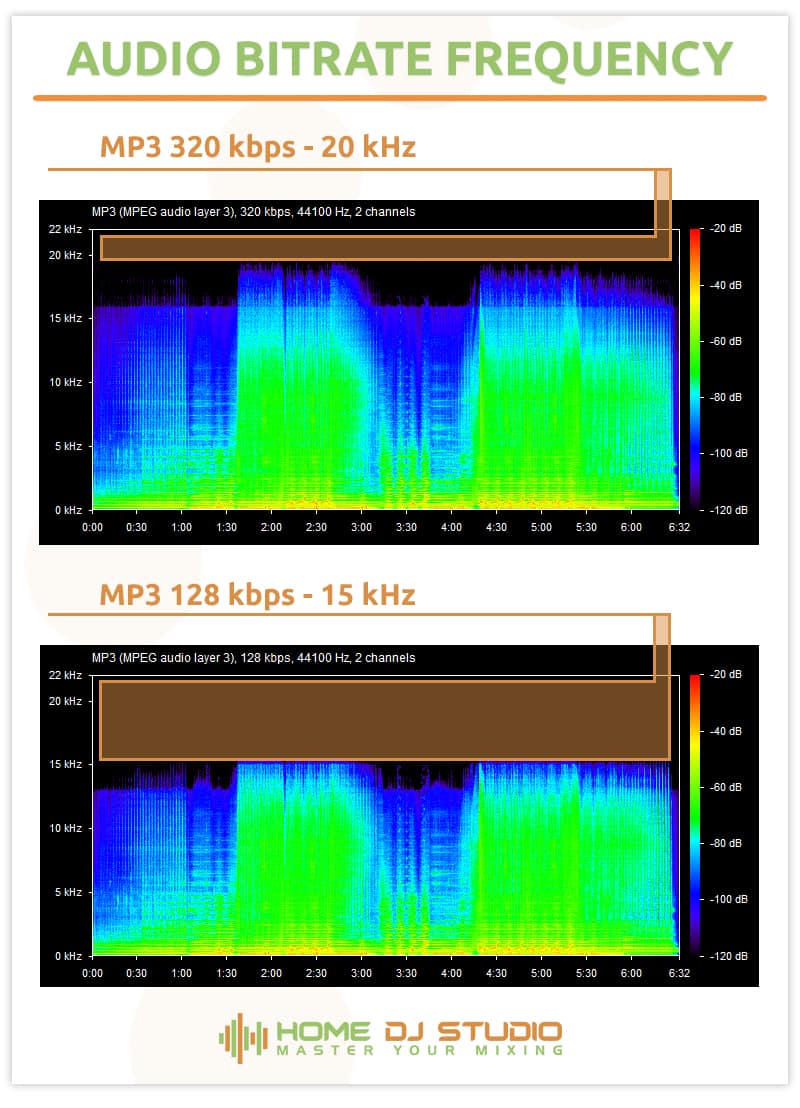
While Cinch Audio Recorder has been my go-to for professional results, let me break down how it compares to other solutions I’ve tested:
| Tool | Price | Auto Track Separation | Quality | Ease of Use | Spotify Update Proof | Rating |
|---|---|---|---|---|---|---|
| Cinch Audio Recorder Ultimate | $25.99 | ✅ Yes | ⭐⭐⭐⭐⭐ | ⭐⭐⭐⭐⭐ | ✅ Yes | ⭐⭐⭐⭐⭐ |
| Audacity | Free | ❌ Manual | ⭐⭐⭐⭐ | ⭐⭐ | ✅ Yes | ⭐⭐⭐ |
| TuneFab Converter | $69.95/year | ✅ Yes | ⭐⭐⭐⭐ | ⭐⭐⭐⭐ | ❌ Sometimes breaks | ⭐⭐⭐ |
| AudiFab | $59.95/year | ✅ Yes | ⭐⭐⭐⭐ | ⭐⭐⭐⭐ | ❌ Sometimes breaks | ⭐⭐⭐ |
| OBS Studio | Free | ❌ Manual | ⭐⭐⭐⭐ | ⭐⭐ | ✅ Yes | ⭐⭐⭐ |
Alternative recording tools like Reaper (professional DAW with excellent recording capabilities) offer pro-grade features. But they require significant setup time.
The key difference? Recording-based solutions like Cinch work regardless of Spotify’s technical changes. Converter-based tools sometimes break during app updates.
Mobile Recording: Android and iOS Options
Mobile recording presents unique challenges. App sandboxing and audio routing restrictions, mainly.
Android Users have more options, with apps like TuneCable Spotify Downloader offering direct recording from the Spotify app. However, you’ll need to sideload the APK file — it’s not available in the Google Play Store.
iOS Users face tighter restrictions. The most reliable method involves using AirPlay to stream Spotify to a Mac or PC running recording software.
Not elegant, but it works when you need mobile flexibility.
Free vs Paid: What You Actually Get
Free solutions like Audacity certainly work, but they require significant time investment. You’ll need to manually start/stop recordings, separate tracks, and add metadata yourself.
Fine for occasional use. Not practical for converting entire playlists.
Paid solutions ($25-50) automate the tedious parts: automatic track separation, metadata detection, and batch processing. In my case, when I factored in time saved, the investment paid for itself after converting about 10-15 albums.
Audio Quality Reality Check: What You Can Actually Hear
Equipment Requirements for FLAC Benefits
Let’s be honest: you won’t hear FLAC’s advantages through laptop speakers or standard earbuds.
To appreciate lossless audio, you need decent equipment. But it doesn’t have to break the bank.
Minimum setup: Good over-ear headphones (Audio-Technica ATH-M40x level) or bookshelf speakers with a proper amplifier. In my experience, you’ll notice the difference in instrument separation and dynamics, especially in classical or jazz recordings.
Sweet spot: Mid-range audiophile headphones ($150-300) paired with a USB DAC/amp. This is where I started hearing the subtle details that make FLAC worthwhile.
Real User Experiences and Blind Tests
Here’s where it gets interesting. Reddit user testing consistently shows that most people can’t reliably distinguish between Spotify’s 320 kbps and FLAC in blind tests.
But the minority who can hear the difference report it as “night and day.”
One user noted: “I personally don’t hear anything different in the highs for me only the low end sound less separated” when comparing FLAC to Spotify Premium quality. This matches my experience — the difference is subtle but real, primarily in low-end detail and soundstage width.
The equipment factor is huge. The same tracks that sound identical through iPhone earbuds reveal clear differences through proper monitoring headphones.
Troubleshooting and Optimization Tips
Common Recording Issues and Solutions
Recording volume too low? Check your Spotify volume level — the recording quality directly matches your player volume. Keep Spotify at 80-100% volume for best results. I’ve tested this a lot, and there’s a noticeable quality difference between recordings made at 50% vs 100% volume.
Getting system sounds in recordings? Use the “Silent Recording” feature in Cinch. It captures audio before it reaches your speakers, so you can mute your system volume without affecting recording quality. This is especially important if you get notifications or system sounds during long recording sessions.
Tracks not separating properly? Ensure there’s adequate silence between songs. If you’re recording DJ mixes or continuous albums, you’ll need to manually split tracks afterward. For albums with seamless transitions, consider recording the entire album as one file, then using Audacity for manual track separation.
Audio artifacts or distortion? This usually means your sound card is being overloaded. Lower your system volume slightly and make sure no other audio applications are running during recording. Close Discord, gaming apps, or video streaming services that might interfere with audio capture.
Storage and Organization Best Practices
FLAC files are large — expect 25-50MB per song depending on length and complexity. A 100-song playlist might consume 3-4GB of storage.
For perspective, that’s roughly equivalent to one HD movie file. But you’re getting permanent access to 100 high-quality songs.
Organization tip: I stick to the standard folder structure (Artist/Album/Track) for compatibility with most music players and streaming devices. Most audio software expects this layout. For large collections, I use tools like MusicBrainz Picard for automatic organizing and tagging.
Backup strategy: Consider cloud storage for your FLAC collection. Services like Google Drive or Dropbox work well, though upload times can be lengthy for large collections.
Alternatively, external SSDs have become affordable and offer faster access than cloud storage.
File naming conventions: Use consistent naming patterns like “Artist – Album – Track Number – Song Title.flac” to ensure your collection stays organized as it grows. This becomes crucial when you’re managing hundreds or thousands of tracks.
Conclusion
Converting Spotify to FLAC isn’t just about audio quality — it’s about owning your music experience.
While Spotify’s 2025 lossless feature is a welcome addition, the limitations around offline access and device compatibility make personal recording solutions like Cinch Audio Recorder Ultimate more practical in my view, especially for serious music collectors.
Whether you can hear the difference between 320 kbps and FLAC depends largely on your equipment and listening experience. But having a permanent, high-quality archive of your favorite music?
That’s valuable regardless of how sensitive your ears are.
The technology is mature, the tools are affordable, and the process is simpler than ever. Your music collection deserves better than the uncertainty of streaming licenses and subscription renewals.
FAQ
Does Spotify actually stream FLAC quality now?
Yes, Spotify Premium includes lossless streaming as of September 2025 — offering 24-bit/44.1 kHz FLAC. However, it’s limited to online streaming only. No offline downloads in lossless quality.
Is recording Spotify music legal for personal use?
Recording music for personal, non-commercial use generally falls under fair use provisions, but check your local copyright laws. Distributing or selling recorded content is typically not permitted.
What’s the best free alternative to paid Spotify converters?
Audacity offers free recording capabilities, though it requires manual track separation and metadata entry. In my experience, if you’re converting more than a few albums, paid solutions like Cinch Audio Recorder Ultimate quickly justify their cost through time savings.
Can you actually hear the difference between Spotify and FLAC?
In blind tests, most people can’t reliably tell the difference, especially with typical consumer audio equipment. However, with high-quality headphones or speakers, the difference becomes more apparent in complex musical passages. Your mileage may vary depending on your setup and hearing.