Last month, I was preparing slides for parent-teacher conference night. The idea was simple: a photo slideshow with background music from my Spotify “Classroom Vibes” playlist.
That’s when I ran into a problem.
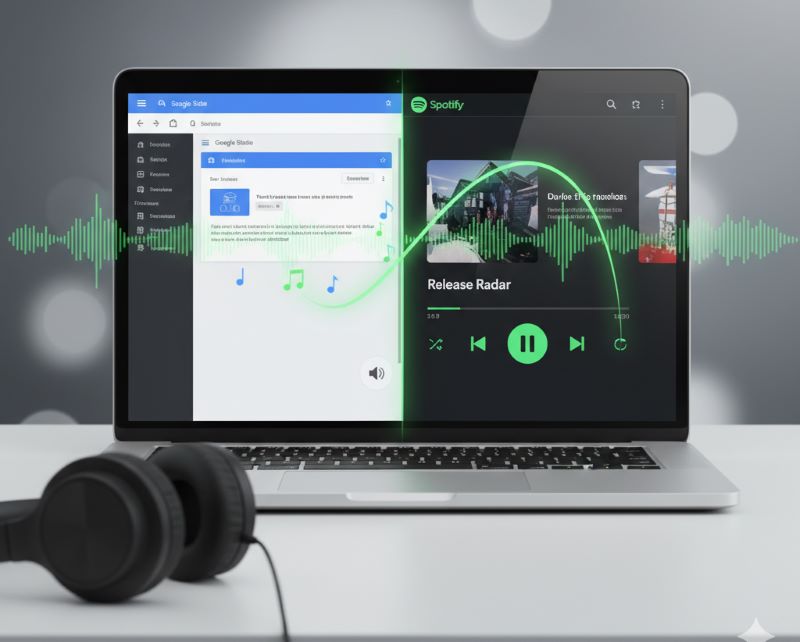
Google Slides and Spotify don’t work together. There’s no “Connect to Spotify” button, no built-in option at all. After trying every workaround—and sitting through one presentation with no music—I finally figured out what actually works.
Here’s what I learned, so you don’t waste your afternoon the way I did.
In This Article:
Why Add Spotify Music to Google Slides?
Not every presentation needs a soundtrack, but when it fits, music transforms the experience.
For Teachers: Background music during morning routine slides genuinely helps set a calm mood. Student presentation templates with music choice options. End-of-year memory slideshows. But here’s what nobody talks about—using your personal Spotify shows your recently played and recommendations in the sidebar. My colleague accidentally projected her “Guilty Pleasure Pop” playlist to the class. Still gets teased about it.
For Business: Product launches with mood-setting tracks. Training videos with background audio. Company celebrations. The catch: music during speaking parts rarely works well—you end up competing for attention.
For Personal Projects: Weddings, graduations, family events. The music IS the vibe here. I’ve helped create memorial slideshows where song choice mattered more than fancy transitions. Check YouTube’s Audio Library for royalty-free alternatives if you’re publishing publicly.

Can You Directly Add Spotify to Google Slides? (The Short Answer)
No. I checked every menu. Twice.
Google Slides only accepts audio from Google Drive in MP3 or WAV format. Spotify uses protected streaming (OGG Vorbis with DRM encryption) that you can’t just drag anywhere. Think of it like trying to photocopy a Netflix movie—the technology deliberately prevents it.
But there ARE three methods that work:
- Link to Spotify (opens new tab—interrupts flow)
- Download music first, upload to Drive (my go-to)
- Use YouTube videos hidden behind shapes (clever but risky)
For true background music that plays offline, Method 2 is your only option.
Want to understand why Spotify files are protected? Check out this DRM explanation. Similar process works for adding Spotify to PowerPoint.
Method 1 – Add Spotify Link to Google Slides (Quick But Limited)
Fastest method. Works fine for casual presentations.
How the Link Method Works
Step 1: In Spotify, find your track. Click the three dots > Share > Copy Song Link.
Step 2: In Google Slides, insert a text box, shape, or image. Select it and hit Ctrl K (Cmd K on Mac). Paste your Spotify URL. Click Apply.
When presenting: Click the link. Spotify opens in a new tab. You manually hit play, then tab back to slides.
Takes two minutes to set up. But that tab-switching? Clunky.
Pros and Cons
Pros:
- Super easy setup
- No file downloads needed
- Works with playlists
Cons:
- Requires internet during presentation
- Breaks presentation flow (new tab opens)
- Must be logged into Spotify
- No auto-play or background music capability
Last presentation using this method, I forgot I was logged out of Spotify. Got the login screen mid-presentation. Had to ad-lib for 30 seconds while typing my password.
Best Use Cases
Works fine for informal team meetings, practice runs, or quick drafts.
For anything important or offline? Skip it.
Method 2 – Download Spotify Music and Upload to Google Drive (Most Control)
This is what I use now for anything that matters. Longer setup, but you get complete control and zero internet dependency.
Why This Method Gives Better Control
Background music that actually stays in the background.
You get auto-play, looping, cross-slide audio, hidden icons, and offline playback. After my third tab-switching disaster with Method 1, I spent an afternoon setting this up properly. Haven’t looked back.
Understanding Google Slides Audio Requirements
Google Slides accepts only MP3 and WAV files. M4A, AAC, FLAC—none of those work.
File size matters. WAV files sound great but they’re huge (50MB for a 5-minute song, maybe more). For presentations, MP3 at 256-320kbps is the sweet spot. Quality is excellent, file size stays reasonable (8-12MB per song).
I learned this after uploading a WAV that took forever to load.
Switched to MP3, problem solved.
Method 2A – Using Cinch Audio Recorder (Recommended)
Most people start by Googling “Spotify downloader.” I did too.
Tried free online converter sites first. Some worked okay for single tracks. But quality felt inconsistent, metadata came through wrong, and batch processing wasn’t a thing. Half the sites felt sketchy with ads everywhere.
That’s when I started using Cinch Audio Recorder.
Not as a Spotify replacement—I still stream daily. More like a backup tool for when I need offline files.
Why it actually helps:
Records anything playing on your computer. Hit record, play your Spotify playlist, Cinch captures everything. It taps directly into the sound card, so quality is perfect.
Auto-splits songs automatically. Game-changer. You don’t get one giant file. Cinch detects silence between tracks and splits into separate MP3s. A 30-song playlist becomes 30 perfect files without manual work.
Grabs all song info. Artist names, track titles, album covers—everything embeds automatically. Files are organized and labeled correctly. No manual renaming.
Works while you multitask. Start recording, start your playlist, go make coffee. Come back 20 minutes later—folder full of tagged MP3 files ready to use.
Side note: I usually record overnight. Wake up to 50 songs perfectly organized. Feels like magic, honestly.
My Setup Process:
- Download Cinch Audio Recorder
- Click the red Record button
- Play your Spotify playlist
- Stop recording when playlist ends
- Find finished MP3s in output folder
Takes 15 minutes of actual attention. Maybe less once you’ve done it a few times. The rest runs automatically.

What I Like:
Silent recording mode: Mute your speakers while recording—Cinch still captures everything. Perfect for late-night recording. Uses direct sound card capture, so speaker volume doesn’t matter.
Ad filter for Spotify Free users: Those 30-second ads between songs? Cinch has a one-click filter that auto-deletes short audio clips. Saves manual editing.

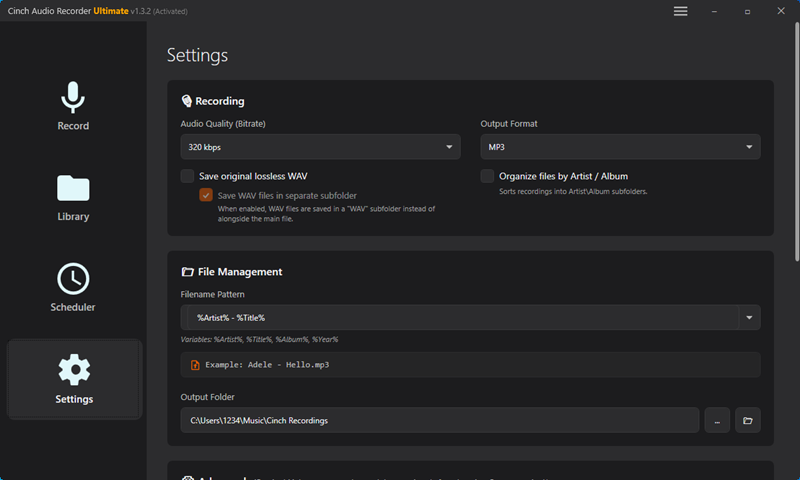
Multiple output formats: MP3, WAV, M4A, FLAC. For Google Slides, stick with MP3. But you have options.
Quick Tip: Set output format to MP3 and quality to 256kbps or higher. Sounds great through classroom speakers, loads instantly in Google Slides. I tested with 128kbps once—sounded tinny through the projector. 256kbps is the sweet spot.
Cinch doesn’t use Spotify API or playback speed tricks. Records in real-time, just like normal listening. Safe to use, no account risks.


More details: Complete Spotify to MP3 guide. Also works for adding Spotify to video projects.
Upload Files to Google Drive & Insert into Slides

Upload process:
- Go to Google Drive
- Click New > File upload
- Select your MP3 files
- Wait for upload (30 seconds per song usually)
Pro tip: Create a “Presentation Music” folder. I organize mine by mood: “Energetic,” “Calm,” “Focus,” “Celebration.” Saves time later. Well, once you have like 50 songs anyway.
Critical step—Fix Sharing Permissions:
This is where most people fail. Your audio files need separate sharing settings.
- Right-click audio file in Google Drive
- Click Share
- Change from “Restricted” to “Anyone with the link”
- Click Done
- Repeat for EVERY audio file
Bulk shortcut: Hold Shift, select multiple files, right-click > Share to change all at once. Discovered this after doing files one-by-one for like 20 minutes. Wish I’d known sooner.
Skip this step, and viewers get permission requests instead of music. My student teacher learned this the hard way during her first presentation. Awkward silence.
Insert audio into slides:
- Open Google Slides presentation
- Insert > Audio
- Select file from Google Drive
- Audio icon appears on slide
Now customize the settings.
Customizing Your Audio in Google Slides
Click the speaker icon. Format options panel appears on the right.
Essential settings:
- Start playing: Change to “Automatically”
- Loop audio: Check if you want repeat playback
- Stop on slide change: UNCHECK for background music across slides
- Volume: 20-30% for background, 60-70% for featured music
The “Stop on slide change” checkbox is huge. Left checked (default), music cuts out when you advance slides. Took me forever to notice this setting.
Hide the audio icon: Format options > “Hide icon when presenting.” Icon shows while editing, disappears during presentation. Professional look.
Volume testing tip: Test on actual presentation equipment, not just your laptop. Laptop speakers vs. projector audio can sound completely different. I preview everything through the classroom projector now. Learned this after one presentation where “perfect” 50% volume on my laptop became deafening through the auditorium speakers.
Method 3 – Embed YouTube Music (Hide Video, Keep Audio)
Clever workaround. Works better than expected, honestly.
Insert a YouTube music video, hide it behind a shape. Audio plays, nobody sees video.
Steps:
- Find song on YouTube, copy URL
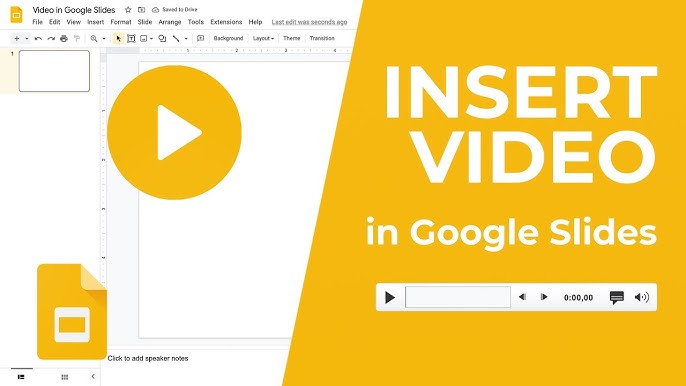
- Google Slides: Insert > Video
- Paste URL, click Select
- Format options: Play automatically Loop
- Create rectangle (same color as slide background)
- Right-click video > Order > Send to back
Took me three tries to align the shape properly. Video kept peeking out.
Critical: Video must stay ON the slide (even if hidden). Move it off visible area, auto-play stops. Weird Google Slides quirk.
When to use:
- You have YouTube Premium (no ads)
- Reliable internet available
- Casual presentations
When NOT to use:
- Professional settings (ad risk is real)
- Offline environments
I used this for a casual team meeting once. Fine. But during my niece’s graduation slideshow, a 15-second ad played before the emotional conclusion. Not ideal.
Troubleshooting Common Problems
The issues I ran into (and how to fix them).
Audio Not Playing for Others
Problem: You hear it fine. Viewers get silence.
Solution: Google Drive sharing issue. Each audio file needs “Anyone with the link” permission. Check every file separately.
Less common cause: Browser audio permissions. Chrome address bar has a speaker icon. If X through it, click and change to “Always allow sound.”
“Can’t Play This Audio File” Error
Usually one of three things:
- Wrong format: Only MP3/WAV work. M4A or AAC won’t play. Convert to MP3.
- Cookies disabled: Google Slides needs cookies enabled. Check browser privacy settings.
- File corruption: Delete from Drive, re-upload.
I hit the cookie issue on my school laptop. IT had locked browser settings. Spent 20 minutes thinking my files were corrupted before realizing it was a browser thing. Needed them to whitelist Google Slides.
Audio Won’t Auto-Play
Could be a few things:
- Audio icon must be ON slide (even if hidden)
- Check browser auto-play permissions
- Shared/public computers might block auto-play
Audio Stops Between Slides
Problem: Music cuts out when changing slides.
Solution: Format options > UNCHECK “Stop on slide change.”
Default has this checked. Super common mistake.
Best Practices for Presentation Music
What actually works after 50 presentations:
Choosing music:
- Instrumental for background (no lyric distraction)
- Music with lyrics when song IS the focus
- Match music to audience age (lo-fi for focus, upbeat for energy)
- Consider copyright and fair use for public/commercial presentations
Testing checklist:
- Play entire presentation in slideshow mode
- Test on actual equipment (projector/speakers)
- Check internet if using links/YouTube
- Confirm audio file permissions (incognito test)
- Have backup plan (USB drive)
Takes 10 minutes.
Prevents disasters. I test night before AND morning of. Haven’t had audio fail in a year—knock on wood.
Mobile presenting: Google Slides app supports audio but with quirks. Auto-play unreliable, loading slower. For important presentations with audio, I use a laptop.
Common Mistakes to Avoid
Lessons from mild embarrassment:
Mistake 1: No testing before presenting. Audio issues appear when you’re standing in front of people. Test on the actual equipment you’ll use.
Mistake 2: Forgetting Spotify login (link method). Click link mid-presentation, get login screen. Stick a reminder note.
Mistake 3: Wrong file formats. Google Slides only accepts MP3 and WAV. M4A won’t work even though upload succeeds. Confusing, I know.
Mistake 4: Not sharing audio files. Google Slides sharing ≠ audio file sharing. Set each file to “Anyone with the link” separately.
This permission thing trips up everyone the first time.
I send teachers this section constantly.
Method Comparison Table
| Feature | Link | Download Upload | YouTube |
|---|---|---|---|
| Setup Time | 2 min | 10-15 min | 3 min |
| Works Offline | ❌ No | ✅ Yes | ❌ No |
| Auto-Play | ❌ No | ✅ Yes | ✅ Yes |
| Background Music | ❌ No | ✅ Yes | ✅ Yes |
| Interrupts Flow | ✅ Yes | ❌ No | ❌ No |
| Best For | Quick share | Professional | Casual |
My take:
- Link method: Quick drafts, informal settings
- Download method: Important presentations, offline, classroom use
- YouTube method: One-time casual events with Premium
I stick with Method 2.
Longer setup, sure. But I reuse files across presentations. That 15-minute investment? Probably saved me 10 hours by now.
Conclusion
Right, so three methods. Each has its place.
Method 1 (link): Fast, simple, interrupts flow. Fine for casual stuff.
Method 3 (YouTube): Clever hack, but ad risk. Use if you have Premium.
Method 2 (download): My go-to.
Takes longer upfront. But you get auto-play, offline capability, background music, and zero surprises.
I use Cinch Audio Recorder for downloads. Interface isn’t fancy, but it’s straightforward. After you build a Google Drive library, adding music to new presentations takes 60 seconds.
Here’s the thing: Google Slides still has quirks. Sometimes audio does weird stuff. Your setup might behave differently. Test early, test often. Saved me more than once.
If you nail this, next rabbit hole is syncing slide transitions with music beats. Haven’t fully figured that out yet.
That’s what works for me. Got a better method? I’d probably steal it.
FAQ
Q: Can I embed a Spotify player directly in Google Slides?
No. Google Slides doesn’t support embedded Spotify players. You need to use links or download audio files.
Q: Why can’t others hear my audio when I share my presentation?
Almost always a permissions issue.
Audio files in Google Drive aren’t shared even though your presentation is. Right-click each audio file > Share > “Anyone with the link.”
Q: Will Spotify music work offline in Google Slides?
Only if you download files first (Method 2). Link method requires internet. YouTube method too.
Q: What audio formats does Google Slides accept?
Only MP3 and WAV. M4A, FLAC, AAC won’t work. Convert to MP3 first.
Q: Can I use Spotify Free to do this?
Yes. Method 2 with Cinch Audio Recorder works with both Free and Premium accounts. Recording method doesn’t care about subscription level.