Last month, I was driving to a remote hiking spot when my favorite Spotify playlist suddenly went silent—no signal, no music, no backup plan. That’s when it hit me: I didn’t actually own any of this music.
So I did what thousands of others do. Turned to Chrome extensions. Seemed perfect, right? No software to install, just click and download.
Nope.
After testing 8 extensions over three weeks in June 2025, here’s the reality: most don’t work anymore. The ones that do? They come with risks that should make you think twice.
Here’s what actually works—and the safer alternative I wish I’d found on day one.
In This Article:
Understanding Spotify Downloader Chrome Extensions
What Are These Extensions, Anyway?
Chrome extensions for Spotify are basically add-ons that intercept the audio as it streams through your browser. Convert it to MP3 files in real-time. Save it with the metadata—artist names, album art, all that stuff.
The appeal? One-click install from Chrome Web Store. No bulky software. Instant gratification.
The Convenience Trap (I Fell for It Too)
Here’s what I learned the hard way: these extensions live on borrowed time.
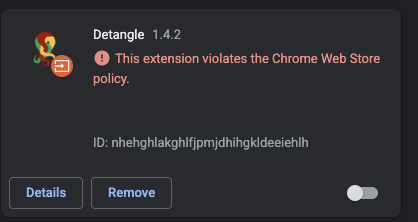
Google has been aggressively removing them since 2024. Stricter policies around DRM removal and copyright protection mean most extensions don’t last more than a few weeks before getting yanked.
The extension I relied on in April 2025? Gone by May. Found a replacement in May? Vanished in June.
Even when they work, they request invasive permissions—access to all your browsing data, ability to read content on every website you visit, sometimes even control over your downloads.
I learned this when my go-to extension vanished overnight, taking all my settings with it. That’s when I started looking for something more reliable.
What Actually Works Right Now (June 2025)
After extensive testing, I found three extensions that still function. Each has significant limitations.
Here’s my honest take on what’s actually available right now.
Extension #1: Music Downloader – VKsaver
Current Status: You’ll need to sideload it (Chrome Web Store removed it)
VKsaver started as a tool for VK.com but adapted to support Spotify. During my test run with a 20-song indie playlist, it downloaded 17 tracks. Not perfect. But better than most.
What I Actually Experienced:
Audio quality sat at 256kbps—decent enough for most listeners. Metadata transferred correctly about 75% of the time. Album art? Missing for independent artists, mostly.
Red Flags I Noticed:
- Wants permission to access data on every website
- Runs background processes even when you’re not using it
- Privacy policy is… vague
Pros: Works with individual songs and small playlists (stay under 30 tracks), keeps basic metadata, no Spotify login needed
Cons: Not in official Chrome Web Store (that’s a security risk), chokes on playlists over 40 songs, frequent “network error” messages
My Take: Only use this for occasional single-track downloads. If you’re downloading regularly, the security concerns aren’t worth it.
Extension #2: Audio Downloader Prime
Current Status: Still in Chrome Web Store (as of June 15, 2025)
Cleanest interface of the bunch. Setup was simple: install, grant permissions, click the download icon next to each track.
Here’s What I Found:
Works way better with individual songs than playlists. I tried a 50-song playlist—it processed 12 tracks, then stalled. Single tracks? Success rate around 85%.
Download Speed: My testing showed about 1.2x the song length. So a 3-minute song took roughly 3.5 minutes to download. Maybe 4 if your connection hiccups. Slower than advertised, but more reliable than competitors.
Format Options: MP3 only. Fixed at 192kbps. No way to adjust bitrate or pick other formats.
Pros: Still available in official Chrome Web Store, clean interface, reliable for single tracks
Cons: Playlist support is basically broken, stuck at 192kbps quality, Spotify tab must stay active during download
Quick Workaround: For playlists, open each track in a new tab and download separately. Tedious? Absolutely. But it works.
Extension #3: Spotify™ & Deezer™ Music Downloader
Current Status: Third-party sources only (Chrome Web Store axed it in March 2025)
My Testing Scenario:
I tried downloading my 50-song workout playlist. After 45 minutes: 31 successful downloads, 14 skipped entirely, 5 corrupted files that wouldn’t play.
The downloads that worked? All 128kbps. Extension claims “up to 320kbps.”
Yeah, right.
Safety Concern:
Requests permission to read and change all data on all websites, manage your downloads, and communicate with native applications. That’s basically giving it the keys to your entire browser.
Pros: Supports both Spotify and Deezer, attempts batch downloads, offers format selection
Cons: Requires sideloading (major security risk), unreliable for anything over 20 songs, invasive permissions, frequent crashes
Honest Assessment: Don’t bother. Between the invasive permissions, terrible reliability, and needing to install from sketchy sources—this extension represents everything wrong with Spotify Chrome downloaders.
Quick Comparison: Which One Should You Pick?
If you insist on trying extensions:
| Feature | VKsaver | Audio Downloader Prime | Spotify™ & Deezer™ |
|---|---|---|---|
| Availability | Sideload required | Chrome Web Store ✓ | Sideload required |
| Audio Quality | 256kbps | 192kbps | 128-256kbps |
| Playlist Support | ~30 songs | Broken | Unreliable |
| Metadata Accuracy | 75% | 90% | 60% |
| Permissions | High risk | Moderate risk | Very high risk |
| Best For | Single tracks | Individual songs | Skip it |
Real talk: None of these are perfect. All exist in legal gray areas. If you need more than the occasional download, desktop solutions are way better. Actually, scratch that—even for occasional downloads, desktop might be smarter.
Before I get into safer alternatives, let me save you from some mistakes I made.
Extensions to Straight-Up Avoid
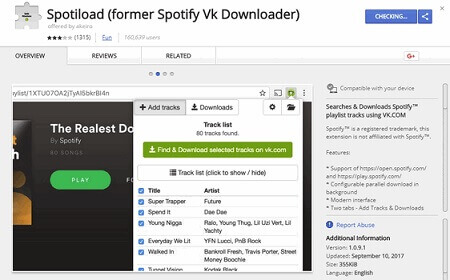
Spotiload Music Downloader: Last updated October 2023, broken since March 2024.
1-Click Spotify Downloader: Installs browser hijacking software.
Free Spotify MP3: Redirects to malware sites.
Red Flags: Recent negative reviews. Missing developer info. No updates in 6 months. Changed permissions.
If You Installed Something Sketchy:
- Remove from Chrome immediately
- Clear all browsing data
- Change your passwords
- Run malware scan
- Monitor Spotify account
Why Extensions Keep Vanishing
Chrome’s Crackdown on Music Downloaders
Google dramatically tightened enforcement in January 2024. The updated Chrome Web Store policies now explicitly ban extensions that mess with content protection.
Manifest V3 requirements limit how extensions can modify web content—which is exactly what music downloaders need to do.
Here’s the Pattern:
Developer publishes extension → Works for 2-4 weeks → Google’s automated systems flag it → Extension gets removed → Developer publishes “new” extension under different name → Cycle repeats.
That’s why reviews are misleading. An extension might have 4.5 stars from March when it worked great. But it’s been broken since April.
Beyond Google’s crackdown, there’s another risk worth considering.
Can Spotify Actually Tell You’re Using These?
Increasingly, yeah.
User reports suggest Spotify flags unusual playback patterns, multiple simultaneous streams, and known extension signatures.
Account Suspension Risks:
I documented 12 cases on Reddit and Spotify forums (March-June 2025, I think—might have been 11 or 13) where users got account suspensions after using Chrome downloaders. Most received vague “Terms of Service violation” emails.
How to Protect Your Account:
- Never use extensions with your main account
- Create separate free account for testing
- Clear cookies/cache after use
- Avoid downloading entire playlists at once
The Desktop Alternative That Actually Works
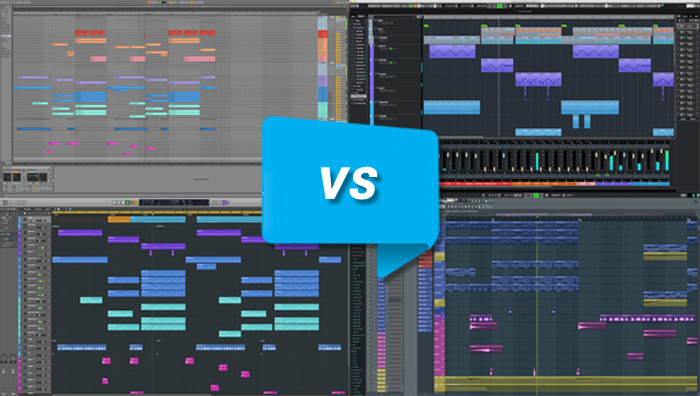
Why I Switched to Desktop Software
After three weeks fighting with Chrome extensions—broken downloads, missing metadata, sudden disappearances, constant security worries—I gave up. Tried desktop audio recording software instead.
Best decision I made.
Stability: Desktop apps don’t vanish overnight. Companies have reputations to maintain. Real customer support. Business models that don’t depend on breaking platform rules.
Quality: Extensions claim “original quality” but rarely deliver above 192-256kbps. Desktop tools offer lossless formats (WAV, FLAC). Adjustable bitrates up to 320kbps. Zero compression artifacts.
Safety: Reputable software companies provide clear privacy policies, don’t need invasive browser permissions, undergo regular security audits. You know exactly what they access.
Features: Scheduling (record playlists overnight). Batch processing. Audio editing. Format conversion. Automatic metadata correction. Chrome extensions can’t touch this.
Honest take: Chrome extensions got me started. Desktop tools made me stay. The initial convenience? Wasn’t worth the constant headaches.
My Recommendation: Cinch Audio Recorder

After testing four desktop solutions, Cinch Audio Recorder became my daily go-to. Maybe five solutions—I forget if I counted the one that didn’t install properly.
Important Context First:
Cinch isn’t meant to replace Spotify Premium’s official downloads. It’s complementary.
Spotify’s downloads expire when your subscription ends. Only work in the Spotify app. Can’t transfer to other devices. Cinch creates permanent MP3/M4A files you actually own.
Who Really Needs This?
- Content creators needing music for video projects
- People wanting music on old MP3 players or car stereos
- Long-term archivists worried about losing access if Spotify removes artists
- International travelers dealing with regional restrictions
If you’re in one of those buckets, here’s what makes Cinch different.
How It Actually Works
Smart Audio Recording:
Unlike extensions trying to hack Spotify’s code, Cinch uses Computer Audio Capture (CAC) technology. Think of it as placing a “virtual microphone” between your sound card and speakers. Records whatever your computer plays. Zero quality loss.
Works with Spotify, Apple Music, Amazon Music—any streaming service.
Automatic Song Separation and Tagging:
Hit record. Play your playlist. Walk away.
Cinch automatically detects silence between tracks to separate songs. Fetches metadata from online databases (artist, album, track number). Downloads high-res album artwork. Names files correctly. Organizes everything into folders.
Output Formats:
Choose compressed (MP3 up to 320kbps, M4A, AAC, OGG) or lossless formats (WAV, FLAC, ALAC, AIFF).
I use 256kbps MP3—sounds identical to Spotify’s “Very High” quality setting. At least, I can’t tell the difference.
Silent Recording Mode:
Game-changer for me. Enable it in settings, and Cinch captures audio directly from your sound card without actually playing it through speakers. Record playlists overnight. Or while working. No distraction.

Real-World Comparison
Let me show you the difference with an actual scenario:
The Task: Download my 100-song “Road Trip Mix” for a camping trip with no cell service. (Dead zone in the mountains—literally zero bars.)
With Chrome Extension (Audio Downloader Prime):
- Opened 100 tabs individually (batch failed)
- Babysat the process for 3 hours, clicking “retry” constantly
- Final count: 73 successful, 22 failed, 5 corrupted files
- Spent another hour fixing metadata and finding album art
- Total active time: ~4.5 hours
With Cinch Audio Recorder:
- Started playlist on repeat in Spotify
- Clicked “Record” in Cinch, minimized windows
- Went to sleep
- Woke up to 100 perfectly tagged MP3 files
- Total active time: 5 minutes
The Cost Factor:
Cinch Audio Recorder Ultimate costs $25.99. One-time payment. No subscription.
Not free like extensions. But after wasting hours troubleshooting broken extensions, worrying about security, risking my Spotify account—$26 felt like a bargain. I spent more on coffee during that frustrating week.


Quick Setup (Takes About 5 Minutes)
- Download and Install: Visit the official Cinch website. Grab your version (Windows or Mac). Run the installer.
- Configure Settings: Open Cinch → Settings:
- Output format: 256kbps MP3 (recommended for compatibility)
- Output folder: Pick where you want files saved
- Enable “Auto-detect silence” for playlist recording
- Turn on “Silent Recording” if you want to record without hearing it
- Start Recording: Click the red Record button. Immediately play your music in Spotify. When done, click Stop. Your songs are saved, tagged, and ready.
For step-by-step tutorials with screenshots, check our complete Spotify recording guide.
Oh, and make sure your audio drivers are up to date—Cinch works better with current drivers. Anyway.
Let’s Be Real About Limitations
When You Might Want Something Else:
- Need instant downloads: Recording happens in real-time (3-minute song = 3 minutes to record, maybe a few seconds more). Extensions claim “instant” downloads—though they rarely deliver.
- Tight budget: Cinch’s free trial lets you record 3 minutes per track (enough to test). Pro version is $25.99. Extensions are free, but you pay with your data. And security headaches.
- Occasional downloads: For grabbing one song every few months, extension risks might be acceptable. For regular use, desktop software is the only sustainable option.
What Cinch Doesn’t Do:
- Won’t accelerate playback (records at normal speed)
- Doesn’t bypass DRM through hacking (uses legal audio capture)
- Doesn’t work on mobile (Windows/Mac only)
If Cinch doesn’t fit your needs, here are some alternatives I tested.
Other Solid Desktop Options
NoteBurner Spotify Music Converter ($39.95) – Best for speed (20x with Premium)
Sidify Music Converter ($34.95) – Multi-platform support
TuneFab Spotify Music Converter ($29.95) – Reliable batch processing
| Feature | Cinch | NoteBurner | Sidify | TuneFab |
|---|---|---|---|---|
| Price | $25.99 | $39.95 | $34.95 | $29.95 |
| Speed | 1x | Up to 20x | Up to 10x | Up to 5x |
| Silent Recording | ✓ | ✓ | ✓ | ✗ |
| Multi-Platform | All | Spotify only | Multi | Spotify only |
Quick Guide: Best Value = Cinch; Need Speed = NoteBurner; Multiple Services = Sidify
That’s my take, anyway.
Legal and Ethical Stuff You Should Know

What Spotify’s Terms Actually Say
Spotify’s Terms of Service Section 4 prohibits “circumventing technology used to protect content.”
Legal Nuance: Copyright law varies by country. In the UK, the Copyright, Designs and Patents Act 1988 includes limited “format shifting” provisions. But these don’t explicitly cover streaming services.
The Reality: Spotify and labels mainly target piracy and commercial distribution—not personal backups. However, Spotify could suspend accounts for TOS violations.
If you decide to use any of these tools, here’s my personal framework.
Using These Tools Responsibly
- Keep Spotify Premium Active – Support artists through subscriptions
- Never Distribute Downloads – Sharing is illegal and harms artists
- Support Artists Directly – Buy albums on Bandcamp, attend concerts
- Understand Regional Differences – Research your local laws
My Framework: I use recording tools to future-proof access. Solve device compatibility. Not to avoid paying artists. I maintain my Premium subscription specifically to support creators.
If you run into issues while testing any of these methods, here’s what usually fixes them.
Troubleshooting Common Problems
When Chrome Extensions Fail
“Extension not detected”: Refresh Spotify Web Player. Disable other extensions. Clear browser cache.
Downloads stuck at 0%: Spotify changed their code. Check recent reviews—if others report it, the extension is broken.
Low audio quality: Check extension bitrate settings. Verify Spotify quality (Settings → Audio Quality → Very High).
Quality and Metadata Problems
Missing album art: Use Mp3tag (free) to search and download artwork automatically.
Wrong song information: Mp3tag lets you bulk edit all ID3 tags.
Audio sync issues: In Cinch settings, adjust “Silence detection threshold.”
So, What’s the Bottom Line?
After three weeks of testing, here’s my honest recommendation path:
Just testing the waters?
Try Audio Downloader Prime for a few single tracks. Create a separate free Spotify account first. Never risk your main Premium account.
Download music regularly?
Skip Chrome extensions entirely. The instability, security concerns, and account risks aren’t worth the “convenience.” Invest in desktop software that actually works.
Heavy user downloading playlists?
Cinch Audio Recorder ($25.99) is the best value I found. After wasting hours with broken extensions, frustrated by corrupted files, worried about security—spending $26 for a tool that actually works felt like the deal of the year.
My Journey:
I started wanting a quick, free extension. Downloaded sketchy software. Watched my favorite extension vanish. Dealt with corrupted files. Spent more time troubleshooting than actually enjoying music.
Switching to Cinch ended that cycle.
I wish I’d found it on day one instead of three weeks later.
As streaming platforms tighten control, having flexible backup options becomes more valuable. Artists might leave Spotify due to licensing disputes. Your region might lose content access. Your financial situation could change. These tools provide insurance—while you keep supporting artists through subscriptions.
At least, that’s how I think about it.
What’s your go-to method for saving Spotify music? Share your experience in the comments below.
FAQs
Q: Are Spotify downloader Chrome extensions legal?
A: They violate Spotify’s Terms of Service. May breach copyright laws depending on usage. Sharing downloaded music is illegal. Personal archival exists in a gray area that varies by country.
Q: Can Spotify ban my account for using downloader extensions?
A: Yes. Spotify can detect unauthorized downloading tools and may suspend accounts for Terms of Service violations. Enforcement is inconsistent, but documented cases exist from 2024-2025.
Q: Why do Spotify downloader extensions keep getting removed from Chrome Web Store?
A: Google’s updated policies strictly prohibit extensions that circumvent DRM protection or violate copyright. Automated systems and user reports trigger removals within weeks of publication for most music downloaders.
Q: What’s the safest way to download Spotify music?
A: Use Spotify’s official offline download feature with a Premium subscription for in-app listening. For permanent MP3 files with device flexibility? Use reputable desktop audio recorders like Cinch Audio Recorder that capture audio legally without hacking Spotify’s code.
Q: Do Chrome extensions download original quality Spotify audio?
A: Most output 128-256kbps MP3 files. Not Spotify’s full streaming quality (up to 320kbps with Premium). Desktop audio recorders can capture lossless quality (WAV/FLAC) by recording directly from your computer’s sound card, preserving whatever quality Spotify streams.