Last month, I was prepping my music library for a DJ gig when I hit a wall. All those perfectly curated Tidal playlists I’d spent weeks building? Completely useless for Serato DJ. Tidal’s offline downloads only work inside their app—no way to import them into actual DJ software or even transfer to a USB drive for my car.
Not gonna lie, I was frustrated.
Here’s the thing though. I figured out several working methods to rip music from Tidal while keeping the HiFi and Master quality intact. Some are completely free (if you’re comfortable with command-line tools), while others offer a simple one-click solution. By the end of this guide, you’ll know exactly which method fits your needs—whether you’re a DJ, an audiophile, or just someone who wants their music library under their control.
What Is a Tidal Music Ripper?
A Tidal ripper is software that captures audio from Tidal’s streaming service and saves it as MP3, FLAC, or WAV files. Pretty straightforward concept.
But here’s where it gets interesting—not all rippers work the same way.
Converters download tracks directly from Tidal’s servers. Fast. Tools that can rip at 10X speed, so a 4-minute song takes maybe 30 seconds.
Recorders capture whatever’s playing on your computer in real-time. Less exciting speed-wise, but they work with any streaming service—Tidal, Spotify, Apple Music, doesn’t matter.
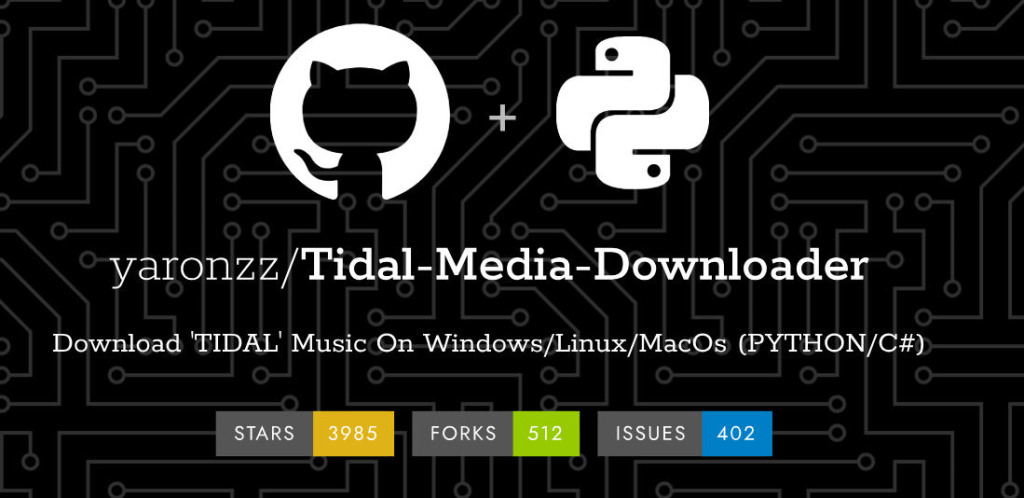
Command-line tools are the free option. Tidal-Media-Downloader on GitHub is powerful if you’re comfortable with terminal commands and Python environments. If not? Probably skip this one.
I started with converters because speed seemed important. Switched to recording later when I realized I needed something that worked across different platforms without breaking every time Tidal updated their API.
Why You Might Need One
Tidal’s offline downloads only work inside their app. The problems:
- Can’t import into DJ software (Serato, Rekordbox)
- Won’t play on MP3 players or car USB drives
- Lose everything if you cancel subscription
- DRM locks files to Tidal’s ecosystem only
I learned this during a road trip—my car stereo couldn’t read Tidal’s protected files.
Understanding Tidal Audio Quality

Tidal offers two quality tiers with important differences.
Tidal HiFi vs Master Quality Explained
HiFi is standard CD quality—16-bit/44.1kHz FLAC at 1,411 kbps. Lossless. Sounds excellent on any decent headphones or speakers.
Master is where marketing gets messy. Tidal calls it “studio quality” at 24-bit/96kHz, but it uses MQA compression that “folds” high-res audio into smaller files. You need MQA-certified hardware to properly “unfold” it. Without that? You’re basically getting HiFi with extra processing steps.
Honestly, unless you’ve got an MQA DAC, the difference is negligible.
The MQA Situation in 2025
So Tidal announced they’d ditch MQA for proper FLAC back in… 2024, I think? The rollout’s been weird. Many Master tracks still use MQA encoding even though the app removed all the MQA badges and indicators.
Here’s my take: stick with HiFi. Smaller files, better device compatibility, and unless you have MQA-certified gear, it sounds identical to Master on standard equipment anyway.
What Quality Can You Rip?
Here’s what actually determines your ripped quality—I had to learn this through trial and error:
Your subscription tier – HiFi unlocks Master quality downloads. HiFi gives you CD-quality FLAC. I initially wasted time trying to rip Master tracks with just a HiFi subscription—the tool kept giving me 16-bit files no matter what settings I changed.
Your tool’s capabilities – Not all rippers support Master quality. Some free tools max out at HiFi regardless of your subscription. Check specifications before investing time in batch downloads.
The source file itself – Even with HiFi , some albums are only available in HiFi. I’ve seen this with older catalog titles and certain indie labels. The tool will download the highest available quality, which might not be Master.
Recording software captures whatever quality Tidal streams to your system. Converters preserve the original bitrate without re-encoding.
Best Methods to Rip Music from Tidal
Let’s get into the actual solutions. I’ve tested all of these personally, so I’m sharing what worked (and what didn’t).
Method 1: Desktop Tidal Music Converters
These are paid apps that download straight from Tidal’s servers. Fast—like 10X real-time speed fast.
| Tool | Price | Quality | Formats |
|---|---|---|---|
| Tidabie | $39.95 | Master/HiFi | 6 formats |
| NoteBurner | $34.95 | Master/HiFi | 6 formats |
Both offer free trials, but they cap you at 1-minute samples per track. Enough to test, not enough to actually use. Full licenses run around $35-40.
The catch? They’re Tidal-only. If you also want to rip from Spotify or Apple Music, you’ll need separate tools for those.
Method 2: Audio Recording Software (Recommended)
This is the approach I ultimately stuck with—using audio recording software to capture Tidal playback in real-time.
Most people start with Tidal’s built-in offline feature. That works fine if you’re only listening on your phone or tablet.
Where Official Downloads Fall Short
But here’s where it gets annoying:
- Can’t export tracks to DJ software like Serato or Rekordbox
- No playback on standard MP3 players or car USB drives
- Lose all downloads if you cancel your subscription
- Transfer restrictions make sharing between your own devices complicated
Last year during a road trip, I had this exact problem. Downloaded 20 playlists for offline listening, but forgot they’re locked to the Tidal app. My car’s USB player couldn’t read them. Ended up listening to FM radio like it was 2010.
Cinch Audio Recorder as a Solution
That’s when I started using Cinch Audio Recorder. It’s not a “Tidal ripper” in the traditional sense—it’s a recording tool that captures any audio playing on your computer.
Here’s why it actually helps:
Works with any streaming service – Not limited to Tidal. I also use it for Spotify, Apple Music, even YouTube mixes when I’m studying.
Automatic song splitting – Records the playlist, then automatically detects silence between tracks to split files. No manual editing needed.
Metadata recognition – Uses ACRCloud to identify songs and auto-fill artist, title, album art. Saves hours of manual tagging.
Multiple output formats – Can save as MP3, FLAC, WAV, M4A, or other formats. I usually go with MP3 320kbps for car use and FLAC for archival.

My Setup Process
Here’s how I actually use it:
- Open Tidal desktop app or web player, pull up the playlist I want
- Launch Cinch, hit the big red Record button
- Click play on Tidal and let it run (I usually do this overnight for long playlists)
- When done, Cinch splits everything into individual tracks with correct names and metadata
The recording happens silently in the background—I can mute my speakers or even use my computer normally. Cinch taps directly into the sound card output, so it captures the pure digital audio without any quality loss.
What I Like
Simplicity – No dealing with Tidal’s API, no worrying about updates breaking the tool. It just records whatever plays.
Flexibility – Works for anything: podcasts, internet radio, online courses, not just music.
One-time purchase – Unlike subscription-based converters, you buy it once and own it forever.
Quick Tip: Keep Tidal’s volume at maximum during recording. The recording quality depends on the playback volume—lower volume means lower quality recording. You can always adjust the volume after exporting.
Download Cinch Audio Recorder and never lose access to your curated playlists again:


Method 3: Free Open-Source Tools
If you’re comfortable with command-line tools and don’t mind a steeper learning curve, GitHub has some powerful free options.
The most popular is Tidal-Media-Downloader by yaronzz. It’s a Python-based tool that downloads tracks directly from Tidal’s servers—no recording, just pure downloads.
What You Need:
- Python 3.8 or newer installed on your computer
- Active Tidal subscription (HiFi for Master quality downloads)
- Basic comfort with terminal/command prompt operations
- Willingness to troubleshoot occasional API issues
Installation (simplified):
pip install tidal-dl
Then run tidal-dl in your terminal and follow the prompts to log in with your Tidal credentials. From there, you can paste track, album, or playlist URLs to download.
The tool offers impressive flexibility: choose output quality, customize file naming, batch download entire playlists, and preserve original album art and metadata automatically.
The Real Talk on Free Tools
I tested Tidal-Media-Downloader maybe… six months ago? Worked well. But the learning curve is real compared to those one-click paid tools.
What I wish someone had told me:
Configuration happens in text files or via command-line flags. No settings menu to click through.
API authentication breaks when Tidal updates their backend. Happens every few months. You’ll spend 20 minutes Googling error messages and updating your install.
There’s a GUI version (tidal-gui) but it’s way less stable. Stick to command-line if you go this route.
Oh, and Master quality downloads fail sometimes. HiFi usually works fine though.
The biggest gotcha hit me during initial setup. The wizard asks you to pick an API key type from a numbered list. I picked Android TV (option 3) because it sounded more stable. Wrong. Constant authentication errors. Turns out Android Auto (option 4) is what you want. That mistake cost me an hour of my life.
Other Free Options Worth Mentioning:
- OrpheusDL – Another command-line downloader supporting Tidal, Qobuz, and Deezer (more versatile but even more complex)
- TidalCache – Windows-only application that automatically downloads tracks from your “Favorites” library
- Tidal-DL-GUI – A graphical version of Tidal-Media-Downloader, though less actively maintained
Important Safety Reminder: Only download these tools from their official GitHub repositories. I’ve seen sketchy websites hosting modified versions with embedded malware or cryptominers. Stick to the official sources—check the repository stars and recent commit activity to verify legitimacy.
Output Formats and Quality Settings
Format Quick Reference
Lossy (MP3, AAC): Smaller files, quality loss through compression.
Lossless (FLAC, WAV, ALAC): Larger files, perfect bit-for-bit copies.
Here’s what I’ve learned after ripping thousands of tracks:
| Format | Size (4min) | Best For | My Real-World Take |
|---|---|---|---|
| MP3 320kbps | ~10 MB | Car audio, phones | Can’t hear the difference from lossless in my car |
| FLAC | ~35 MB | DJ software, archival | Use this for tracks I play repeatedly |
| WAV | ~45 MB | Pro editing | Only for studio work—no metadata support |
| ALAC | ~35 MB | Apple devices | Perfect if you’re deep in Apple ecosystem |
Common mistake I made: I initially ripped everything to WAV thinking “bigger = better.” Turns out WAV doesn’t store metadata—no album art, no artist names. Had to re-rip 200 tracks to FLAC just to get proper tags.
My current strategy:
- DJ software: FLAC (full dynamic range, metadata support, beatgrid compatibility)
- Car audio: MP3 320kbps (most car speakers can’t justify lossless anyway)
- iPhone/iPad: ALAC (Apple’s native lossless format, seamless with iTunes)
Storage reality check: 100 songs = 3-4 GB in FLAC vs 800 MB in MP3 320kbps. If you’re building a 1000 track library, that difference adds up fast.
Using Ripped Tidal Music in DJ Software
Once you’ve ripped your Tidal tracks, getting them into DJ software is straightforward—but there are a few gotchas that tripped me up initially.
Importing to Serato DJ
- Setup → Library Display → button
- Add folder with ripped tracks
- Enable “Include subcategories” checkbox
- Serato auto-scans compatible files
Use FLAC or WAV for best quality. I tested both formats on club systems—couldn’t tell the difference sonically, but FLAC files are 30-40% smaller and retain all metadata.
Rookie mistake I made: Don’t rename files after Serato has analyzed them. The software links to original file paths. When I reorganized my folder structure, Serato couldn’t find 500 tracks and I had to reimport everything.
Adding to Rekordbox
- Preferences → Advanced → Browse
- Add Folder → select music directory
- Wait for indexing (can be slow for large libraries—grab coffee)
Format tip: Rekordbox prefers AIFF for metadata on older versions. FLAC works perfectly on Rekordbox 6 , which is what most DJs use now.
Critical step: Set cue points and beat grids after importing. Auto-analysis isn’t always accurate, especially for electronic tracks with long intros or tracks that change tempo. I once played a techno track at a warehouse party where Rekordbox had set the first beat grid 2 bars late—the mix was a trainwreck until I manually corrected it mid-set.
Tips for Successful Ripping
Lessons I learned by screwing up first. Save yourself the trouble.
Max out the player volume. Recording tools capture audio at whatever volume Tidal is playing. Player at 50%? You’re recording a quieter, lower-quality version. Max out Tidal’s volume slider, then mute your computer speakers if you need silence.
Use wired internet. Wi-Fi dropouts mid-recording = corrupted files and wasted hours. I once lost a 3-hour recording session because my router decided to reboot itself. Ethernet cable for long playlists. Trust me.
Set up folder structure first. Most tools let you configure folder structures like /Artist/Album/Track Number - Title. Do this before starting. The alternative is manually organizing thousands of files later, which is… yeah, don’t do that. Soul-crushing.
Turn on auto-tagging. If your tool supports ACRCloud or similar music recognition, enable it. The alternative is manually typing artist names, album titles, genres for every single track. That takes days.
Record overnight. Recording happens in real-time—2-hour playlist takes 2 hours. Queue stuff up before bed. Wake up to organized files. Works great.
Back up immediately. Two places minimum: external drive cloud storage (Google Drive, whatever). If your Tidal subscription expires, you can’t re-download anything. Learned that one the hard way too.
One more thing about those free command-line tools: Tidal updates their API regularly. When they do, tools like Tidal-Media-Downloader break. You’ll be troubleshooting authentication errors instead of ripping music. That’s honestly why I switched to recording—way less dependent on Tidal’s backend cooperation.
Troubleshooting Common Issues
Here are the problems I’ve actually encountered and the solutions that worked:
“Login Failed” Error
This drove me nuts for two hours when I first tried Tidal-Media-Downloader. The fix: Update your tool to the latest version first. For command-line tools specifically, use the Android Auto API key (option 4 in the setup wizard), not Android TV. I wasted time with Android TV thinking it would be more stable—it wasn’t.
“Low Quality” Downloads
Verify you have HiFi subscription active (check your Tidal account settings). Then check your tool’s output settings—make sure it’s not set to “Normal” or “High” when you want HiFi/Master quality. I once batch-ripped 50 tracks in “Normal” quality by accident and didn’t notice until I played them on a proper sound system. Had to re-rip everything.
“Missing Metadata” or Wrong Tags
If auto-tagging didn’t work, use MusicBrainz Picard—it’s free and incredibly accurate for batch editing. Just drag your folder in, click “Scan,” and it’ll match tracks to the MusicBrainz database. Fixed metadata for 200 tracks in under 5 minutes this way.
“iTunes Won’t Play FLAC Files”
Yeah, iTunes doesn’t support FLAC. Never has. Annoying.
Convert FLAC to ALAC or M4A using any audio converter—XLD on Mac, dBpoweramp on Windows, whatever you’ve got. ALAC is lossless and Apple-friendly. Works great for batch conversions.
Legal and Ethical Considerations
Let’s address the elephant in the room honestly. Tidal’s Terms of Service prohibit unauthorized downloading, even for paying subscribers.
Here’s my take after years in this space:
Personal backup / DJ use: Legal gray area with low enforcement risk. I’ve never heard of Tidal taking action against individuals making personal copies for offline use or DJ performance. That said, it’s technically against TOS.
Commercial distribution: Clear violation with real consequences. Selling ripped tracks, uploading to torrent sites, or using them in monetized content without proper licensing—these are the activities that actually get people in trouble.
Redistribution: Flat-out illegal. Don’t share ripped files publicly, period.
My personal approach: I maintain an active Tidal subscription (artists get paid through my plan), and I use ripped files solely for DJing and personal listening. Ripped files supplement my streaming habit, they don’t replace it. When I find artists I love, I buy their vinyl or merch to support them directly.
The reality check: DRM circumvention occupies legal gray areas in most jurisdictions. Recording-based methods (like Cinch Audio Recorder) are generally safer than direct ripping tools because you’re capturing audio as it plays rather than breaking encryption. That said, use these tools responsibly and support the artists whose music you enjoy.
FAQs About Ripping Music from Tidal
Q: Can I rip Tidal music for free?
Yeah, there are free tools like Tidal-Media-Downloader on GitHub. Catch is they need technical knowledge—Python, command-line stuff. Most reliable desktop converters cost money, though they usually have free trials. You get 1-minute samples per track. Enough to test functionality, not enough to actually build a library.
Q: Does ripping reduce audio quality?
Not if you use decent tools. Converters like Tidabie and NoteBurner preserve the original HiFi/Master quality bit-for-bit—no re-encoding. Recording software like Cinch Audio Recorder captures audio straight from the source without compression. You get exactly what Tidal streams.
Q: Can I rip Tidal Master/MQA quality?
Technically yes, but Tidal’s been transitioning away from MQA to standard FLAC throughout 2025. Most tools download FLAC now, which is actually proper lossless (MQA used “folded” compression). If you’re using an older tool or ripping older catalog tracks, you might still get MQA-encoded files. Check your output.
Q: Is it legal to rip Tidal songs?
Legal gray area. Tidal’s Terms of Service say no unauthorized downloads—even for paying subscribers. But enforcement targets large-scale piracy operations, not individual users making personal backups. Commercial use (selling tracks, monetized content) or public redistribution? That’s where you get in actual trouble. Personal DJ use or car audio? You’re probably fine, but technically against TOS.
Q: Can I use ripped Tidal music in DJ software?
Absolutely. Once ripped to standard formats like MP3, FLAC, or WAV, you can import them into Serato DJ, Rekordbox, or any other DJ software. That’s actually one of the main reasons DJs rip music—Tidal’s official DJ integrations require internet connectivity, while local files work offline.
Conclusion
That’s what works for me anyway. Your setup might need something different—DJ use, car audio, archiving, whatever.
Paid converters like Tidabie or NoteBurner? Fast (10X speed), around $40, but locked to Tidal only.
Recording software like Cinch? Slower since it’s real-time capture. But works with any streaming service, which is honestly why I switched to it.
Free GitHub tools are powerful if you know your way around Python and don’t mind troubleshooting when Tidal pushes updates.
Oh, and keep your Tidal subscription active. Artists get paid through that. Ripping is for convenience, not for ditching the subscription entirely.
If this all clicks for you, organizing music for DJ software is probably the next rabbit hole.