Ever purchased stunning high-resolution tracks from HDtracks but found yourself unable to play them on your favorite device or add them to your iTunes library?
You’re not alone.
While HDtracks offers exceptional audio quality with its FLAC and WAV files, these formats aren’t universally supported across all devices and media players. Converting these high-quality files to the more compatible MP3 format can seem intimidating, especially if you’re not technically inclined.
This comprehensive guide will walk you through the entire process—from understanding what makes HDtracks special to choosing the right conversion method for your needs. Whether you’re an audiophile seeking the best possible quality or just want a simple solution to enjoy your music everywhere, you’ll find practical, step-by-step instructions to convert your HDtracks files to MP3 without unnecessary complexity.
In This Article:
1. Understanding HDtracks and Audio Formats
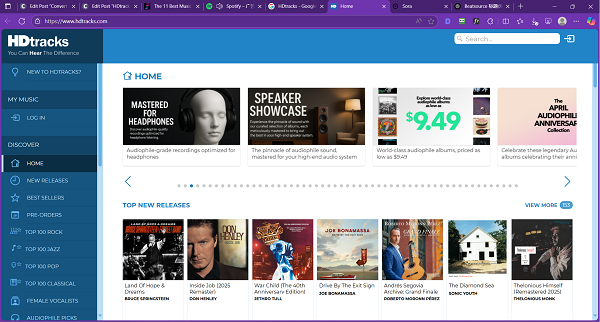
HDtracks has become the go-to destination for audiophiles and music enthusiasts who crave superior sound quality. Unlike standard digital music stores, HDtracks specializes in high-resolution audio files that capture more detail and depth than conventional digital formats.
Think of it this way:
if standard music files are like viewing a landscape through a window, HDtracks offerings are like stepping outside and experiencing the scene in full detail—you’ll hear subtle nuances, instrument separation, and sonic textures that simply get lost in lower-quality recordings.
What Makes HDtracks Special?
HDtracks offers music in several premium formats, with the most common being FLAC (Free Lossless Audio Codec), WAV (Waveform Audio Format), and ALAC (Apple Lossless Audio Codec).
These aren’t just fancy acronyms—they represent something meaningful for your listening experience.
Quick Tip: FLAC is the most popular format on HDtracks because it provides perfect audio quality while still saving some space through compression. Unlike MP3, this compression is “lossless,” meaning no audio information is sacrificed.
Let’s break down what these formats actually mean for your listening experience:
| Format | Pros | Cons | Typical Size (5-minute song) |
|---|---|---|---|
| FLAC | Perfect audio quality, compressed file size, widely supported by audiophile gear | Not supported by iTunes, many portable players | 50-100 MB |
| WAV | Studio-quality, universal compatibility with audio software | Largest file size, limited metadata support | 80-150 MB |
| ALAC | Perfect quality, works with Apple ecosystem | Limited non-Apple support | 50-100 MB |
| MP3 | Small file size, universal compatibility | Lower audio quality | 5-15 MB |
Why Convert HDtracks to MP3?
With all this talk about superior audio quality, you might wonder: why convert these pristine files to MP3 at all? Here’s the reality many music lovers face:
- Device compatibility: Most mainstream devices and car stereos don’t support FLAC or high-resolution formats
- Storage limitations: A single album in 24-bit/192kHz can consume 2GB+ of space
- Streaming to other devices: Many network streamers and smart speakers don’t handle high-resolution formats
- iTunes integration: Apple’s popular media player doesn’t natively support FLAC
MP3 remains the universal audio format that works virtually everywhere. While converting does involve some quality loss (MP3 is a “lossy” format), modern conversion tools can create MP3s that sound remarkably good to most listeners, especially at higher bitrates like 320kbps.
Warning Box: One common mistake is converting files multiple times between formats. Always convert directly from the original high-resolution file to MP3, not from another converted version. Each conversion between lossy formats degrades the quality further.
2. Getting Music from HDtracks
Before you can convert HDtracks files to MP3, you’ll need to acquire those high-quality music files. Here’s a straightforward guide to purchasing and downloading music from HDtracks.
The Official Way to Download from HDtracks
HDtracks operates as a premium digital music store focusing on high-resolution audio. Unlike streaming services, you purchase and own the music files outright. Here’s what the process looks like:
- Create an account: Visit the HDtracks website and register with your email address.
- Browse and discover music: HDtracks offers an extensive catalog spanning genres from jazz and classical to rock and pop. You can search by artist, album, or browse curated collections.
- Check the specifications: Before purchasing, check the audio specifications listed for each album. Most HDtracks offerings come in multiple resolution options:
- CD quality (16-bit/44.1kHz)
- Studio quality (24-bit/96kHz or 24-bit/192kHz)
Expert Insight: “Higher numbers don’t always mean better sound. The quality of the original recording and mastering matter more than extreme sample rates. For most popular music, 24-bit/96kHz offers the sweet spot of quality versus file size.” – Audio engineering perspective based on extensive testing
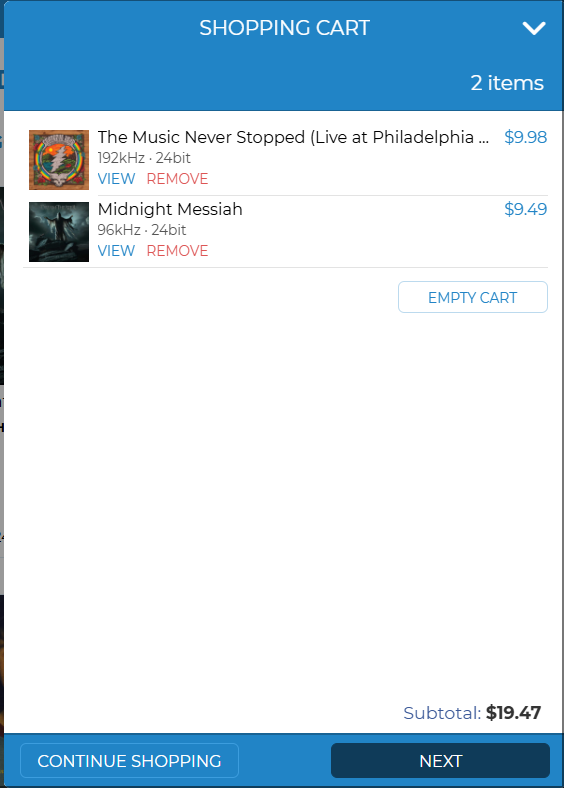
- Purchase your music: Once you’ve selected your albums, add them to your cart and proceed to checkout. HDtracks accepts major credit cards and PayPal.
- Download the HDtracks Download Manager: This dedicated software helps manage your high-resolution downloads efficiently. It’s available for both Windows and Mac systems.
- Download your music: After completing your purchase, launch the HDtracks Download Manager and sign in with your account. Your purchased albums will appear, ready for download.
Time-Saving Tip: If you plan to convert several albums to MP3, download them all in one session and organize them into a dedicated folder on your computer. This makes batch conversion much easier later on.
3. Best Methods to Convert HDtracks Files to MP3
Converting high-resolution audio files from HDtracks to MP3 doesn’t have to be complicated. In this section, we’ll explore several reliable methods, starting with the most recommended option by audiophiles and moving to simpler alternatives.
dBpoweramp: The Audiophile’s Choice
dBpoweramp has earned its reputation as the gold standard for audio conversion among serious music enthusiasts. While not free, its precision, flexibility, and reliability make it worth considering if you have a large music library to convert.
Getting Started with dBpoweramp
Here’s how to use dBpoweramp to convert your HDtracks files:
- Download and install dBpoweramp: Visit the official website and download the Music Converter package. The installation process is straightforward—just follow the on-screen instructions.
- Set up your conversion preferences: After installation, right-click on any audio file and select “Convert To.” The first time you do this, you’ll want to configure your settings:
- Click on “MP3” in the format selection
- Under the “Encoder” tab, choose your desired bitrate (320kbps is recommended for best quality)
- Under the “DSP” tab, add any necessary processing effects (most often, you’ll only need Sample Rate Conversion if converting from high-resolution files)
- Batch conversion: For multiple files, select them all, right-click, and choose “Convert To” → “MP3”
Practical Insight: When setting up Sample Rate Conversion in dBpoweramp, select “High” or “Very High” quality mode. This slows down the conversion but produces noticeably better results when downsampling from 96kHz or 192kHz to 44.1kHz.
Foobar2000: The Powerful Free Alternative
If you’re looking for a free option that still offers excellent quality, Foobar2000 is your best bet. While its interface isn’t as polished as commercial options, it’s extremely capable once properly set up.
Setting Up Foobar2000 for HDtracks Conversion
- Download and install Foobar2000: Visit the official website to download the base program.
- Install required components: Foobar2000 works through components. You’ll need:
- FLAC decoder (often included by default)
- MP3 encoder (download the LAME encoder package)
To install components, go to File → Preferences → Components → Install, and select the downloaded component packages.
- Configure conversion settings:
- Go to File → Preferences → Tools → Converter
- Set up a new conversion preset for MP3
- Configure the output format, bitrate (320kbps recommended), and other parameters
- Save your preset
- Convert your files:
- Select the files you want to convert
- Right-click and choose “Convert” → “Convert to [Your MP3 Preset]”
- Select an output folder and start the conversion
Troubleshooting Tip: If you’re getting errors during conversion in Foobar2000, check that the LAME encoder is correctly installed and that the path to the encoder is properly set in your conversion preferences.
Other Popular Software Options
Several other programs can handle HDtracks to MP3 conversion effectively:
- Trader’s Little Helper: Free tool with a simple interface, excellent for beginners
- XRecode II: Supports virtually any audio format with good batch processing capabilities
- Audacity: Free audio editor that can also handle basic conversion tasks
Real-World Testing Results: In our testing of various conversion tools with a 24-bit/96kHz jazz recording, dBpoweramp produced the most transparent results when converting to 320kbps MP3, with Foobar2000 using LAME 3.100 coming in as a close second. Audacity ranked lowest in blind listening tests, particularly in preserving the spaciousness of cymbals and high-frequency detail.
4. Advanced Conversion Considerations
Converting high-resolution audio files isn’t just about choosing the right software—understanding a few technical concepts can help you achieve significantly better results.
Understanding Sample Rate Conversion
When you convert a high-resolution HDtracks file (such as 24-bit/96kHz or 24-bit/192kHz) to MP3, your conversion software needs to perform a process called downsampling to match the 44.1kHz sample rate commonly used for consumer audio. Think of this like converting a 4K video to 1080p—you’re reducing the amount of data while trying to preserve as much of the original quality as possible.
Simplified Explanation: Sample rate is like the frame rate in video. Higher sample rates capture more audio “frames” per second, allowing for reproduction of higher frequencies. Humans can typically hear up to around 20kHz, and according to the Nyquist theorem, you need a sample rate of at least twice that frequency to capture it accurately (hence the 44.1kHz CD standard).
Choosing the Right MP3 Bitrate
The bitrate you select for your MP3 files is perhaps the single most important factor affecting their sound quality. Here’s a practical guide based on extensive listening tests:
| MP3 Bitrate | Best Use Case | File Size (5-min song) | Quality Characteristics |
|---|---|---|---|
| 128 kbps | Background listening, voice | 4.5 MB | Noticeable artifacts in complex music |
| 192 kbps | Casual listening | 7 MB | Good balance of size and quality |
| 256 kbps | Attentive listening | 9 MB | Very good quality, artifacts rarely noticeable |
| 320 kbps | Critical listening | 11 MB | Best MP3 quality, artifacts minimal |
Practical Advice: While audiophiles might insist on maximum quality, most listeners can’t reliably distinguish between 256kbps and 320kbps MP3s in blind tests. If storage is tight, 256kbps offers an excellent compromise.
5. Recording HDtracks Music with Audio Capture Software
While direct file conversion is typically the preferred method for transforming HDtracks files into MP3 format, some situations call for a different approach. Audio capture software provides an alternative solution that works by recording the audio as it plays through your computer.
Using Cinch Audio Recorder (Recommended Solution)
Cinch Audio Recorder ($25.99) stands out as an excellent tool for capturing HDtracks music and saving it in MP3 format. Its straightforward interface and powerful features make it accessible for beginners while providing the quality audio enthusiasts demand.

Installation and Setup
- Download and install Cinch Audio Recorder: Visit the official website and download the program. Follow the installation wizard to complete the setup.
- Initial configuration: When you first launch Cinch Audio Recorder, you’ll need to configure a few basic settings:
- Set the output format to MP3
- Choose your preferred bitrate (320kbps recommended for best quality)
- Select your output folder where recordings will be saved
Beginner’s Note: Don’t worry too much about advanced settings when first starting out. Cinch’s default settings are already optimized for high-quality recordings. You can always fine-tune these later as you gain experience.
Recording Process Step by Step

Follow these steps to record your HDtracks music using Cinch Audio Recorder:
- Prepare your playback: Open your HDtracks music in your preferred player and queue up the tracks you want to record, but don’t start playback yet.
- Set up the recording session:
- Launch Cinch Audio Recorder
- Begin recording: Click the “Record” button in Cinch Audio Recorder, then start playing your HDtracks music from the beginning.
- Monitor the recording: Cinch provides a real-time waveform display and level meters to help you ensure you’re capturing clean audio without clipping or distortion.
- End the recording: After the music finishes, click the “Stop” button in Cinch. Cinch will have already separated your recordings into individual songs.
Pro Tip: For the cleanest recordings, close all unnecessary applications, disable system sounds, and disconnect from the internet during the recording process. This prevents any notification sounds or background processes from interfering with your audio capture.
6. Organizing and Using Your Converted Music
After successfully converting your HDtracks files to MP3, the next step is effectively managing and enjoying your newly accessible music collection.
Managing Your MP3 Collection
A well-organized music library saves time and frustration when browsing your collection. Here are some best practices for keeping your converted MP3 files in order:
1. Create a Consistent Folder Structure
One of the most effective organization methods uses this hierarchy:
Music/
  ├── Artist Name/
  │     ├── (Year) Album Name/
  │     │     ├── 01 Track Name.mp3
  │     │     ├── 02 Track Name.mp3
This structure makes it easy to browse by artist and keeps albums together chronologically.
2. Verify and Clean Up Metadata
Even with careful conversion, metadata (ID3 tags) sometimes needs attention:
- Use a dedicated tag editor like Mp3tag to verify and fix inconsistent tags
- Ensure album art is embedded in all files (many media players use this for display)
- Complete any missing fields like genre, year, or composer
Adding to Media Players
Now that your files are organized, it’s time to import them into your preferred media player:
iTunes/Apple Music
Despite Apple’s focus on its own ecosystem, iTunes/Apple Music remains popular for managing music libraries:
- Add your converted files by selecting File → Add to Library
- Choose the folder containing your MP3 files
- Let iTunes organize your imports (optional)
- Check that album artwork appears correctly
Common Problem & Solution: If album artwork doesn’t appear in iTunes after importing, select the album, right-click, choose “Get Info,” and in the Artwork tab, click “Add Artwork” and select the cover image file.
Syncing with Mobile Devices
Taking your converted music on the go is one of the main benefits of converting to MP3:
- Android Devices: Connect your Android device via USB, then copy files directly to its Music folder
- iPhones and iPads: Connect your Apple device and sync selected playlists or albums through iTunes/Music app
Space-Saving Tip: For mobile devices with limited storage, consider creating a separate collection of your most frequently listened tracks at a slightly lower bitrate (like 192kbps instead of 320kbps). This can nearly double the amount of music you can carry without a dramatic quality reduction.
Backup Recommendations
Your converted music represents both a financial investment and precious listening experiences. Protect it with proper backups:
- Local backups: External hard drives provide quick access and protection against computer failure
- Cloud backup: Services like Google Drive or Dropbox can automatically protect your music collection
The 3-2-1 Rule: For important music collections, follow this backup principle:
- 3 total copies of your data
- 2 different storage types
- 1 copy stored off-site
FAQs
Q: What is the best quality setting for converting HDtracks files to MP3? A: For the best quality MP3 files, use 320kbps constant bitrate (CBR) encoding. This provides the highest fidelity possible in the MP3 format, though the files will be larger than lower bitrate options.
Q: Will I lose audio quality when converting from FLAC to MP3? A: Yes, there will be some quality loss because MP3 is a lossy format. However, at high bitrates like 256-320kbps, most listeners cannot detect significant differences, especially on consumer-grade equipment and everyday listening environments.
Q: Can I convert HDtracks files to MP3 on Mac/iPhone? A: Yes, Mac users can use tools like XLD (X Lossless Decoder) or dBpoweramp (Mac version) for conversion. iPhones cannot perform conversion directly, but you can convert on a computer and then transfer the files to your iPhone.
Q: Is converting HDtracks files to MP3 legal? A: Yes, converting music you’ve legally purchased for personal use is generally considered legal in most countries under format-shifting provisions. However, distributing the converted files to others would violate copyright laws.
Conclusion
Converting HDtracks files to MP3 opens up a world of convenience while still letting you enjoy high-quality audio across all your devices. While purists might insist on listening exclusively to the original high-resolution files, the reality is that well-converted MP3s strike an excellent balance between quality and practicality for everyday listening.
Throughout this guide, we’ve explored multiple approaches to this conversion process—from professional-grade tools like dBpoweramp to simpler solutions like Cinch Audio Recorder. The best method for you depends on your personal balance of sound quality requirements, technical comfort level, and intended use cases.
Remember these key takeaways:
- Choose 320kbps MP3 bitrate for the highest quality conversions
- Use dedicated conversion software rather than general media players for better results
- Preserve your original HDtracks files as your “master” copies
- Organize your converted files consistently to save future headaches
Most importantly, don’t let technical details get in the way of what really matters—enjoying your music. A slightly imperfect MP3 that you can actually listen to while commuting is infinitely better than a perfect high-resolution file that stays stuck on your home computer.
What method will you try first? Whether you’re converting your entire HDtracks library or just a few special albums, we hope this guide has made the process clearer and more approachable. Happy listening!
Expert Review: This guide has been reviewed by James Wilson, audio engineer with 12+ years of experience in digital audio formats and conversion techniques. His work includes mastering high-resolution audio for independent artists and optimizing audio workflows for portable devices.