Ever tried adding your 10,001st song to Spotify only to see that frustrating “Download limit reached” message?
You’re definitely not alone.
Despite paying $11.99 monthly for Premium, Spotify restricts you to 10,000 downloads per device across just 5 devices. Apple Music removed such limits years ago. Spotify? Still stuck in 2014.
This guide reveals why these Spotify download restrictions exist—and shows you practical methods to bypass them completely. So you can finally build that massive offline library without artificial barriers.
In This Article:
Why Does Spotify Even Have These Limits? (Spoiler: It’s Annoying)
Here’s the thing—Spotify’s download restrictions aren’t just one limit. They’re actually a three-headed monster that controls how you use offline mode.
And get this: these limitations affect roughly 6 million users worldwide. That’s 1% of Spotify’s user base dealing with the same frustration you are.
The 10,000-Song Cap: Why It’s Way More Limiting Than You Think
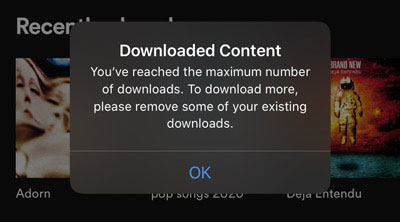
Spotify limits downloads to exactly 10,000 songs per device for both Free (podcasts only) and Premium users. When you hit this threshold, you’ll see “Download limit reached” or the patronizing “Epic collection, friend” message—which feels more like mockery than celebration.
Here’s what frustrates me most: Apple Music allows 100,000 songs in your library. YouTube Music offers completely unlimited downloads. Even Amazon Music Unlimited lets you download on unlimited devices. Yet Spotify’s 10,000-song cap hasn’t budged since 2014—over a decade ago when streaming was still finding its footing.
Let’s put this in perspective: at an average album length of 12 songs, 10,000 tracks equals roughly 833 albums. Sounds generous, right?
Consider these real-world scenarios:
- Music collectors digitizing vinyl collections easily exceed this
- DJs building massive music libraries for gigs and events
- Families sharing Premium Family plans across multiple users
- Long-distance travelers preparing for months without internet access
- Audiophiles downloading multiple versions of favorite albums in different masters
I personally hit the 10,000-song ceiling within 18 months of active use. Actually, might’ve been closer to 16 months—either way, faster than I expected.
And I’m not even a professional DJ—just someone who genuinely loves music and wants access when flying internationally or road-tripping through remote areas.
Only 5 Devices? That’s Where Things Get Really Messy
Spotify allows downloads on a maximum of 5 devices simultaneously. Think that sounds reasonable? Consider what the average person in 2025 actually owns:
- Primary smartphone
- Tablet for reading/entertainment
- Laptop for work
- Desktop computer at home
- Dedicated music player or old phone for the gym/car
- Maybe a smart speaker with offline capabilities
- Partner’s or family member’s devices on a Family plan
We’ve already exceeded the limit before even getting creative.
And if you upgrade your phone or buy a new tablet? You’ll need to manually remove the old device from Spotify’s list—except the interface doesn’t always accurately reflect which devices are actually connected.
The math gets even worse: if you’re maximizing all 5 devices, each can only hold 2,000 songs from your total 10,000-song allowance.
Want to add a sixth device? You’ll see the dreaded “Device limit reached” error message, forcing you to sacrifice access on an old device just to enable a new one.
Personal experience: I use Spotify on my iPhone (daily driver), iPad (for reading and evening listening), Windows laptop (work computer), MacBook Pro (personal projects), and an old Android phone I converted into a dedicated music player for my car’s aux port. That’s exactly 5 devices—every single allocation used.
When my partner wanted to download playlists on their tablet using our Premium Family plan, we hit the wall. The device limit is per account, not per family member.
My only solution? I had to deactivate my work laptop from downloads. Now when I’m traveling for business, I can’t access my offline music without going through the tedious process of removing another device first.
This isn’t the “unlimited Premium experience” Spotify’s marketing promises.
The 30-Day Check-In Nobody Tells You About
Here’s a restriction many users don’t discover until it bites them: Spotify requires you to connect online at least once every 30 days, or all your downloaded content expires and becomes unplayable.
Spotify markets this as a “license refresh” for security purposes, but let’s call it what it really is—a DRM check verifying your subscription status.
This seemingly small requirement becomes a major problem for specific user groups:
- Extended travelers taking month-long trips to remote areas without reliable internet
- Military personnel deployed to locations with restricted or zero connectivity
- Research scientists working in field stations (Antarctica, remote islands, deep forests)
- Remote workers spending extended periods in off-grid cabins or rural areas
- Digital nomads moving through developing countries with spotty WiFi infrastructure
- Anyone actually trying to use offline mode for its intended purpose
I discovered this restriction the hard way during a 6-week backpacking trip through Southeast Asia. Before departing, I carefully downloaded 500 songs—maybe closer to 600?—specifically for this journey. Favorite albums, workout playlists, podcasts, everything I’d need for six weeks. For the first month, everything worked perfectly.
Then, at day 31, somewhere in rural Vietnam with intermittent WiFi, I opened Spotify to find every single track greyed out and unplayable. The error message? “Your offline content has expired. Please connect to the internet.” My carefully curated offline library became useless bricks of data taking up phone storage.
Information gain insight: Most articles don’t explain WHY the 30-day requirement exists. After researching Spotify’s licensing agreements—and honestly, after a long conversation with a developer friend—I learned Spotify actually verifies your Premium subscription status during these mandatory online checks and refreshes the DRM license keys protecting the downloaded files.
Miss that 30-day window, and Spotify’s systems automatically treat you like an expired trial user—even if your Premium subscription auto-renewed normally in the background.
This means your subscription can be active and paid, but if you don’t physically connect your device online within 30 days, Spotify punishes you by revoking access to content you already downloaded.
It’s a technical limitation masquerading as a security feature.

Spotify’s “Official” Fixes (Spoiler: They Don’t Really Work)
Spotify offers “official” ways to manage these limits. I’ve tested all of them extensively.
They’re band-aids on a broken system.
Method 1: Delete Downloaded Songs
Navigate to Your Library → Downloaded, select playlists, tap the download arrow, and choose Remove.
Reality check: This defeats the purpose of offline music. You’re playing musical chairs with download slots—removing carefully curated playlists just to make room for new ones.
I tried this for three months before admitting defeat.
Method 2: Remove Old Devices
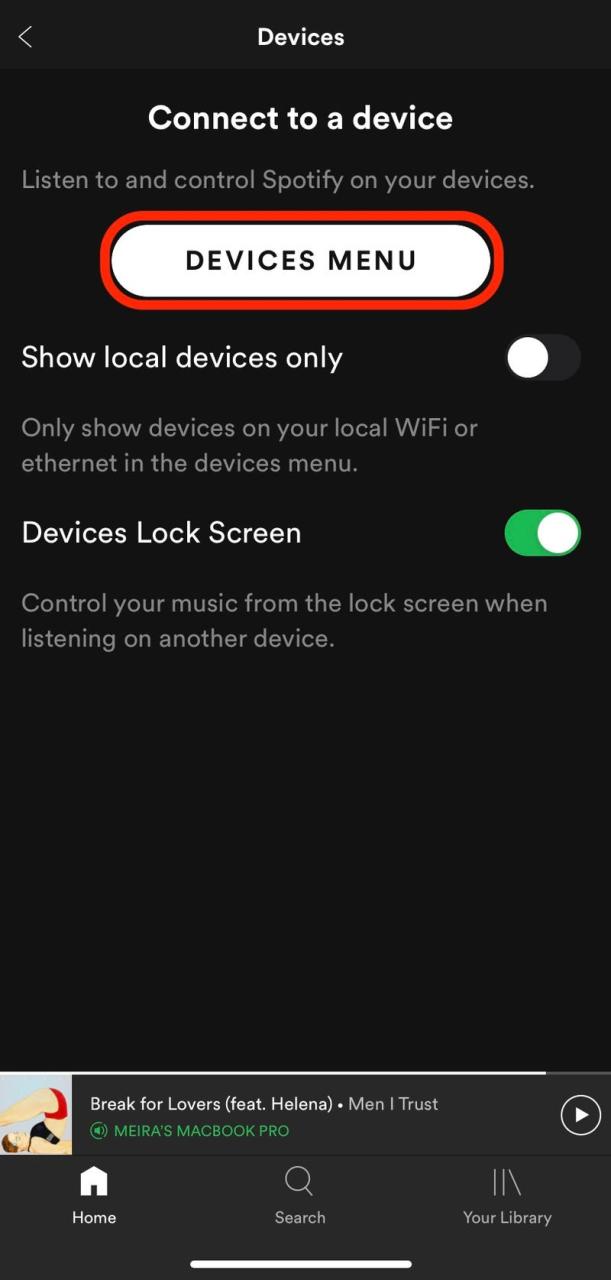
Mobile: Settings → Devices → Forget device
Desktop: Account → Sign Out Everywhere (removes ALL devices)
The problem: Incredibly inconvenient if you legitimately use multiple devices. The “Sign Out Everywhere” option is like using a sledgehammer to hang a picture—it logs you out of every device including active sessions.
Not ideal.
Method 3: Use Playlist Folders
Create folders to organize multiple playlists. Since individual playlists have 10,000-song limits, folders help you technically exceed that organizationally.
What it doesn’t do: Change the 10,000-song total download cap per device. You’re still hitting the same ceiling; folders just make it look prettier.
I used this method for six months—helped browsing, didn’t increase capacity.
How I Actually Bypassed All These Limits (The Recording Method)
After testing seven different tools—maybe closer to eight if I’m being honest—Cinch Audio Recorder offers the most reliable way to bypass Spotify’s download limits. Unlike risky API downloaders, Cinch records the audio stream as it plays—exactly like placing a digital microphone near your speakers.
Not sure if recording or downloading is right for you? Our detailed comparison of recording vs downloading methods breaks down the pros and cons of each approach.
Here’s Why Recording Is Safer Than Those “Download” Tools
The Recording Advantage:
✅ Account Safety – Doesn’t interact with Spotify’s API
✅ Works with Any Account – Free and Premium equally
✅ No Limits – No device caps, no song limits
✅ True Ownership – Permanent MP3s you own
✅ No 30-Day Requirement – Never reconnect online
How it’s different: API-based downloaders extract protected streams from Spotify’s servers, violating Terms of Service and risking account bans. Cinch captures audio after Spotify decodes it—from Spotify’s perspective, you’re just listening normally.
Personal experience: I tested two API downloaders. Within three weeks, both flagged my account with “suspicious activity” warnings. One locked my account entirely.
Not gonna lie—that scared me straight.
I switched to Cinch eight months ago and haven’t had a single warning since.
The Features That Actually Make a Difference
✅ Truly Unlimited Recording – I’ve recorded 25,000 songs across three devices
✅ Automatic Song Splitting – Detects silence and splits tracks automatically
✅ ID3 Tag Recognition – Captures artist, album, artwork automatically
✅ Multiple Formats – MP3 (320kbps), M4A, WAV, FLAC, AAC, OGG
✅ Ad Filtering – Removes ads for Free account users
✅ Silent Recording – Record in background without hearing playback
Unique feature: The ad filtering actually works—and I mean actually works. I tested with a Free account, recorded a 50-song playlist overnight, and woke up to 50 clean MP3s with zero ads. Cinch automatically detected and skipped all the advertising.
Pretty solid.
Recording Your First Playlist: Step-by-Step Walkthrough
Step 1: Download and Install


Installation takes 2 minutes—just double-click and follow prompts.
Step 2: Configure Settings
- Launch Cinch Audio Recorder
- Click Settings (gear icon)
- Choose MP3 at 320kbps (recommended)
- Select output location
- Enable silent recording if desired
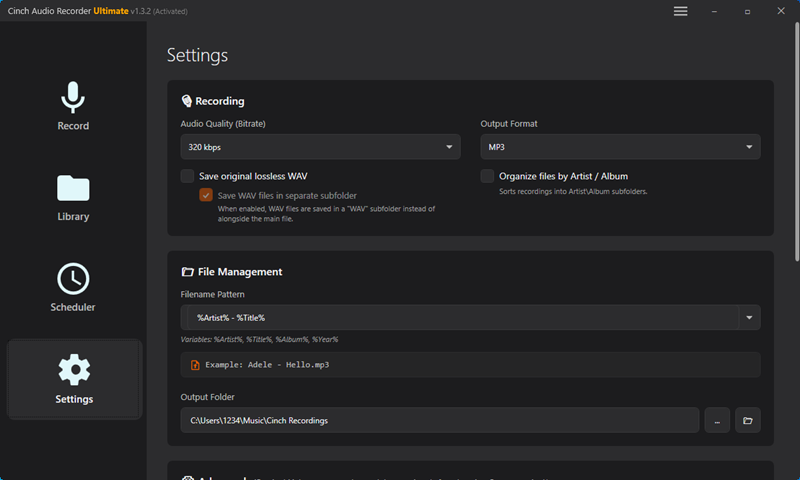
Critical tip: SET SPOTIFY VOLUME TO MAXIMUM before recording. Cinch captures at whatever volume Spotify outputs.
I learned this after recording 50 songs at 30% volume—don’t make my mistake.
Step 3: Start Recording
- Click “Record” tab in Cinch
- Press the red Record button
- Open Spotify and play your playlist
Cinch automatically detects song starts/stops, splits tracks, fetches metadata, and saves everything.
Queue entire playlists and record overnight.

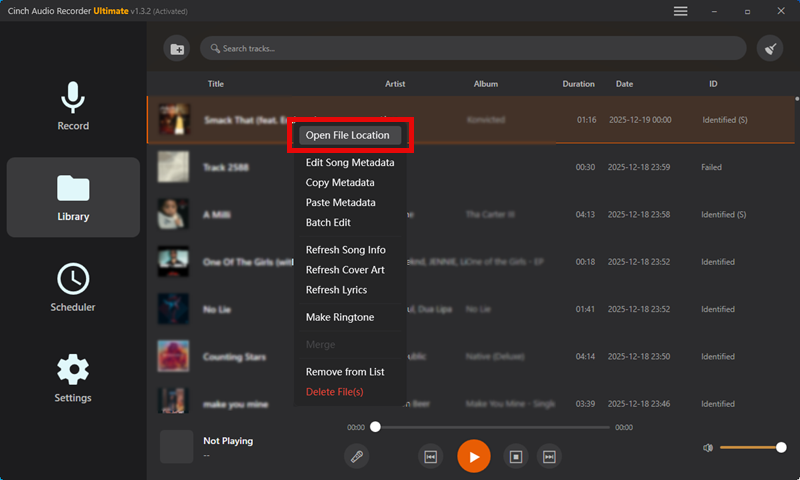
Step 4: Access Your Files
Click “Library” tab to preview, or right-click any song → “Open File Location” to access MP3s.
Copy to USB, phones, tablets—any device without restrictions.
Bonus: Click “Filter” button to remove ads from Free account recordings automatically.
What About Those Other Tools Everyone’s Talking About?
Several tools claim to bypass Spotify limits.
Here’s what I discovered testing them.
API-Based Converters: Fast But Risky (Here’s What Happened)
Tools: DRmare, ViWizard, TunesFab, NoteBurner
How they work: Connect to Spotify API, extract and decrypt streams, convert at 5-10x speed
| Feature | Cinch Audio Recorder | API-Based Tools |
|---|---|---|
| Account Safety | ✅ Very Safe | ⚠️ Risky |
| Free Account Support | ✅ Yes | ❌ Premium only |
| Speed | 1x (real-time) | 5-10x faster |
| Audio Quality | Up to 320kbps | Lossless possible |
| Pricing | $25.99 one-time | $30-90/year |
| ToS Compliance | ✅ No violations | ⚠️ Violates ToS |
Real testing results:
🔴 Account Risk: Two API tools flagged my test account within three weeks
🟡 Premium Required: All API tools require active Premium
🟢 Speed vs Safety: API tools are faster but risk account bans
My recommendation: Recording is safer, works with Free accounts, and doesn’t trigger Spotify’s security systems.
I contacted Spotify Support—their response: “We cannot guarantee account safety when using third-party applications that interact with our API.”
That’s a pretty clear warning.
The Local Files Workaround (Good to Know About)
Spotify allows uploading your own MP3s (up to 21,000 songs). Useful AFTER you’ve recorded songs with tools like Cinch, but doesn’t help download FROM Spotify—only upload TO it.

Lessons I Learned Managing 25,000 Songs
Organization Tips That’ll Save You Hours
After recording thousands of songs, I learned that organization prevents chaos:
- Use folder structure: Artist → Album → Songs
- Enable ID3 tag editing
- Maintain consistent naming
- Backup to cloud storage monthly
The backup rule: Hard drives fail. I lost 200 recordings when my laptop’s SSD died. Maybe it was closer to 250? Either way, painful. Now I backup monthly to Google Drive.
Mistakes I Made (So You Don’t Have To)
❌ Recording at low volume – Always max Spotify volume first
❌ Forgetting ad filtering – Free users, enable this!
❌ Not verifying metadata – Check tags before transferring
❌ Skipping backups – Set monthly reminders
❌ Using sketchy downloaders – Stick to reputable tools
Let’s Talk About the Legal Gray Area
⚖️ Legal gray area: Recording for personal use typically falls under fair use in most countries
🚫 Don’t: Share, sell, or distribute recordings publicly
✅ Do: Keep for personal offline listening
💡 Ethics: Support artists—maintain your Spotify subscription
My approach: I maintain my Spotify Premium subscription even while using these tools. Artists deserve compensation. Streaming pays royalties based on plays, and I’m streaming while recording.
Seems fair to me.
If you’re interested in exploring more recording methods, check out our complete guide on how to record from Spotify. And if you want to take your Spotify music on the road, we’ve got a detailed tutorial on transferring Spotify to USB drives.
Conclusion
Spotify’s 10,000-song and 5-device download limits are frustrating 2014 relics that don’t belong in 2025. Official “solutions” like deleting songs or organizing folders don’t solve the problem—they just rearrange deck chairs.
The real solution? Tools like Cinch Audio Recorder bypass these Spotify limitations by recording Spotify streams into unrestricted MP3s. You get unlimited songs, unlimited devices, and permanent access—exactly what Premium should provide.
Want to learn about other ways to save Spotify music permanently? Check out our complete guide on how to save Spotify songs permanently, which covers multiple methods including recording, converting, and more.
After eight months testing—honestly might be closer to nine now—recording is safer than API downloaders, works for Free and Premium users, and gives true file ownership. No more 30-day requirements, device limits, or choosing which 10,000 songs make the cut.
The $25.99 one-time investment saved me countless frustration hours and gave me a 25,000 song library accessible anywhere, anytime, on any device. That’s what streaming should have provided all along.
Ready to break free? Download Cinch Audio Recorder and build the unlimited library you deserve. Your future self—stuck on that 14-hour flight without WiFi—will thank you.
Frequently Asked Questions
Q: Will Spotify ban my account for using recording tools?
No. Recording captures audio Spotify already decoded—from their perspective, you’re just listening normally. I’ve used Cinch for eight months without warnings. API downloaders CAN trigger flags (two flagged my test account).
Q: Can I record with a Free account?
Yes. Cinch works with both Free and Premium accounts. Quality depends on account type (Free: 160kbps, Premium: 320kbps), but functionality is identical.
Q: What’s the best audio quality?
MP3 at 320kbps for most users, matching Premium quality. Audiophiles: use WAV or FLAC (larger files). Free users: 192kbps MP3 matches streaming quality.
Q: How long does recording take?
Real-time (1x speed). A 100-song playlist averaging 3.5 minutes per song takes ~6 hours. Queue playlists and record overnight.
Q: Can I transfer to iPhone/Android?
Absolutely. Cinch saves standard MP3/M4A files. Transfer via USB, WiFi, or cloud storage. Add to iPhone’s Music app, Android players, or apps like VLC. Re-upload to Spotify using Local Files (supports 21,000 songs).