“With the recent changes in Amazon Music, I would estimate about 90% of the music on my various playlists have gone behind the paywall.”
That’s a real Reddit user quote, and thousands of Amazon Prime Music subscribers share this frustration. Playlists went from on-demand to shuffle-only practically overnight.
Good news:
transferring your Amazon Music playlists to Spotify is entirely doable. This guide covers three approaches—free online tools, mobile apps, and local file solutions—plus what Spotify Free actually offers versus Amazon Prime Music. Whether you have two playlists or twenty, there’s a method here for you.
Let’s get your music back.
In This Article:
Understanding Why Users Are Leaving Amazon Music
What Actually Changed in Amazon Music Prime
Amazon Music expanded Prime access from 2 million to 100 million songs—sounds great until you realize everything’s now shuffle-only. You can’t pick specific songs anymore. You’re limited to 8-12 skips per day.
The old Prime Music let you play any of those 2 million songs on-demand. Create playlists, download for offline, actually control your music. Now? All gone unless you pay extra for Music Unlimited ($9.99/month for Prime members, $10.99 for non-Prime).
Your personal playlists you spent hours curating? They became shuffle-only practically overnight. Amazon offers “All-Access Playlists” you can control, but those are their curated collections, not your custom creations.
Real User Frustrations (What Nobody Else Tells You)
Beyond feature loss, users feel deceived. One highly upvoted Reddit comment captured it: “Amazon deprecated features we were already paying for via Prime. Most of us were fine with on-demand playback of a smaller library versus a larger library that’s essentially streaming radio.”
The Amazon Music app itself gets consistent criticism. Users describe it as clunky and frustrating. The interface feels sluggish, search doesn’t work intuitively, basic functions hide in confusing menus. When you’re already upset about losing features, a bad app experience pushes you over the edge.
The trust factor can’t be ignored. Prime members who joined years ago had certain music features. Amazon retroactively changed the deal—like paying for a gym membership with pool access, then having the pool removed while your price stays the same.
In today’s economic climate where people cut subscriptions aggressively, Amazon bet frustrated users would upgrade to Unlimited. Instead, many left for Spotify’s better free tier and superior user experience.
Should You Switch to Spotify? An Honest Comparison
Amazon Music vs Spotify: Feature-by-Feature
| Feature | Amazon Prime Music | Amazon Unlimited | Spotify Free | Spotify Premium |
|---|---|---|---|---|
| Price | Included with Prime ($14.99/mo) | $9.99/mo (Prime members) | Free | $11.99/mo |
| Catalog Size | 100 million | 100 million | 100 million | 100 million |
| On-Demand Playback | No (shuffle only) | Yes | Yes (desktop/web only) | Yes (everywhere) |
| Offline Downloads | All-Access Playlists only | Yes | No | Yes |
| Skip Limits | 8-12 per day | Unlimited | 6 per hour | Unlimited |
| Audio Quality | Up to HD | Up to Ultra HD | Up to 160 kbps | Up to 320 kbps |
| Ads | No | No | Yes | No |
Look at the table carefully. Amazon Prime Music and Spotify Free both restrict on-demand playback on mobile—both use shuffle mode. The key difference? Spotify doesn’t hide this fact, and at least you get full control on desktop/web.
If you’re already paying $14.99 monthly for Amazon Prime (mostly for shipping), adding Unlimited for $9.99 puts your total music cost around $25/month. Spotify Premium alone is $11.99. Unless you heavily use other Prime benefits, Spotify Premium might be the smarter financial move.
For those considering Amazon Music Unlimited without Prime? It’s $10.99/month versus Spotify’s $11.99—nearly identical pricing. The decision comes down to catalog (roughly equal) and user experience (where Spotify clearly wins based on user feedback).
What Spotify Free Actually Gives You (Reality Check)
Let me be straight: Spotify Free isn’t perfect. On mobile, you’re stuck with shuffle mode—just like the new Amazon Prime Music. You’ll hear ads every 15-20 minutes. You get 6 skips per hour on mobile.
But here’s where Spotify Free actually wins: on desktop and in web browsers, you can play any song on-demand. No shuffle requirement. I’m using Spotify Free on my desktop right now, and it genuinely feels like having a premium service—the ads are just occasional audio interruptions between songs.
The bigger advantage? Spotify’s recommendation algorithm is leagues ahead of Amazon’s. Discover Weekly (updated every Monday) introduces you to artists you’ll actually like. Daily Mix playlists nail your mood. Release Radar catches new releases from artists you follow. The algorithm just works—I discovered more music in my first month than in a year on Amazon Music.
Then there’s the user interface. Reddit users who switched from Amazon mention this immediately: “Spotify’s interface is way better” comes up in virtually every thread. The app feels responsive. Search actually finds what you’re looking for. Playlists are intuitive to organize. Everything’s where you’d expect it.
After fighting Amazon Music’s confusing menus and sluggish performance, Spotify feels refreshing. For many former Prime Music users, Spotify Free is actually an upgrade despite being free.
Method 1: Quick Playlist Transfer with Free Online Tools
Using Soundiiz to Transfer Amazon Playlists to Spotify
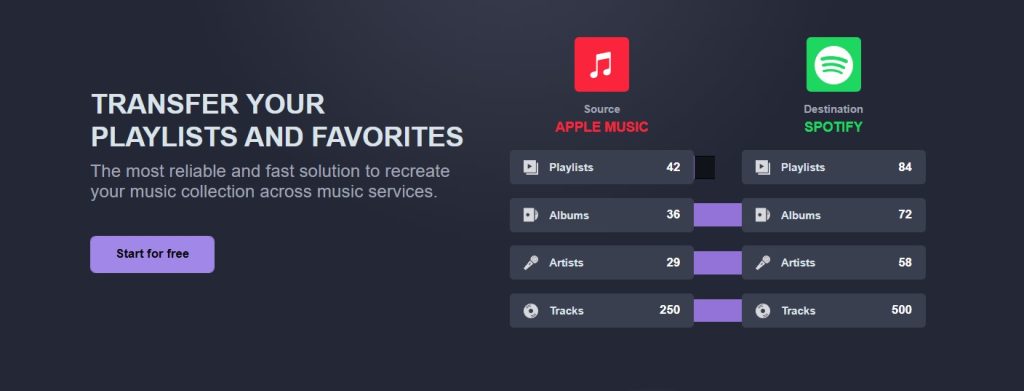
Soundiiz is probably the most popular playlist transfer service, and for good reason—it’s reliable, doesn’t require installing software, and actually works.
The process:
- Go to Soundiiz and create a free account (takes 30 seconds)
- Click “Transfer” in the top menu
- Connect your Amazon Music account (authorize Soundiiz to read your playlists)
- Connect your Spotify account the same way
- Select which Amazon Music playlist you want to transfer
- Choose Spotify as destination
- Review the song matches Soundiiz found
- Hit “Confirm” and wait 2-5 minutes
Free version limitations you should know: one playlist at a time, 200 tracks maximum per playlist. If you have 10 playlists with 150 songs each, you’ll repeat this process 10 times. Tedious? Yes. But it’s free and it works.
Expect 85-95% of songs to match between platforms. Some won’t transfer because they’re not on Spotify or are listed under different artist names. Soundiiz shows exactly which songs didn’t make it, so you can manually search for them if they’re important.
Pro tip I learned the hard way: Don’t close your browser mid-transfer. You’ll have to start that playlist over from scratch. Set aside focused time—trying to transfer playlists while multitasking leads to mistakes.
Alternative: TuneMyMusic
TuneMyMusic offers a simpler interface with similar free tier limitations. Process: Click “Let’s Start” → select Amazon Music → choose playlists → pick Spotify as destination. Both tools work well—try Soundiiz first, keep TuneMyMusic as backup.
Method 2: Transfer Playlists on Mobile
For iPhone: SongShift App
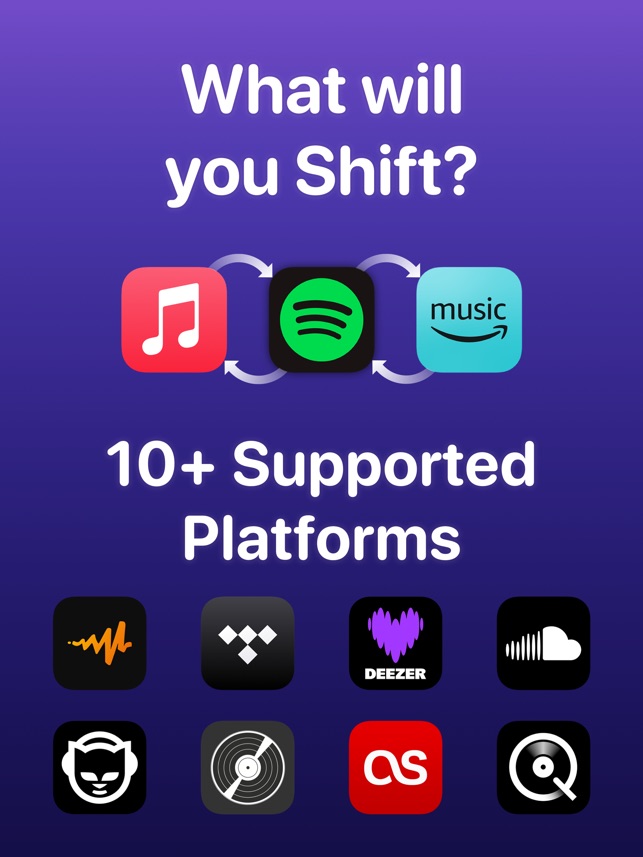
SongShift is the best iOS playlist transfer app, designed specifically for moving music between services.
Process: Download from App Store → connect both services → tap “Begin New Shift” → select source playlist → choose destination → review match preview → tap “Shift.”
The match preview is valuable—see which songs will transfer before committing. Free version: 100 songs at once. Premium: $5.99 one-time for unlimited transfers (worth it if you have multiple playlists).
For Android: FreeYourMusic
FreeYourMusic, available on Google Play, works similarly: connect both services, select playlists, and transfer. Free version is limited; premium ($14.99/year) enables batch transfers and works across multiple platforms (useful for future service switches).
Method 3: Download Amazon Music and Upload to Spotify
When Free Tools Aren’t Enough (Being Honest)
Most people start with Soundiiz or the mobile apps, and that’s fine for straightforward transfers.
But let me explain when those tools hit their limits:
The matching problem: Some favorite songs simply won’t transfer. They’re not on Spotify, or they’re under a different artist name, or the Spotify version is a remaster you don’t want. You’ll spend time hunting alternatives.
Still subscription-dependent: Even after transferring, your music only exists within platforms. If Spotify removes an artist’s catalog (it happens), your rebuilt playlist breaks. Back to square one.
Can’t use elsewhere: Want songs on a USB drive for your car? Can’t do it. Need music for video projects? Not possible. Devices without streaming apps? Out of luck.
Local file solutions solve this by giving you permanent ownership and complete flexibility.
Using Cinch Audio Recorder to Save Your Amazon Music
This is where Cinch Audio Recorder comes in. Think of it as recording your music digitally—like placing a high-quality microphone near your speakers, except it captures the audio stream directly without any quality loss.
Why this approach helps:
- Works with any Amazon Music tier (Free, Prime, or Unlimited)
- You own the files permanently—no subscription required
- Saves as Spotify-compatible MP3 or M4A files
- Automatically splits tracks and adds complete metadata (artist, title, album, artwork)
- Use files anywhere: Spotify, car USB drives, MP3 players, video editing, any device


Here’s my setup process:
Step 1: Download and install Cinch Audio Recorder (Windows or Mac versions available).
Step 2: Launch Cinch and click the red “Record” button. The program is ready to capture audio.
Step 3: Open Amazon Music and play the playlist you want to save. Just hit play and let it run.
Step 4: Cinch automatically:
- Detects when songs end and begin
- Creates separate files for each track
- Fetches correct artist, title, and album artwork
- Saves organized MP3 files in your chosen folder

The automatic song splitting genuinely impressed me. I expected manual file editing, but Cinch just does it perfectly.
Keep your Amazon Music player volume at normal or maximum for best quality—recording captures the player’s output level. Clever trick: you can mute your computer speakers while recording, and Cinch still captures perfect audio. Great for late-night sessions.
Recording happens in real-time (not sped up), so quality matches exactly what you hear streaming. Since you’re saving actual audio files, you’re free from platform restrictions forever.
Not as a streaming replacement—I still use Spotify for discovery—but as a backup when you need flexibility. Content creators especially value this: use your music in videos without copyright concerns on your own recordings.
For alternatives, check our guide on recording with Audacity. You can also save Spotify songs permanently using similar methods.
Uploading to Spotify
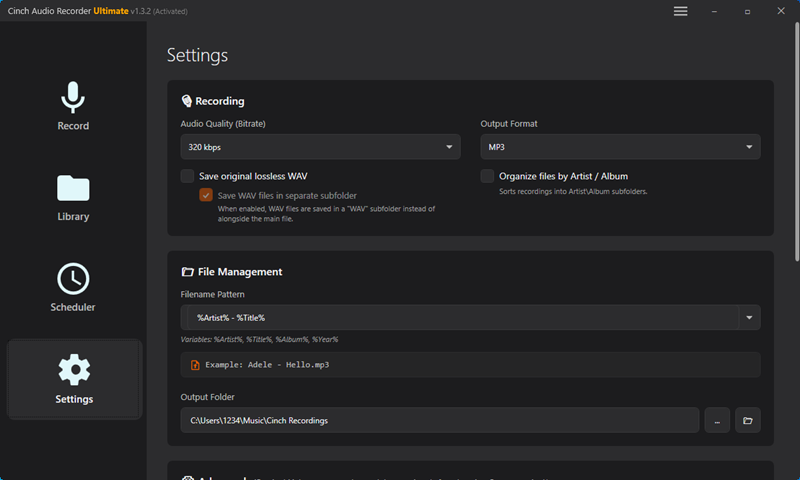
In Spotify desktop app: Settings → Local Files → Toggle “Show local files” ON → Add source folder (where Cinch saved files). Your Amazon Music appears in “Your Library” → “Local Files.”
To sync to mobile: Both devices must be on same Wi-Fi and account. Create a playlist, add local files, download the playlist on your phone.
Important: Don’t delete original files—Spotify links to them, doesn’t copy them. You can also convert Spotify music to MP3 for maximum device compatibility.
After the Transfer: Making Spotify Your New Home
Rebuilding Your Music Routine on Spotify
Discover Weekly (Mondays): Custom playlist based on your habits. The algorithm finds artists you’ll like without obvious mainstream recommendations.
Daily Mix: Spotify creates 5-6 playlists focused on different moods/genres. Perfect for background listening.
Release Radar (Fridays): Follow artists and their new releases appear automatically.
Collaborative playlists: Invite friends to add songs—great for road trips or parties.
Give Spotify a couple weeks to learn your taste. It improves with use.
Dealing with Missing Songs
Expect 85-95% match rates. Songs don’t transfer due to licensing differences, regional availability, or artists removing catalogs. Solutions: search for alternate versions (live, acoustic, covers), use local files for irreplaceable tracks, check under different artist names. Preview transfer results beforehand using Soundiiz’s match preview.
Frequently Asked Questions
Q: Can I transfer Amazon Music to Spotify directly?
No, there’s no official direct transfer option. Amazon Music and Spotify use different systems and file formats. You’ll need third-party tools like Soundiiz, mobile apps like SongShift, or you can download your music locally using recording software and then upload it to Spotify.
Q: Will all my songs match when transferring playlists?
Typically, 85-95% of songs will match successfully. Some tracks may not transfer due to licensing differences, regional availability, or if the artist isn’t available on Spotify. Always preview the transfer results before finalizing to see which songs didn’t match.
Q: Is Spotify Free really better than Amazon Prime Music now?
Spotify Free offers on-demand playback on desktop and web browsers (with ads), while Amazon Prime Music is now shuffle-only everywhere. Most users find Spotify’s interface, recommendations, and overall experience significantly better, even with the free tier limitations. On mobile, both services limit you to shuffle mode.
Q: What happens to my Amazon Music downloads after I switch?
Amazon Music downloads are encrypted and only work within the Amazon Music app. Once your subscription ends or if you uninstall the app, you’ll lose access to those downloads. This is why some users choose to record their music locally before canceling their Amazon subscription.
Q: Should I keep both Amazon Music and Spotify?
If you’re already paying for Amazon Prime mainly for shipping and other benefits, you might keep Prime Music as a backup. However, most users find that switching completely to Spotify (either Free or Premium) provides a better music experience. Having both subscriptions usually isn’t necessary unless you have specific artists available on only one platform.
Conclusion
Three approaches for transferring Amazon Music to Spotify: free online tools (Soundiiz, TuneMyMusic) for simple transfers, mobile apps (SongShift, FreeYourMusic) for convenience, and local file recording (Cinch Audio Recorder) for permanent ownership and complete flexibility.
Your playlists represent hours of curation. Start with free tools—if you hit limitations, upgrade as needed. As streaming services continue changing terms, having music in multiple formats gives you platform freedom. The Spotify community is full of users who’ve made this same journey. Your music, your choice.