Yes, you can use Spotify on a Chromebook—through the web player, Android app, PWA, or Linux installation. The right choice depends on whether you need offline downloads, maximum audio quality, or the most stable experience. This guide walks you through all four methods, helps you pick the best one, and fixes common issues when Spotify won’t download or play offline.
In This Article:
Can You Use Spotify on a Chromebook?
Yes, Spotify works on Chromebook through four methods:
| Method | Audio Quality | Offline Downloads | Setup | Stability |
|---|---|---|---|---|
| Web Player | 256kbps AAC | No | None | High |
| Android App | Up to 320kbps | Yes (Premium) | Easy | Medium |
| PWA | 256kbps AAC | No | Easy | High |
| Linux App | Up to 320kbps | Yes (Premium) | Advanced | Medium |
The Web Player works on every Chromebook—no installation required. If you need offline access or higher audio quality, the Android or Linux app is necessary. The PWA offers an app-like experience without the Android app’s occasional stability issues.
4 Ways to Get Spotify on Your Chromebook
Each method has trade-offs. Here’s what you should know before choosing:
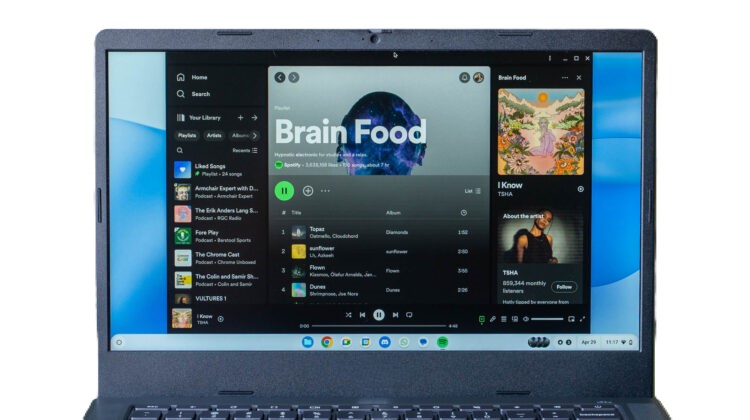
Web Player: Open open.spotify.com in Chrome. Instant access, no storage used, works on school Chromebooks. Limited to 256kbps AAC audio and no offline downloads.
Android App: Install from Google Play Store (if your Chromebook supports Android apps). Full 320kbps quality, offline downloads with Premium, all features. Some users report crashes and sync issues.
PWA (Progressive Web App): Install the website as an app from Chrome’s menu. More stable than the Android app according to community reports. Same 256kbps limit as the web player, no offline.
Linux App: For advanced users who enable Linux on Chromebook. Full desktop features, offline downloads, 320kbps quality. Requires terminal commands and community support only.
How to Set Up Each Method
Method 1: Web Player (Simplest Option)
This works on any Chromebook, including school-issued devices where app stores may be blocked.
Steps:
- Open Chrome browser
- Go to
open.spotify.com - Log in with your Spotify account
- Start playing music
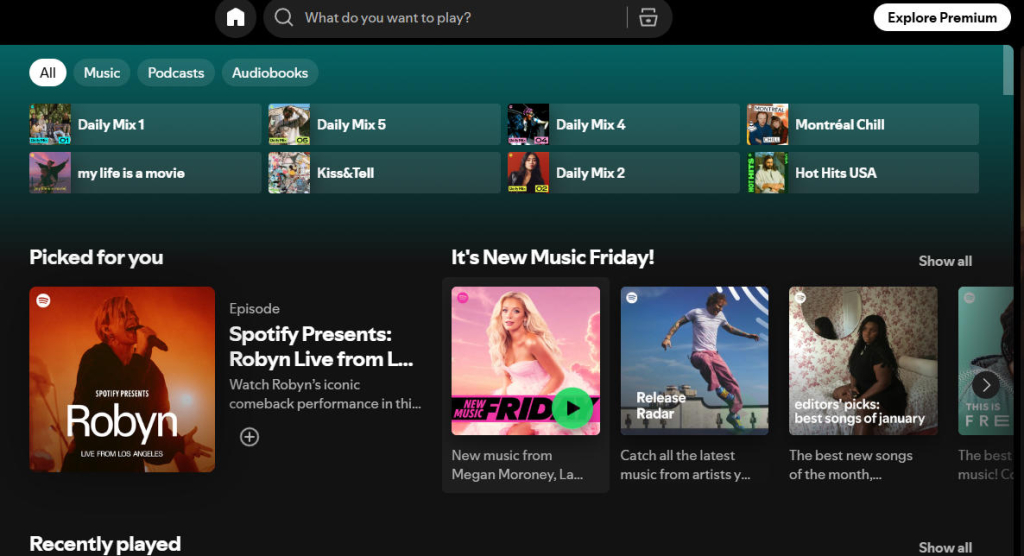
The web player requires no installation and uses minimal storage. However, audio quality is limited to 256kbps AAC even with Premium—browser APIs don’t support the higher 320kbps streams available in native apps.
Best for: Casual listeners, shared Chromebooks, school devices, anyone who doesn’t need offline access.
Limitation: No equalizer settings, no local file support, and offline downloads aren’t available.
Method 2: Android App (Best for Offline)
If your Chromebook supports Android apps and you have Premium, this is the most feature-complete option.
Steps:
- Open the Google Play Store on your Chromebook
- Search for “Spotify”
- Click Install
- Open the app and log in
- To download for offline: open a playlist or album, tap the Download toggle
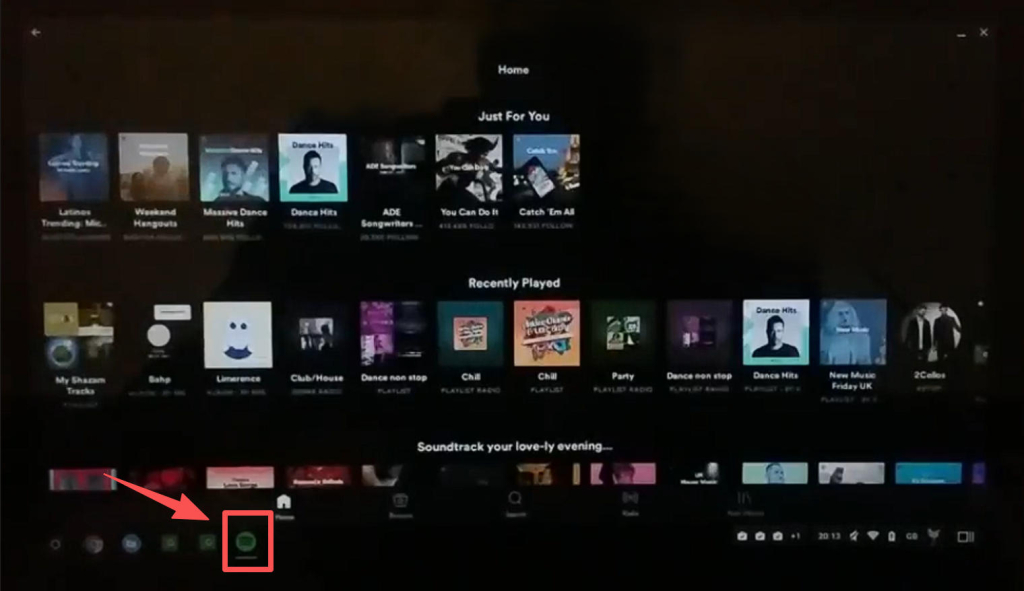
Offline downloads require an active Premium subscription. You can download up to 10,000 tracks on each of 5 devices, and you must go online at least once every 30 days to keep your downloads. If you need a deeper breakdown, see this guide to download Spotify songs and this explainer on the 10,000 song download limit.
Best for: Premium users who want offline access during commutes, travel, or areas with poor connectivity.
Limitation: Some Chromebook users report app crashes, download failures, and sync issues. If you experience problems, try the PWA as an alternative.
Method 3: PWA (When the Android App Misbehaves)
The Progressive Web App gives you an app icon without installing the full Android application.
Steps:
- Go to
open.spotify.comin Chrome - Click the three-dot menu (top right of Chrome)
- Select Install Spotify or look for the install icon in the address bar
- Click Install in the popup
- The Spotify icon appears in your app launcher
Community reports suggest the PWA works more reliably than the Android app on some Chromebooks. You get a dedicated app window and icon, but the underlying technology is still the web player—so the 256kbps limit applies.
Best for: Users experiencing Android app crashes, anyone who wants a cleaner app experience without Play Store dependencies.
Limitation: Same quality limit as web player, no offline downloads.
Method 4: Linux App (For Power Users)
This method requires enabling Linux on your Chromebook and using terminal commands. Spotify’s Linux app is community-supported, not officially maintained.
Prerequisites:
- Chromebook with Linux support
- Linux development environment enabled
Steps:
- Open Settings > Advanced > Developers
- Turn on Linux development environment
- Wait for setup to complete
- Open the Terminal app
- Run these commands:
flatpak install flathub com.spotify.Client
- Launch Spotify from your app drawer or run:
flatpak run com.spotify.Client
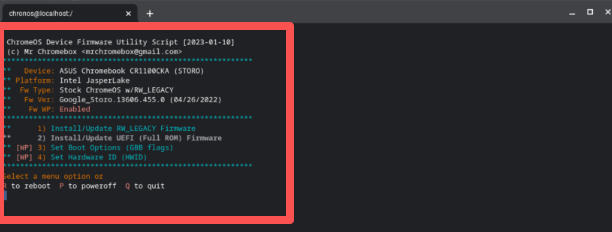
The Linux app provides full desktop features including offline downloads and 320kbps quality. However, Spotify states this version is “a labor of love from our engineers” and “currently not a platform that we actively support.”
Best for: Developers, advanced users comfortable with Linux, anyone who needs full desktop features on Chromebook.
Limitation: May break after Chrome OS updates. No official support if something goes wrong. We tested this on older 4GB RAM Chromebooks, and forcing the Linux app often caused severe lag; in that situation, the PWA was the only consistently smooth option.
Why Spotify Downloads Sometimes Fail on Chromebook
Download problems are among the most common frustrations reported by Chromebook users. Here’s how to diagnose and fix them:
Problem: Downloads won’t start or complete
| Likely Cause | Fix |
|---|---|
| No Premium subscription | Offline downloads require Premium. Check your subscription status at spotify.com/account |
| Weak or unstable internet | Connect to reliable WiFi. Downloads fail silently on poor connections |
| Storage full | Chromebooks have limited storage. Delete unused files or move downloads to SD card |
| 5-device download limit | Spotify limits offline downloads to 5 devices. Remove downloads from an old device at spotify.com/account |
| App out of date | Update the Spotify app from Play Store |
Problem: Downloaded music won’t play offline
| Likely Cause | Fix |
|---|---|
| 30-day online requirement | Go online at least once every 30 days. Spotify needs to verify your subscription |
| Corrupted download | Remove the download (toggle off), then re-download the playlist |
| Offline mode not enabled | Make sure you’re actually offline (airplane mode or no WiFi) when testing |
| Account sync issue | Log out and log back in to refresh your account state |
Alternative: Saving Spotify Audio Without Premium
One hard limit on Chromebook is that true offline downloads require Premium, and downloaded tracks still need an online check-in every 30 days. If you only need to save a short podcast segment or keep copyright-cleared background audio, a recorder workflow can be more practical.
Cinch Audio Recorder is a good fit when you can switch to a Windows or Mac machine for capture. It records high-quality system playback audio while Spotify is playing, then saves files you can manage locally.
Best for: Users who do not want a recurring Premium plan, podcast learners clipping short study sections, and creators collecting royalty-cleared background tracks.
Not for: Chromebook-only users who cannot access any Windows or Mac device, or anyone trying to bypass copyright or licensing rules.
Limits: Cinch does not run natively on ChromeOS. You need a Windows or Mac computer to perform capture, and you should only record audio you are legally allowed to keep.
Why now: If Spotify offline keeps failing on your Chromebook, this gives you a fallback path that does not depend on Android app stability or Premium download permissions.
Actionable CTA: Start with your normal Chromebook setup first. If it still does not meet your offline needs, follow this path for offline without Premium and compare with this full tutorial to download Spotify songs.
Problem: Local files don’t sync from other devices
Chromebooks cannot sync local files from your Windows or Mac computer. This is a platform limitation—the Spotify app on Chromebook doesn’t have access to the local file sync feature available on desktop clients.
Workaround: If you have local music files, you’ll need to manually add them to your Chromebook or use a different approach like uploading to a cloud service.
Problem: App crashes or freezes
If the Android app is unstable on your Chromebook:
- Clear the app cache: Settings > Apps > Spotify > Clear cache
- Uninstall and reinstall the app
- If problems persist, switch to the PWA method
If playback is too quiet after app updates, use this targeted fix guide for Spotify volume issues.
Which Method Should You Pick?
| Your Situation | Recommended Method |
|---|---|
| Just want to listen, no special needs | Web Player |
| Premium user, need offline downloads | Android App |
| Android app crashes on your device | PWA |
| School Chromebook with blocked Play Store | Web Player |
| Power user comfortable with Linux | Linux App |
| Want maximum audio quality | Android or Linux App |
Quick recommendation: Start with the Web Player. It’s instant, works everywhere, and has no installation issues. If you need offline downloads and have Premium, install the Android app. If the Android app gives you trouble, try the PWA.
Common Questions About Spotify on Chromebook
Can I download Spotify songs on Chromebook without Premium?
No. Offline downloads require a Premium subscription on any device. The Web Player and PWA don’t support downloads at all—only the Android and Linux apps do, and both need Premium.
Why is the web player sound quality lower?
The web player uses browser audio APIs limited to 256kbps AAC. Native apps (Android, Linux, desktop) can access higher-quality streams up to 320kbps. For most listeners on laptop speakers, the difference is subtle.
Can I use Spotify on a school Chromebook?
Usually yes, through the Web Player. School IT policies often block the Play Store but allow browser access. Go to open.spotify.com and log in. If the site itself is blocked, you’d need to work with your school’s IT department.
Will Spotify work when my Chromebook is offline?
Only if you have Premium and have downloaded music using the Android or Linux app. The Web Player and PWA require an internet connection to function.
Why does my downloaded music disappear?
Common causes: subscription expired or paused, more than 30 days since last online, or you’ve hit the 5-device limit. Check your account status and try going online to refresh your downloads.
Sources
- Spotify Support: Listen Offline – Official offline download requirements
- Spotify: Download for Linux – Linux app support status
- Chrome Unboxed: How to Use the Spotify Web App on Your Chromebook – Web player quality analysis
- Linux Made Simple: Install Spotify Desktop Client on Chromebook – Linux installation guide
- Reddit r/chromeos: Community reports on PWA vs Android app stability