For years, the answer to “Can I use Spotify with Rekordbox?” was a flat no. Spotify pulled DJ app support in 2020, and millions of DJs were left searching for workarounds. Some turned to Tidal. Others used shady downloaders. Many just gave up.
That changed in September 2025, when Spotify officially announced DJ software integration with Rekordbox, Serato, and Djay Pro.
Quick answer: Yes, Spotify now works with Rekordbox DJ — but only if you have Spotify Premium and Rekordbox 7.2.3 or later. Free Spotify users still need alternatives.
This guide covers three methods that actually work, including options for those without Premium. No outdated advice, no tools that’ll get your account banned. (Related: How to Use Spotify Music with Serato DJ)
In This Article:
Method 1: Use Spotify Premium with Rekordbox (Official Integration)
This is the method most DJs should use. As of September 24, 2025, Spotify Premium integrates directly with Rekordbox DJ on Mac and Windows.
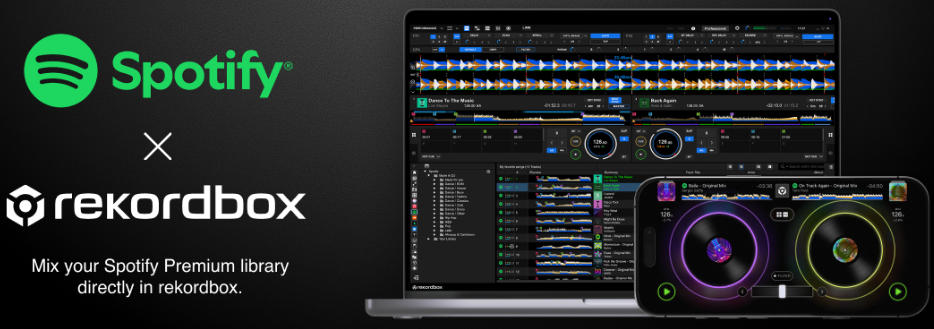
Here’s how to set it up:
- Update Rekordbox to version 7.2.3 or later
- Switch to Performance Mode (the integration doesn’t work in Export Mode)
- Find the Spotify icon in the lower-left sidebar
- Click “Log in” and authenticate with your Spotify Premium credentials
- Browse your playlists directly inside Rekordbox
- Drag tracks to the decks and start mixing
That’s it. Your entire Spotify library is now available in Rekordbox.
What You Should Know Before Using This
The integration isn’t perfect. Users on DJ forums have flagged several limitations:
- No Stems support. Rekordbox’s Stems feature doesn’t work with Spotify-streamed tracks. If you rely on Stems for live remixing, you’ll need local files.
- Playlist limitations. Some users report they can’t add Spotify tracks to their own Rekordbox playlists. You can play them, but organizing them within Rekordbox may be restricted.
- Regional availability. The integration is currently available in 51 markets including US, UK, EU, Australia, and Japan. Users in India, for example, have reported the feature isn’t available despite having Premium accounts.
- Internet required. Streaming means you need a stable connection. No WiFi at the venue? No Spotify.
One Reddit user summed it up: “As of today you can now link Spotify Premium with rekordbox!” — but the excitement came with caveats about what it can’t do.
Method 2: Transfer Playlists via Tidal or Apple Music
If you want features the Spotify integration lacks — like Stems, lossless audio, or full playlist control — consider using Tidal or Apple Music with Rekordbox instead.
The process isn’t complicated:
- Export your Spotify playlists using a service like Soundiiz or TuneMyMusic
- Import them to Tidal (their DJ subscription tier) or Apple Music
- Connect that service to Rekordbox through the built-in streaming options
One forum user noted the main drawback: “Keep in mind anytime you update your Spotify playlists you will need to re-transfer them. They won’t auto update.”
It’s extra work, but some DJs prefer it because:
- Tidal offers lossless audio quality
- Full Stems support works with Tidal and Apple Music tracks
- Better playlist management inside Rekordbox
- More reliable at venues with spotty internet (Tidal has offline mode)
The tradeoff is cost. Tidal’s DJ-focused subscription isn’t free, and you’re essentially paying for two streaming services.
Method 3: Record Spotify Audio Locally
This method is for DJs who don’t have Spotify Premium, or who need actual audio files — for offline gigs, backup libraries, or simply preferring to own their music.
One common complaint from forums: “I can’t pay another music subscription to pay for Tidal!”
Fair enough. Here’s an alternative.
How Audio Recording Works
Instead of downloading (which violates Spotify’s terms and can get your account banned), you can record what plays through your computer’s speakers. This captures the audio output without interacting with Spotify’s servers.
Cinch Audio Recorder is built for exactly this. It captures system audio and saves tracks as MP3, AAC, or FLAC files with automatic tagging.
The basic workflow:
- Open Cinch and click the Recording button
- Play music from Spotify’s web player or desktop app
- Cinch detects each song and records it separately
- Tracks are automatically tagged with title, artist, and album art (via Windows SMTC)
- Exported files can be imported directly into Rekordbox

The software works with the Spotify web player particularly well — metadata like song titles and artist names get captured automatically.

What to Expect
Be realistic about this method:
- Real-time recording. A 3-minute song takes 3 minutes to record. You can’t batch-download a playlist in seconds.
- Desktop only. Cinch runs on Windows and Mac, not mobile.
- Manual process. You need to actually play the music. Leave it running in the background while you do other things.
For DJs building a library over time, this works fine. For someone who needs 500 tracks by tomorrow, it doesn’t.
Output formats: MP3 (up to 320kbps), AAC, or FLAC (lossless)
Auto-tagging: Uses Windows System Media Transport Controls (SMTC) to grab song info directly from the player — no manual typing required. Learn more in the Cinch Audio Recorder Ultimate User Guide.


A Note on Legality
Recording streamed audio exists in a legal gray area. In most jurisdictions, recording for personal use is tolerated, but distributing or commercially using those recordings is not.
Bottom line: Use this for your own practice sessions and personal library. Don’t sell mixes made from recorded tracks. And if you’re playing professionally, consider buying tracks from Beatport, Bandcamp, or similar stores to support artists directly.
Many veteran DJs on forums echo this sentiment: “Buy your music. Support the artists.” It’s advice worth considering.
What About Third-Party Spotify Downloaders?
You’ve probably seen software that claims to “download” Spotify tracks directly. Tools like TuneCable, Macsome, Sidify, and others.
Here’s the reality check.
They work — until they don’t.
A Reddit user shared their experience: “I found a way to do it. Spotify was straight onto me, locked my account down and I had to wait several days before I got it back. Do not do it.”
Another warned: “Spotify will block your account if you download/convert mp3s.”
These tools violate Spotify’s terms of service. They interact with Spotify’s API or crack their encryption, which Spotify actively detects and punishes. Account suspensions are real.
Why recording is different:
Recording system audio (what Cinch does) doesn’t touch Spotify’s servers or bypass any DRM. You’re capturing the audio output that your computer is already playing — the same thing a tape recorder would do in the 90s.
Is it a loophole? Maybe. But it’s a safer one.
FAQ
Does Spotify work with Rekordbox 6?
No. The official Spotify integration requires Rekordbox version 7.2.3 or later, and it only works in Performance Mode. If you’re on Rekordbox 6, you’ll need to upgrade — or use one of the alternative methods described above.
Can I use Spotify Free with Rekordbox?
The official integration requires a Spotify Premium subscription. Free users have two options: transfer playlists to another service that Rekordbox supports (like Tidal or SoundCloud Go+), or record Spotify music offline using a tool like Cinch Audio Recorder.
Why can’t I see Spotify in my Rekordbox?
Three things to check:
- Version: You need Rekordbox 7.2.3 or later
- Mode: The Spotify option only appears in Performance Mode, not Export Mode
- Region: Some countries don’t have access yet. Users in India have reported the feature isn’t available despite having Premium accounts.
If all three check out and it still doesn’t work, check Spotify’s official announcements for your region.
Final Thoughts
The Spotify + Rekordbox integration is a real upgrade for DJs who use both platforms. If you’re a Premium subscriber in a supported region, accessing your streaming library is as simple as logging in.
That said, no single solution works for everyone.
The official integration lacks Stems and limits playlists.
Tidal and Apple Music require extra subscriptions.
Recording takes time.
Downloaders can put your Spotify account at risk.
Choose the option that fits your setup, budget, and comfort with tradeoffs.
One last thing to remember: the music you play is made by real people. Streaming pays very little. If a track becomes a key part of your sets, consider buying it on Bandcamp or Beatport. Supporting artists keeps the DJ community alive.
If you need to record audio from streaming services, Cinch Audio Recorder captures system audio in up to 24-bit/48kHz quality, with automatic song detection and tagging.