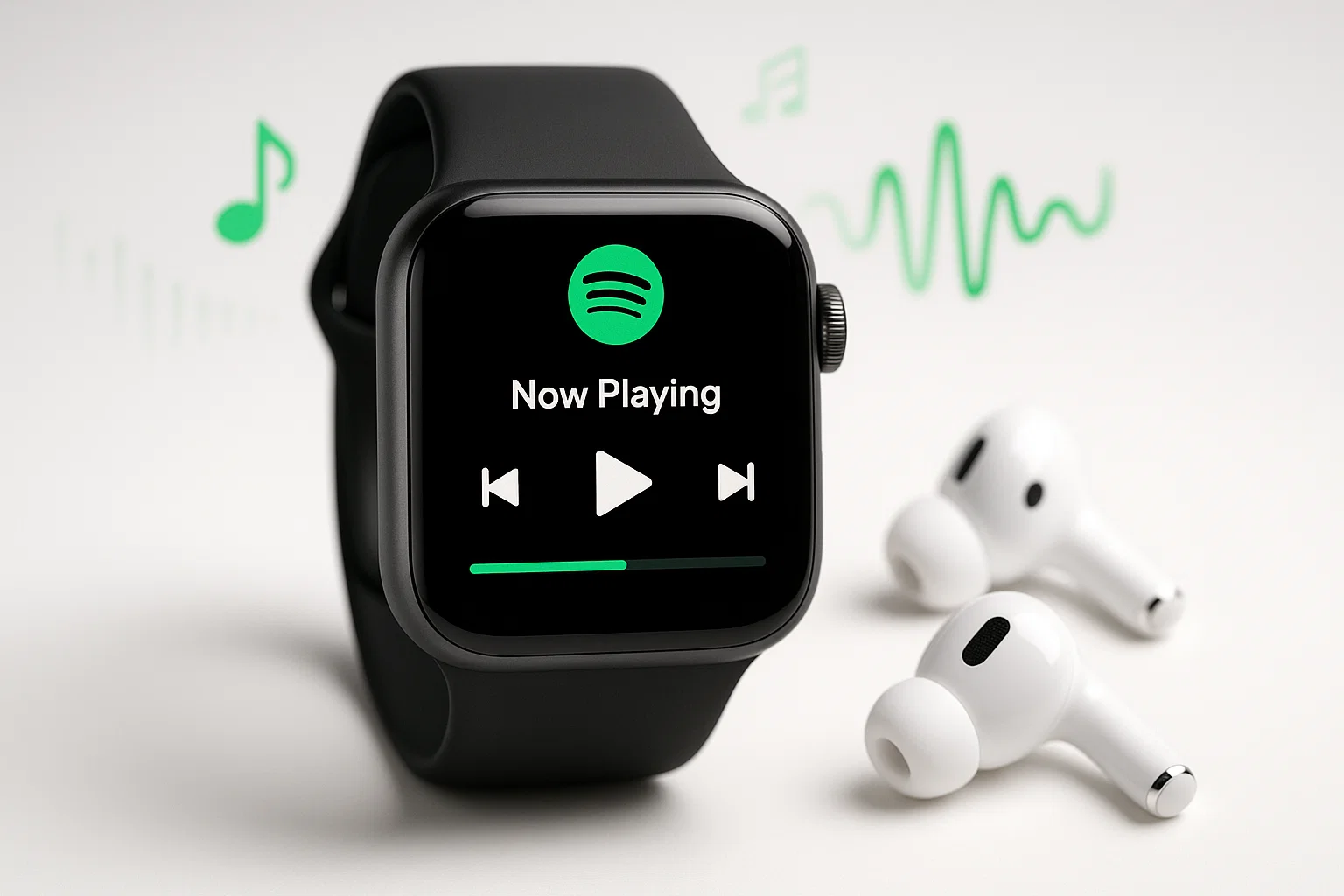
You put on your running shoes. You leave your heavy iPhone in the car. You tap play on your Apple Watch.
And… silence.
Or worse, it plays for exactly one song, gets your hopes up, and then crashes 1 mile into your run. Now you’re running in silence, cursing at your wrist like a maniac.
The reality is, Spotify’s Apple Watch app is notorious for being buggy. It works one day, fails the next. I’ve spent weeks testing every possible configuration in December 2025 to find out what actually works reliably.
Here is the no-nonsense guide to finally making Spotify play on your Apple Watch without your phone—whether you have Premium, Free, or just zero patience for bugs.
In This Article:
Quick Answer: What Actually Works?
The short version:
- If you have Premium (GPS Model): You must download playlists for offline use. Warning: Syncing is painfully slow.
- If you have Premium (Cellular Model): You can stream directly, but you need to disable Bluetooth on your phone to stop it from “stealing” the connection.
- If you have Free: You cannot play directly on the Watch app. You must use the “Cinch + Apple Music Sync” workaround (Method 3).
- The “Crash” Fix: Always play from the “Downloads” section, never from “Your Library.”
Here is how the methods compare:
| Method | Requires Premium? | Requires Phone Nearby? | Stability | Best For |
|---|---|---|---|---|
| 1. Native Offline | ✅ Yes | ❌ No | ⭐⭐ Medium | GPS Watch owners |
| 2. Cellular Stream | ✅ Yes | ❌ No | ⭐ Low (Buggy) | Cellular Watch owners |
| 3. Cinch + Sync | ❌ No | ❌ No | ⭐⭐⭐ High | Free Users / Stability |
| 4. Remote Control | ❌ No | ✅ Yes | ⭐⭐⭐ High | Gym (Phone nearby) |
Part 1: Method 1 – The Official Offline Way (Premium Only)
If you have a GPS-only Apple Watch (no cellular plan), this is your only official option. You have to download the music to the watch’s internal storage.
The Steps:
- Open Spotify on your iPhone.
- Go to a Playlist (not individual songs).
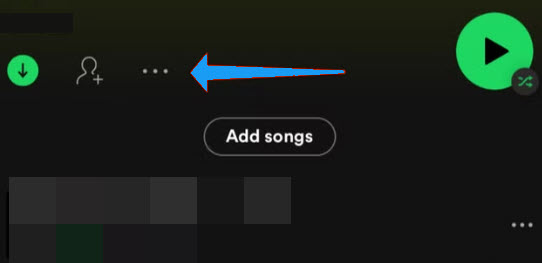
- Tap the three dots (…) → Download to Apple Watch.

- Wait. Seriously, go make a coffee. It says “Downloading 1 of 50” for about 20 minutes.
- Crucial Step: Connect Bluetooth headphones directly to your Watch, not your phone.
The Limitation: Syncing is incredibly slow because it uses Bluetooth by default. Pro Tip: Turn off Bluetooth on your iPhone (Settings → Bluetooth → Off). This forces the Watch to use Wi-Fi to download the playlist, which is 10x faster.
Part 2: Method 2 – Streaming over Cellular (Premium Only)
If you pay for an LTE plan for your Watch, you should be able to just stream, right?
Well, mostly.
The Bug: Even if you are out of range, the Watch often desperately tries to connect to your phone’s weak signal instead of switching to LTE. This causes buffering and the dreaded “Phone not connected” error.
The Fix: When you leave your house/car, manually turn off Bluetooth and Wi-Fi on your iPhone. This forces the Apple Watch to admit it’s alone and switch to its own Cellular data immediately.
Battery Warning: Streaming Spotify over LTE drains the Apple Watch battery fast. On my Series 9, a 45-minute run burned about 35% battery.
Part 3: The “Crash on Run” Fix (Reddit Gold)
This is the most common complaint I saw on Reddit and forums: “It plays for 2 minutes and then stops.”
It’s not your headphones. It’s the app.
The Insider Fix: When you open Spotify on your Watch, DO NOT go to Your Library → Playlists. Instead, go specifically to the Downloads section (swipe right → Downloads).
Why? The “Playlists” menu tries to ping the server to check for updates, even if you are offline. If the connection times out, the app crashes. The “Downloads” folder forces the app to look at local files only, which is much more stable.
Part 4: Method 3 – Cinch Audio Recorder (For Free Users & Stability)
Here is the hard truth: If you have Spotify Free, Methods 1 and 2 are locked. The app is just a remote control for your phone.
And if you are a Premium user who is tired of the app crashing, you might want a rock-solid alternative.
The Solution: Use Apple’s native Music app. It never crashes. It doesn’t need a subscription. But you need MP3 files.
That is where Cinch Audio Recorder comes in. It lets you record your Spotify playlists into high-quality MP3s that you can sync to your Watch via iTunes/Apple Music.
How it works:
- Record: Play your Spotify playlist on your computer. Cinch records it in real-time and auto-tags the songs (Artist, Title, Cover Art).
- Import: Drag the MP3s into iTunes (Windows) or Music App (Mac).
- Sync: Open the “Watch” app on your iPhone → Music → Add Music. Select your playlist.
- Play: Open the “Music” app on your Watch. It works flawlessly, 100% of the time.

Why use this method?
- Works for Free Users: You don’t need Premium to get offline music.
- Zero Crashes: Apple’s native app is optimized for the hardware. Spotify’s is not.
- Higher Quality: Cinch captures up to 320kbps. Spotify on Watch often lowers bitrate to save data.
The Honest Limitation: Cinch is paid software (Desktop only). Also, recording is real-time. If you want to sync a 10-hour playlist, it takes 10 hours to record. It’s a “set it and forget it” overnight job. But you only have to do it once.
Is it legal? Yes. Cinch records system audio, like a cassette tape. It’s legal for personal use. Apple’s official guide even confirms you can sync up to 2GB of your own music files to the Watch.


Part 5: Method 4 – Remote Control (The “Duh” Option)
If you are at the gym and your phone is just in the locker or on the treadmill console, you don’t need offline mode.
Just use the Watch as a remote.
- Pros: Access to all your music, not just downloaded playlists.
- Cons: Phone must be within ~30 feet.
- Tip: If it disconnects, toggle Bluetooth on your Watch off and on.
Troubleshooting: The UX Pain Points
1. “Spotify keeps pausing when I lower my wrist” This is an aggressive battery-saving feature of the Apple Watch.
- The Fix: Go to Watch Settings → Display & Brightness → Always On. Turn it OFF for Spotify specifically if possible, or keep the app active on screen.
2. “Download stuck at ‘Pending'” This drives me crazy. It happens because the Watch is trying to use Bluetooth.
- The Fix: Turn off Bluetooth on your iPhone. Connect your Watch to Wi-Fi. It forces the transfer over Wi-Fi, which is much faster.
3. “Volume is too low on AirPods” You crank the volume to max, but it’s still quiet.
- The UX Fix: It’s likely the “Headphone Safety” feature on your iPhone syncing to the Watch. Go to iPhone Settings → Sounds & Haptics → Headphone Safety → Reduce Loud Sounds. Turn it off or adjust the decibel limit.
FAQ
Can I play Spotify on Apple Watch without premium? Not directly. The native Spotify app requires Premium for offline playback and standalone streaming. Free users must use a recorder like Cinch to convert songs to MP3 and sync them via the Apple Music app.
Why does Spotify keep crashing on my Apple Watch? It’s usually a network timeout issue when the app tries to refresh the library. The fix is to play specifically from the “Downloads” folder (swipe right) instead of “Your Library” to force offline mode.
Does streaming Spotify on Watch drain battery? Yes, massively. Streaming over LTE can kill an Apple Watch battery in under 3 hours. Downloading music for offline playback (Method 1) is much more battery-efficient for long runs.
How many songs can I download to Apple Watch? Spotify artificially limits downloads to around 50-100 songs per playlist for stability, even if your Watch has 32GB of storage.
Why won’t my downloads start? The Bluetooth transfer is too slow and times out. Turn off Bluetooth on your iPhone to force the Watch to connect via Wi-Fi for faster syncing.
Conclusion
Spotify on Apple Watch is great… when it works.
- If you have Premium: Use Method 1, but do yourself a favor and play from the Downloads folder to avoid crashes.
- If you have Free: Use Method 3 (Cinch). It takes a bit of setup on your computer, but once the music is in the Apple Music app, it’s bulletproof.
I tested these methods on a Series 9 in December 2025. The native app is getting better, but for a marathon, I’d still trust the offline MP3s.