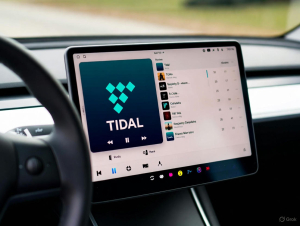
If Spotify is acting weird on Apple CarPlay, it usually falls into one of three buckets: the CarPlay link (USB/wireless), an iPhone setting (Siri/Screen Time), or a Spotify session glitch. The fastest fix is often to force-close Spotify, reconnect CarPlay (or unplugging/replugging the cable), and check that CarPlay is allowed in Screen Time.
In This Article:
Quick Answer
When Spotify won’t work on Apple CarPlay, start by force-closing Spotify on your iPhone, reconnecting CarPlay (or unplugging/replugging the cable), and restarting your iPhone. Then confirm CarPlay isn’t restricted in Screen Time and Siri is enabled. If it keeps happening, forget and re-add your car in iPhone CarPlay settings. For a deeper step-by-step, see our in-depth guide: https://www.cinchsolution.com/fix-spotify-apple-carplay/
Before You Start (2 minutes)
Don’t waste 30 minutes trying random tricks. First, identify what you’re dealing with:
- Wired CarPlay (USB): common failures are bad cable/port, a flaky adapter, or a head unit that needs a reboot.
- Wireless CarPlay: common failures are Bluetooth/Wi-Fi handshake problems, Auto-Join off, or the car’s wireless module stuck.
- Spotify-specific: CarPlay interface loads, but playback is frozen, progress bar missing, or “playing” shows with zero audio.
Also, be honest about patterns. Many people report it happens after reconnecting the next day or after a disconnect mid-drive.
Official Source (as of 2025-03) “If your iPhone is updated to the latest version of iOS, follow these steps – checking CarPlay after each step: … Restart your iPhone and your car … make sure that Siri is on … make sure that CarPlay isn’t restricted … forget this car and set up CarPlay again.” – Apple Support (https://support.apple.com/en-ca/105109) Why it matters: Apple’s own checklist is the shortest path to rule out connection and settings problems.
Legal note: Laws and platform terms vary by country and service. This guide is for personal use only. Please respect copyright and the terms of the streaming platform you use.
Symptom-Based Fix Selector (Decision Tree)
Use this as your quick map.
- If Spotify opens in CarPlay but won’t play (buttons do nothing)
- Fix path: Force close Spotify -> Restart iPhone -> Reconnect CarPlay -> Forget This Car.
- If Spotify shows “playing” but there’s no sound
- Fix path: Switch audio route -> Check car volume source -> Force close Spotify -> Try another cable/port.
- If Spotify is missing from CarPlay
- Fix path: Confirm CarPlay is allowed in Screen Time -> Re-add apps in CarPlay Customize -> Reinstall Spotify.
- If it only fails after reconnecting the next day
- Fix path: Force closing Spotify before connecting -> Disable anything that blocks background behavior -> Re-add CarPlay.
User Feedback (Forum) “To (temporarily) fix this, you have to open Spotify manually on your phone and then close it again so it can be restarted in CarPlay.” – forum_a.md#L29 What it implies: This looks like a Spotify session state problem that CarPlay can’t recover from by itself.
Fixes (Start Here)
Go in order. Stop when it works.
Fix 1: Confirm CarPlay connection (wired vs wireless)
For wired CarPlay:
- Unplug the cable from the car.
- Unplug from the iPhone.
- Plug back in firmly.
- If nothing changes, try a different USB port.
- If you use any USB-C to Lightning adapter, try a direct cable instead.
For wireless CarPlay:
- On iPhone: Settings -> Bluetooth (on).
- On iPhone: Settings -> Wi-Fi (on).
- Tap the CarPlay network and confirm Auto-Join is on.
- If the car shows CarPlay but Spotify acts dead, disconnect and reconnect the car’s Bluetooth.
The goal here is simple: remove the “maybe it’s the connection” variable before touching Spotify settings.
Fix 2: Force close Spotify (this is the most common real-world fix)
If Spotify loads but playback is frozen or the progress bar is missing:
- On iPhone, open the app switcher.
- Swipe Spotify away to close it.
- Reopen Spotify on the phone.
- Then open Spotify again from the CarPlay screen.
This matches what many users describe: CarPlay remembers a stale Spotify state, and only a full app restart clears it.
Fix 3: Restart the iPhone (don’t skip it)
A full iPhone restart helps when:
- CarPlay sees the phone but audio routing is broken.
- Spotify plays on the phone but not on CarPlay.
- Multiple apps act odd in CarPlay.
Do a normal restart, not just locking/unlocking the screen.
Fix 4: Check Screen Time restrictions (CarPlay might be blocked)
On iPhone:
- Settings -> Screen Time
- Content & Privacy Restrictions
- Allowed Apps
- Make sure CarPlay is enabled
Fix 5: Make sure Siri is enabled
On iPhone:
- Settings -> Siri & Search
- Make sure Siri is enabled
Fix 6: Forget This Car and set up CarPlay again
On iPhone:
- Settings -> General -> CarPlay
- Tap your car
- Tap Forget This Car
- Set up CarPlay again from scratch
Fix 7: No sound? Switch the audio route inside Spotify
- Open Spotify on the iPhone.
- Open the device picker (where you choose speakers).
- Select the iPhone as the output device.
- Then switch it back to CarPlay.
Fix 8: Reboot the car’s head unit
How to do it varies by car. Many cars reboot by long-pressing the power/volume knob.
Fix 9: Reinstall Spotify (last resort, but clean)
- Delete Spotify from the iPhone.
- Reboot the iPhone.
- Reinstall Spotify.
- Log in and test CarPlay.
Official Source (as of 2026-01) “Not working? … Restart the app … Restart your car … If possible, delete the Spotify app then reinstall it” – Spotify Support (https://support.spotify.com/us/article/spotify-in-the-car/) Why it matters: Spotify’s official guidance matches what users actually end up doing.
If you want a broader checklist for getting Spotify working in a car setup (Bluetooth, AUX, USB, etc.), use this guide: https://www.cinchsolution.com/play-spotify-music-in-car/
Pro Fix (Stability Option): Keep a personal offline copy for the car
If you drive a lot, the real pain is not “one bad day.” It’s the pattern: reconnect tomorrow and Spotify is frozen again.
A stability-first approach is to keep a personal offline music library that doesn’t depend on the Spotify app behaving perfectly every drive.
One practical workflow:
- Record the tracks you want on a computer.
- Save them as standard audio files.
- Play them in the car from local storage or a device that your car supports.
If you already have the songs playing on your Windows computer, Cinch Audio Recorder can capture the audio in real time and save it with tags.
Limitations you should know:
- It requires real-time playback.
- It’s desktop-based (Windows). It’s not an iPhone tool.
- This is for personal use only. Terms and laws vary.
If you want general options for getting Spotify working in a car (not just CarPlay), here’s a broader guide: https://www.cinchsolution.com/play-spotify-music-in-car/
If you want context on why “downloaded” streaming files often don’t behave like normal files across devices, DRM is the keyword.
Troubleshooting
Spotify works on the phone, but CarPlay Spotify is frozen
Try this order:
- Force close Spotify.
- Restart iPhone.
- Forget This Car and re-add CarPlay.
Spotify shows playing, but no sound
- Car volume is up and the car is using the right audio source.
- Switch Spotify output to iPhone, then back to CarPlay.
- Try another cable/USB port (wired).
Spotify is missing from CarPlay
- Screen Time -> Allowed Apps -> CarPlay enabled.
- Settings -> General -> CarPlay -> Customize (add Spotify).
- Reinstall Spotify.
It only happens after reconnecting the next day
Try force closing Spotify before connecting, then reconnect and open Spotify from CarPlay.
FAQ
Why does Spotify show the song but won’t actually play on CarPlay?
CarPlay can load the Spotify interface while the Spotify session is stuck in the background. That’s why opening Spotify on the phone (or force closing it) fixes it for many users.
What if Apple Music works fine but Spotify doesn’t?
That points to either Spotify’s app state or Spotify’s interaction with CarPlay, not the car speakers.
How do I know if my CarPlay issue is wired or wireless related?
Wired issues often change when you swap cable or USB port. Wireless issues often change when you toggle Bluetooth/Wi-Fi, re-pair the car, or re-enable Auto-Join.
What should I try before reinstalling Spotify?
First try force closing Spotify, restarting iPhone, and Forget This Car then re-add CarPlay.
How can I reduce how often this happens long-term?
Keep your iOS and Spotify updated. If your drive depends on music every day, a personal offline copy for the car can reduce how often you’re forced to troubleshoot.
Wrap-up
Start with connection checks, then reset the Spotify session.
If you need something that stays stable even when Spotify has a bad day, consider a personal offline library approach.
If you want a quick DRM explainer (and why many streaming downloads aren’t normal audio files), read: https://www.cinchsolution.com/drm/