If your goal is “download Billboard Hot 100 songs,” the fastest way to avoid wasted time is to split the task into two parts: (1) get a reliable song list, and (2) choose a download path that matches your real need. Billboard gives you chart rankings. It does not act as a one-click MP3 store. Most confusion comes from mixing those two steps.
Here is the short version before we go deep:
- Use Billboard to identify this week’s tracks.
- If you only need offline listening inside an app, use official offline mode first.
- If you need files you can keep, move, rename, and copy to USB, you need a local-file workflow.
This guide gives you a practical decision path, realistic limits (device cap, re-check rules, metadata misses), and a troubleshooting order you can run in minutes.
In This Article:
Where can you find this week’s Billboard Hot 100 songs?
“Download Billboard Hot 100 songs” usually means “I want this week’s top tracks in a usable offline form.” The Billboard part is your ranking source. The download part is a separate workflow choice.
Start at the official chart page so your track list is current and not scraped from stale reposts:
- Billboard weekly chart page: track ranking source for the current week.
- Billboard year-end page: useful when you want a larger seed list before building playlists.
Practical tip: build a working list in batches of 20-30 songs, not all 100 at once. Small batches make failures easier to isolate when one track is missing in your region or appears under a different release version.

If you want one extra validation layer, compare chart availability against Spotify chart mirrors before you start a long batch session. This helps catch regional and timing mismatches early, especially right after chart refresh windows.
The 3 realistic download paths (2026)
There are only three paths that most users can execute repeatedly without guessing. Each solves a different problem.
| Method | Setup time | Cost | File permanence | Failure risk | Metadata quality | Best for |
|---|---|---|---|---|---|---|
| Official app offline (Spotify Premium) | 5-10 min | Subscription | No permanent transferable files | Medium (account/device checks) | App-managed | Commute/travel listening inside Spotify |
| Licensed purchase/download stores | 10-30 min | Per-track/per-album | Yes | Low | Usually clean | Long-term ownership with straightforward legal scope |
| Playback recording to local files | 15-45 min initial setup | Tool-dependent | Yes | Medium (recognition and setup quality) | Good when recognized; manual fixes sometimes needed | USB, DJ prep, custom library workflows |
Method boundaries matter more than method speed.
- Official offline is usually the shortest path when you stay in one app.
- Purchase/download stores are the cleanest ownership route, but catalog match to “this week’s 100” is often imperfect.
- Recording workflows are flexible for local-file control, but they require better setup discipline.
If your immediate goal is Spotify-first, this baseline guide on how to download Spotify songs can save setup time before you build the full Hot 100 list.
Pick the right method in 2 minutes (decision tree)
Use this order and you will usually avoid rework.
- Do you need files you can move to USB/SD/player apps?
If yes, skip straight to purchase or local recording workflows. App offline cache is not designed for broad file transfer use. - Do you only need playback offline in Spotify during subscription?
If yes, official offline mode is the default first choice. - Is your top priority legal ownership with low maintenance?
Prefer licensed purchases where available, then fill missing tracks with scoped alternatives. - Do you need mixed sources, custom filenames, or tag cleanup?
Use a local-file workflow with metadata editing capability.
The key decision is ownership vs convenience:
- Choose convenience when the playlist stays inside Spotify and your account state is stable.
- Choose ownership when you need portability, archive control, or long-term access independent of app cache rules.
If you are converting full playlists, this walkthrough on how to download Spotify playlists as MP3 is a good companion to the decision flow above.
Official offline workflow
Official offline mode is the first method to try because it is fast and policy-aligned for in-app listening.
What works:
- Spotify Premium users can download albums and playlists for offline playback.
- You can keep large libraries cached across multiple devices.
What does not work:
- This is cached access, not a permanent export workflow.
- Downloads can disappear when account/device requirements are not maintained.
Run this setup checklist:
- Confirm your account tier supports music downloads (Premium for music).
- On mobile/desktop app, enable download for the target playlist or album.
- Keep enough free storage and stable network during initial sync.
- Keep account sign-in consistent across devices.
- Go online at least once within the required interval to keep downloads active.
Known hard limits from Spotify support include device count and periodic online checks. This is usually where users get confused: “it downloaded before, now it is gone.” In many cases, it is not random corruption; it is a state check issue.
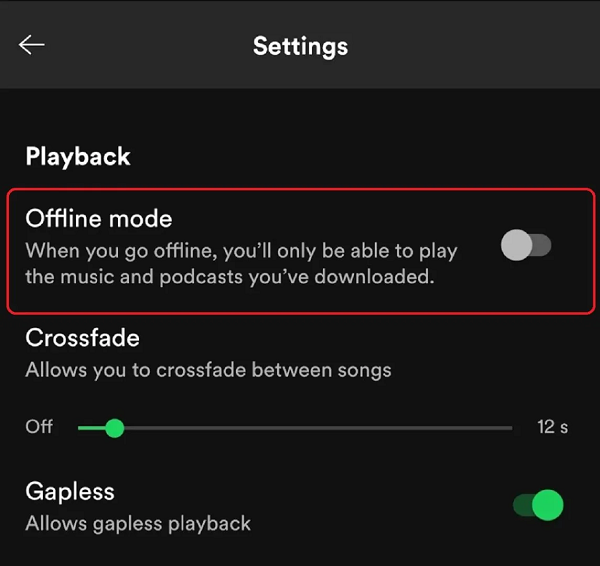
When this method is your end goal, it is excellent for flights, commutes, and temporary offline use. When your goal is permanent files for USB, car stereo folders, or third-party editing apps, plan a local-file path instead of fighting cache behavior.
Permanent local files + metadata workflow
When you need files you can actually manage, the workflow changes from “cache inside app” to “capture and organize local files.” The tradeoff is clear: more setup, more control.
Basic workflow:
- Build your Hot 100 source list from Billboard.
- Play tracks from licensed/accessible sources while recording system audio.
- Split tracks and save to MP3/AAC/FLAC/WAV as needed.
- Run metadata recognition.
- Batch-fix edge cases (live versions, remixes, rare tracks).
- Export to your target device structure.
Why metadata deserves its own step: recognition is helpful but not perfect. Short clips, uncommon versions, and noisy playback chains can reduce matching accuracy. That means you should expect some manual cleanup in real projects, especially with 100-track batches.
If your endpoint is car playback, USB, or any folder-based player, this guide on how to transfer songs to USB helps after files are tagged and named.
After the core method is clear, a minimal tool recommendation can save time for people who specifically need stable local files plus built-in tag cleanup.
A practical fallback option (minimal recommendation)
Best for: Windows 10/11 and macOS 13.5+ users who need local MP3/AAC/FLAC/WAV files with metadata support.
Not for: users who only want official in-app offline playback and do not need transferable files.
Limits: recognition can miss rare/live/remix tracks; scheduled recording requires the computer to stay awake; internet is needed for metadata/lyrics enrichment.
Why now: if your batch runs keep failing on missing tags or you are spending too long renaming tracks, a recorder with re-identify and batch edit can reduce cleanup cycles.
Actionable CTA: test a short 10-song Hot 100 batch first, verify tag accuracy, then scale to the full list only after your settings are stable.
This keeps product use in the right place: after standard methods, for users with a clear local-file need.
What to watch out for before batch runs
Most failed 100-song jobs are setup issues, not method issues. A 3-minute preflight check prevents most retries.
- Source consistency: avoid mixing explicit/clean edits without tracking which one you saved.
- Playback environment: disable audio enhancements if your recordings sound flat or muffled.
- Track boundaries: crossfade/gapless can merge songs in traditional silence-detection workflows.
- Naming rules: define filename pattern before export so you do not retag everything later.
- Storage plan: confirm free space for the full run plus temporary files.
If you care about quality consistency, set your playback/output parameters before the first song and avoid changing them mid-batch.
Troubleshooting when downloads fail/disappear
When downloads break, run checks in order. Random retries waste the most time.
- Account tier and sign-in state
Confirm the account still has the required plan and is signed in correctly on the current device. - Device and policy limits
Check whether you hit device limits or missed periodic online validation windows. - Storage and permission checks
Verify local storage, folder permissions, and app write access. - Network and stability checks
Retry on stable Wi-Fi and pause background-heavy downloads. - Metadata or split failures (local workflows)
Re-identify tracks, then batch-edit misses instead of re-recording everything.
This sequence works because each step removes a common failure class before you move to deeper fixes.
A frequent real-world error message is “Could not download the track. Please try again later.” Treat it as a symptom, not a diagnosis. Start with plan/device/account checks, then storage/network, and only reinstall as a late step.
FAQ
How can I download Billboard Hot 100 songs legally?
Use Billboard as the ranking list, then choose a legal acquisition path: official app offline mode for in-app listening, or licensed purchase/local-file workflows for portable files. Keep usage within personal-use boundaries and avoid redistribution. The legal question is about the download method, not the chart page itself.
Is there an official Billboard download button?
Billboard Hot 100 pages are chart listings, not a direct one-click music download service. You can use Billboard to discover ranked tracks, then move to a platform-specific download workflow. This is why separating “list source” from “file method” is the fastest way to avoid wrong expectations.
Why do downloaded songs disappear?
Disappearing downloads usually come from account/device/policy checks, not from random app behavior. For Spotify offline, device limits and periodic online validation are known conditions. If those conditions are not met, cached songs may become unavailable until the account/device state is healthy again.
What is the fastest way to save this week’s top songs offline?
If you only need playback inside Spotify, official offline mode is usually fastest. If you need transferable files, a prepared local-file workflow is faster over the full project because you avoid rework later. In both cases, work in 20-30 song batches so errors are easier to fix.
Which format is best for car or offline playback?
MP3 is the broadest compatibility choice for car stereos and older players. AAC can be efficient on modern ecosystems, while FLAC favors quality over storage size. If compatibility is unknown, start with MP3 and test one folder on your target device before exporting a full 100-track batch.