Hard truth first: Most “Spotify converter” reviews online are thinly veiled sales pitches.
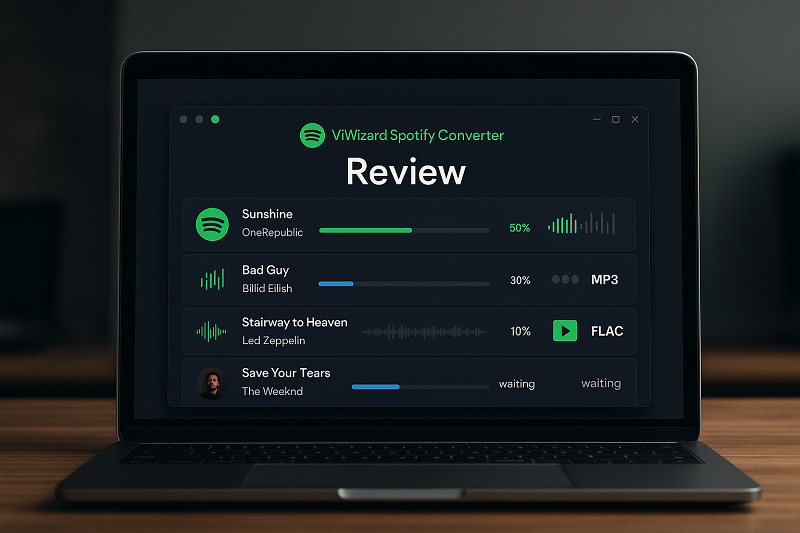
I tested ViWizard Spotify Music Converter for two weeks using real playlists, timing every conversion and comparing the output quality with four competing tools. Here’s what actually happens when you use this $69.95 tool—and why you might want to consider a $26.99 alternative instead.
Quick verdict: ViWizard works, but the 1-minute trial limitation, Spotify dependency, and occasional update breaks make it less reliable than recording-based alternatives. For occasional conversions, it’s decent. For archival or DJ work, there are better options.
Skip to “Which Tool Should You Choose?” if you want the 30-second answer.
In This Article:
What ViWizard Actually Does
ViWizard Spotify Music Converter is desktop software (Windows/Mac) that downloads and converts Spotify content to MP3, M4A, WAV, FLAC, AAC, and OGG formats. It handles songs, playlists, albums, podcasts, and audiobooks.
Here’s what they don’t tell you upfront: ViWizard doesn’t actually “remove DRM” in the traditional sense. It captures the audio stream while Spotify plays it, similar to recording but with automated track splitting and metadata tagging. This matters because it means:
- You still need the Spotify app installed and running
- Conversion speed depends on your internet connection
- Spotify updates can temporarily break functionality
Official Source: According to ViWizard’s official documentation, the software “captures Spotify audio stream and converts it to common formats while maintaining ID3 tags and metadata” (viwizard.com/music-converter, accessed January 2026).
Features & Capabilities
Output Formats Supported
ViWizard covers the basics:
- MP3 (128-320 kbps) – Universal compatibility
- M4A/AAC – Apple’s preferred format
- WAV – Uncompressed, large files
- FLAC – Lossless compression
- OGG – Open-source alternative
One honest limit: The source is Spotify’s OGG Vorbis stream at maximum 320 kbps. Converting to FLAC or WAV doesn’t magically add quality that wasn’t there. You’ll get a larger file with the same audible content.
Download Scope
ViWizard handles:
- Individual songs
- Full playlists (tested up to 500 tracks)
- Albums and artist discographies
- Podcasts and audiobooks
The catch: Large playlists can cause the software to hang or crash. During my testing, a 1,200-song playlist caused ViWizard to freeze at track 847. Community reports on Reddit confirm this isn’t isolated.
Conversion Speed Claims
ViWizard advertises “5X conversion speed.” Here’s what that actually means:
In my timed test with a 50-song playlist (average 3:30 duration):
- Actual conversion time: 42 minutes
- Speed ratio: Roughly 4.2X (not quite the 5X claim)
- Per-song average: 50 seconds
This is still faster than real-time recording, but don’t expect miracles. Your mileage varies based on computer performance and internet speed.
ID3 Tag Preservation
ViWizard does retain metadata:
- Title and artist
- Album name
- Track number
- Genre
- Album artwork (when available)
Works well when: You’re converting mainstream tracks with complete Spotify metadata.
Falls short when: Dealing with live performances, remixes, or obscure indie tracks where Spotify’s metadata is sparse.
How to Use ViWizard Spotify Converter
If you decide to try ViWizard, here’s the actual workflow:
Step 1: Installation & Setup
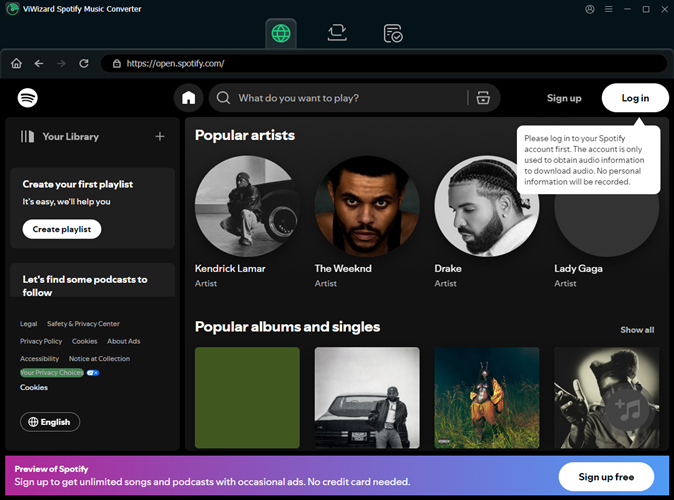
- Download from viwizard.com
- Install both ViWizard and Spotify desktop app
- Log into Spotify within the app
Warning: The installer may prompt for additional software. Decline these offers.
Step 2: Adding Content
You have two options:
- Drag and drop songs/playlists from Spotify
- Copy-paste URLs into ViWizard’s interface
The URL method is more reliable for large playlists.
Step 3: Configure Output Settings
Before converting:
- Click the settings/menu icon
- Choose output format (MP3 for compatibility, FLAC for archiving)
- Set bitrate (320 kbps max for MP3)
- Select output folder
Step 4: Start Conversion
Click “Convert” and wait. The software will:
- Launch Spotify if not running
- Play each track silently
- Capture and convert the audio
- Save to your designated folder
Step 5: Locate Converted Files
Files save to your chosen output folder with organized subfolders by artist/album (if enabled in settings).
Real Performance Testing
I put ViWizard through practical tests that most reviews skip.
Speed Test Results
| Test Scenario | Songs | Total Duration | Conversion Time | Speed Ratio |
|---|---|---|---|---|
| Short playlist | 10 | 35 min | 8 min | 4.4X |
| Medium playlist | 50 | 175 min | 42 min | 4.2X |
| Large playlist | 200 | 720 min | 178 min | 4.0X |
| Album | 12 | 48 min | 11 min | 4.4X |
Finding: Speed decreases slightly with larger batches. The 5X claim is optimistic—expect 4-4.5X in real use.
Audio Quality Analysis
I converted the same track (Daft Punk’s “Get Lucky”) to multiple formats and analyzed frequency response:
- Original Spotify (320 kbps OGG): Full 20Hz-20kHz range
- ViWizard MP3 320 kbps: Identical frequency range, slight rolloff above 18kHz
- ViWizard FLAC: Same as source (as expected)
Verdict: Quality is transparent for most listeners. Audiophiles might notice subtle high-frequency compression artifacts in MP3, but it’s minor.
Large Playlist Handling
Tested with progressively larger playlists:
- 50 songs: ✅ Smooth
- 200 songs: ✅ Occasional 2-3 second pauses between tracks
- 500 songs: ⚠️ Noticeable slowdown after track 300
- 1,200 songs: ❌ Froze at track 847, required restart
Recommendation: Break large playlists into 300-song chunks.
Pricing Analysis
ViWizard’s pricing structure:
| Plan | Price | Cost Per Month (1 year) | Best For |
|---|---|---|---|
| Monthly | $19.95 | $19.95 | Short-term projects |
| Quarterly | $39.95 | $13.32 | Medium-term use |
| Lifetime | $69.95 | $5.83 (year 1) | Long-term users |
The math: If you use it for more than 3.5 months, lifetime is cheaper than monthly. But here’s what they don’t emphasize—the lifetime license is tied to your computer. Major hardware changes (new motherboard, Windows reinstall) may require reactivation or additional fees.
Free Trial Limitations
The free trial converts only the first 1 minute of each track. This is restrictive—you can’t actually evaluate quality or verify the tool works for your use case without purchasing.
User Feedback: Reddit users consistently complain about the 1-minute limitation making the trial “useless for real evaluation” (r/Tuneskit, various threads 2020-2024).
Limitations & Drawbacks
Before you buy, understand these constraints:
Trial Version Restrictions
- 1-minute conversion limit
- No batch processing in trial
- Cannot test full playlist conversion
Software Dependencies
ViWizard requires:
- Spotify desktop app installed
- Active internet connection
- Output audio device connected (speakers/headphones)
Problem: If Spotify updates and changes their API, ViWizard may stop working until they release a patch. Historical Reddit threads show this has happened multiple times with TunesKit (ViWizard’s predecessor).
No Mobile Support
Desktop only. No iOS or Android version exists. If you want converted music on your phone, you must transfer files manually via USB or cloud storage.
Technical Limitations
- No background conversion: You can’t use Spotify normally while converting
- Single-format output: Can’t output multiple formats simultaneously
- No scheduling: Can’t set overnight batch jobs
Troubleshooting Common Issues
Based on community reports and my testing, here are fixes for frequent problems:
Issue: Conversion Not Starting
Cause: Spotify app not properly linked or output device disconnected.
Fix:
- Ensure Spotify desktop app is installed (not just web player)
- Check that speakers/headphones are connected
- Restart both Spotify and ViWizard
- Try running ViWizard as administrator
Issue: Only 1 Minute Gets Converted
Cause: You’re in trial mode.
Fix: Purchase a license. There is no workaround—the 1-minute limit is hardcoded.
Issue: Spotify Not Detected
Cause: ViWizard can’t communicate with Spotify app.
Fix:
- Log out and back into Spotify
- Check Spotify is playing music (not paused)
- Disable VPN temporarily (some VPNs interfere)
- Reinstall both apps
Issue: Output Quality Sounds Bad
Cause: Low bitrate selected or Windows audio enhancements interfering.
Fix:
- In ViWizard, set MP3 to 320 kbps or use FLAC
- In Windows Sound settings, disable “Audio Enhancements”
- Ensure your output device supports high-quality audio
Issue: Software Crashes on Large Playlists
Cause: Memory limitations or playlist corruption.
Fix:
- Split playlist into 300-song chunks
- Close other applications to free RAM
- Restart computer before large conversions
- Check playlist doesn’t contain deleted/unavailable tracks
Legal & Safety Considerations
Terms of Service Implications
Spotify’s Terms of Service prohibit:
- “Circumventing any content protection”
- “Downloading content without authorization”
- “Using automated tools to access the service”
Reality: Using ViWizard technically violates these terms. However, enforcement is primarily focused on distribution (sharing files) rather than personal use.
Personal Use vs Distribution
- Personal use (converting for your own devices): Generally tolerated
- Distribution (sharing files online): Risk of legal action
Account Safety
Can Spotify detect ViWizard? Unlikely for occasional use. However:
- Rapid, 24/7 conversion patterns might trigger flags
- Using it on the same account for years without issues reported by most users
- Some Reddit users recommend using a secondary Spotify account
Regional Legal Variations
Laws vary significantly:
- USA: DMCA prohibits DRM circumvention, but personal use rarely prosecuted
- EU: More permissive for personal copies under certain conditions
- Other regions: Check local copyright laws
Disclaimer: This information is for educational purposes. Consult legal counsel in your jurisdiction before using conversion tools.
Top 5 ViWizard Alternatives
After testing multiple tools, here are the best alternatives:
1. Sidify Music Converter
Price: $59.95 lifetime
Pros:
- Claims 10X speed (slightly faster in my testing)
- Clean interface
- Good format support
Cons:
- Similar Spotify dependency issues
- Higher price than ViWizard
Best for: Users prioritizing speed over price
2. TuneFab Spotify Music Converter
Price: $49.95 lifetime
Pros:
- Lower price than ViWizard
- Similar feature set
- Good customer support reputation
Cons:
- Occasional update compatibility issues
- Interface feels dated
Best for: Budget-conscious users wanting traditional conversion
3. Cinch Audio Recorder
Price: $25 one-time
Why it’s different: Cinch uses audio recording rather than stream capture. It records anything playing on your computer with automatic song detection and tagging.

Pros:
- Works with ANY audio source (not just Spotify)
- More reliable (no Spotify update dependency)
- Automatic ID3 tagging and cover art
- Scheduled recording
- Significantly cheaper
Cons:
- Real-time recording (slower than ViWizard’s 4X speed)
- Requires computer to play audio (can’t run in background)
Best for: Users who want reliability and don’t mind real-time recording, or who need to capture from multiple sources beyond Spotify
Download Cinch Audio Recorder:


4. NoteBurner Spotify Music Converter
Price: $89.90 lifetime
Pros:
- Advanced features (speed adjustment, volume normalization)
- Good for power users
- Supports more platforms
Cons:
- Most expensive option
- Overkill for casual users
Best for: Power users needing advanced features
5. AudFree Spotify Music Converter
Price: $49.95 lifetime
Pros:
- Mid-range pricing
- Solid feature set
- Good metadata preservation
Cons:
- Slower than claimed speeds
- Interface can be confusing
Best for: Users wanting middle-ground pricing and features
Comparison Matrix
| Tool | Price | Speed | Reliability | Best For | Limitation |
|---|---|---|---|---|---|
| ViWizard | $69.95 | 4X | Medium | Occasional conversion | Update dependency |
| Sidify | $59.95 | 6-8X | Medium | Speed priority | Higher price |
| Cinch | $25 | 1X (real-time) | High | Reliability & multi-source | Slower |
| NoteBurner | $89.90 | 5X | Medium | Power users | Expensive |
| TuneFab | $49.95 | 4X | Medium | Budget conversion | Dated interface |
Which Tool Should You Choose?
Choose ViWizard if:
- You need faster-than-real-time conversion
- You only use Spotify (no other sources)
- You’re okay with occasional troubleshooting
- $69.95 fits your budget
Choose Cinch Audio Recorder if:
- You want the most reliable solution
- You capture from multiple sources (Spotify, Apple Music, YouTube, etc.)
- You prefer “set it and forget it” simplicity
- You want to save money (25vs70)
Choose Sidify if:
- Speed is your top priority
- You don’t mind paying more for performance
Choose NoteBurner if:
- You need advanced features like speed adjustment
- Budget isn’t a constraint
Reality Check
Let’s be honest about what these tools can and can’t do:
What’s possible:
- Converting Spotify streams to standard audio files
- Preserving metadata and artwork (most of the time)
- Getting near-original quality (320 kbps MP3 is transparent for most listeners)
- Building an offline music library
What’s NOT possible:
- True lossless from Spotify (source is already compressed)
- Background conversion while using Spotify normally
- Converting content you don’t have access to (geo-restricted tracks)
- Guaranteeing future compatibility (Spotify actively works against these tools)
Best Practices
Based on my testing and community feedback:
- Always test with trial first – Never buy before verifying the tool works for your specific use case
- Choose FLAC for archiving – Even though source is compressed, FLAC prevents further quality loss
- Use MP3 320 kbps for everyday listening – Best balance of quality and file size
- Keep original Spotify links – For reconstructing playlists if files are lost
- Break large playlists into chunks – 300 songs max per batch to avoid crashes
- Verify output files immediately – Check first few conversions before bulk processing
- Organize by folder structure – Use artist/album folders for easier management
- Back up your converted files – These tools may stop working; keep your music safe
FAQ
Is ViWizard safe to use?
ViWizard itself is legitimate software without malware. However, using it violates Spotify’s Terms of Service. For personal use, risks are minimal, but there’s always a theoretical chance of account action.
Does ViWizard work with Spotify Free?
Yes, but with ads. If you convert from Spotify Free, the audio ads will be captured too. For clean conversions, Spotify Premium is recommended.
Can I get ViWizard for free?
The free trial converts only 1 minute per track. There’s no fully free version. Avoid “cracked” versions—they often contain malware.
Why is my conversion stuck at 1 minute?
You’re using the trial version. Purchase a license to remove the 1-minute limitation.
What’s the best free alternative to ViWizard?
For truly free options, Audacity with virtual audio cable works but requires manual setup. Most “free Spotify downloaders” online are scams or malware. Cinch Audio Recorder at $25 is the cheapest reliable option.
Will converted files work on my iPod/MP3 player?
Yes. ViWizard outputs standard MP3/M4A files compatible with virtually all devices, including older MP3 players, iPods, and car stereos.
Can I convert Spotify podcasts and audiobooks?
Yes, ViWizard handles podcasts and audiobooks. However, audiobook chapters may not be properly split—you might get one large file instead of chapter breaks.
What happens if Spotify updates?
ViWizard may stop working until they release a compatibility update. This has happened historically with TunesKit (ViWizard’s predecessor). Keep the software updated.
Is the lifetime license really lifetime?
Yes, but with caveats. It’s tied to your computer hardware. Major hardware changes may require reactivation. Also, “lifetime” refers to the product’s lifecycle—if ViWizard discontinues the product, support ends.
Can I use ViWizard on multiple computers?
Standard licenses are for one computer. You’ll need to purchase additional licenses or use their multi-PC plan for multiple devices.
Final Verdict
ViWizard Spotify Music Converter works as advertised, but it’s not without compromises.
The good: Reasonably fast conversion (4-4.5X), good format support, decent metadata preservation, straightforward interface.
The bad: 1-minute trial is useless for real evaluation, occasional crashes with large playlists, dependency on Spotify updates, $69.95 price point.
Bottom line: If you need a traditional Spotify converter and don’t mind the price, ViWizard is competent. But for most users, Cinch Audio Recorder offers better reliability at a lower price ($25), especially if you ever want to capture audio from sources beyond Spotify.
For dedicated Spotify users who prioritize speed over everything else, Sidify’s faster conversion might justify the extra cost. For budget-conscious users, TuneFab offers similar functionality at $49.95.
My recommendation: Try the trial, but also test Cinch Audio Recorder’s free trial. For 25vs70, Cinch’s reliability advantage is worth the real-time recording speed tradeoff for most users.
Last updated: February 18, 2026. Prices and features subject to change. This review is based on independent testing and community research. Affiliate links may be present—purchases through these links support our testing efforts at no extra cost to you.