Quick Summary
Stop risking your Spotify account and ruining your DJ sets with fake 1411kbps WAVs. We tested 2026's top converters for actual quality, ID3 tags, and Serato/Rekordbox compatibility
You need WAV files from Spotify. Most “Spotify to WAV” guides skip what actually breaks your workflow: they promise lossless when Spotify only streams 320 kbps, they mix safe system recording with risky login-based downloaders, and they stop before the metadata, artwork, and wrong-source file problems that show up inside DJ software.
Let’s cut the BS. You basically have two choices. You can either use a safe, system-level recorder that physically captures what comes out of your soundcard—zero account bans, zero tracking. Or, you can roll the dice with those sketch API downloaders that ask for your Spotify password and pray your account survives the next ban wave. If stability and not waking up to a disabled account matters to you, system recording is your default. Downloaders are for people who knowingly accept the risk for convenience.
The reality most roundup pages skip
Short answer: Spotify to WAV is not lossless for most users. According to Spotify’s own audio quality guide, Premium playback tops out at 320 kbps Ogg Vorbis in desktop and mobile apps, while the web player uses up to 256 kbps AAC. Converting that stream to WAV does not restore missing data.
That is not the whole story. A WAV export still makes sense if you are editing, sampling, or moving tracks into software that handles uncompressed files better. The win is workflow, not magic quality gain. You avoid another lossy encode later, not upgrade Spotify to CD quality.
If Spotify’s lossless tier is available to you, that changes the source ceiling. As of early 2026, availability remains uneven. Verify your own account and region before assuming you have a lossless source.
The decision that actually matters: system recording vs downloader apps
Short answer: system recording is the conservative choice; downloader apps are the risky shortcut.
System recording uses OS-level audio capture such as WASAPI loopback on Windows or CoreAudio-based routing on macOS. It captures exactly what your computer plays and does not need your Spotify username, password, or API credentials. That is why it is the safest route from an account-risk perspective. This is how you record Spotify in high quality without touching your account.
Downloader apps promise a cleaner shortcut, but the category has two recurring problems. First, many tools sit in a gray or outright non-compliant zone under Spotify’s Developer Terms and the February 2026 developer access update. Second, many “Spotify to WAV” tools do not give you Spotify’s exact stream. Community reports point to title-matching, alternate-source downloads, or low-bitrate files wrapped in a WAV container and marketed as “lossless.”
That is why DJs, producers, and anyone preparing files for real use should treat these as two different categories, not two versions of the same thing.
| Route | Best for | Why people choose it | The cost people underestimate |
|---|---|---|---|
| System recording | DJs, producers, risk-averse users | Stable, honest, no Spotify login needed | Real-time capture, plus cleanup work if your tool does not handle tags |
| Downloader apps | Casual users chasing speed | Feels faster when it works | ToS risk, wrong-source risk, fake-lossless marketing, and long-term breakage |
The shortlist that actually changes your decision
I kept this list tight on purpose. If a tool does not change your real shortlist, it does not belong here.
| Tool | Best fit | What it genuinely saves you | Biggest catch | Verdict |
|---|---|---|---|---|
| Cinch Audio Recorder | DJs, producers, and heavy playlist users who want recording plus tagging in one workflow | Auto track recognition, artwork, lyrics, existing-library cleanup, no Spotify login | Paid after the trial, and it still cannot exceed Spotify’s source quality | Best overall for most readers |
| Audacity | Windows users who want the safest free method | Clean loopback capture at zero cost | Manual splitting, naming, tagging, and library cleanup | Best free option |
| Audio Hijack | Mac users who care about routing control | Flexible app-based capture without downloader tricks | More of a recording toolbox than a library manager | Best for Mac power users |
| Spytify | Technical Windows users who prefer open-source tools | More transparency than glossy “lossless converter” marketing | Rougher setup, maintenance burden, less hand-holding | Best tinkerer’s pick |
| NoteBurner-style downloader apps | Users willing to trade safety for convenience | Fast playlist-style workflows when they still work | Account risk, source ambiguity, and fake-WAV risk | Not my default recommendation |
I left most browser-based online converters out on purpose. For DJs and producers, they usually fail the source-honesty test, the metadata test, or the reliability test.
The tools worth shortlisting
1. Cinch Audio Recorder
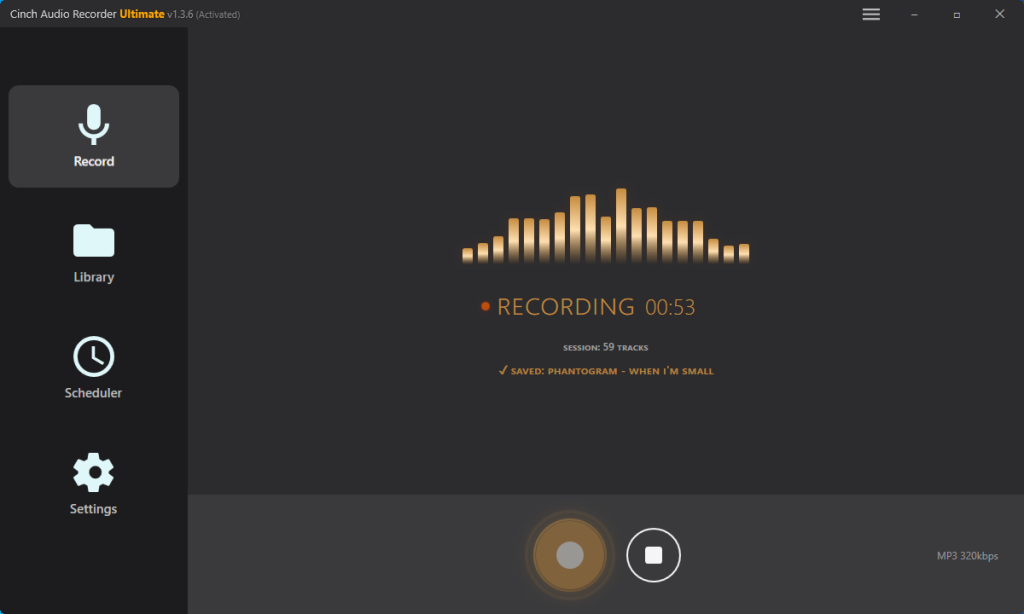
Best for: DJs and producers who value time over tinkering.
If you want one tool that stays on the safe side of the system-recording route but removes a lot of the boring cleanup, Cinch is the strongest overall pick.
Above: Watch Cinch automatically identify, tag, and embed album art the moment it finishes recording. No manual data entry, no missing fields in Serato or Rekordbox.
The reason it ranks first is not audio quality marketing. It ranks first because it solves the part that usually wastes the most time after capture. According to its official user guide, Cinch records system audio without requiring a Spotify login, supports WAV/FLAC/M4A/MP3 output, can keep WAV copies, auto-identifies songs, embeds artwork and lyrics, and also imports existing MP3, WAV, FLAC, and M4A files so you can re-identify or repair older library messes. Works on both Windows and Mac—solid choice if you need a Spotify to WAV converter for Mac that does not ask for your credentials.
That combination makes it especially good for two people. The first is the DJ who needs to turn a playlist into usable local files fast and cannot spend the whole evening splitting tracks and fixing tags one by one. The second is the reader who already has a half-broken local library from old recorders and wants a tool that can help clean that up too.
Its real limitation is simple: Cinch does not change Spotify’s source ceiling. A cleanly tagged WAV from Cinch is still only as good as the stream Spotify gave you. Song recognition can also miss rare tracks, live versions, mashups, or anything that does not fingerprint cleanly. The trial gives you 9 songs to test the automation. That is enough to decide if the time saved is worth paying for, or if Audacity’s manual route fits your workflow better.
Here’s the brutal truth: nobody buys Cinch because it possesses some dark magic to upscale audio. They buy it because nothing kills your soul faster than manually typing artist names and pasting album covers for 50 tracks at 2 AM before a gig. Cinch simply nukes that busywork.
2. Audacity
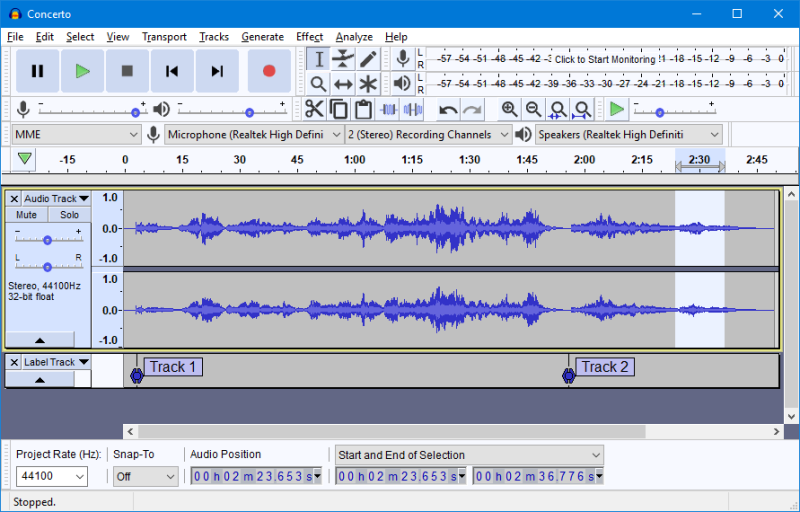
Best for: Budget-conscious users and producers grabbing a few samples.
Audacity is still the best free answer if your real priority is clean capture, not convenience.
On Windows, the official Audacity WASAPI loopback workflow is the simplest honest way to record Spotify high quality without touching your Spotify account. That is why Audacity remains such a strong baseline: the capture method itself is solid, and the source limit is the same no matter how expensive the recorder is.
Where Audacity starts to hurt is everything after the capture. You are doing the splitting, trimming, file naming, metadata, artwork, and import verification yourself. For a producer grabbing a few samples, manual work is manageable. For a DJ preparing 50 tracks for a weekend set, that same manual work becomes the bottleneck. A practical estimate: splitting, naming, and basic tagging one song in Audacity often takes 5-10 minutes. Fifty tracks means roughly 4-8 hours of manual post-capture work. If your gig is next weekend and you have limited time, either budget for Cinch’s automation, or plan to process only your most critical 15-20 tracks with Audacity and add the rest later.
It also scales badly when metadata matters. A free recorder can match paid capture quality, but it does not give you the automation layer that keeps a DJ library tidy. If your budget is zero, Audacity absolutely deserves a place on the shortlist. If your time is the expensive part, it is often the false economy.
3. Audio Hijack
Best for: Mac power users who want routing control and repeatable sessions.
If you are on Mac and care more about capture control than built-in library management, Audio Hijack is the premium recorder to look at.
The appeal is that Audio Hijack treats recording as signal routing, not as some magical Spotify bypass. That matters on macOS, where a polished recording workflow can be more valuable than a sketchy downloader with big promises. Audio Hijack is a good fit if you want to isolate app audio cleanly, build repeatable recording sessions, or schedule captures without turning your workflow into a hacky chain of utilities.
The trade-off is that it is a recording tool first, not a Spotify-specific tagging and cleanup platform. So if you need artwork, track naming, or library repair, you still have work to do afterward. For DJs building a playlist-based library under time pressure, this manual post-capture work is usually the wrong trade. In plain English: Audio Hijack can be the better capture engine for Mac power users, but it is not the better all-in-one library workflow for most readers.
Choose it if you are the kind of Mac user who likes control. Skip it if you mainly want “play, capture, tag, and move on.”
4. Spytify
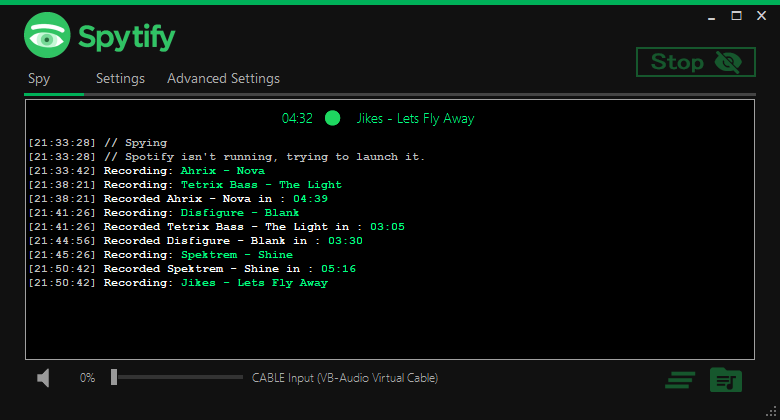
Best for: Technical users comfortable with troubleshooting and occasional maintenance.
Spytify and similar open-source Spotify recorders only make sense for a narrow audience, but that audience is real.
The appeal is transparency. In community discussions, open-source recorders are often preferred by technical users who would rather deal with a rough edge they can inspect than a glossy “lossless Spotify converter” that hides what it is doing. If you are comfortable troubleshooting, reading issue threads, and accepting occasional maintenance work, that can be a fair trade.
The problem is that the setup cost is real, the polish is lighter, and long-term stability can be messy. This is not the route to pick when you have a deadline, when you want support, or when you are building a library you need to trust without babysitting it.
So yes, Spytify belongs on the shortlist for tinkerers. It does not belong at the top for normal readers.
5. NoteBurner-style downloader apps

Best for: Users who knowingly accept policy risk and prioritize speed over source trust.
This category is popular because it looks like the fastest answer. It is also where the biggest trust problems live.
NoteBurner Apps in this lane promise direct Spotify-to-WAV conversion, but the category keeps running into the same two issues: account risk and source ambiguity. If a tool needs your Spotify login, relies on account-linked API behavior, or works around Spotify access rules in a way that does not line up cleanly with current policy, you are accepting a real platform risk. And even if the account risk does not bother you, you still have to ask a second question: where is the audio actually coming from?
That second question matters more than the marketing copy. Many downloader tools are judged by convenience first and provenance second, which is exactly backwards for DJing and production. If the file is title-matched from another source, or if a low-quality source is simply wrapped into a WAV container, you can end up with the wrong version, the wrong mix, or a file that looks “professional” until you inspect it.
That is why this category is not my default recommendation. It is only reasonable if you knowingly accept the policy risk, plan to audit every file, and care more about speed than source trust. If you are preparing music for a gig, sampling for release, or trying to avoid account issues, skip this route.
The post-capture workflow most guides skip
Getting a WAV file is only half the job. The failure usually happens after export.
The first trap is metadata. Community reports from DJ users are consistent here: WAV is weak at metadata compared with formats that behave better in library software. That is why people open a folder, see perfectly named files, then import them into Rekordbox or Serato and discover missing artist names, artwork, or other tag fields. If your end goal is a DJ library rather than raw editing in a DAW, AIFF is often the more practical endpoint when your toolchain supports it.
The second trap is assuming one successful export means your whole batch is safe. It does not. A smart workflow is boring, but it prevents disasters:
- Capture or export 3 test tracks first, not your whole playlist.
- Check the filenames, title, artist, and artwork in Finder or File Explorer.
- Import those same tracks into the software you actually use, such as Rekordbox, Serato, or your DAW.
- Open at least one suspicious file in Spek before trusting it.
- If the test reveals tag problems or quality issues, decide now whether you can fix that workflow in time, or whether you should prioritize your most critical tracks instead of the full playlist.
- Only then batch the rest of the playlist.
This is also where Cinch has a practical edge over plain recorders. If your old library is already messy, its import-and-identify workflow can help repair existing files instead of forcing you to recapture everything from scratch.
For producers, the rule is slightly different. WAV still makes sense as a working format because it avoids another lossy bounce when you start chopping, stretching, or layering. Just do not confuse “good working format” with “true lossless source.” Those are different things.
For casual listeners, the honest answer is even simpler: if you do not need DJ software compatibility or DAW editing, chasing WAV can be overkill. Bigger files and worse metadata are not automatically better.
How to spot fake WAVs before a gig or session
Short answer: use Spek. A .wav extension proves almost nothing by itself.
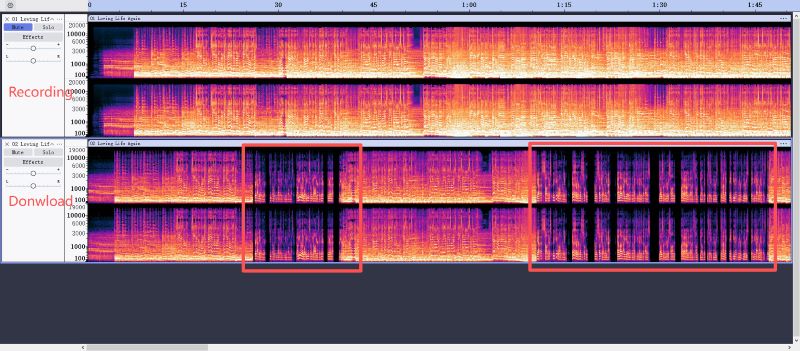
Spek is useful because it lets you see whether the file looks like a reasonable capture or like low-bitrate audio stuffed into a WAV container. A practical guide such as this quality-check walkthrough is more helpful than trusting marketing labels.
Fake WAV vs Real Capture: Spek Spectrum Comparison
| Fake WAV from Sketchy Online Converter VS Genuine System Recording (WASAPI) | |
|---|---|
 |
|
| Left: Notice the hard cutoff around 16kHz? This “WAV” was actually re-encoded from a 128kbps source. It is fake lossless—just water-added garbage that will sound flat on a club PA. | Right: A genuine system recording shows frequencies extending naturally to 20kHz+. The capture preserves what Spotify actually streamed. No magic upscaling, just honest capture. |
This is the comparison that most converter review sites will never show you. Save this image, share it in DJ forums, and stop getting scammed by fake 1411kbps claims.
Here is the simple test:
- Open the file in Spek.
- Look for an obvious hard ceiling around 16 kHz or 17 kHz. That is a strong warning sign for a lower-bitrate lossy source.
- Compare a suspicious file against a file you captured yourself from a known workflow.
- Remember what you are proving. You are not proving “true lossless.” You are catching files that are clearly worse than they claim to be.
That last point matters. A genuine Spotify-sourced WAV is still limited by Spotify’s stream. So the goal is not to prove that Spotify suddenly became CD quality. The goal is to make sure your “WAV” is not secretly much worse than Spotify in the first place.
Which Tool Fits You
Got a gig this weekend? Don’t overthink this. Grab Cinch Audio Recorder. It keeps your Spotify account off the radar, handles the miserable tagging process automatically, and gets your tracks ready for Serato or Rekordbox while you grab a coffee. If you’re completely broke, Audacity is your best friend—just prepare to sacrifice your entire Friday night organizing folders and manually typing metadata.
If you are a producer sampling or editing tracks, the best answer is usually Audacity or Cinch, depending on whether you value zero cost or less cleanup. In both cases, the key mindset is the same: WAV is helping your edit workflow, not turning Spotify into a lossless source.
If you are on Mac and you care about routing control, repeatable sessions, or app-level capture, look at Audio Hijack. If what you really care about is post-capture tagging and library cleanup, Cinch is the better fit.
If you are technical, patient, and happy to trade polish for transparency, Spytify is the open-source route worth investigating. Just be honest about the maintenance cost.
If a tool asks for your Spotify login or sells “lossless Spotify WAV” without a clear explanation of source quality, skip it. That is where convenience costs more than it saves.
Start here: capture three songs with your chosen tool, verify the tags, check one file in Spek, import them into the DJ software you actually use, and only then batch the rest of your playlist.
Frequently Asked Questions
Can I get true 1411kbps lossless WAV from Spotify?
No. Spotify Premium streams at a maximum of 320 kbps Ogg Vorbis (or 256 kbps AAC on the web player). Converting that to WAV gives you a 1411kbps file, but it does not magically restore the audio data that was already discarded by the lossy compression. The larger file size is just padding—you are not getting CD-quality audio. If Spotify HiFi (lossless FLAC) is available in your region, that would be the exception, but as of 2026, availability remains limited.
Why do my Spotify WAV files have no album art in Rekordbox/Serato?
WAV format has historically poor metadata support compared to MP3 or AIFF. Many DJ programs like Rekordbox, Serato, and VirtualDJ struggle to read or persist artwork and ID3 tags from WAV files. The tags might look fine in Windows Explorer or Finder, but disappear once imported into DJ software. Two solutions: use a tool like Cinch Audio Recorder that embeds metadata more robustly, or switch to AIFF format, which has better DJ software compatibility for album art and BPM data.
Is converting Spotify to WAV legal for DJing?
Recording audio that plays on your own computer for personal use is generally considered legal in most jurisdictions—it is similar to recording radio or vinyl. However, downloading via tools that bypass Spotify’s DRM or violate their Terms of Service puts you in a legal gray area and risks account suspension. For commercial DJing (clubs, paid gigs), the legality of using Spotify-sourced files depends on your local copyright laws and whether you have the appropriate performance licenses. This article does not constitute legal advice—consult a professional for your specific situation.