Quick Summary
Want to play KKBOX songs on your MP3 player? Learn why downloads won't transfer and how to record songs as MP3 files that work on any device.
KKBOX won’t let you export songs as MP3 files. The songs you download for offline listening are locked to the app—you can’t copy them to a USB drive, play them on an MP3 player, or keep them after your subscription ends.
If you want your KKBOX music on other devices, you need to record the audio as it plays. Below are the methods that work, the settings that matter, and the costs and limitations you should know before starting.
Why KKBOX Downloads Can’t Be Exported
When you “download” a song in KKBOX for offline listening, you’re not getting a standard MP3 file. You’re getting an encrypted cache file protected by digital locks (called DRM). This file can only play inside the KKBOX app—you can’t copy it to a USB drive, email it, or open it in any other player.
This isn’t a bug. It’s how streaming services work: you’re paying to listen, not to own the files.
Three critical limitations you need to know:
- 7-day expiration: Offline songs must connect to the internet every 7 days to refresh their license. If you’re offline longer than that, your songs show as “expired” and won’t play—even though the files are still on your device. This is the #1 reason people look for alternatives.
- Locked to the app: You cannot find the downloaded files in your folders or move them anywhere. They’re hidden and encrypted, readable only by the KKBOX app.
- Subscription-only: The moment your subscription ends, all offline songs become unplayable—regardless of when you downloaded them.
What this means: There’s no “export” button. If you want MP3 files that work on your car stereo, MP3 player, or any device, you need to record the songs as they play.
This is why users who want permanent, transferable copies turn to audio recording instead of trying to “convert” or “export” downloads.
What Quality Should You Record?
KKBOX offers three quality tiers:
| Quality | Specification | Best For |
|---|---|---|
| Standard | 128kbps AAC | Saving mobile data |
| High Quality | 320kbps AAC | Most users — your sweet spot |
| Lossless (Hi-Res) | Up to 24-bit / 192kHz FLAC | Audiophiles with DAC equipment |
Region matters: Hi-Res is only available in Taiwan, Hong Kong, and Singapore.
Warning: Switching quality settings clears your offline downloads. Don’t change this if you’ve spent hours building an offline library.
The Spectrogram Reality Check: Why Most “FLAC Downloaders” Are Lying
Here’s what competitors won’t tell you:
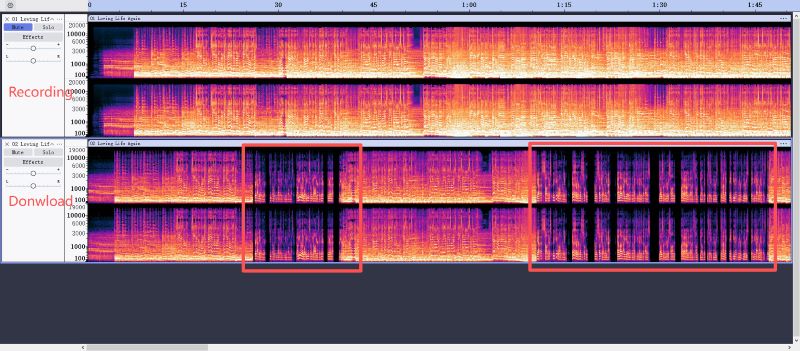
Most “KKBOX to MP3 converters” you see online work by opening a hidden KKBOX web player in the background and capturing the stream. The problem? KKBOX’s web player maxes out at 256-320kbps AAC—it cannot deliver Hi-Res audio.
What this looks like on a frequency spectrogram:
| Source | Frequency Range | Visual Signature |
|---|---|---|
| Web Player capture (competitors) | Sharp cutoff at ~16kHz | High frequencies are “clipped” — the spectrogram shows a clean horizontal line where frequencies stop |
| Cinch + KKBOX desktop app (Hi-Res) | Extends to 22kHz+ with harmonics | Rich high-frequency detail, visible overtones, no artificial cutoff |
The “fake FLAC” trap: Some converters advertise “FLAC output” but they’re simply transcoding that 256kbps web stream into FLAC format. You get a huge file with no extra audio information—like blowing up a low-resolution photo and calling it HD.
Cinch’s advantage: Because it records from your system audio at the driver level, Cinch captures exactly what KKBOX’s desktop app outputs. If you’re playing Hi-Res through KKBOX’s official desktop client (and your Windows audio is set to 24-bit/192kHz), Cinch records that full frequency range. No upsampling, no fake FLAC—just the actual audio waveform.
Method 1: Record with Cinch Audio Recorder (Recommended)
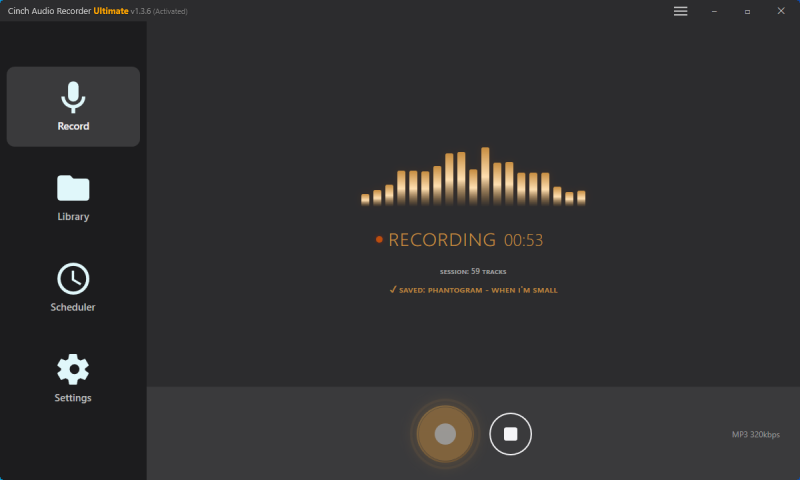
Recording system audio means capturing the sound your computer is playing through its speakers or headphones. Since you’re not breaking encryption or accessing hidden files, this is the safest approach.
Time investment: A 4-minute song takes 4 minutes to record. You’re making a digital copy of the audio as it plays, not downloading a file. Plan accordingly for long playlists.
What You Need
- A Windows or Mac computer
- KKBOX desktop app (download from kkbox.com)
- Recording software (see below)
- Headphones or a quiet room (prevents echo in recordings)
Tool Comparison
| Tool | Platform | Price | Setup Complexity | Auto Tagging | Asian Music Support |
|---|---|---|---|---|---|
| Cinch Audio Recorder | Win, Mac | $35.99 one-time | ✅ Simple | ✅ Automatic | ✅ CJK characters handled correctly |
| Audacity | Win, Mac, Linux | Free | ❌ Complex | ❌ Manual | ❌ Manual entry required |
| Audials Tunebite | Windows | $64.90 one-time | ⚠️ Moderate | ⚠️ Partial | ⚠️ May show garbled text |
Prices based on recent checks—verify current pricing on official websites.
Audacity works—but honestly, it’s kind of painful.
First, setup is a hassle.
You can’t record system audio directly, so you’ll need to install a virtual audio driver and tweak a bunch of settings. It’s easy to mess up.
Then, it doesn’t split songs.
Everything gets recorded as one long file, so you have to manually cut and export each track. A playlist = a lot of clicking.
And tagging? All manual.
Song name, artist, album—everything. No cover art, no lyrics, and Asian text can even break.
So yeah, “free” comes with a cost:
- 30–60 mins to set up
- 3–5 mins of work per song
- 50 songs = a few hours of cleanup
You save money, but spend way more time.
Cinch handles all of this automatically: It detects when a song starts and ends, names each track using audio fingerprinting, downloads cover art, embeds lyrics, and handles Chinese/Japanese/Korean characters correctly. The $25 one-time fee pays for itself after the first playlist.
Step-by-Step: Recording with Cinch Audio Recorder
Before you start: Close other apps that make noise (notifications, videos, games) to avoid unwanted sounds in your recording.

Step 1: Install and Configure
- Download Cinch from the official website and install
- Open Cinch and go to Settings:
- Recording Device: Leave on “Auto”
- Output Format: MP3 at 320kbps (universal) or FLAC (best quality, larger files)
- Min Song Duration: 45-60 seconds (filters out ads and short sounds)
- Output Folder: Choose where MP3s will be saved
Step 2: Optimize Windows Audio (Do This Once)
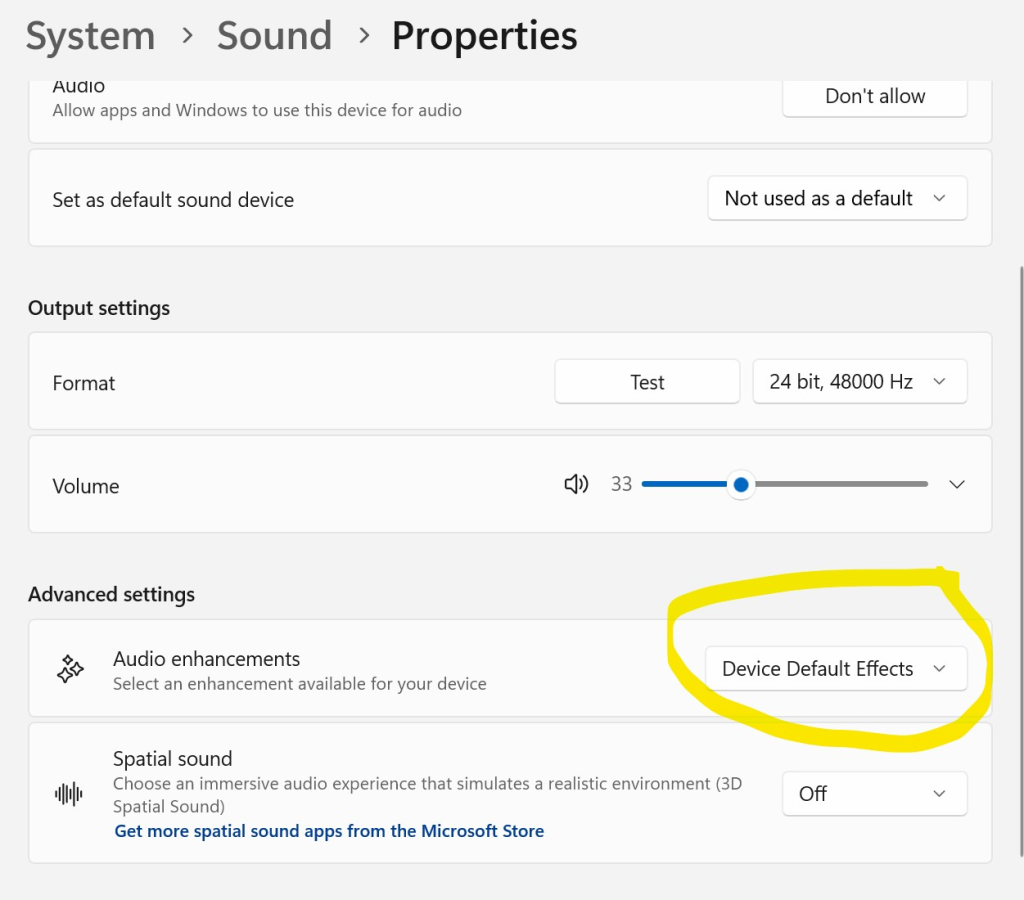
Poor recording quality usually comes from Windows settings, not the recording software:
- Right-click speaker icon in taskbar → “Sounds”
- “Playback” tab → Right-click your speakers → “Properties”
- “Advanced” tab → Set format to 24-bit, 48000 Hz (or 192000 Hz for Hi-Res)
- “Enhancements” tab → Check “Disable all enhancements” → OK
- Test: Play a KKBOX song. If it sounds different (flatter, less bass), you’ve done it right—those “enhancements” were distorting the audio.
Step 3: Record
- Click the gold “Recording” button in Cinch
- Open KKBOX and play your first song
- Cinch detects music automatically and starts recording
- Let the song play through—Cinch saves automatically when it ends
- Continue with the next song. Cinch creates separate files for each
Step 4: Verify
- Switch to Library tab to see recorded songs
- Each shows: ✅ Identified (with metadata), ❌ Failed (no info)
- Righ-click a song to “Open file location” where MP3s are saved
- Failed identifications: Right-click → “Edit Info” to manually add title/artist
Where Cinch Really Shines: Asian Music Metadata
KKBOX users often have extensive Chinese, Japanese, and Korean music libraries. Here’s where most recording tools fail:
The garbled text problem: Many recorders store ID3 tags in the wrong encoding. Your perfectly recorded “七里香” ends up displaying as “七里香” or “???” on your MP3 player.
Cinch’s solution: Its audio fingerprinting database correctly identifies Asian tracks and writes metadata in proper UTF-8 encoding. Chinese song titles, Japanese artist names, Korean album names—all display correctly on any device.
What this means for you:
- No more手动 re-typing song names in Chinese
- Cover art that actually matches the album (not some random Western release)
- Lyrics that sync correctly (Cinch can embed lyrics automatically)
Alternative: Web Player Recording (Not Recommended)
If you cannot install software (work computer, restricted device), you can use KKBOX’s web player. But understand the tradeoffs:
| Aspect | Desktop App | Web Player |
|---|---|---|
| Max quality | Up to 24-bit / 192kHz | 256–320kbps only |
| Stability | Reliable | Tab throttling may degrade quality |
| Hi-Res | ✅ Supported | ❌ Not available |
| Browser required | No | Chrome / Edge / Opera only |
The tab throttling problem: Browsers reduce audio quality when a tab isn’t visible. You must keep the KKBOX tab in the foreground during the entire recording session. Switch tabs, and your recording quality drops.
When to use: Only if you can’t install apps and need just a few songs.
When to avoid: Any serious recording project. The quality ceiling is simply too low.
The Ultimate Troubleshooting Guide
Recording Quality Issues
| Problem | Cause | Solution |
|---|---|---|
| Muffled or flat sound | Windows audio “enhancements” still active | Disable all enhancements in Sound Control Panel + audio driver software (Realtek, etc.) |
| Quality doesn’t match source | System audio format mismatch | Set Windows to 24-bit / 48000 Hz (or 192000 Hz for Hi-Res) |
| Missing high frequencies | Recording from web player instead of desktop app | Use KKBOX desktop app for full frequency range |
Song Identification Issues
| Problem | Cause | Solution |
|---|---|---|
| Song not identified | Rare / independent release or live version | Right-click → “Edit Info” to manually enter metadata |
| Wrong song identified | Similar-sounding track in database | Right-click → “Edit Info” to correct |
| Asian characters garbled | Encoding mismatch (rare with Cinch) | Re-identify or manually correct in a UTF-8 compatible editor |
| Missing cover art | Not in fingerprinting database | Right-click → “Change Cover” and upload a local image |
Recording Process Issues
| Problem | Cause | Solution |
|---|---|---|
| Short clips recorded instead of full songs | Silence detection triggered by quiet passages | Increase Min Song Duration to 60+ seconds; for classical music, use even longer |
| Ads recorded between songs | Min duration set too low | Set to 45–60 seconds; Cinch will skip short ad breaks |
| Recording stops unexpectedly | Another app took audio focus | Close notification sounds and pause Windows updates during recording |
| Two songs merged into one file | No gap between tracks in playlist | Manually split: Right-click → “Split Track” or trim in an external editor |
KKBOX-Specific Settings
For best source quality:
- KKBOX Settings → Playback → Audio Quality → “Lossless” (Hi-Res) or “High Quality”
- Restart KKBOX after changing quality settings
- Remember: Changing quality clears offline downloads
For Cinch output settings:
- Universal use: MP3 at 320kbps — works on every device
- Archiving/Hi-Res: FLAC — preserves full quality, 3-5x larger files
- Sample rate: Match Windows setting (48000 Hz is safe default; 192000 Hz for Hi-Res)
- Bit depth: 16-bit minimum; 24-bit if your system and DAC support it
Safe and Usage Boundaries
The line you shouldn’t cross:
- Don’t use tools that require your KKBOX login—these violate terms of service and risk your account
- Don’t share, distribute, or sell recorded files—personal use only
How To Choose
Transferring to MP3 player or car stereo:
Use Cinch Audio Recorder. You get universal MP3 files with automatic naming, correct Asian character encoding, and cover art.
Worried about offline expiration during travel:
Record your playlists before leaving. Remember: offline songs expire after 7 days without internet. A 10-day trip means your songs stop working mid-journey.
Chasing Hi-Res quality:
- Confirm you’re in Taiwan, Hong Kong, or Singapore (Hi-Res region-locked)
- Set Windows audio to 24-bit/192kHz with all enhancements disabled
- Record in FLAC format
- Use a DAC and headphones that actually support Hi-Res—otherwise you won’t hear the difference
Need just a few ringtones:
Cinch includes a ringtone maker. Trim your recording and export as M4R (iPhone) or MP3 (Android).
The Bottom Line
Recording KKBOX songs takes patience—each song records in real-time. But it’s the only reliable way to get transferable MP3 files without risking your account or falling for “fake FLAC” scams.
Quick start:
- Install Cinch Audio Recorder
- Play songs in KKBOX desktop app—Cinch records automatically
- Get properly tagged MP3s with correct Chinese/Japanese/Korean text
Start with 3-5 songs to test your settings. Once quality is confirmed, record your full library. For most users, Cinch offers the best balance of automation, quality, and Asian music support.