Quick Summary
Found a Type Beat you want to save for lyric writing? Here's what actually works, what's a lie, and when you should just buy the license.
You found a Type Beat on BeatStars that fits your next song—but you’re not ready to drop 30−30−100 on a license you might never use. You want that beat on your phone for lyric writing or in your DAW for a demo.
Start here: Check if the producer offers a “Free Download” button on the beat’s page. If yes, download that first (it’s watermarked but works for practice). If no free download, you’ll need to record the beat using the method below.
The reality: recording captures whatever quality BeatStars streams (not studio files), the voice tag stays permanently (no software can remove it), and you can’t upload that recording to Spotify without buying a license.
What BeatStars Actually Streams (And Why Quality Matters)
BeatStars streams MP3 files. The platform requires producers to upload audio at minimum 320kbps for the Stream MP3 option—that’s the official upload specification according to BeatStars help documentation.
Here’s the catch: upload specs aren’t the same as playback specs. BeatStars uses adaptive streaming—the actual bitrate delivered to your browser depends on your connection speed, device, and server load. You might hear 320kbps on a fast connection, or something lower on mobile data.
If you record what BeatStars plays, you capture whatever quality BeatStars delivers in that moment. Saving that recording as a 320kbps WAV or MP3 doesn’t add quality—it just wraps the same audio in a bigger container. For casual practice and lyric writing, stream quality is usually fine. For actual mixing or release, you need the real files—purchased.
The bottom line: recording captures stream quality, not “studio quality.” Anyone claiming otherwise is either confused or selling you something.
The Voice Tag Truth: Why That Watermark Is Permanent
When you hear “BeatStars.com” or a producer’s name repeated over the beat, that’s not a separate layer you can strip away. The voice tag is mixed into the same audio channel as the beat itself—part of the waveform. No software can remove it without destroying the beat.
The only way to get an untagged beat: buy a license that includes untagged files (typically MP3 Lease tier or higher).
Some “BeatStars downloader” tools hint they can remove tags. They can’t—at best they’re just screen recorders with fancy marketing, at worst they’re malware.
The Only Legit Free Method: Producer Free Downloads
Before you jump to recording, check if the producer offers free downloads.
Some BeatStars producers enable this on their beats. What you actually get:
It’s watermarked—almost always. This is a preview/demo version, not the real thing. It’s meant for demos only; the producer is letting you test the beat, not giving you distribution rights. And it might disappear, since producers can disable free downloads anytime.
To check, go to the beat’s page on BeatStars and look for a “Free Download” button (not all beats have this). If it exists, download it—you’ll get an MP3 file, usually with the voice tag.
This is the cleanest, most reliable free option. If the beat you want doesn’t have a free download, or if you need uninterrupted audio for practice, then recording becomes your fallback.
Recording Beats for Practice and Demo Sessions
Recording BeatStars audio is for pre-production workflow—offline practice, lyric writing, and demo recording. This is NOT about getting free beats to release on Spotify. That path ends with Content ID strikes and copyright problems.
When recording makes sense: you want to loop the beat on your phone while writing lyrics on the go, you need to test your flow in your DAW before committing to a purchase, or you’re archiving a beat that might get deleted or become paid-only later.
You need a system audio recorder that captures whatever your computer plays. One solid option is Cinch Audio Recorder—a Windows/Mac tool that records system audio and automatically identifies tracks, adds metadata, and organizes your recordings.
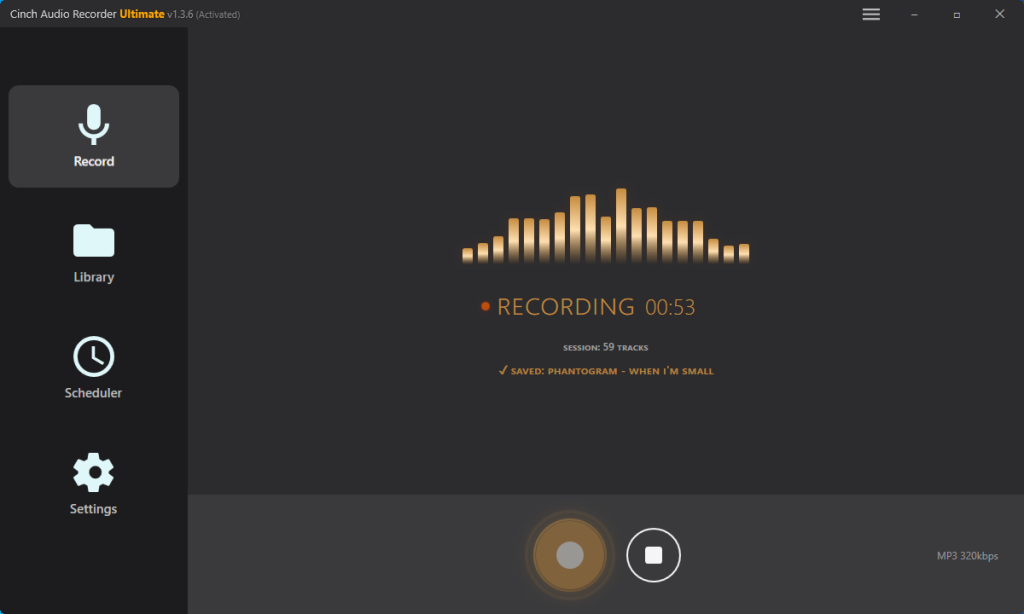
Cinch works well for this use case because it auto-splits when it detects silence between tracks—so if you play multiple beats, each gets its own file. Unlike Audacity, where you’d have to manually trim dead air, edit waveforms, and export each track one by one, Cinch handles the split automatically. That’s hours of editing time saved if you’re archiving multiple beats.
Basic workflow:
- Install and open Cinch Audio Recorder
- Click the Recording button (gold circle in the Record tab)
- Play the beat on BeatStars in your browser
- Cinch detects audio and starts recording automatically
- Stop when done—the file appears in your Library
You should see: A new file in Cinch’s Library tab with the beat title (or “Unknown” if it couldn’t identify it). The file is saved as MP3 in your Music folder by default.
In Cinch’s Settings, you can set output format and bitrate. For practice purposes, 192-256kbps is sufficient—higher won’t add quality to a streamed beat.
Getting the Beat to Your Phone
Since you want this beat for lyric writing on the go, you need to transfer it from your computer:
Option 1: Email or cloud storage
- Attach the MP3 file to an email to yourself
- Or upload to Google Drive, Dropbox, or iCloud
- Download the file on your phone
Option 2: Direct transfer (iPhone)
- Use AirDrop from Mac to iPhone
- Or use iTunes/Finder file sharing
Option 3: Direct transfer (Android)
- Connect phone to PC with USB cable
- Copy the MP3 to your Music or Downloads folder
Result: The beat now plays in your phone’s music app—no internet needed, voice tag and all. Use it for writing lyrics anywhere.
The 320kbps Scam? What You’re Not Being Told
Some tools claim to record BeatStars in “320kbps lossless quality” or “studio-grade audio.” This is misleading.
Recording captures whatever BeatStars delivers in that moment—often compressed MP3 at varying bitrates. Saving that recording as 320kbps WAV doesn’t add quality; it just wraps the same audio in a bigger file. Think of it like taking a screenshot of a 720p video and saving it as 4K—the extra pixels don’t contain new detail.
For lyric writing and practice, stream quality is perfectly fine. For actual release, you need to buy the beat—recording won’t give you studio files no matter what settings you use.
What Happens If You Upload Recorded Beats to Spotify or YouTube
Here’s where people get into real trouble.
You recorded a beat, wrote a great song over it, and now you want to upload to Spotify, Apple Music, or YouTube. Don’t do this without a license.
BeatStars producers can register their beats with Content ID systems (YouTube, Facebook, Instagram, and through distributors like DistroKid). When you upload a track containing that beat, Content ID scans your audio against its fingerprint database. If the beat is registered, your upload gets flagged. Consequences range from revenue redirect (money goes to the producer) to blocking (your video is muted or removed) to strikes (repeated violations can terminate your account).
This happens even if you recorded the beat yourself. Content ID doesn’t care how you got the audio—it cares about the fingerprint match. Recording system audio doesn’t create a “new” beat; it creates a copy of the same audio.
What this looks like in practice:
- YouTube upload gets claimed: Your video stays up, but ad revenue goes to the producer. If you dispute and lose, you get a strike.
- Spotify/Apple Music upload: Distributors like DistroKid may reject your track or pass through the claim. The producer gets your streaming revenue.
- Two artists on the same beat: Non-exclusive leases mean multiple people can use the beat. If someone else uploaded first, their registration might claim your version too.
Recording beats for personal, non-commercial use—practice, demos, showing collaborators—is generally tolerated. No one’s going to sue you for recording a beat to write lyrics in your bedroom. The line is crossed when you distribute or monetize without a license.
For any public release, you need at minimum an MP3 Lease (typically 25−50),preferably∗∗WAVorTrackouts∗∗(50-300+) if you’re serious about the song. Check the producer’s license terms for stream caps, distribution rights, and Content ID policies.
Common Recording Problems (And How to Fix Them)
If your recordings sound worse than expected, here’s what’s usually going wrong:
Recording sounds muffled or flat
Likely cause: Windows audio enhancements are coloring your output.
Fix: Right-click the speaker icon in your system tray → “Sounds” or “Playback devices.” Select your default playback device → “Properties.” Go to the “Enhancements” tab → Check “Disable all enhancements.” In the “Advanced” tab, set default format to 24-bit, 48000 Hz for best quality.
This ensures you’re capturing clean audio without Windows adding “sound improvements” that degrade the recording.
Recording has static or crackling
Likely cause: Recording device settings or driver issues.
Fix: In Cinch Settings, check “Recording Device”—try “Auto” or explicitly select your main speakers. Close other apps that might be accessing audio (Discord, other recorders, games). Update your audio drivers if the problem persists.
Beat is too quiet in the recording
Likely cause: System volume was low during recording.
Fix: Before recording, turn your system volume up to 80-100% (you can adjust playback volume separately in your browser). After recording, use Cinch’s volume normalization or your DAW’s gain tools.
Voice tag is still there
This isn’t a problem you can fix. The tag is part of the audio. If you need untagged audio, purchase the license.
When to Actually Buy the Beat
Recording is for practice and testing—not a substitute for purchasing when you’re ready to release. Here’s when to stop recording and start paying:
You want to release the song. Once your lyrics are finalized and you’re uploading to Spotify, Apple Music, or YouTube, you need a license. Recording won’t protect you from Content ID claims.
The song is really working. If you’ve practiced for weeks and know this beat is right for your project—that’s when you buy. The recorded version was your test drive. Now you need the real files.
You need better quality. MP3 leases start around $25-50 and give you untagged files. If you’re serious about the song, that’s your next step.
License tiers at a glance:
| License Type | Typical Price | What You Get | Best For |
|---|---|---|---|
| MP3 Lease | $25–$50 | Untagged MP3, stream cap (10k–50k) | Demos, small releases |
| WAV Lease | $50–$100 | Untagged WAV, stream cap (100k–500k) | Better mixing quality |
| Trackouts | $100–$300+ | Individual stems, unlimited streams | Professional mixing |
| Exclusive | $300–$1000+ | Full ownership, no one else can use | Career-defining songs |
Bottom line: Record for practice, buy for release. Know where the line is.
What To Do First
- Check for free download on the beat’s BeatStars page—if available, grab it
- If no free download, install Cinch Audio Recorder and record the beat while it plays
- Transfer the file to your phone via email, cloud storage, or USB cable
- Set expectations: stream quality, permanent voice tag, for practice only
- When the song is ready for release, purchase the appropriate license first
Recording beats is a legitimate way to test ideas before you buy. Just remember: practice and demos are fine, but distribution without a license will get you in trouble.
Frequently Asked Questions
Can I remove voice tags from a BeatStars MP3?
No. Voice tags are mixed into the same audio channel as the beat itself—they’re literally part of the waveform. No software can remove them without destroying the beat. The only way to get an untagged version is to purchase a license that includes untagged files (typically MP3 Lease or higher).
Is it illegal to screen record BeatStars?
Recording for personal use is a gray area that’s generally tolerated. Recording beats to practice lyrics or test flows in your DAW isn’t going to get you sued. The legal line is crossed when you distribute, monetize, or upload that recording to streaming platforms without a license—that’s copyright infringement.
Why is my BeatStars download only 128kbps?
BeatStars uses adaptive streaming, meaning the bitrate delivered to your browser depends on your connection speed and device. Even though producers upload at 320kbps minimum, you might receive a lower quality stream. If you need higher quality for mixing or release, you’ll need to purchase the WAV or Trackouts license from the producer.
What happens if I upload a recorded BeatStars beat to Spotify?
Your track will likely get flagged by Content ID. BeatStars producers can register their beats with YouTube, Spotify, and other platforms. When you upload, the fingerprint matching system will detect the beat and either redirect revenue to the producer, block your upload, or issue a copyright strike. You need a proper license to legally distribute songs made with any BeatStars beat.