Quick Summary
Is Applian Replay Music broken on Windows 11? Stop installing outdated virtual drivers. The true WASAPI audio recorders capture, tag, and filter streaming music.
If your Replay Music just broke again after the latest Windows 11 update, I feel your pain. As the developer behind Cinch Audio Recorder, I’ve seen this exact complaint hundreds of times in our support inbox. It’s time to stop wasting your evening installing random virtual-driver clones hoping one will work. If you just want to hit ‘Record’ and actually get your properly tagged MP3s without breaking your PC’s sound, Cinch Audio Recorder is your best bet.
Let’s be real: most legacy audio recorders feel straight-up cursed on Windows 11. Below, I’ll show you exactly why that happens from an engineering perspective, how to easily spot the ‘fake 320kbps’ scam that most software vendors pull, and which tool will actually save you from spending hours manually renaming tracks.
Note: If you are looking for stats apps like Apple Music Replay or Spotify Wrapped (the year-end listening summaries), this guide isn’t for you. This is for users of the classic Applian Replay Music audio recorder who need a working software replacement for Windows 11 after their virtual driver broke.
Quick answer
- Best overall for former Replay Music users: Cinch Audio Recorder
- Best free option: Audacity with Windows WASAPI loopback
- Best if you must isolate just one app while gaming or chatting: OBS Studio
- Best if you want a huge media suite and can tolerate frequent update chasing: Audials One
- What to avoid: old virtual-driver recorders and any tool that sells output bitrate as if it were source quality
Why Replay Music stopped working on Windows 11
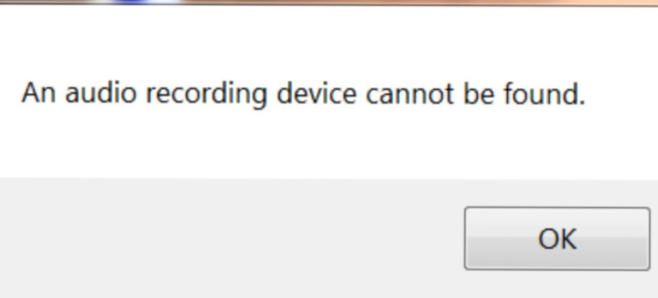
If Replay Music used to work on Windows 10 and now throws device errors, records silence, or breaks after updates, the most likely problem is architecture, not a one-time bad install.
Tools built around virtual audio drivers are trying to wedge themselves between your apps and the Windows audio stack. That was always a little fragile. On newer Windows 11 systems, it has become a recurring maintenance headache.
Here’s the plain-English version:
- Virtual-driver tools act like a fake sound card sitting in the middle of your audio path.
- WASAPI loopback tools ask Windows for the audio that is already being played through a real output device.
- Application-level capture tools try to grab audio from one specific app instead of the whole system mix.
According to Microsoft’s WASAPI loopback documentation, loopback capture works in shared mode and records the system mix without requiring a hardware loopback device or a fake “Stereo Mix” style workaround. That’s the big reason modern loopback-based recorders age better than legacy virtual-driver products.
I’ll be straight with you: WASAPI loopback isn’t flawless. Because it captures the raw output mix directly from your sound card, if you forget to mute Discord or a Windows error chimes in, that sound is getting permanently baked into your track. But what you’re gaining is stability—you’re no longer betting your whole workflow on a brittle driver layer that can die after the next Windows update.
The architecture test you should use before trusting any replacement
If a product page or installer gives you any of these signals, slow down:
- it wants to install a dedicated virtual audio driver
- it tells you to change your default system playback device to its own fake device
- its support forums are full of “device not found,” “silent recording,” or “reinstall the driver after update” threads
If instead the tool clearly says it uses Windows WASAPI loopback, system audio capture, or application audio capture, that’s a much healthier starting point in 2026.
The spectrogram audit: how to catch fake “320kbps” quality
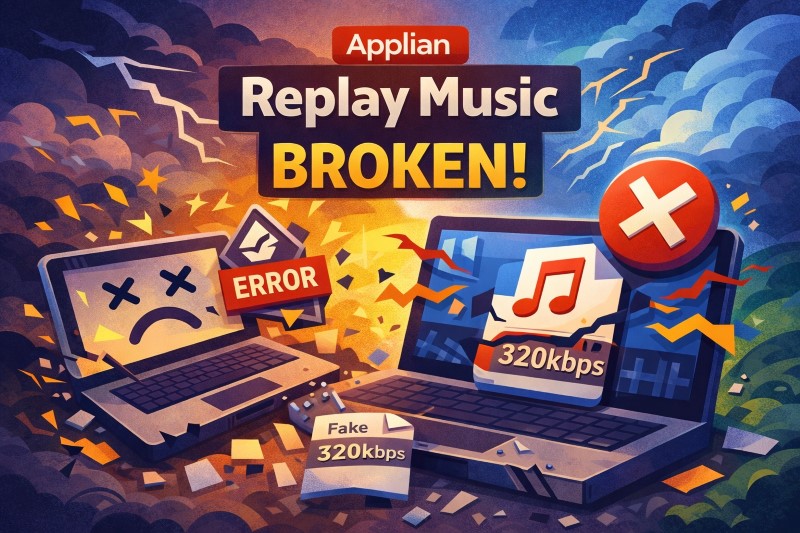
Here’s the biggest lie in audio software marketing: a 320kbps label doesn’t guarantee high fidelity. If you feed a 128kbps free web stream into a recorder and export it at 320kbps, you aren’t creating a lossless file—you’re just creating a bloated, double-compressed mess. That’s why the right question isn’t “Does the file say 320kbps?” The right question is “What did the source actually contain before this tool touched it?”
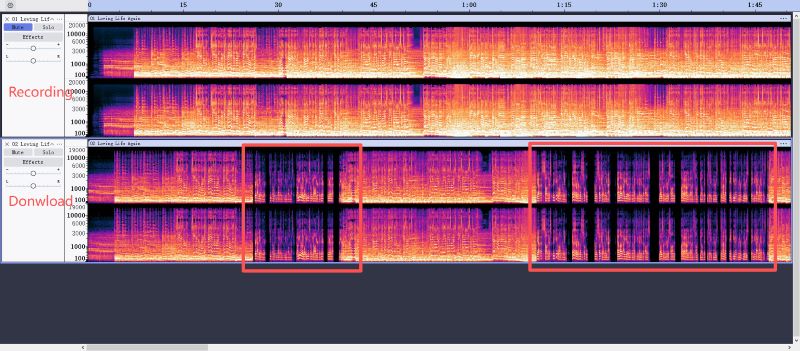
What the spectrogram usually reveals
If you open a recording in Spek or Sonic Visualizer, here’s the lie detector:
- Bad lossy-to-lossy transcodes often show a hard high-frequency cutoff, sometimes around the ~16 kHz area that audio engineers frequently flag as a classic warning sign, with a flat “brick wall” look.
- Cleaner captures from better sources usually preserve a more natural upper-frequency rolloff and fewer obvious secondary compression scars.
- The red flag isn’t that every good file must hit 20 kHz. Different codecs, genres, and masters behave differently. The red flag is a file that clearly looks like it was already bandwidth-limited before being re-encoded again.
If you want a quick primer, DJ Basilisk’s guide to spectral analysis is still one of the clearest explanations, and tone stack’s lossy compression primer is useful if you want the engineering logic without audiophile theater.
The honest rule for Replay Music alternatives
If you record from a limited source, you can only preserve that source well or badly. You cannot turn it into something better than it was.
That’s why tools that are honest about the path are more trustworthy:
- they record the playback stream cleanly
- they let you save to sane formats like WAV, FLAC, AAC, or MP3
- they don’t pretend their export bitrate magically upgrades the source
Cinch fits that model better than most because its documentation focuses on capture settings, output formats, and post-recording cleanup, not fairy-tale promises about inventing quality that never existed in the stream.
API downloaders, system recorders, and app-isolated capture solve different problems
One big reason people waste time on the wrong tool is that the market mixes three very different products into one bucket. They’re not the same.
| Tool type | What it really does | Main upside | Main failure mode |
|---|---|---|---|
| API/service-dependent downloader or converter | Talks to a specific service, browser path, or app workflow; often claims to bypass DRM | Can be fast and convenient when it matches the current service version | Breaks when the service changes authentication, playback flow, or metadata handling; legal gray area for DRM circumvention |
| System recorder using WASAPI loopback | Captures what Windows is already playing; no Virtual Audio Cable (VAC) installation needed | More stable as long as the music can still play; survives Windows updates | Records all audio on that device, not just your music |
| App-isolated capture | Captures one app’s audio buffer or window audio | Best for multitasking without notification contamination | Usually more manual and weaker for auto-tagging, splitting, and library cleanup |
Key terminology distinction: Many users confuse DRM bypass tools (which decrypt protected streams directly) with loopback recorders (which capture the audio after it’s already been decrypted by the legitimate player). DRM bypass is legally complex and technically fragile. Loopback recording is generally legal for personal use and technically stable—it records what you can already hear. Cinch uses the loopback approach, not DRM decryption.
This is why some tools “stop working overnight” while others keep going. If the core workflow depends on service-specific parsing, there’s always a cat-and-mouse layer. You can see that clearly on the Audials current recording issues page, which openly says new streaming-service releases can break compatibility until Audials updates the software. That doesn’t make Audials useless. It just means you’re buying an actively maintained moving target, not a stable recorder that survives updates.
By contrast, a recorder that simply captures system playback isn’t trying to outsmart Spotify, Apple Music, or YouTube Music at the API level. If playback works, the recording path usually still works. That’s the core reason Cinch makes more sense as a Replay Music replacement than service-specific “music converters” for most Windows users.
One more crucial boundary: system loopback is not the same as per-app isolation. Microsoft’s own WASAPI docs say loopback captures the system mix. If you need to record Spotify in the background while Discord, game audio, or a work call stays out of the file, you want a tool with true app-level capture, not just loopback. For that specific use case, OBS Studio (covered below) is the better pick than Cinch.
The Replay Music alternatives actually worth your time
Most people don’t need seven mediocre options. They need one reliable replacement, one free fallback, and one or two niche picks for unusual workflows.
1. Cinch Audio Recorder — best overall for former Replay Music users
Best for: people who want Replay Music’s old promise — record what plays, split tracks, tag them, and move on — without betting on another fragile driver mess.
Why it stands out:
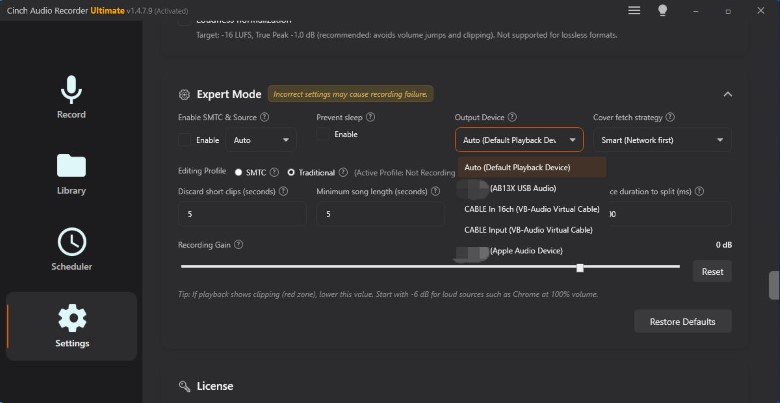
- no virtual driver requirement—direct WASAPI loopback to your physical sound card
- records system playback and supports Windows 10/11 and macOS 13.5+
- built-in ID3 tag editor with automatic song identification, cover art, and lyrics download via audio fingerprinting
- configurable short-clip filtering via Min Song Duration (default 60s, adjustable 15-90s) to auto-discard ads and junk audio
- can import existing MP3, WAV, FLAC, and M4A files from your old Replay Music archive and attempt re-identification
- offers a 9-song free trial so you can verify it works on your specific Windows 11 setup before purchasing
Cinch doesn’t win this list because of some flashy gimmick. It wins because it was engineered to fix the exact nightmare you’re dealing with right now: ditching the broken drivers, capturing the audio cleanly, and getting your tags right without making you feel like a beta tester for some abandoned software.
The whole chain is what matters. Former Replay Music users usually don’t just need a recorder—they need a recorder that reduces cleanup afterwards. Cinch’s user guide documents the exact kinds of cleanup controls that matter in real life: short-clip removal, re-identify, manual metadata editing, fragment merging in Traditional mode (for those weak-Wi-Fi buffering situations), and optional WAV retention for cleaner archiving paths.
Downsides: it’s still not true one-app isolation (system loopback captures everything on that output device), and fingerprint tagging isn’t magic. Rare tracks, live versions, remixes, and obscure releases can still fail identification and need manual editing in the built-in tag editor.
2. Audacity — best free fallback, but only if your library is small
Best for: users who want zero purchase cost and are okay doing the labor themselves.
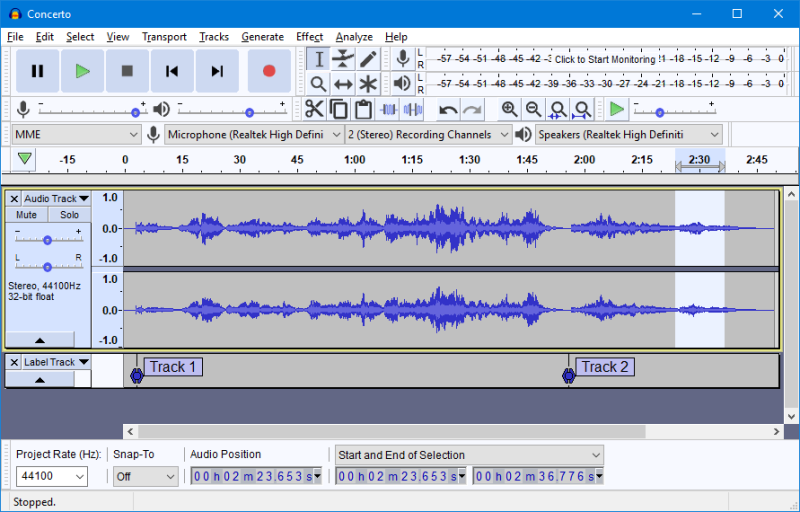
The Audacity manual explicitly recommends Windows WASAPI loopback for recording computer playback on Windows. That makes it one of the cleanest free answers to the “Replay Music broke, what still records?” question.
Why Audacity is still worth keeping on the list:
- free and mature
- uses a modern Windows capture path instead of replaying the old virtual-driver trap
- great if you want full manual control over edits
Why it’s not my main recommendation for Replay Music refugees:
- no automatic playlist workflow worth bragging about
- no automatic song identification chain comparable to Cinch’s built-in fingerprinting
- no real ad workflow beyond manual trimming
- records the device mix, so notifications can still leak in
Audacity is the right answer when you record one song, maybe five, and don’t mind editing. It’s the wrong answer when you want to migrate a big playlist or rebuild a local library in one sitting.
3. OBS Studio — best if clean app isolation matters more than music-library automation

Best for: people who must keep music separate from Discord, games, meetings, and system sounds.
OBS isn’t a Replay Music clone, but it solves one problem better than almost every music recorder: application isolation. The official OBS Application Audio Capture guide shows that on Windows 10/11 you can capture audio from a specific app instead of the full desktop mix.
That matters if your real situation looks like this: Spotify is playing in the background, Discord is open, a game is running, and you cannot afford contaminated files.
Why OBS isn’t best overall:
- it’s built for capture workflows, not music library workflows
- no automatic tagging, cover embedding, or lyric fetching
- no ad-focused minimum-song-duration logic
- you’ll do more manual file handling afterwards
So yes, OBS is the better pick than Cinch if app isolation is your non-negotiable requirement. But it’s a worse pick if what you actually want is “record a playlist and end up with a usable local music library.”
4. Audials One — best for power users who accept constant update churn

Best for: users who want an enormous streaming-media suite and don’t mind a product that lives in permanent negotiation with streaming-service changes.
Audials has real strengths. Its official music pages promise automatic tagging, ad removal, multiple output formats, and frequent updates. If you live inside a big “capture everything” media suite, that can be appealing.
But here’s the tradeoff most roundups hide: as of April 2026, Audials’ own support notes still list ongoing service-specific and Windows-related recording issues, plus a long history of break-fix cycles tied to Spotify, YouTube, Tidal, Windows updates, and internal recording modes. That tells you exactly what kind of product it is: powerful, actively maintained, but more exposed to service churn than a simpler recorder.
If you enjoy tweaking, updating, and using a broad media toolbox, Audials can make sense. If you’re a former Replay Music user who mainly wants a tool that quietly records songs again, Cinch is the calmer choice.
5. Service-specific music converters — only if you accept the cat-and-mouse game
Best for: people chasing speed inside one specific service ecosystem.
This class of tool can be convenient when it matches the current Spotify, Apple Music, or YouTube Music workflow. But it’s not the most stable Replay Music replacement because it depends more heavily on service-specific behavior. That means more “works great this month, breaks next month” risk.
I wouldn’t put this category first for ex-Replay users unless your main priority is conversion speed and you already accept that you may have to babysit updates, browser modes, or service-specific quirks.
Why Cinch Audio Recorder is the most reliable replacement for most former Replay Music users
Cinch wins here for a boring reason — which is exactly why it’s a good recommendation: it tackles the problems Replay Music users actually face instead of solving a neighboring problem and hoping you won’t notice.
It fixes the driver-risk problem without pretending to be magic
The official Cinch workflow is based on recording system playback, not on forcing you through a virtual sound-card install. That alone makes it a much better fit for users coming from the “Audio capture device not found” era of Replay Music headaches.
It’s built for messy real-world recording, not just clean demos
The most useful part of the Cinch guide isn’t the headline features. It’s the ugly, practical stuff:
- Min Song Duration can discard short clips that are likely to be ads or junk audio
- Discard Short helps clean tiny fragments
- Traditional mode can automatically merge song fragments created by buffering or interruptions
- Re-Identify gives you a manual retry when automatic fingerprinting misses
That makes Cinch unusually well aligned with the kind of nasty environment real people actually have: shaky Wi-Fi, Spotify Free ad breaks, and a library that needs to look usable afterward.
It helps with both new recordings and old library cleanup
This is easy to miss, but it matters. Cinch isn’t only a recorder. It can also import existing MP3, WAV, FLAC, and M4A files, then try to identify and tag them. That’s valuable if your old Replay Music archive is full of anonymous tracks, broken tags, or missing covers.
Its limitations are tolerable instead of deal-breaking
No honest recommendation skips the catches:
- it can’t create lossless quality from a lossy stream
- it can’t guarantee perfect metadata on rare or non-mainstream tracks
- it doesn’t give you the same per-app isolation that OBS can give you
- scheduled recording still requires your machine to stay awake
Those are real compromises. They’re just smaller compromises than “my recorder breaks every time Windows sneezes” or “I spent all night recording ads and notification sounds.”
The nasty stress test: ads, buffering, and notification chaos
The most useful way to compare Replay Music alternatives isn’t a polished vendor demo. It’s a bad day.
Imagine this setup:
- free Spotify account
- a 10-song playlist
- 2 to 3 short ads mixed between tracks
- weak Wi-Fi causing buffering and occasional track fragments
- Discord or Windows notifications still active in the background
That’s the kind of situation where “supports recording” means almost nothing. The real question is: what junk does the tool save, and how much cleanup does it dump on you later?
| Messy condition | What many basic tools do | What Cinch gives you | Where Cinch still doesn’t save you |
|---|---|---|---|
| Short ads between songs | Records them as separate files or bakes them into the session | Min Song Duration and short-clip cleanup are built for this kind of garbage | Long spoken segments or unusual interludes can still need review |
| Weak network creates broken song fragments | Saves fragments as separate junk tracks | Traditional mode can merge short fragments from the same song | A badly glitched source still stays badly glitched |
| Notifications while multitasking | Records the whole device mix | Can reduce some short junk, but it’s still a system-output recorder | Long Discord or meeting audio will still contaminate the file |
Here’s the harsh truth that most generic software review sites won’t tell you: Cinch is the best overall replacement, but it’s not a magic bullet for every single edge case. If your top requirement is “I need Spotify audio only while I keep gaming and chatting on the same PC,” OBS is the better architecture choice because it offers real application audio capture. If your top requirement is “I need a Replay Music replacement that works, tags, filters junk, and doesn’t become a part-time IT project,” Cinch is the better overall tool.
The hidden cost of “free” tools isn’t money, it’s repair work
Free is great when the job is small. Free is bad when the tool quietly turns you into the automation layer.
Here’s what that usually looks like:
| Use case | Free/manual path | Automated path |
|---|---|---|
| 1 or 2 songs | Audacity is perfectly fine | Paid automation is usually overkill |
| 10-song playlist | Manual split, export, rename, tag check, ad cleanup | A tool like Cinch starts to earn its keep |
| 50-song migration | Community consensus is this turns into hours of editing | Automation becomes the cheaper option in real life |
| Old anonymous library plus new recordings | Multiple tools and manual metadata repair | One tool can handle recording and file re-identification |
This is why “just use Audacity” is bad advice for the main Replay Music audience. It answers the price question while ignoring the labor question.
Which option fits you
Pick Cinch Audio Recorder if: Replay Music broke, you want a stable replacement today, you care about automatic splitting and tagging, and you want the fewest moving parts. This is the best fit for most former Replay Music users.
Pick Audacity if: you want the cheapest workable answer, you only record occasionally, and you don’t mind manual editing. It’s a valid tool. It’s just not a high-convenience playlist workflow.
Pick OBS Studio if: your number one requirement is true application-level isolation. If you need to keep music separate from Discord, games, or work calls, OBS has the better capture model.
Pick Audials One if: you want a giant streaming-media suite and you’re comfortable with an update-heavy product that regularly adapts to service changes.
Skip old Replay-style driver tools if: they still depend on virtual audio drivers, make you reroute your default sound device, or have a support history full of reinstall-the-driver fixes.
If you need a practical next step, start with Cinch’s free 9-song trial. Record one playlist, then check two things: open one track in a spectrogram viewer to verify quality, and confirm your background audio situation is clean. If both checks pass, you have your replacement. If Discord or game sounds leak in, switch to OBS instead.
Frequently Asked Questions
Is Replay Music discontinued or broken on Windows 11?
Replay Music from Applian Technologies is effectively broken on Windows 11, even if not officially discontinued. The core issue: Replay Music relies on Virtual Audio Cable (VAC) style driver injection that Windows 11’s stricter audio security model no longer tolerates reliably. After major Windows 11 updates (2025-2026), users consistently report “Audio capture device not found” errors, silent recordings, and driver conflicts that require manual reinstallation—only to break again after the next update. Applian’s support pages show minimal recent updates addressing Win 11 compatibility. The practical answer: if you’re on Windows 11, Replay Music is no longer a viable daily tool. You need a WASAPI loopback-based replacement like Cinch.
Why does Replay Music say ‘audio device not found’ on Windows 11?
Replay Music and similar legacy tools rely on virtual audio drivers that inject themselves into Windows’ audio stack. Windows 11 has stricter driver security and a different audio architecture than Windows 10. When Microsoft updates the audio subsystem, these injected virtual drivers often fail to initialize, causing the “Audio capture device not found” error. The fix isn’t reinstalling Replay Music—it’s switching to a recorder that uses WASAPI loopback instead of virtual driver injection.
How can I record streaming music without installing a virtual audio driver?
Use a recorder that captures system audio output through Windows’ built-in WASAPI loopback interface. Tools like Cinch Audio Recorder and Audacity (configured correctly) can record what your speakers play without needing any driver installation. WASAPI loopback is a native Windows feature that’s been stable across Windows 10 and 11 updates—unlike virtual driver methods that break repeatedly. This is the DRM bypass vs loopback recording distinction: loopback captures audio after it’s been legitimately decrypted by your player, while DRM bypass tools attempt to decrypt streams directly (legally complex, technically fragile). Cinch uses the loopback approach.
Is there a Replay Music alternative that automatically tags MP3s?
Cinch Audio Recorder is the closest match. It includes a built-in ID3 tag editor and uses audio fingerprinting (similar to Shazam) to automatically identify songs after recording, then downloads and embeds artist name, track title, album art, and lyrics into the MP3 files. For mainstream music, identification works reliably. For rare tracks, live versions, or remixes, you may need to use the manual “Re-Identify” feature or edit tags yourself. Cinch can also import your existing MP3 library and attempt re-identification—useful for cleaning up old Replay Music archives with missing or incorrect tags.
Applian Replay Music vs Cinch Audio Recorder: Which is better?
For Windows 11 users in 2026, Cinch Audio Recorder is the better choice. Here’s why: Replay Music depends on virtual drivers that frequently break on modern Windows; Cinch uses WASAPI loopback, which remains stable. Replay Music requires manual ad cleanup; Cinch has built-in ad filtering via minimum duration thresholds. Replay Music’s development appears discontinued; Cinch is actively maintained with a documented user guide and regular updates. The only edge Replay Music had—auto-tagging—is matched by Cinch’s fingerprinting system.