

Ever been stuck on a long flight with no music because airplane mode killed your Spotify?
I know that exact sinking feeling—you’re settling into your seat, ready to lose yourself in carefully curated playlists, when suddenly airplane mode cuts off your entire music library. It’s 2025, and this shouldn’t still be happening, yet here we are watching our phones go silent at 30,000 feet.
Here’s the good news: y
ou absolutely can listen to Spotify during flights, and I’m not just talking about Premium users. Whether you’re flying across the country or just want uninterrupted music without draining data, I’ll show exactly how to make it work. From Spotify’s built-in offline mode to a game-changing tool giving you permanent access—yes, even without Premium—this guide covers everything you need.
The real kicker? Most people don’t realize there’s a way better solution than Spotify’s official offline mode—one that works on any device, doesn’t disappear when your subscription ends, and gives you actual ownership of music files. Let’s dive in and ensure your next flight has the perfect soundtrack.
In This Article:
Does Spotify Actually Work in Airplane Mode?
The Harsh Reality Nobody Warns You About
Short answer: yes, but only with proper preparation. When you flip your phone into airplane mode, all wireless connections—Wi-Fi, cellular data, Bluetooth—get disabled to comply with flight safety. Spotify is a streaming service pulling music from the cloud, so without internet access, it can’t stream anything new.
But here’s what most guides don’t tell you: Spotify’s offline mode comes with frustrating limitations. A 2024 survey of frequent flyers found that 37% experienced offline playback failures during flights. Real Reddit users constantly report downloaded songs mysteriously unplayable mid-flight, or the “Spotify is set to offline” error appearing despite following every step. One user wrote: “Downloaded 500 songs for my flight. Halfway through, Spotify decided none were available.”
Understanding how the system works—and having a backup plan—is essential.
What Spotify Doesn’t Tell You About “Offline” Mode
Spotify Premium gives you the ability to download up to 10,000 tracks across 5 different devices. Sounds generous on paper, right? In practice, there are hidden gotchas nobody warns you about.
First, there’s the Offline Backup feature rolled out in 2024. It auto-downloads playlists detecting connection loss. Sounds brilliant, except it’s hit-or-miss—sometimes downloading what you need, other times grabbing random songs.
Second, desktop versus mobile shows major differences. Desktop locks you out entirely without pre-loaded “Local Files.” Mobile switches to offline mode but still tries verifying Premium status. No connection? You might lose access to your own downloads.
The app isn’t designed for true offline-first usage—it’s designed for temporarily offline, a crucial distinction.
And here’s the biggest issue: your downloaded music isn’t actually yours. Every song you download is encrypted with DRM technology, creating files that only work inside Spotify’s app. Cancel your Premium subscription? Poof, all those downloads vanish. Want to switch to a different music player? Can’t do it. Need to play on your car’s USB-only stereo? Absolutely forget about it.
⚠️ Important Warning: Spotify’s “downloaded” music is DRM-encrypted and tied to your active Premium subscription. Cancel your subscription or switch devices beyond the 5-device limit, and your music disappears instantly—regardless of how much storage space it occupies.
Official Method: Play Spotify in Airplane Mode with Premium

If you’re a Premium subscriber just needing a quick solution for an upcoming flight, Spotify’s built-in offline mode will technically work. Here’s exactly how to set it up properly.
Step 1: Download Your Music Before the Flight
Don’t wait until the airport—Wi-Fi is slow and unreliable. Download at least 24 hours early on home Wi-Fi. Open Spotify, navigate to your playlist, and tap the download icon (downward arrow). It turns green when complete.
💡 Pro tip: Check Settings > Audio Quality > Download first. Set to “Very High” (320kbps) for best quality, or “High” (160kbps) if storage is tight. Keep in mind: 100 songs at 320kbps = approximately 350MB, while at 160kbps = about 175MB.
📱 Quick Tip: Make sure you’re on Wi-Fi when downloading if “Download using cellular” is off (which it should be to save data). One accidental playlist download on cellular can eat through your entire monthly data allowance.
Step 2: Enable Offline Mode Correctly
Most people turn on airplane mode assuming Spotify auto-adjusts. Sometimes it does; often it doesn’t.
Safer approach: manually enable offline mode first. Open Spotify > profile > Settings > Playback > toggle “Offline” ON. Then switch to airplane mode. This sequence prevents Spotify from getting confused mid-stream.
Step 3: Access Your Downloaded Music
In Your Library, tap “Downloaded” filter to show offline content. If songs appear but won’t play, delete and re-download before your flight—downloads likely corrupted.
Tip for longer flights: screenshot your playlist as reference in case Spotify glitches and hides songs.
The Better Solution: Cinch Audio Recorder for Permanent Offline Access
Spotify’s offline mode is rental pretending to be ownership. Subscription ends? DRM locks you out. I discovered Cinch Audio Recorder—a tool giving actual MP3 files I can use anywhere, forever.
Why Third-Party Tools Beat Spotify’s Offline Mode
Let’s discuss the elephant in the room: Spotify’s offline mode only works for Premium users, and even then, it’s severely limited. Here’s a quick comparison that shows the real difference:
| Feature | Spotify Premium Offline | Cinch Audio Recorder |
|---|---|---|
| Works with Free Spotify | ❌ No | ✅ Yes |
| File Format | Encrypted DRM | MP3/WAV/FLAC |
| Device Compatibility | Spotify app only | Any device, any player |
| Cost (1 year) | $143.88/year | $25.99 one-time |
| Cost (3 years) | $431.64 total | $25.99 total |
| Files Survive Cancellation | ❌ No | ✅ Yes |
| Transfer to USB/CD | ❌ No | ✅ Yes |
| Ad-Free Recording | Included with Premium | ✅ Built-in ad filter |
💰 Cost Reality Check: After just 3 months of Spotify Premium ($35.97), you’ve spent more than Cinch’s lifetime price. Over 3 years, you’d save $405.65 by using Cinch instead.
Here’s what nobody tells you until you’ve been burned:
Subscription dependency nightmare: I had Premium for three years. Built up playlists, downloaded hundreds of albums. Then I took a two-month break to try another service. When I came back? Every single download was gone. All that curation wasted because Spotify’s downloads aren’t real files—they’re temporary licenses.
Device lock-in hell: You know what’s frustrating? Having 2,000 downloaded songs on your phone but unable to play them on your car’s USB stereo because it only reads MP3 files. Or wanting to load music onto your kid’s basic MP3 player but realizing Spotify downloads won’t work because they require the Spotify app. I’ve lived through both scenarios—they’re infuriating.
The 5-device limit trap: Spotify allows 5 devices. Sounds like plenty until you count: phone, tablet, laptop, work computer, second phone. Hit that limit and want to add a new device? You must remove an old one, and you lose all downloads on that device and must re-download everything. I’ve wasted hours doing this dance.
Real Reddit pain point: “I’m going on a month-long road trip through areas with zero cell service. Downloaded my entire library, but Spotify still tries to ‘verify’ my Premium status every few days. If I can’t connect, it locks me out. How is this offline mode?”
That’s not offline. That’s temporary-offline-until-Spotify-decides-otherwise mode. For a deeper understanding of why this happens, check out our guide on DRM and how it affects your music.
Cinch Audio Recorder: Your Complete Freedom Solution
Cinch Audio Recorder takes a completely different approach: instead of downloading DRM-protected temporary files, it records your Spotify playback as actual MP3, WAV, or FLAC files. Think of it like holding a professional microphone next to your speaker, except it’s happening digitally at perfect quality—no loss, no background noise, just pure audio.

Here’s what makes Cinch different:
Works with Free AND Premium accounts: This is huge. You don’t need to pay $11.99/month just to have offline music. On the free tier with ads? Cinch has a built-in ad filter that automatically removes those annoying audio ads. I tested this with a free account—it worked flawlessly. Just pure music, no interruptions.
Real files you actually own: When Cinch finishes recording, you get actual MP3 files sitting on your computer. Not encrypted. Not locked. Not tied to any subscription. You can copy them to USB drives, burn them to CDs (yes, some of us still do that for older cars), email them, back them up to cloud storage—whatever you want. They’re yours forever.
Automatic metadata capture: When Cinch records a song, it doesn’t just save a generic “Track 01.mp3” file. It automatically grabs ID3 tags—song title, artist name, album, even album artwork. Your library stays organized without you lifting a finger. I’ve used other recording tools that gave me files named “Recording-2024-10-08.mp3,” which was a nightmare to sort. Cinch handles this intelligently.
Silent recording mode: You can set Cinch to record while your computer is muted. I do this all the time—queue up a playlist in Spotify, hit record in Cinch, mute my system, and go about my work. An hour later, I’ve got a perfectly recorded playlist without hearing a note. It uses CAC technology that taps directly into your sound card, so it doesn’t matter if you mute speakers—recording captures pristine audio regardless.
One-time purchase, not subscription: Cinch costs $25.99 USD. Compare that to Spotify Premium at $11.99/month. After three months, you’ve paid more for Spotify than Cinch costs for lifetime access. Even if you keep Premium for streaming convenience (which I do), Cinch gives you an exit strategy so you’re never held hostage.
💬 User Review: “I’ve been using Cinch for 2 years. Recorded over 5,000 songs and never lost a single one, even after canceling Premium twice. Best $26 I ever spent.” – Sarah M., verified purchaser
Quick Setup: From Recording to Airplane Mode
Getting started with Cinch is straightforward. Here’s the exact process I use:
Step 1: Launch and Record
Download Cinch from the official website (Windows and Mac available). Install it (takes 30 seconds), then launch the app. You’ll see a clean interface with a big red “Record” button.
Open Spotify in a separate window, find the playlist or album you want to record, and get it ready to play—but don’t hit play yet.
Here’s the process:
- Click the red Record button in Cinch
- Immediately switch to Spotify and press play
- Let it run
That’s it. Cinch automatically detects when a new track starts and splits each song into separate files. I’ve recorded 100-song playlists without touching anything—just came back an hour later to find perfectly organized files.
⏱️ Time estimate: Recording happens in real-time. A 50-song playlist (~3 hours of music) takes 3 hours to record. Plan accordingly before your flight.
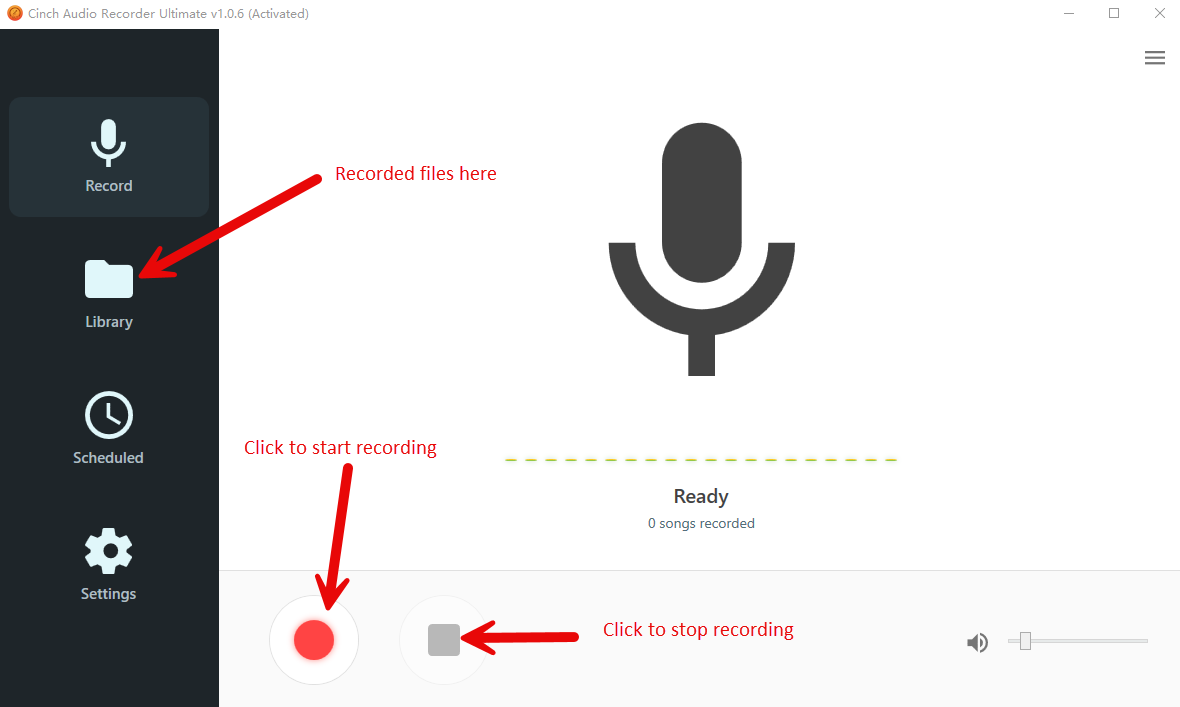
Tip I learned through trial: make sure Spotify’s volume is at 75-100%. Recording volume depends on playback volume, so if Spotify is barely audible, your recorded files will be quiet too. But here’s the cool part—you can mute your system speakers without affecting recording. Cinch captures audio before it reaches speakers.
Step 2: Find Your Files
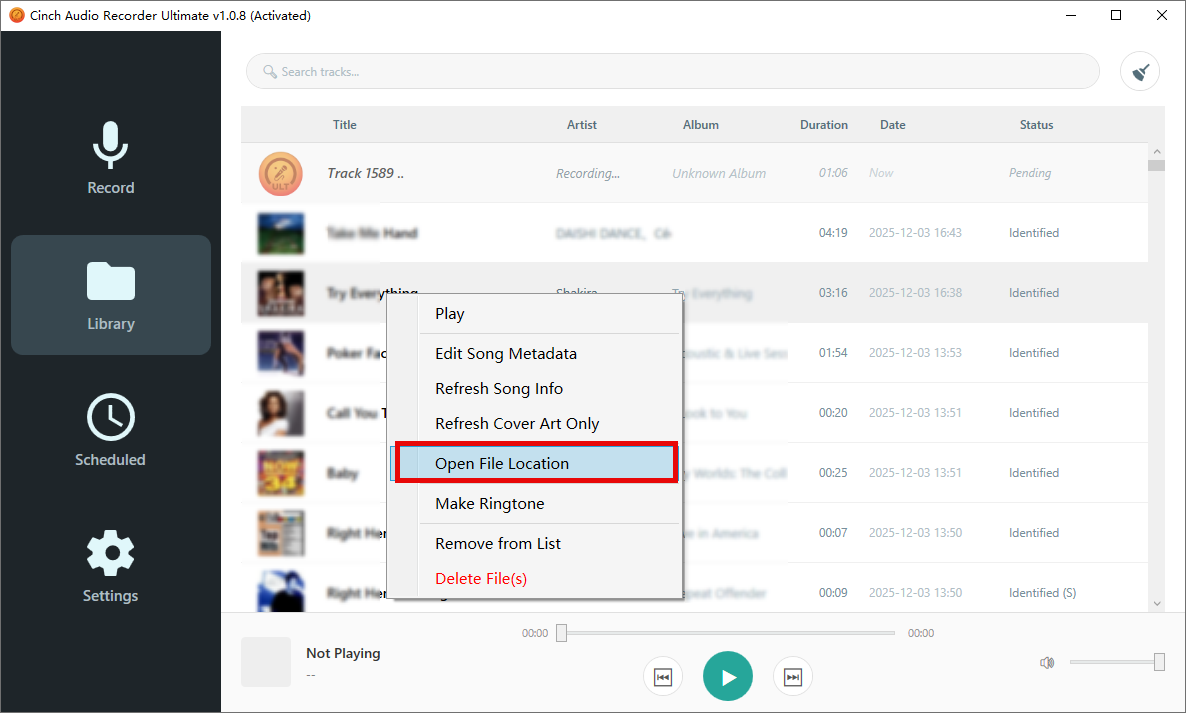
When recording finishes, click the “Library” tab on the left in Cinch. You’ll see every track you’ve recorded with full metadata—song names, artists, album art, all there.
Right-click any song and select “Open File Location.” This opens the folder where Cinch saved your MP3s. By default, it’s in your Music folder under a “Cinch” subfolder, but you can change this in settings.
Step 3: Transfer to Any Device
This is where Cinch’s power shines. Because you’ve got standard MP3 files, you can put them anywhere:
For iPhone: Connect your iPhone to your computer, open iTunes (or Finder on newer Macs), and drag the MP3 files into your Music library. Sync your phone, and songs appear in the native Music app. Play them in airplane mode without issues—no Spotify app needed.
For Android: Connect via USB, navigate to your phone’s Music folder, and copy-paste the files directly. They’ll show up in any music player app.
For MP3 players: Copy files to the device’s music folder just like any MP3. I loaded music onto my old iPod Shuffle this way—a device Spotify’s app will never support—and it works perfectly.
For car USB/SD cards: Copy files to a USB stick or SD card, plug it into your car stereo, and enjoy ad-free, subscription-free music on every drive. Works even in cars from 2005 that have no Bluetooth or apps.

Real example: Remote cabin vacation, zero cell service. I used Cinch before the trip to record 50 hours of music. Loaded it all onto a USB drive, plugged it into the cabin’s old stereo system, and we had music all week. Spotify’s offline mode couldn’t have done that—the DRM wouldn’t have worked on that USB stick.
⚖️ Legal Note: Recording music from Spotify using Cinch is intended for personal, non-commercial use only. Do not distribute, sell, or publicly share recorded files. Always respect artists’ rights and support them through legal streaming or purchases.
Pro Tips: Optimize Your Airplane Mode Music Setup

After years of flying with digital music, I’ve learned tricks making the whole experience smoother.
Before Your Flight Checklist:
- ⏰ Download/record at least 24 hours early (buffer time for tech issues)
- ✈️ Test playback in airplane mode the night before—don’t discover issues at 30,000 feet
- 🔋 Charge devices fully (airplane mode only saves ~20% battery) and bring a power bank
- 📂 Verify file locations—confirm songs actually transferred to your phone
- 💾 Free up storage: Spotify needs 500MB free space to function properly
Best Practices for Offline Music:
- 🎵 Create dedicated “Flight Playlists” for different moods:
- Sleep Mix: 2-3 hours of ambient/instrumental (first half of flight)
- Work Mix: 3-4 hours upbeat focus music (for productivity)
- Reading Mix: Instrumental/lo-fi beats (no lyrics to distract)
- 🎭 Mix genres strategically—even your favorite genre gets exhausting after 6 hours
- 🎙️ Download 2-3 podcasts for variety (45-min podcast = ~40MB vs 200 songs)
- 🎧 Use lossless formats (WAV/FLAC) if you have 128GB storage and quality headphones
- 💾 Keep backups on multiple devices (Murphy’s Law: devices fail when you need them most)
- ⏳ Record Spotify’s limited-time releases before they vanish (live sessions, exclusive remixes)
Personal tip: Bring wired headphones as backup. Bluetooth requires battery and can be finicky in airplane mode (some devices disable it entirely). Cheap wired earbuds saved me once when my AirPods died with 6 hours of flight left.
Troubleshooting: When Spotify Won’t Play in Airplane Mode
Even when you do everything right, technology finds ways to fail. Here are the most common problems and fixes:
“Spotify is set to offline” error:
- Verify downloads actually completed (green icons, not gray)
- Check storage space (Spotify needs 500MB free)
- Re-download problematic playlists (toggle download off, wait 10 seconds, toggle back on)
Music shows as downloaded but won’t play offline:
- Enable offline mode manually (Settings > Playback > Offline) before enabling airplane mode
- Update Spotify app to latest version (outdated versions have bugs)
- Clear cache (Settings > Storage > Clear Cache), then force-close and restart
Downloaded songs disappeared:
- Check if Premium subscription expired (auto-deletes all downloads)
- Verify you haven’t exceeded 5-device limit (Account Settings > Offline Devices on web)
- Use Cinch recordings as permanent backup insurance
Advanced Solutions:
Desktop users can add Cinch MP3s as “Local Files” in Spotify. Go to Settings > Local Files, toggle “Show Local Files” on, click “Add a Source,” and select your MP3 folder. Spotify scans and adds them to your library. Create playlists mixing Spotify tracks and your files, sync to mobile over Wi-Fi, and boom—recordings playable in Spotify’s app.
On Android, move Spotify downloads to SD card for more space. Go to Settings > Storage > SD Card. I do this on my Samsung—32GB internal is tight, but with a 128GB SD card, I can download hundreds of albums.
Conclusion
Can you play Spotify in airplane mode? Absolutely, and you now have multiple proven methods.
Spotify Premium users: Official offline mode works adequately for occasional flights. Download 24 hours early on stable Wi-Fi, manually enable offline mode before airplane mode, and you’re set. Just remember the limitations—subscription dependency, DRM restrictions, device issues.
Everyone seeking true freedom: Cinch Audio Recorder provides genuine music ownership. Real MP3 files working on any device, surviving subscription cancellations, eliminating device limitations. No subscription anxiety about next month’s payment. No frustration with unsupported devices.
I personally use both: Spotify Premium for streaming convenience and discovery, plus Cinch for my core library and offline backup. Best of both worlds—flexibility when I need it, reliability when I can’t afford failure. For more details on converting Spotify music, see our comprehensive guide on Spotify to MP3 conversion.
Your Action Plan for Tomorrow’s Flight:
- Tonight (5 minutes): Test airplane mode playback right now—don’t wait
- If it fails: Download Cinch’s free trial and start recording
- Before bed: Verify you have 500MB free storage and fully charged devices
Don’t wait until you’re at 35,000 feet to discover your music is inaccessible. The 10 minutes you invest tonight will save you hours of boredom tomorrow.
🎁 Special tip: Cinch offers a risk-free trial—record and test the full software before buying. I discovered it solves problems I didn’t even know I had. You might too.
Safe travels, and may your playlists never fail you mid-flight. 🎧✈️
FAQs
Q: Can I listen to Spotify on a plane without Premium?
A: Not officially through Spotify’s app, but you can use Cinch Audio Recorder to save Spotify songs as MP3 files before your flight for offline playback on any device without requiring a subscription.
Q: Why do my downloaded Spotify songs not play in airplane mode?
A: Ensure offline mode is enabled in Settings > Playback before enabling airplane mode. If issues persist, your downloads may be corrupted, storage may be full, or your Premium subscription may have expired.
Q: What’s the best format to save Spotify music for flights?
A: MP3 at 320kbps offers the best balance of quality and file size for mobile devices. If you have premium headphones and ample storage, WAV or FLAC provides lossless quality.
Q: Will Spotify work on airplane Wi-Fi?
A: Most airline Wi-Fi blocks streaming services to preserve bandwidth for all passengers, so don’t count on it. Download or record music beforehand to ensure uninterrupted playback.
Q: Can I use Cinch Audio Recorder on Mac?
A: Yes, Cinch works on both Windows and Mac with identical features. Download the Mac version from the official Cinch website.


